How to Play Minecraft Offline on Windows 10: Java and Bedrock

Prepare Java or Bedrock on Windows 10 for offline single-player, enable the right Xbox setting, and back up your local Minecraft worlds.
If Windows 10 connects your Bluetooth headset but its microphone is missing or silent, the usual causes are a wrong input device, a disabled recording endpoint, microphone privacy settings, or an app using its own audio selection. First confirm the headset is connected for calls, then select its microphone as Windows input and test it before changing drivers. Device names vary by headset and Bluetooth driver.
Confirm the headset has a microphone, is charged, and is not muted. Disconnect it from a phone or another PC while testing; some models route calls to only one active device.
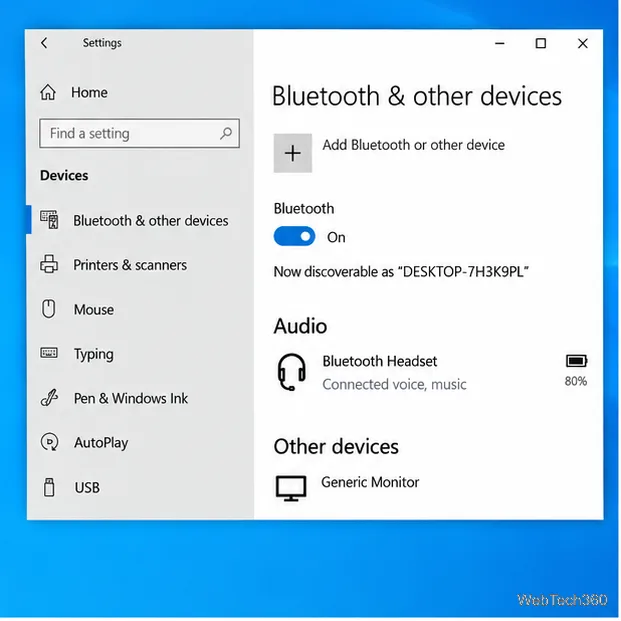
Open Start > Settings > Devices > Bluetooth & other devices and confirm the headset is connected; some models show “Connected voice, music.” If its entry is stale, choose Remove device, put the headset in pairing mode, then choose Add Bluetooth or other device > Bluetooth. Follow the maker’s pairing instructions. Microsoft’s Bluetooth pairing guide has the Windows steps.
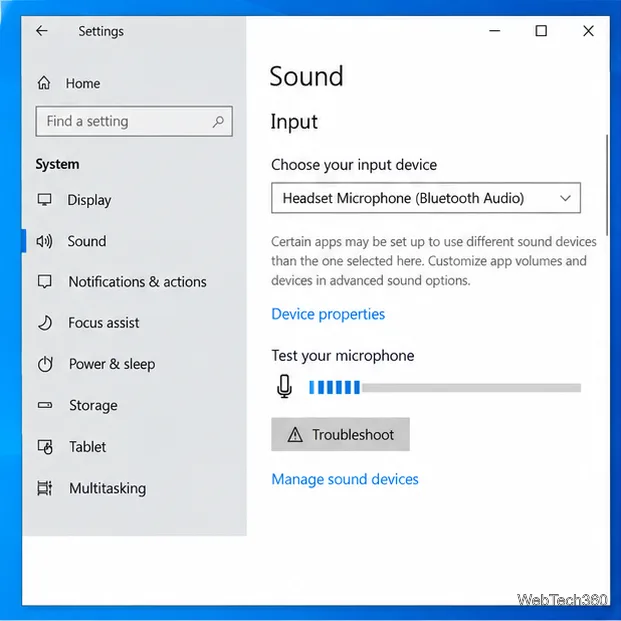
Go to Start > Settings > System > Sound. Under Input, open Choose your input device and select the headset microphone. It may appear as “Headset,” “Headset Microphone,” or a model name followed by “Hands-Free.” Speak and watch the input meter. If the meter moves, Windows is receiving audio; if it does not, check the headset’s mute switch and input level in Device properties.
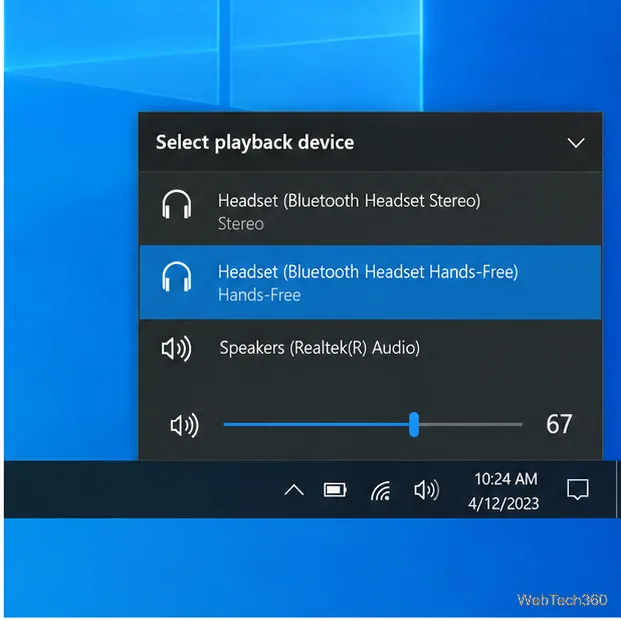
Some Bluetooth headsets appear as separate stereo and hands-free endpoints. Stereo is typically for music playback; Hands-Free is the call profile that includes the microphone. Select the headset or Hands-Free option from the taskbar speaker menu for a call, if Windows lists it. Names vary by model.
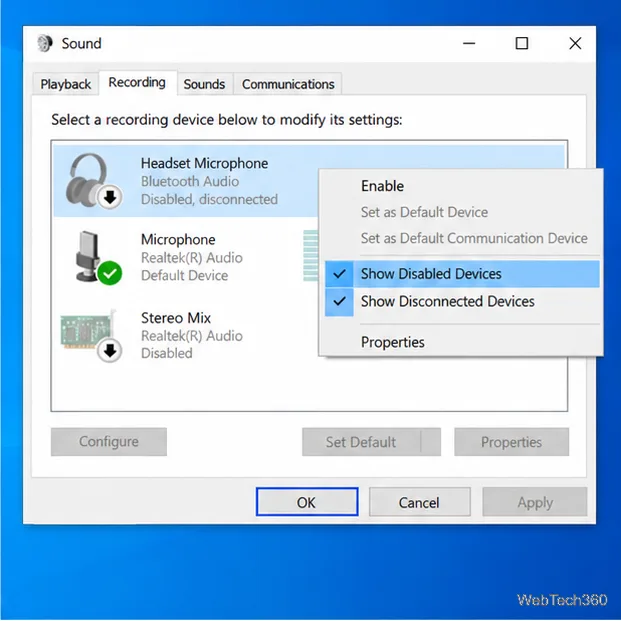
Press Windows+R, enter mmsys.cpl, and press Enter. On the Recording tab, right-click an empty area and select Show Disabled Devices. If the headset mic appears faded, right-click it and choose Enable. You can then set it as the default device or default communication device and select Apply.
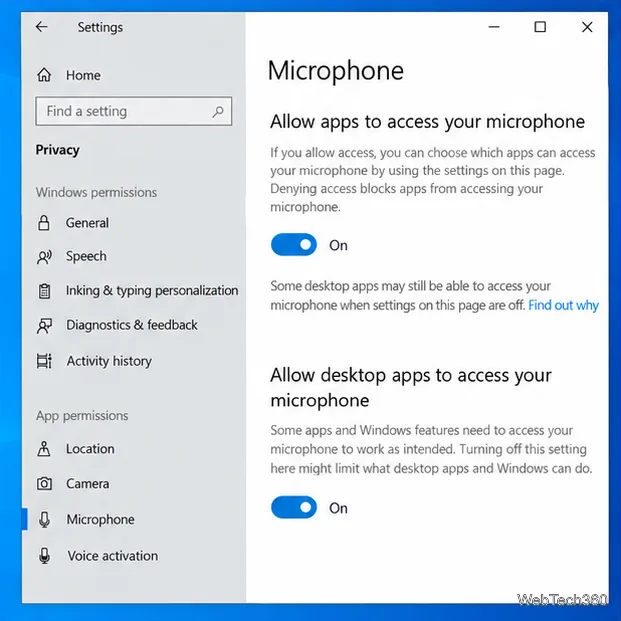
Windows may detect a mic but block apps from using it. Open Start > Settings > Privacy > Microphone and turn on Microphone access for this device and Allow apps to access your microphone. Enable the app if it appears in the Store app list. For desktop programs, also turn on Allow desktop apps to access your microphone. See Microsoft’s microphone permissions guide.
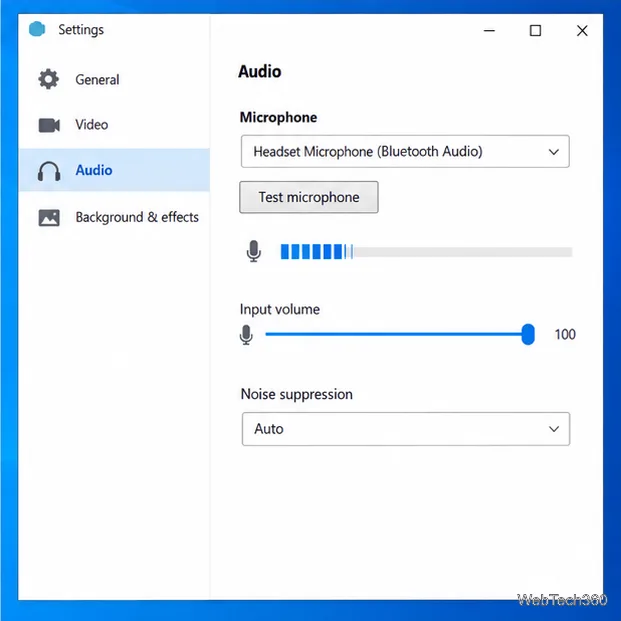
In the meeting, recording, or voice-chat app’s Audio or Devices settings, select the headset mic if the app has its own list. Apps may retain an old input after Windows changes. Reopen the app and test the microphone.
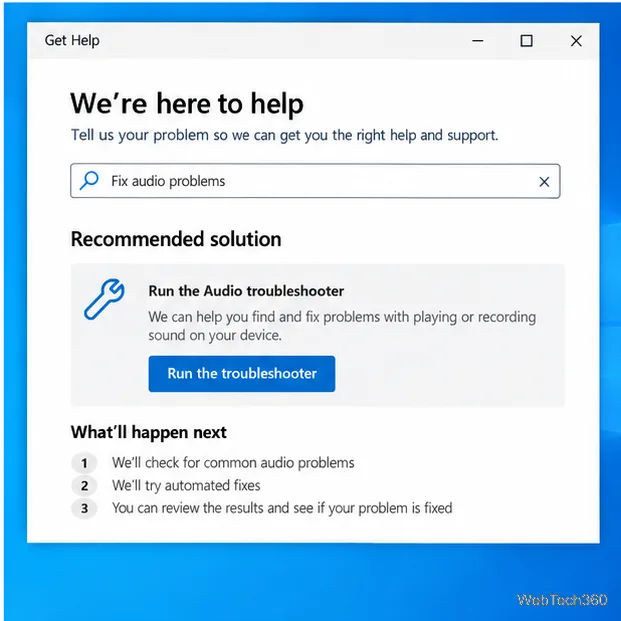
If the headset is still missing, open the Get Help app and search for audio or microphone problems. Run the offered diagnostic. You can also try Settings > Update & Security > Troubleshoot > Additional troubleshooters > Recording Audio, if available on your Windows 10 build. See Microsoft’s audio troubleshooting page.
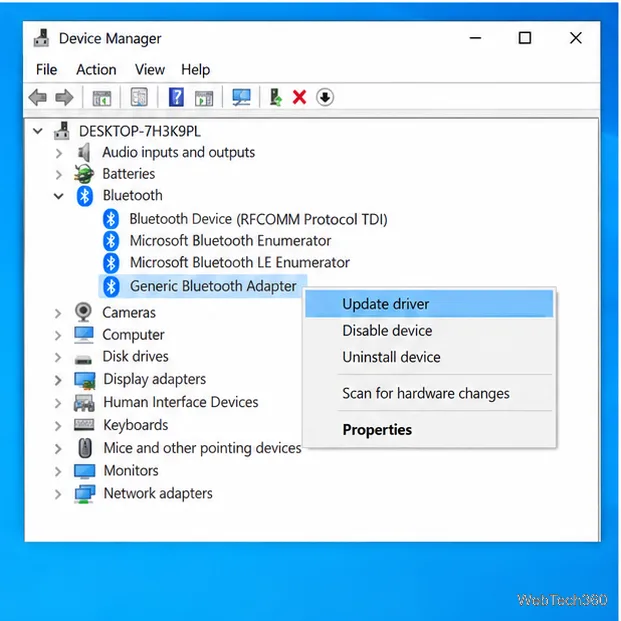
In Device Manager, expand Bluetooth, right-click the PC’s Bluetooth adapter, and select Update driver. Check Sound, video and game controllers for an audio driver update too, then restart Windows. If no update is offered, check the PC or adapter maker’s support page for your exact model. Avoid third-party driver download sites. See Microsoft’s audio driver update guidance.
If the microphone does not appear on another phone or computer either, check the headset’s mute controls, firmware, and manufacturer troubleshooting instructions; the microphone may need service. If it works on another device but not this PC after pairing, selecting the correct input, checking permissions, and updating the driver, the remaining issue is likely specific to the PC’s Bluetooth adapter or driver.
Windows 10 support ended on October 14, 2025. This does not disable Bluetooth audio, but Microsoft no longer provides regular security updates or technical support; see its end-of-support notice.
Prepare Java or Bedrock on Windows 10 for offline single-player, enable the right Xbox setting, and back up your local Minecraft worlds.
Change a file type icon in Windows 10 while keeping its current default app. Follow the FileTypesMan steps, handle icon picker issues, and restore the original setting.
Set PhysX in NVIDIA Control Panel on Windows 10, understand Auto-select vs. CPU or GPU, and learn when to use Windows Graphics settings instead.
Compare six free office suites for documents, spreadsheets, and presentations, including browser-based collaboration and offline desktop options.
Turn on Notepad’s Status Bar to see the current line and column in Windows 10, troubleshoot a disabled option, and learn when you need a line-number gutter.
Display a custom Windows dialog with a short PowerShell command, Command Prompt, or a reusable .bat or .ps1 file, including a title, icon, and buttons.
Fix Windows 10 update error 0x80071160 with Microsoft’s troubleshooter, a safe update-cache reset, DISM and SFC repairs, and a careful manual-install check.
Create a Windows 10 UEFI installer with Microsoft’s Media Creation Tool or Rufus, then boot and install safely without wiping the wrong drive.
Stop individual Edge tabs from crowding the Windows 10 Alt+Tab switcher. Change one Multitasking setting, limit recent tabs, and check why the option may be missing.
Enable Adobe’s PDF thumbnail handler, correct File Explorer’s icon settings, rebuild the thumbnail cache, and check OneDrive files that are not stored locally.








