How to Schedule a Wallpaper Change in Windows 10

Use Windows 10’s built-in slideshow for interval rotation or schedule an exact daily wallpaper change with Task Scheduler and a short PowerShell script.
A weak Wi-Fi signal on Windows 10 usually points to distance, walls or metal obstacles, interference, the router's radio band, or a Wi-Fi adapter/driver problem. Start by checking whether the signal itself is weak before changing Windows settings. If the Wi-Fi bars are strong but websites are slow, the problem may instead be your internet connection, router load, or ISP.
Windows 10 note: Microsoft ended standard support for Windows 10 on October 14, 2025. The operating system still works, and the steps below remain useful, but Microsoft recommends moving to Windows 11 when possible or using an eligible Extended Security Updates option. See Microsoft's Windows 10 end-of-support guidance.
Check the wireless icon on the Windows 10 taskbar. Fewer filled bars generally indicate a weaker connection to the access point. For a more detailed check, open Command Prompt and run netsh wlan show interfaces. Microsoft documents netsh wlan as a Windows 10 troubleshooting tool, and its wireless diagnostics can show interface and signal information.
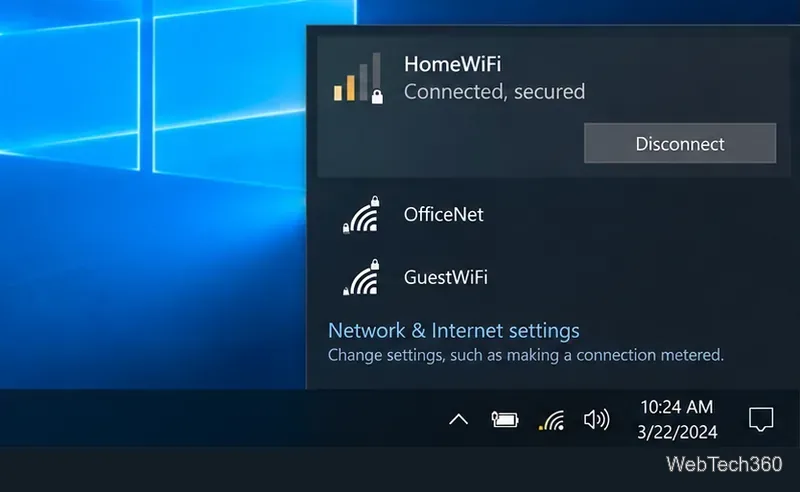
Move the PC close to the router for a quick comparison. If the signal becomes much stronger, Windows is probably not the main cause. Also compare another phone or laptop in the same location. If every device has poor reception there, focus on the router and coverage rather than resetting the PC.
Place the router in an open, elevated area rather than inside a cabinet, behind a TV, or beside large metal objects. Thick walls, floors, metal furniture, and some household electronics can weaken or interfere with wireless signals. Microsoft specifically recommends keeping access points away from obstructions and notes that router placement can materially affect coverage.
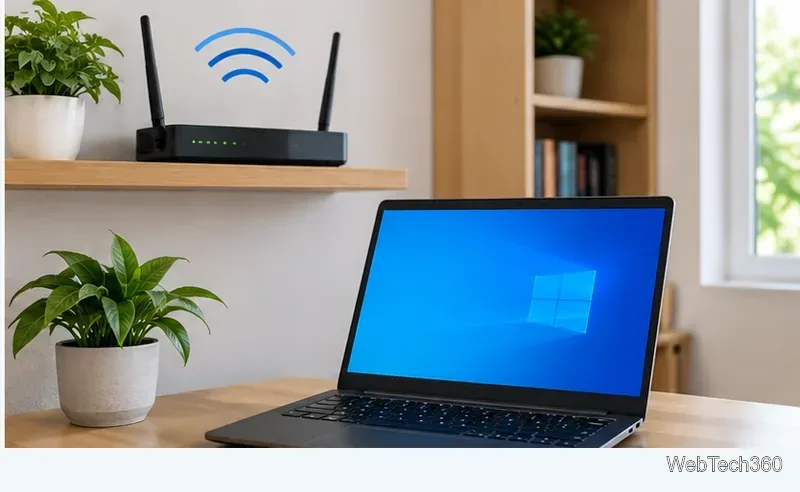
If your router offers separate bands, 2.4 GHz usually reaches farther and passes through obstacles better, while 5 GHz usually offers higher throughput at shorter range. Microsoft explains these trade-offs in its Wi-Fi and home layout guidance. When the PC is several rooms away, testing the 2.4 GHz network can be more useful than forcing 5 GHz.
If signal bars fluctuate or the connection behaves inconsistently even near the router, rebuild the saved Wi-Fi profile:
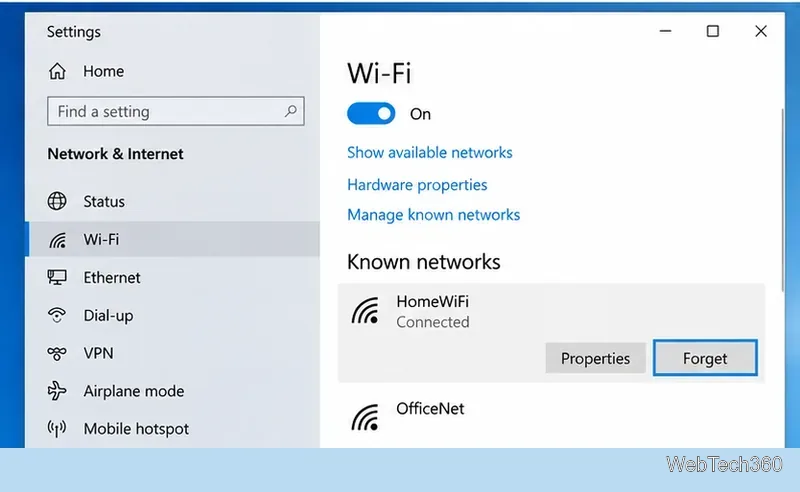
This does not increase radio power, but it can clear a damaged or outdated saved network profile. If the signal remains weak only in distant rooms, return to placement, band choice, or better coverage such as an additional access point or extender.
Microsoft recommends getting hardware drivers through Windows Update or the PC/network-adapter manufacturer. You can also check the adapter directly in Device Manager:
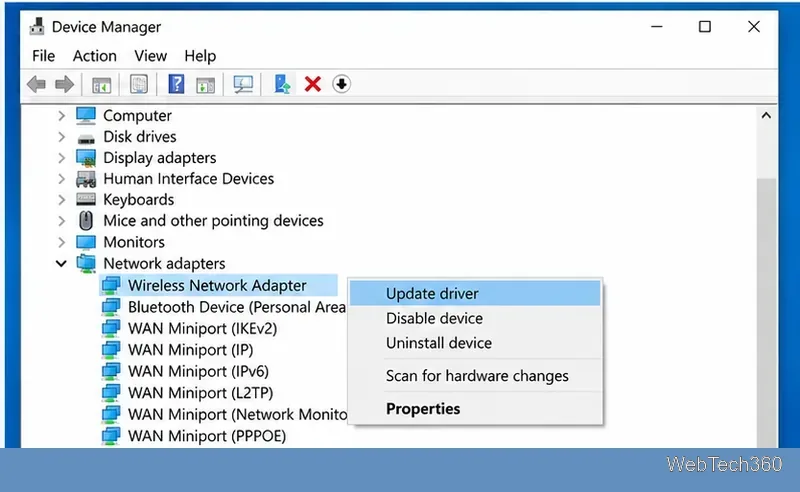
If the problem began immediately after a driver update, Device Manager also provides a Roll Back Driver option when a previous version is available. Microsoft documents both updating and rolling back drivers in its Device Manager driver guide.
For dropouts after sleep or periods of inactivity, open the adapter's Properties > Power Management tab and, if the option is present, clear Allow the computer to turn off this device to save power. Microsoft includes this as a Wi-Fi troubleshooting step.
If the connection is still unstable after the checks above, go to Settings > Network & Internet > Status > Network reset, select Reset now, and let the PC restart. Microsoft recommends network reset as a last step because it removes installed network adapters and restores their settings to defaults. You may need to reinstall VPN software or virtual networking components afterward. See Microsoft's Wi-Fi connection troubleshooting guide.
Do not change the MTU simply to make a weak Wi-Fi signal stronger. MTU controls packet size, not radio reception. Likewise, a setting such as Roaming Aggressiveness controls when some adapters search for another access point; it does not directly boost antenna power. On Intel adapters, the documented default for roaming aggressiveness is Medium, so only change advanced adapter properties when you understand the specific hardware setting.
If the PC shows a weak signal everywhere while other devices are strong in the same spot, the Wi-Fi adapter or antenna may be the limiting factor. A manufacturer driver update, a compatible external Wi-Fi adapter, or a hardware repair may then be more effective than additional Windows tweaks.
Use Windows 10’s built-in slideshow for interval rotation or schedule an exact daily wallpaper change with Task Scheduler and a short PowerShell script.
Choose a built-in alert tone or WAV file for Windows 10 message notifications, test the change, and troubleshoot apps that keep playing another sound.
Arrange Windows 10 apps in top-and-bottom rows with the taskbar’s Show windows stacked command, or create a reusable two-zone layout with PowerToys FancyZones.
Keep each display at its recommended resolution, arrange Windows 10 monitors accurately, and use MouseUnSnag to cross mismatched edges and sticky corners.
Find whether your connected Wi-Fi uses WPA2, WPA3, or an older security mode in Windows 10 with Settings, Command Prompt, or Control Panel.
Automatically lock Windows 10 after inactivity with a screen saver timer and sign-in prompt, then check how sleep settings affect the result.
Add a persistent colored ring around your Windows 10 mouse pointer with PenAttention, or use built-in pointer tools and PowerToys for temporary highlights.
Keep the Xbox Game Bar Performance widget visible over other windows on Windows 10, with CPU, GPU, and RAM readings you can position and unpin.
Capture two or more Windows 10 displays in one OBS video. Add a Display Capture source for each monitor, fit the canvas, and test the layout.
Create a GUID on Windows 10 with [guid]::NewGuid() or New-Guid, reuse it in a script, and learn when to look up an existing identifier.








