How to Play Minecraft Offline on Windows 10: Java and Bedrock

Prepare Java or Bedrock on Windows 10 for offline single-player, enable the right Xbox setting, and back up your local Minecraft worlds.
If your Xbox controller keeps disconnecting, start with the simple causes: weak batteries, a temporary pairing problem, outdated controller firmware, or wireless interference. On Xbox Series X|S and Xbox One, you can usually narrow the problem down quickly by checking power, restarting the controller and console, pairing the controller again, and testing it with a USB cable.
One important correction to older troubleshooting advice: an Xbox Wireless Controller does not need a PC to be re-paired with an Xbox console. The console and controller can pair directly using their Pair buttons. Also, Xbox consoles use Xbox Wireless for controller connections rather than relying on Bluetooth.
Low or unstable power can look like a wireless problem. Before changing settings, replace the AA batteries with a fresh pair or fully charge the rechargeable battery pack. If you use a third-party pack, test with standard AA batteries if possible so you can rule the pack out.
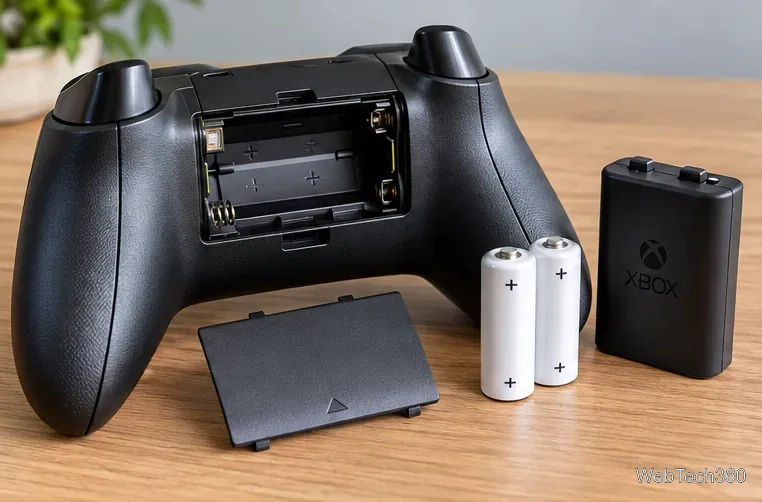
Restarting clears temporary controller and console states without deleting games or saved data. First, hold the Xbox button on the controller for several seconds until it turns off, then turn it back on.
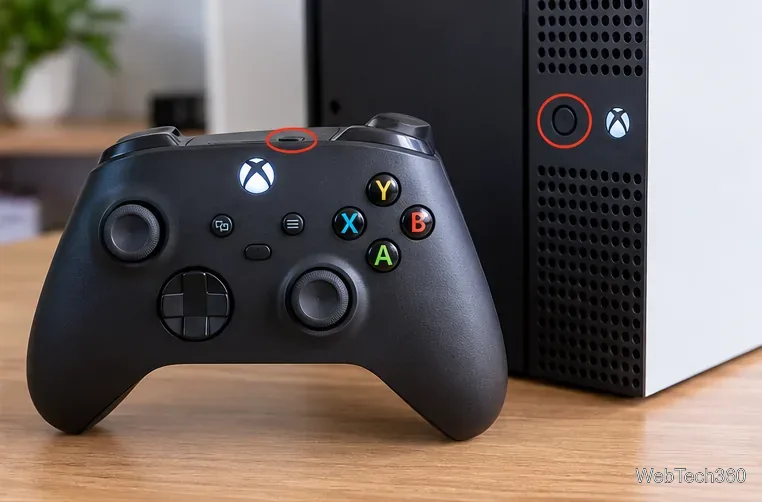
If the disconnects continue, restart the console. If the controller will not stay connected long enough to use the menus, press and hold the Xbox button on the front of the console for about 10 seconds until the console shuts down completely, then turn it on again. Microsoft documents restart and power-cycle options in Xbox Support's console restart guide.
A controller can lose or confuse its saved connection, especially after it has been used with another device. Re-pair it directly with the Xbox:
The exact Pair-button location differs between Xbox models, so use Microsoft's official Xbox Wireless Controller connection guide if you are unsure where the button is on your console.
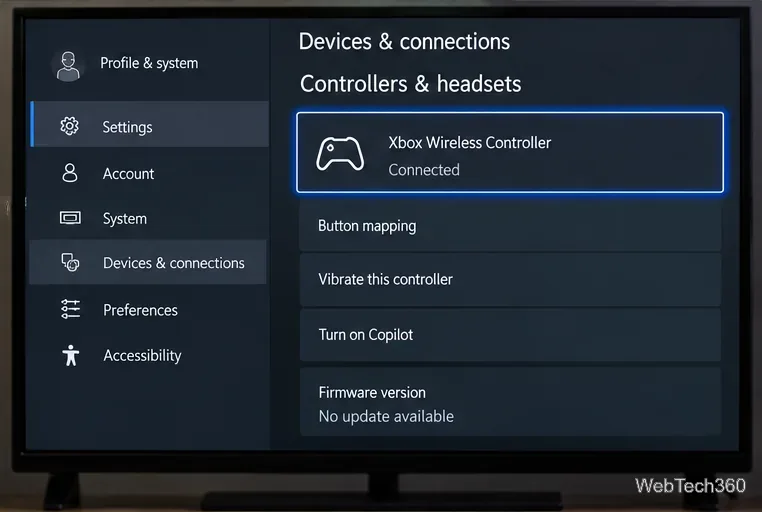
Controller firmware updates can address compatibility and stability problems, so this is one of the most important checks when disconnects keep returning.
Keep the controller connected and do not interrupt an update. Microsoft also provides current instructions on the Update your Xbox Wireless Controller support page.
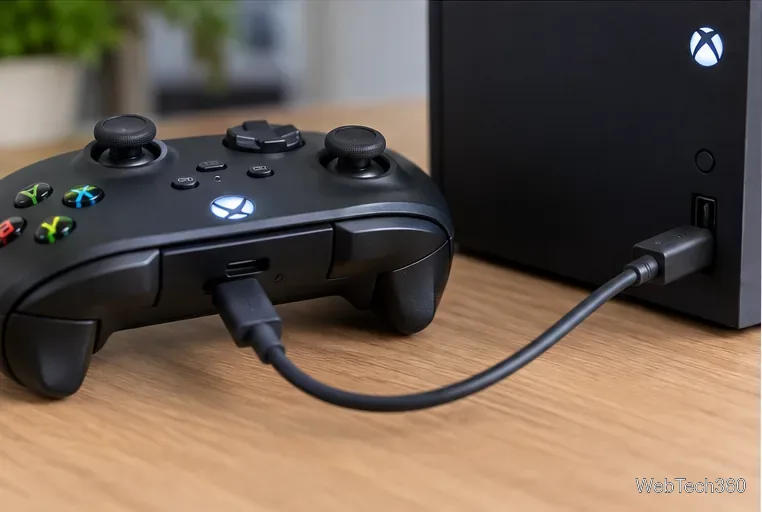
Connect the controller to the console with a data-capable USB cable. If it stays connected over USB but drops out wirelessly, that strongly points to the wireless link, controller power, or the controller's radio rather than the game itself.
For wireless testing, move closer to the console and temporarily remove obvious sources of interference from the immediate area. Avoid placing the console behind large metal objects or inside a tightly enclosed cabinet. Then test again with only the problem controller connected.
If the controller disconnects on multiple Xbox consoles, fails over both wireless and a known-good USB data cable, or will not stay powered with fresh batteries, a hardware fault becomes more likely. Test another controller on the same console if you can: if the second controller works normally, that further isolates the problem to the original controller.
At that point, use the Xbox Wireless Controller troubleshooting page and check the controller's warranty or service options rather than repeatedly resetting the console.
Prepare Java or Bedrock on Windows 10 for offline single-player, enable the right Xbox setting, and back up your local Minecraft worlds.
Change a file type icon in Windows 10 while keeping its current default app. Follow the FileTypesMan steps, handle icon picker issues, and restore the original setting.
Set PhysX in NVIDIA Control Panel on Windows 10, understand Auto-select vs. CPU or GPU, and learn when to use Windows Graphics settings instead.
Compare six free office suites for documents, spreadsheets, and presentations, including browser-based collaboration and offline desktop options.
Turn on Notepad’s Status Bar to see the current line and column in Windows 10, troubleshoot a disabled option, and learn when you need a line-number gutter.
Display a custom Windows dialog with a short PowerShell command, Command Prompt, or a reusable .bat or .ps1 file, including a title, icon, and buttons.
Fix Windows 10 update error 0x80071160 with Microsoft’s troubleshooter, a safe update-cache reset, DISM and SFC repairs, and a careful manual-install check.
Create a Windows 10 UEFI installer with Microsoft’s Media Creation Tool or Rufus, then boot and install safely without wiping the wrong drive.
Stop individual Edge tabs from crowding the Windows 10 Alt+Tab switcher. Change one Multitasking setting, limit recent tabs, and check why the option may be missing.
Enable Adobe’s PDF thumbnail handler, correct File Explorer’s icon settings, rebuild the thumbnail cache, and check OneDrive files that are not stored locally.








