How to Play Minecraft Offline on Windows 10: Java and Bedrock

Prepare Java or Bedrock on Windows 10 for offline single-player, enable the right Xbox setting, and back up your local Minecraft worlds.
If Microsoft Office 365 setup freezes on Windows 10, start by checking whether the installer is truly stuck or simply waiting on Windows Update or a slow connection. Microsoft’s current guidance is to restart and retry first, use the Microsoft 365 setup or uninstall troubleshooter when needed, and treat a freeze near 90% as a special case because Windows Installer may be busy.
Windows 10 note: Microsoft ended Windows 10 support on October 14, 2025. Microsoft 365 Apps can still receive security updates on Windows 10 through October 10, 2028, but Microsoft recommends moving to Windows 11 because reliability and support are limited on an unsupported operating system. See Microsoft’s Windows 10 and Microsoft 365 Apps support guidance.
Microsoft 365 uses a streaming installer, so the progress indicator may move slowly while files download or while Windows completes other installation work. If your connection is slow or unreliable, the setup can appear inactive even though it is still working.
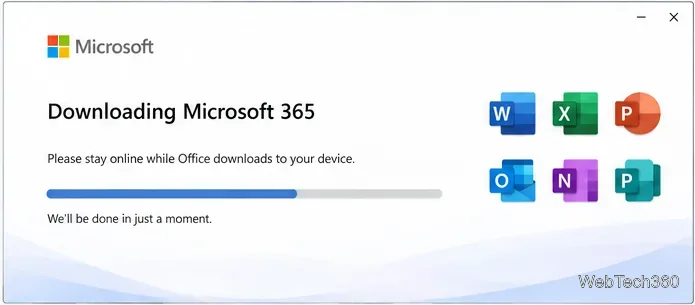
If the installation has been sitting at the same point for an unusually long time, restart the PC once and check whether Microsoft 365 actually installed. If it did not, continue with the fixes below. Microsoft lists restart, a wired connection, and the offline installer among its remedies for installations that take too long; see Office is taking a long time to install.
A setup that hangs at roughly 90% is a specific scenario. Microsoft says this can happen when Windows Installer is busy, including when Windows Update is using it.
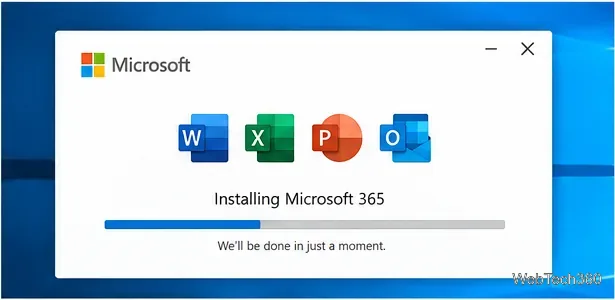
Use this 90% procedure only when it matches your symptom. Microsoft documents it separately in Installation of Office hangs at 90%.
If the installer still fails after a restart, use Microsoft’s Microsoft 365 setup troubleshooter in the Get Help app. It is available on Windows 10 or later and is designed to diagnose setup problems on the same PC where Microsoft 365 is being installed.
If setup remains broken, remove the partial installation before trying again. Microsoft recommends its uninstall troubleshooter for Microsoft 365 because it can clean up a failed or incomplete installation more thoroughly than simply closing the setup window.
You can start it from Microsoft’s Uninstall Microsoft 365 or Office from a PC page. Follow the Get Help prompts and restart when requested.
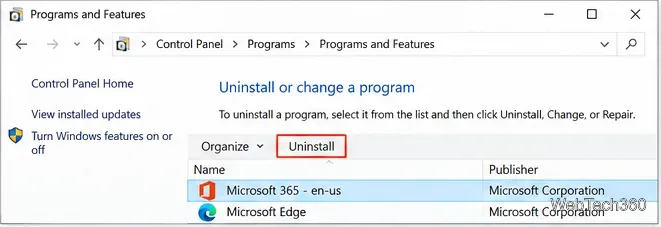
For a standard Click-to-Run installation, Microsoft also documents the traditional Control Panel route: search for Control Panel, open Programs > Programs and Features, select the Microsoft 365 product, and choose Uninstall.
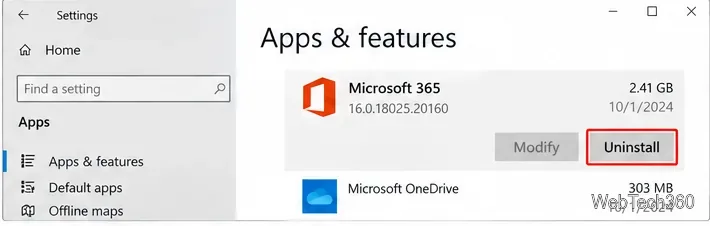
Microsoft Store installations use a different uninstall path. On Windows 10, open Settings > Apps > Apps & features, locate the Microsoft 365 or Office entry, and use the uninstall option shown for that package.
After the old installation has been removed and Windows has restarted, sign in with the Microsoft account or work/school account tied to your license and download Microsoft 365 again. Microsoft’s current installation instructions are on its download, install, or reinstall Microsoft 365 page.
If the normal online installer keeps freezing because of a proxy, firewall, antivirus product, or unreliable internet connection, try Microsoft’s Office offline installer. You still need internet access to download the installation image and activate Microsoft 365, but the actual Office files can then be installed locally.
For most Windows 10 systems, the shortest reliable path is: restart once, check the 90% Windows Update case if it applies, run the setup troubleshooter, then cleanly uninstall and reinstall Microsoft 365 if the problem continues.
Prepare Java or Bedrock on Windows 10 for offline single-player, enable the right Xbox setting, and back up your local Minecraft worlds.
Change a file type icon in Windows 10 while keeping its current default app. Follow the FileTypesMan steps, handle icon picker issues, and restore the original setting.
Set PhysX in NVIDIA Control Panel on Windows 10, understand Auto-select vs. CPU or GPU, and learn when to use Windows Graphics settings instead.
Compare six free office suites for documents, spreadsheets, and presentations, including browser-based collaboration and offline desktop options.
Turn on Notepad’s Status Bar to see the current line and column in Windows 10, troubleshoot a disabled option, and learn when you need a line-number gutter.
Display a custom Windows dialog with a short PowerShell command, Command Prompt, or a reusable .bat or .ps1 file, including a title, icon, and buttons.
Fix Windows 10 update error 0x80071160 with Microsoft’s troubleshooter, a safe update-cache reset, DISM and SFC repairs, and a careful manual-install check.
Create a Windows 10 UEFI installer with Microsoft’s Media Creation Tool or Rufus, then boot and install safely without wiping the wrong drive.
Stop individual Edge tabs from crowding the Windows 10 Alt+Tab switcher. Change one Multitasking setting, limit recent tabs, and check why the option may be missing.
Enable Adobe’s PDF thumbnail handler, correct File Explorer’s icon settings, rebuild the thumbnail cache, and check OneDrive files that are not stored locally.








