How to Schedule a Wallpaper Change in Windows 10

Use Windows 10’s built-in slideshow for interval rotation or schedule an exact daily wallpaper change with Task Scheduler and a short PowerShell script.
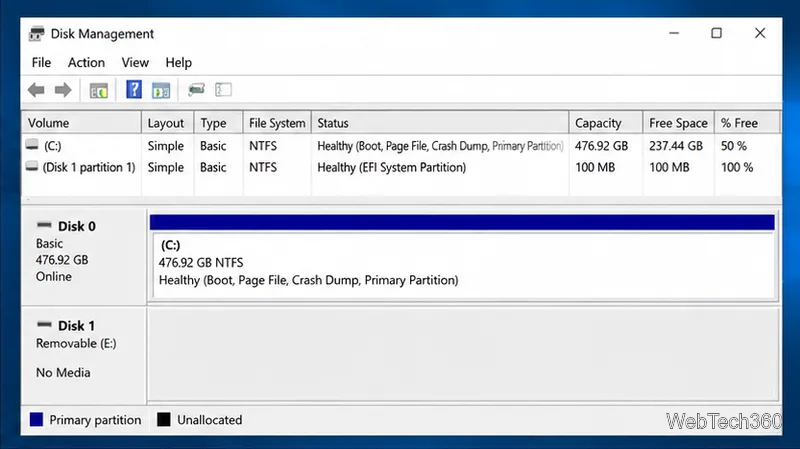
If Windows 10 shows “Please insert a disk into USB Drive” when a flash drive is already connected, Windows can usually see the USB device but cannot access usable storage on it. The fastest way to narrow down the cause is to check the drive in Disk Management. If it shows its real capacity, you may be dealing with a drive-letter, driver, or file-system problem. If it shows No Media or 0 bytes, the flash memory itself may have failed.
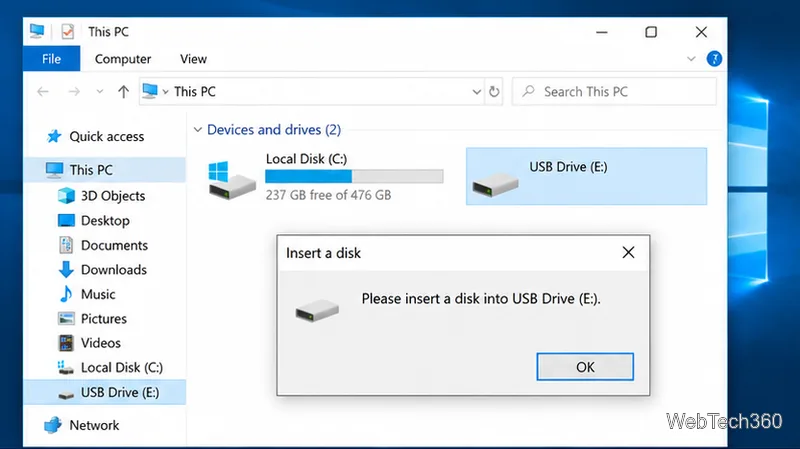
Before changing Windows settings, disconnect the drive and test the simplest possibilities. If the USB contains important files and it opens on another computer, copy those files immediately before trying repairs.
SanDisk gives the same direct-connection and second-computer checks for drives that show No Media or the insert-disk message in Windows: SanDisk No Media troubleshooting.
Right-click Start and choose Disk Management, or press Windows + R, type diskmgmt.msc, and press Enter. Microsoft documents both methods in its Disk Management guide.
| What Disk Management shows | What to do |
|---|---|
| Correct capacity and a Healthy volume | Try a different drive letter, then check the file system if needed. |
| RAW file system | Do not format if you need the files. Decide on data recovery first. |
| Unallocated space | If data is not needed, create and format a new volume. If data matters, stop and recover first. |
| No Media or 0 bytes | Retest the connection and another PC. If the result is unchanged, treat it as a likely hardware failure. |
Do not format a No Media drive. There is no accessible media for Windows to format. SanDisk notes that this condition can occur when the flash storage inside the device has failed; professional data recovery may be the only option when the files are valuable.
If the drive reports a normal capacity in Disk Management but behaves incorrectly, reinstall the device driver. Open Device Manager, expand Disk drives, right-click the affected USB storage device, and select Uninstall device. Disconnect the USB drive, restart Windows, and reconnect it. Windows should attempt to install the driver again.
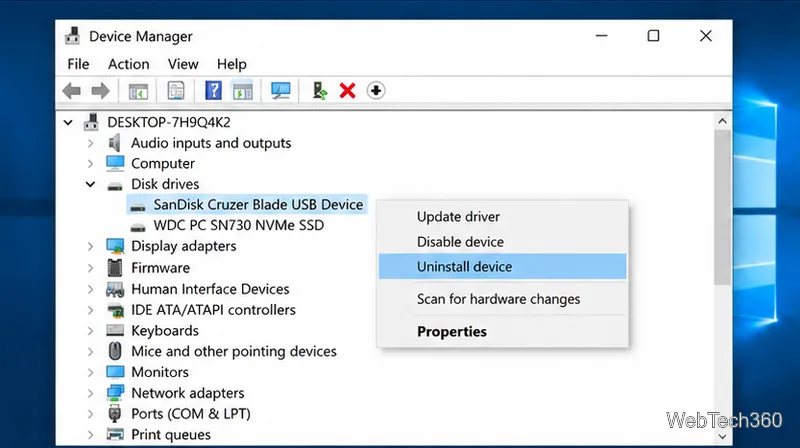
Microsoft's current guidance confirms that Windows can reinstall a device after you uninstall it in Device Manager and restart: reinstall a device driver in Windows. Avoid uninstalling every USB Root Hub unless multiple USB devices are failing and you are prepared for temporarily disconnected peripherals.
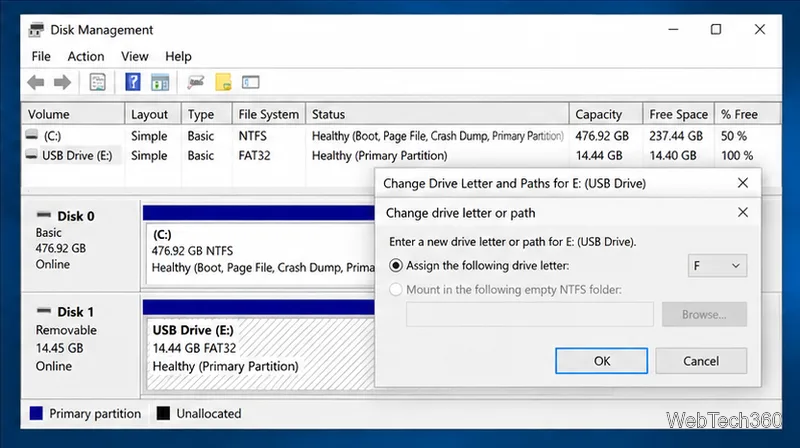
In Disk Management, right-click the USB volume and choose Change Drive Letter and Paths. Select Change, choose an unused letter, and confirm. This is useful when the volume is healthy but its current letter conflicts with another mapped or local drive.
If the USB has a drive letter and Windows can read the volume structure, open Command Prompt as administrator and run chkdsk E: /f, replacing E: with the USB's actual letter. Microsoft says /f fixes file-system errors on a volume. Because repair changes file-system metadata, back up readable files first and do not run CHKDSK as a first response to a failing or No Media device. See Microsoft's CHKDSK reference.
If the drive has normal capacity but the file system is unusable and you no longer need the existing data, format the volume from Disk Management or File Explorer. Formatting deletes the data on that volume. Microsoft also warns to back up anything you want to keep before formatting. A format is not a repair for a device that still reports No Media or 0 bytes.
If the same USB drive shows No Media or 0 bytes on more than one computer after direct connection tests, stop repeating software fixes. Drive-letter changes, CHKDSK, malware scans, and formatting cannot repair flash memory that the controller can no longer access. If the files are important, consider a professional recovery service before further writes or destructive actions. If the data is not important, replace the drive.
Use Windows 10’s built-in slideshow for interval rotation or schedule an exact daily wallpaper change with Task Scheduler and a short PowerShell script.
Choose a built-in alert tone or WAV file for Windows 10 message notifications, test the change, and troubleshoot apps that keep playing another sound.
Arrange Windows 10 apps in top-and-bottom rows with the taskbar’s Show windows stacked command, or create a reusable two-zone layout with PowerToys FancyZones.
Keep each display at its recommended resolution, arrange Windows 10 monitors accurately, and use MouseUnSnag to cross mismatched edges and sticky corners.
Find whether your connected Wi-Fi uses WPA2, WPA3, or an older security mode in Windows 10 with Settings, Command Prompt, or Control Panel.
Automatically lock Windows 10 after inactivity with a screen saver timer and sign-in prompt, then check how sleep settings affect the result.
Add a persistent colored ring around your Windows 10 mouse pointer with PenAttention, or use built-in pointer tools and PowerToys for temporary highlights.
Keep the Xbox Game Bar Performance widget visible over other windows on Windows 10, with CPU, GPU, and RAM readings you can position and unpin.
Capture two or more Windows 10 displays in one OBS video. Add a Display Capture source for each monitor, fit the canvas, and test the layout.
Create a GUID on Windows 10 with [guid]::NewGuid() or New-Guid, reuse it in a script, and learn when to look up an existing identifier.








