How to Play Minecraft Offline on Windows 10: Java and Bedrock

Prepare Java or Bedrock on Windows 10 for offline single-player, enable the right Xbox setting, and back up your local Minecraft worlds.
If Windows 10 shows a “Potentially unwanted app found” warning, open Windows Security and review the detection before doing anything else. If you do not recognize the file, or you are unsure why it is on your PC, quarantine or remove it. Only choose Allow on device when you have verified the file is legitimate and you accept the risk.
Microsoft uses the term potentially unwanted application (PUA) for software that is not necessarily malware but may display unwanted advertising, bundle other programs, use system resources unexpectedly, or otherwise create behavior you may not want. Microsoft Defender and Microsoft Defender SmartScreen can block these apps through Windows Security.
Microsoft recommends keeping PUA protection enabled. You can review Microsoft’s current guidance in Protect your PC from potentially unwanted applications.
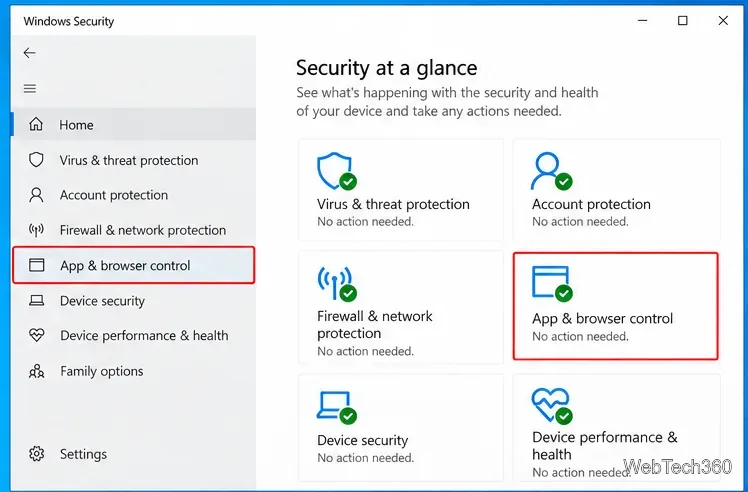
Do not allow the app just to make the notification disappear. First, identify exactly what Windows Security detected.
If the file came from an unknown download, a bundled installer, a cracked program, or a site you do not trust, the safest choice is to remove or quarantine it. Microsoft notes that a detected PUA can remain blocked without being removed until you choose an action, so the same item may continue to appear in later scans.
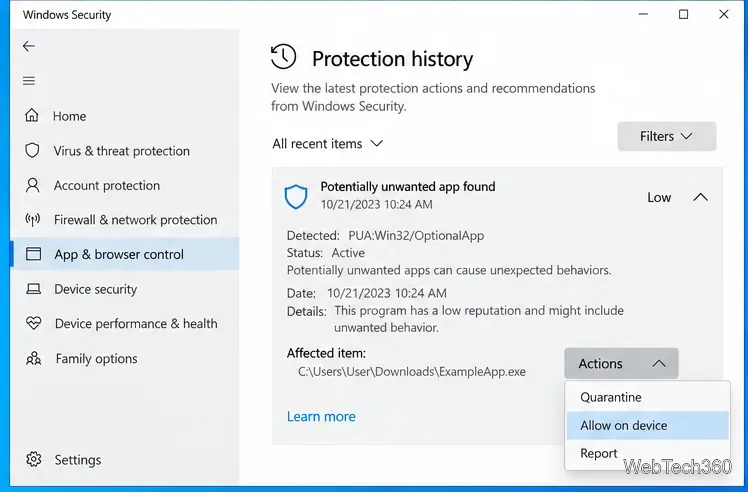
If you do not need the program, select the detection in Protection history and choose the available removal or quarantine action, then apply it. If the program is already installed, also uninstall it from Settings > Apps > Apps & features when it appears there.
After removal, delete any leftover installer you downloaded and run another Windows Security scan. If the warning returns, check the affected-item path again. A browser download, updater, or another installer may be recreating the same file.
If you are confident the detection is a false positive, you can allow the file. In Protection history, expand the detection, open Actions, and choose Allow on device if that option is available. Administrator approval may be required.
Before allowing it, verify the publisher, download source, and digital signature when available. If you are still uncertain, submit the file to the Microsoft Security Intelligence file submission portal rather than creating a permanent exception.
If Microsoft Defender SmartScreen blocked the download before installation, Microsoft says you may need to allow the item and then download it again.
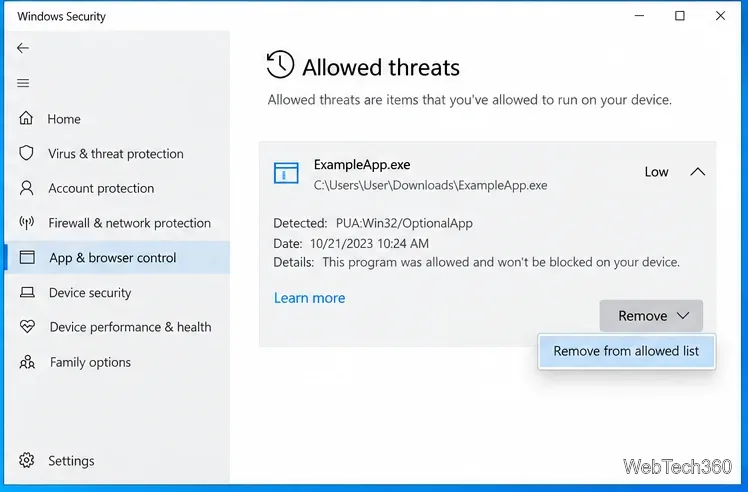
If you allowed the wrong file, remove that exception instead of turning off protection for the whole PC. Open Windows Security > Virus & threat protection, find Allowed threats, select the item, and remove it from the allowed list. Windows Security can then block the file again if it is detected.
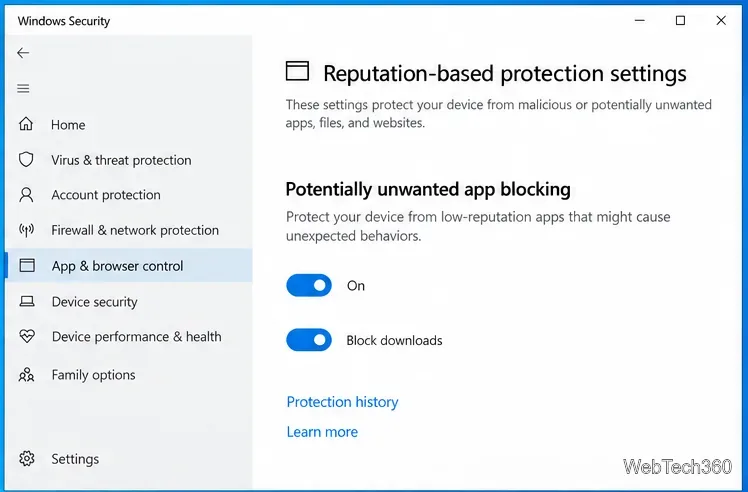
Do not disable Reputation-based protection simply to hide the message. In Windows 10, go to Windows Security > App & browser control > Reputation-based protection settings. Keep Potentially unwanted app blocking enabled. Microsoft recommends enabling both Block apps and Block downloads; the download-blocking option applies to Microsoft Edge, while app blocking can detect downloaded or installed PUAs on the device.
For details on the meanings of alerts and allowed items, see Microsoft’s Protection History documentation. The important choice is simple: remove a PUA you do not trust, or allow it only after you have verified that the detection is incorrect.
Prepare Java or Bedrock on Windows 10 for offline single-player, enable the right Xbox setting, and back up your local Minecraft worlds.
Change a file type icon in Windows 10 while keeping its current default app. Follow the FileTypesMan steps, handle icon picker issues, and restore the original setting.
Set PhysX in NVIDIA Control Panel on Windows 10, understand Auto-select vs. CPU or GPU, and learn when to use Windows Graphics settings instead.
Compare six free office suites for documents, spreadsheets, and presentations, including browser-based collaboration and offline desktop options.
Turn on Notepad’s Status Bar to see the current line and column in Windows 10, troubleshoot a disabled option, and learn when you need a line-number gutter.
Display a custom Windows dialog with a short PowerShell command, Command Prompt, or a reusable .bat or .ps1 file, including a title, icon, and buttons.
Fix Windows 10 update error 0x80071160 with Microsoft’s troubleshooter, a safe update-cache reset, DISM and SFC repairs, and a careful manual-install check.
Create a Windows 10 UEFI installer with Microsoft’s Media Creation Tool or Rufus, then boot and install safely without wiping the wrong drive.
Stop individual Edge tabs from crowding the Windows 10 Alt+Tab switcher. Change one Multitasking setting, limit recent tabs, and check why the option may be missing.
Enable Adobe’s PDF thumbnail handler, correct File Explorer’s icon settings, rebuild the thumbnail cache, and check OneDrive files that are not stored locally.








