How to Play Minecraft Offline on Windows 10: Java and Bedrock

Prepare Java or Bedrock on Windows 10 for offline single-player, enable the right Xbox setting, and back up your local Minecraft worlds.
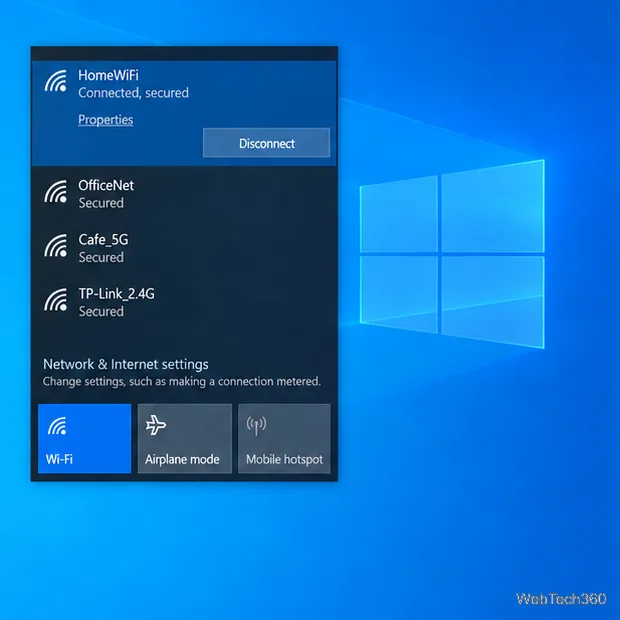
If Windows 10 shows “SmartScreen can’t be reached right now” when you open a downloaded app, Windows could not get a reputation check at that moment. The message does not prove the file is safe. Keep SmartScreen on, restore its network access, and retry. Do not run an unfamiliar file just to clear the warning.
Microsoft Defender SmartScreen checks the reputation of downloaded apps and files. An unfamiliar program may still receive a warning even when SmartScreen is working. See Microsoft’s SmartScreen overview.
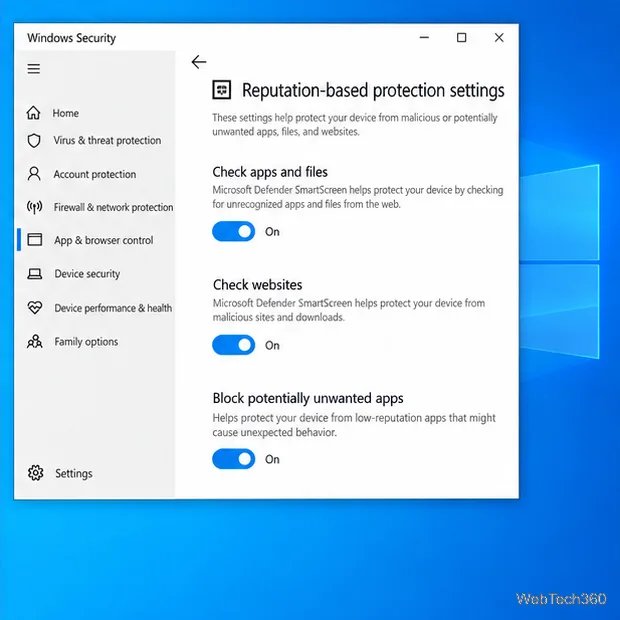
Open Start > Windows Security > App & browser control > Reputation-based protection settings, then turn on Check apps and files. This setting checks downloaded apps and files. The separate Microsoft Edge SmartScreen option covers Edge browsing and downloads.
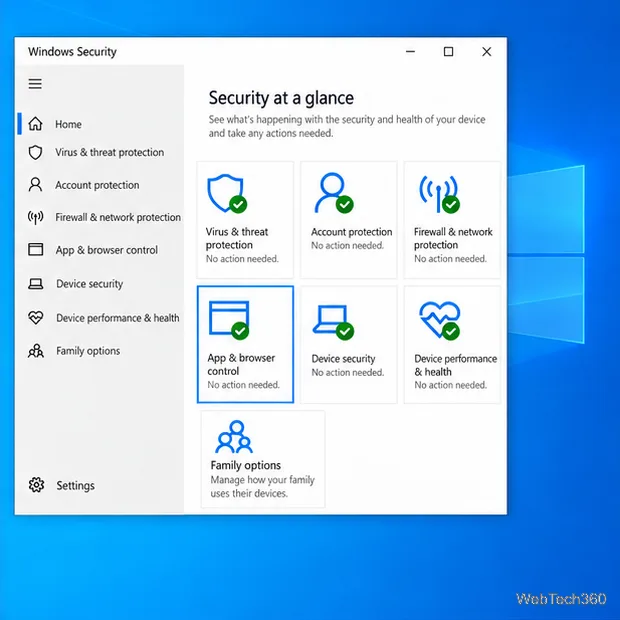
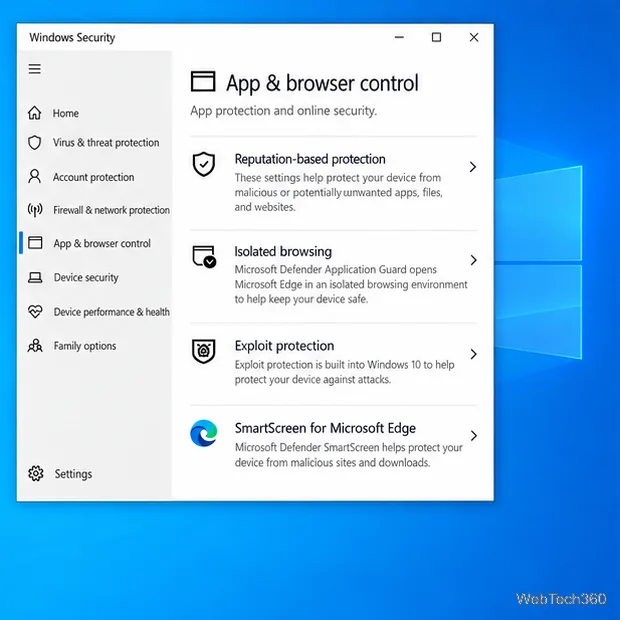
If the control is missing or grayed out, a work or school administrator may manage it. Do not try to override a managed setting. See Microsoft’s App & browser control guide.
Open Settings > Network & Internet > Proxy and review automatic and manual proxy settings. Do not erase an address or setup script you do not recognize; an organization may require it. If you personally configured a VPN or proxy, disconnect it briefly to test, then restore it. Do not disable Windows Firewall or antivirus protection.
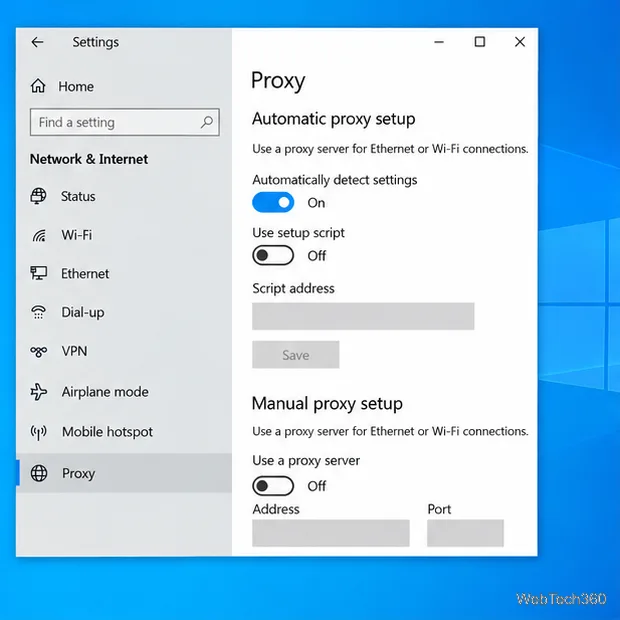
If SmartScreen works on another network, ask the network administrator whether a proxy or filter blocks access. Microsoft explains these options in its Windows proxy guide.
Restart Windows after changing network settings. Then go to Settings > Update & Security > Windows Update, select Check for updates, install updates offered for the PC, and restart if prompted. Also correct the date, time, or time zone if they are wrong.
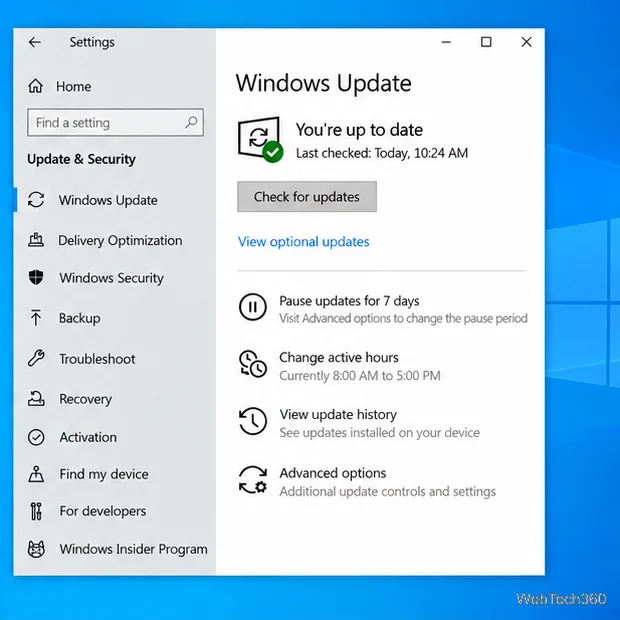
Regular Windows 10 support ended on October 14, 2025. Eligible consumer PCs enrolled in Microsoft’s Extended Security Updates program can receive security updates through October 12, 2027; eligibility and options vary by region, and organizations have separate terms. See Microsoft’s consumer ESU details.
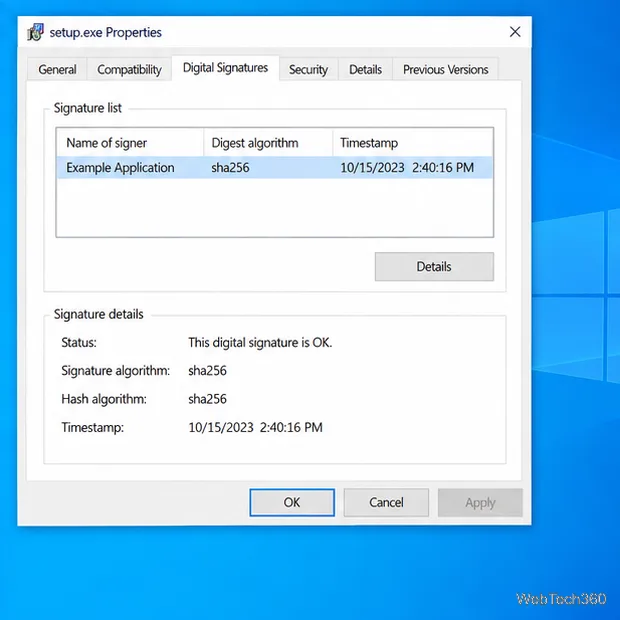
If only one download triggers the message, get a fresh copy from the publisher’s official website, not a mirror or search ad. For an installer with a Digital Signatures tab in Properties, check that the signer is the expected publisher and that Windows reports the signature as valid. A valid signature is useful evidence, not a guarantee of safety; some legitimate apps are unsigned.
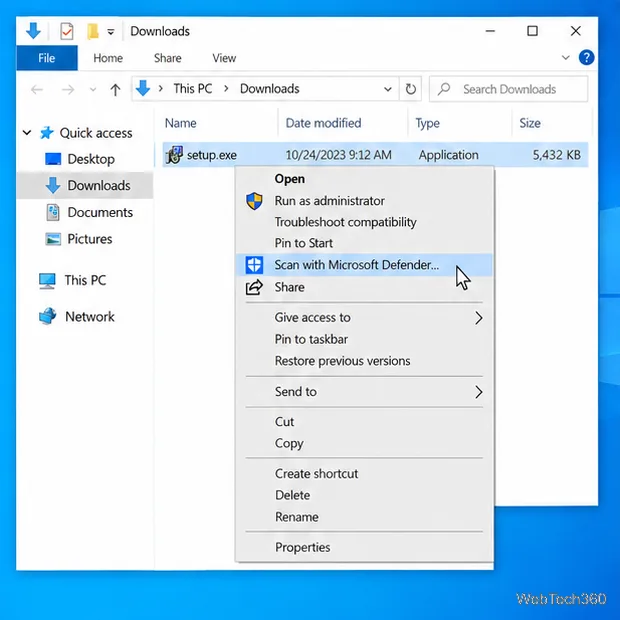
In File Explorer, right-click the installer and select Scan with Microsoft Defender. Some Windows 10 builds put this under Show more options. Follow Microsoft’s file-scanning instructions.
VirusTotal can provide another opinion for a file that is not confidential, but standard submissions are shared with examining partners. Its service description explains this sharing. A clean result does not prove a file is safe and is not a reason by itself to bypass SmartScreen.
Do not use it just to clear an unresolved check. SmartScreen cannot provide a current reputation result while unreachable. Wait and retry, or verify the publisher, source, and file before deciding. If you cannot establish trust, delete the download and contact the publisher. Do not disable SmartScreen globally to open one installer.
If it affects multiple trusted downloads on more than one network, but normal browsing works, a managed policy, endpoint-security tool, or temporary service/network problem may be involved. On a work or school PC, send your administrator the exact message and when it occurred. If you believe Microsoft flagged an app incorrectly, use the SmartScreen file-submission guidance and choose Microsoft Defender SmartScreen as the product.
Prepare Java or Bedrock on Windows 10 for offline single-player, enable the right Xbox setting, and back up your local Minecraft worlds.
Change a file type icon in Windows 10 while keeping its current default app. Follow the FileTypesMan steps, handle icon picker issues, and restore the original setting.
Set PhysX in NVIDIA Control Panel on Windows 10, understand Auto-select vs. CPU or GPU, and learn when to use Windows Graphics settings instead.
Compare six free office suites for documents, spreadsheets, and presentations, including browser-based collaboration and offline desktop options.
Turn on Notepad’s Status Bar to see the current line and column in Windows 10, troubleshoot a disabled option, and learn when you need a line-number gutter.
Display a custom Windows dialog with a short PowerShell command, Command Prompt, or a reusable .bat or .ps1 file, including a title, icon, and buttons.
Fix Windows 10 update error 0x80071160 with Microsoft’s troubleshooter, a safe update-cache reset, DISM and SFC repairs, and a careful manual-install check.
Create a Windows 10 UEFI installer with Microsoft’s Media Creation Tool or Rufus, then boot and install safely without wiping the wrong drive.
Stop individual Edge tabs from crowding the Windows 10 Alt+Tab switcher. Change one Multitasking setting, limit recent tabs, and check why the option may be missing.
Enable Adobe’s PDF thumbnail handler, correct File Explorer’s icon settings, rebuild the thumbnail cache, and check OneDrive files that are not stored locally.








