How to Play Minecraft Offline on Windows 10: Java and Bedrock

Prepare Java or Bedrock on Windows 10 for offline single-player, enable the right Xbox setting, and back up your local Minecraft worlds.
The “Can’t play” video error on Windows 10 usually comes down to one of four things: the player does not support the codec inside the file, the Movies & TV app is malfunctioning, Windows is missing media components, or the video itself is incomplete or damaged. Start by opening the same file in another trusted player. If it works there, focus on codecs or the Windows app; if it fails everywhere, replace or re-copy the file.
Note: Windows 10 reached end of support on October 14, 2025. The operating system still works, but Microsoft recommends moving to a supported Windows release or using an eligible Extended Security Updates option while transitioning. See Microsoft’s Windows 10 support notice.
A different player is the fastest way to separate a Windows app or codec problem from a bad file. VLC is a useful test because it includes support for many media formats. Download it only from the official VideoLAN website.
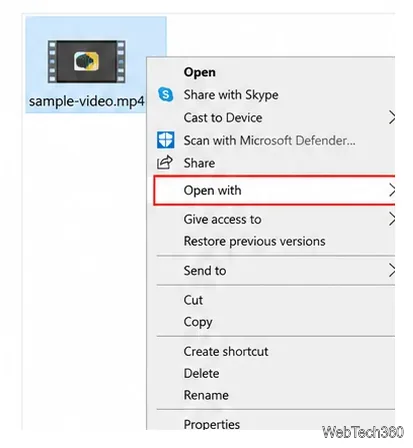
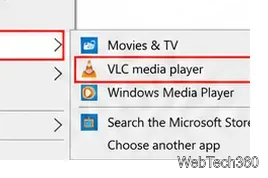
If the video plays normally in VLC, the file is probably usable. Continue with the codec and app fixes below. If VLC also refuses to open it, skips large sections, or stops at the same point every time, jump to the fresh-copy step.
A file extension does not tell you everything about the video inside it. For example, two .mp4 files can use different video or audio codecs. If VLC can play the file, converting it to a broadly supported MP4 profile can make playback more reliable in Windows apps.
.mp4, then start the conversion.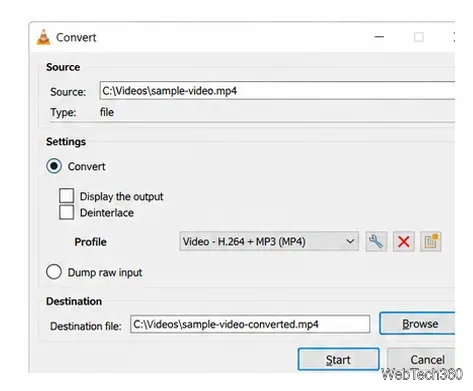
Conversion can fix a compatibility problem, but it cannot recreate frames or audio that are missing from a corrupted download or failed camera transfer.
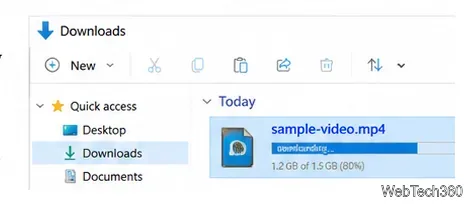
If the file fails in multiple players or conversion stops with errors, get a fresh copy from the original source. For a download, delete the incomplete copy and download it again over a stable connection. For a phone, camera, SD card, or external drive, copy the file again and keep the original until the new copy is verified.
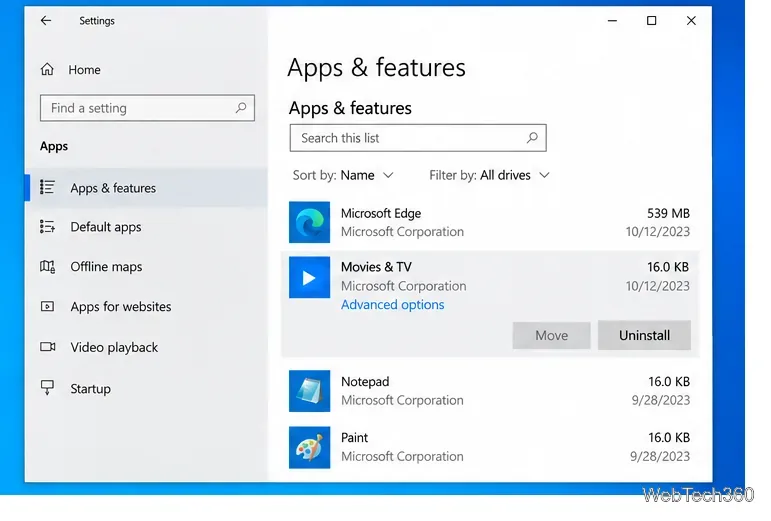
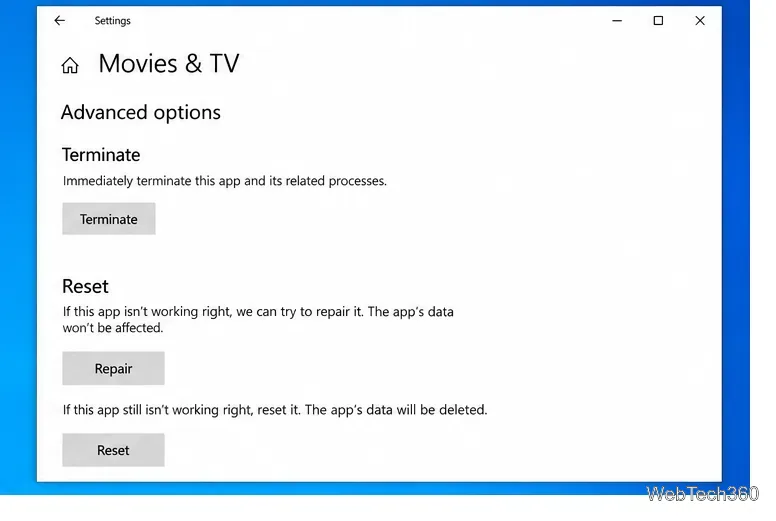
If the video works in VLC but not in Movies & TV, repair the Windows app before changing the file. Microsoft’s current app repair instructions still provide a Windows 10 path.
Microsoft notes that Windows supports many common codecs, while formats such as HEVC/H.265, VP9, AV1, MPEG-2, or OGG-based media may need an additional extension depending on the player and Windows configuration. Microsoft also warns against installing random all-in-one codec packs from untrusted sites. Check the Microsoft codec FAQ and use Microsoft Store or the codec provider’s official site.
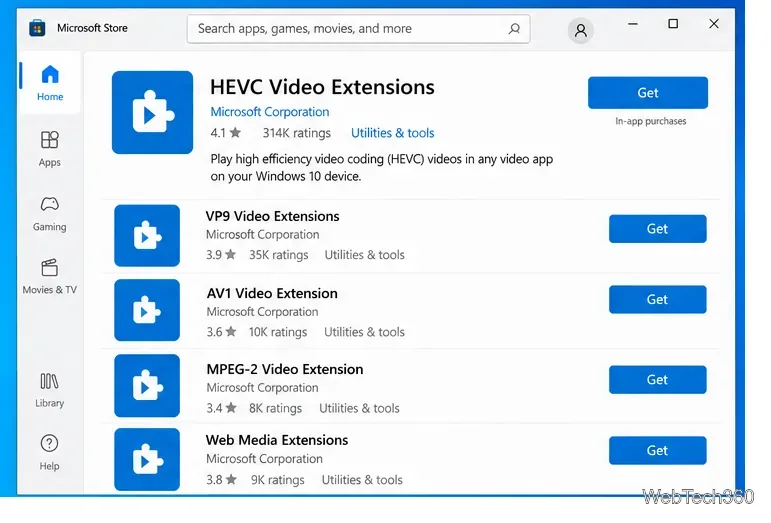
If one MP4 plays and another does not, do not assume the .mp4 extension proves they use the same codec. The container and the encoded streams are separate.
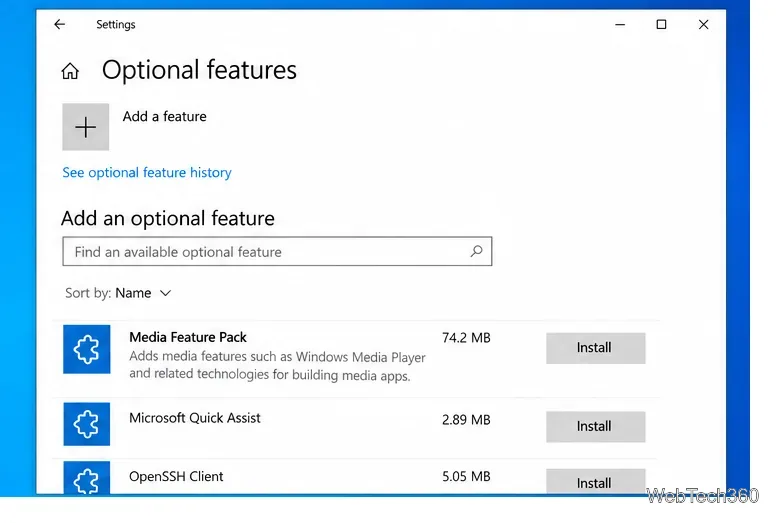
If you use a Windows 10 N edition, core media technologies are not included by default. Microsoft says the Media Feature Pack is available as an Optional Feature.
In most cases, the quickest diagnosis is simple: if another player can open the video, the file is probably fine and Windows needs an app or codec fix. If no reputable player can read it, replacing the file is usually more effective than repeatedly changing Windows settings.
Prepare Java or Bedrock on Windows 10 for offline single-player, enable the right Xbox setting, and back up your local Minecraft worlds.
Change a file type icon in Windows 10 while keeping its current default app. Follow the FileTypesMan steps, handle icon picker issues, and restore the original setting.
Set PhysX in NVIDIA Control Panel on Windows 10, understand Auto-select vs. CPU or GPU, and learn when to use Windows Graphics settings instead.
Compare six free office suites for documents, spreadsheets, and presentations, including browser-based collaboration and offline desktop options.
Turn on Notepad’s Status Bar to see the current line and column in Windows 10, troubleshoot a disabled option, and learn when you need a line-number gutter.
Display a custom Windows dialog with a short PowerShell command, Command Prompt, or a reusable .bat or .ps1 file, including a title, icon, and buttons.
Fix Windows 10 update error 0x80071160 with Microsoft’s troubleshooter, a safe update-cache reset, DISM and SFC repairs, and a careful manual-install check.
Create a Windows 10 UEFI installer with Microsoft’s Media Creation Tool or Rufus, then boot and install safely without wiping the wrong drive.
Stop individual Edge tabs from crowding the Windows 10 Alt+Tab switcher. Change one Multitasking setting, limit recent tabs, and check why the option may be missing.
Enable Adobe’s PDF thumbnail handler, correct File Explorer’s icon settings, rebuild the thumbnail cache, and check OneDrive files that are not stored locally.








