How to Play Minecraft Offline on Windows 10: Java and Bedrock

Prepare Java or Bedrock on Windows 10 for offline single-player, enable the right Xbox setting, and back up your local Minecraft worlds.
If Wi-Fi disconnects whenever you lock your Windows 10 PC, first determine whether the connection drops at the moment you press Win+L or only after the computer later enters sleep. Locking the screen by itself should not require Wi-Fi to disconnect. In most cases, the problem is caused by a wireless adapter power setting, a power plan, or sleep behavior rather than the lock screen itself.
Start with the power-management fixes below. Microsoft includes both adapter power management and the Wireless Adapter power plan among its recommended steps for frequent Wi-Fi drops. See Microsoft's Wi-Fi troubleshooting guide.
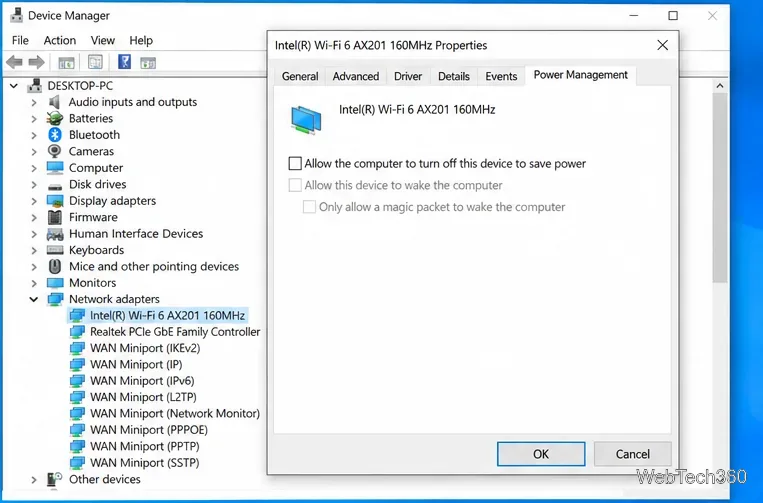
This is the best first fix when Wi-Fi disappears after the screen is locked or after the PC sits idle. If your adapter does not show a Power Management tab, skip to the next method; the available controls depend on the adapter and driver.
Windows can also reduce wireless power through the active power plan. Microsoft recommends setting the wireless adapter's power-saving mode to Maximum Performance when the connection drops frequently.
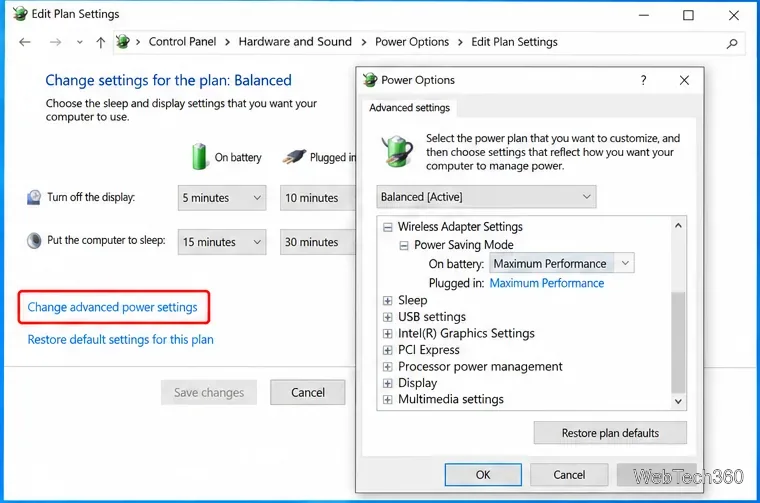
Maximum Performance can use more battery power on a laptop, so you can test it first on battery and change it back later if it does not affect the disconnects.
If Wi-Fi remains connected immediately after Win+L but drops after the display turns off or the PC sleeps, you are dealing with sleep behavior rather than a lock-screen bug.
On some Windows 10 PCs, go to Settings > System > Power & sleep. If you see When my PC is asleep and on battery power, disconnect from the network, choose Never when you need networking to stay available during sleep.
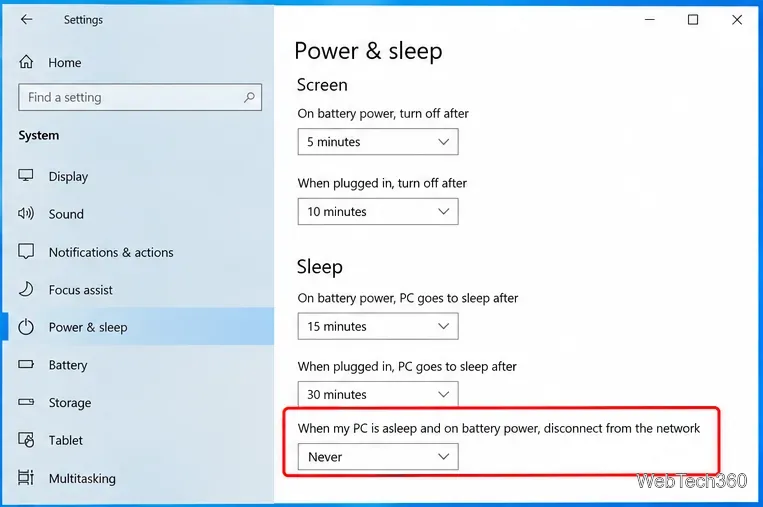
This option is not available on every PC. Microsoft notes that newer Modern Standby systems use Windows-managed networking behavior, and the older standby-connectivity setting was deprecated starting with Windows 10 version 2004. On Modern Standby hardware, Windows may deliberately reduce network activity during sleep to save power and reconnect when the system resumes. Read Microsoft's Modern Standby network connectivity documentation for the current behavior.
Because of that change, avoid registry edits that merely expose old hidden sleep options. The registry method commonly suggested in older guides does not directly fix Wi-Fi adapter power management and is not the preferred first-line solution.
If the issue started after a driver or Windows update, install the newest Wi-Fi driver supplied for your exact PC or adapter model. You can also uninstall the wireless adapter in Device Manager and restart Windows so the adapter is detected again. Before uninstalling, download a backup driver from the PC or Wi-Fi adapter manufacturer in case Windows cannot restore it automatically.
For Windows 10, open Settings > Network & Internet > Status and run Network troubleshooter. If the connection still breaks, use Network reset as a last resort. Microsoft says Network reset removes installed network adapters and reinstalls them with default settings after restart.
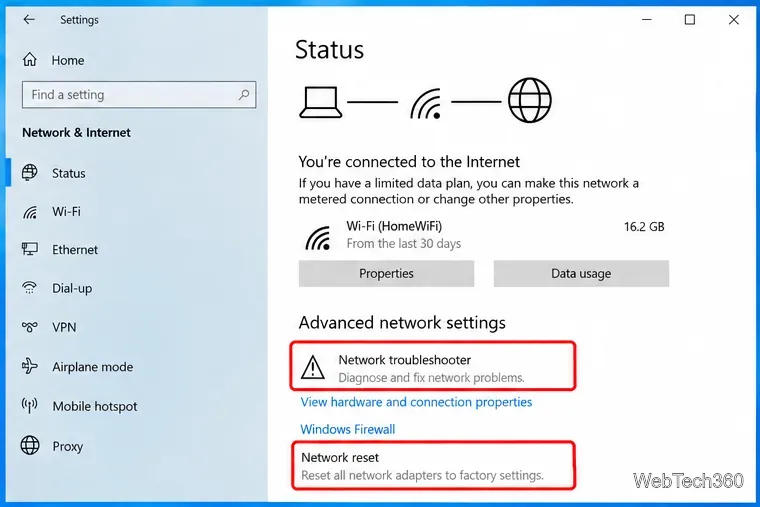
Be aware that Network reset can require you to reinstall or reconfigure VPN software, Hyper-V virtual switches, and other networking tools.
Windows 10 reached end of support on October 14, 2025. The operating system still runs, but standard security updates and technical support have ended. If you continue using Windows 10, review Microsoft's Windows 10 end-of-support options, including Extended Security Updates where available, or upgrade to a supported Windows version.
Prepare Java or Bedrock on Windows 10 for offline single-player, enable the right Xbox setting, and back up your local Minecraft worlds.
Change a file type icon in Windows 10 while keeping its current default app. Follow the FileTypesMan steps, handle icon picker issues, and restore the original setting.
Set PhysX in NVIDIA Control Panel on Windows 10, understand Auto-select vs. CPU or GPU, and learn when to use Windows Graphics settings instead.
Compare six free office suites for documents, spreadsheets, and presentations, including browser-based collaboration and offline desktop options.
Turn on Notepad’s Status Bar to see the current line and column in Windows 10, troubleshoot a disabled option, and learn when you need a line-number gutter.
Display a custom Windows dialog with a short PowerShell command, Command Prompt, or a reusable .bat or .ps1 file, including a title, icon, and buttons.
Fix Windows 10 update error 0x80071160 with Microsoft’s troubleshooter, a safe update-cache reset, DISM and SFC repairs, and a careful manual-install check.
Create a Windows 10 UEFI installer with Microsoft’s Media Creation Tool or Rufus, then boot and install safely without wiping the wrong drive.
Stop individual Edge tabs from crowding the Windows 10 Alt+Tab switcher. Change one Multitasking setting, limit recent tabs, and check why the option may be missing.
Enable Adobe’s PDF thumbnail handler, correct File Explorer’s icon settings, rebuild the thumbnail cache, and check OneDrive files that are not stored locally.








