How to Schedule a Wallpaper Change in Windows 10

Use Windows 10’s built-in slideshow for interval rotation or schedule an exact daily wallpaper change with Task Scheduler and a short PowerShell script.
If Windows 10 is stuck on the Welcome screen with a spinning circle and never reaches the desktop, start with the least disruptive fixes: remove unnecessary external devices, restart once, then use Windows Recovery Environment (WinRE) if the problem returns. The most useful recovery tools are Startup Repair, Uninstall Updates, Safe Mode, System Restore, and—only as a last resort—Reset this PC.
Important: Windows 10 reached end of support on October 14, 2025. It still runs, but standard security updates and technical support have ended. Microsoft recommends moving to Windows 11 where possible; some users can temporarily use the Windows 10 Extended Security Updates program. See Microsoft’s Windows 10 end-of-support guidance.
Disconnect nonessential USB storage, docks, printers, phones, and other peripherals, then restart the PC. If you use removable installation media, remove it before the next normal boot. If the system was finishing an update and disk activity is still obvious, avoid repeatedly forcing it off; give the current attempt time to complete.
If the Welcome screen freezes again, move to WinRE rather than repeating hard shutdowns indefinitely.
If you can reach the sign-in screen, hold Shift while selecting Power > Restart. If Windows will not get that far, Microsoft says you can interrupt startup twice: turn the PC on, then hold the power button to shut it down when the Windows or manufacturer logo appears. Repeat once. On the third start, Windows should open Automatic Repair; choose Advanced options.
Microsoft documents these methods in Windows Recovery Environment. An encrypted PC may ask for its BitLocker recovery key before some tools open.
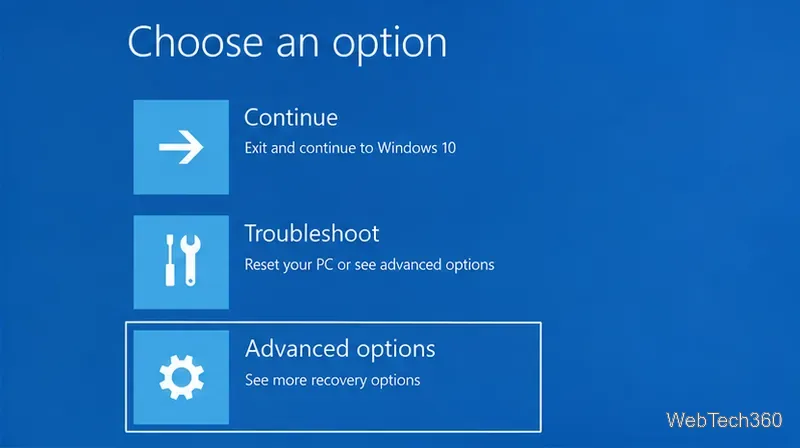
In WinRE, select Troubleshoot > Advanced options > Startup Repair. Windows will restart, check common startup problems, and attempt repairs automatically. Microsoft lists damaged system files, boot configuration problems, incompatible drivers, and registry errors among the issues Startup Repair may address.
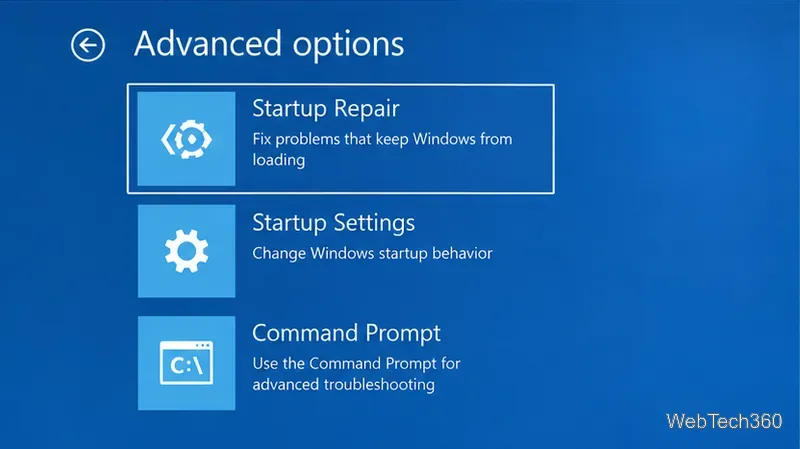
If it reports that it could not repair the PC, return to Advanced options and continue below.
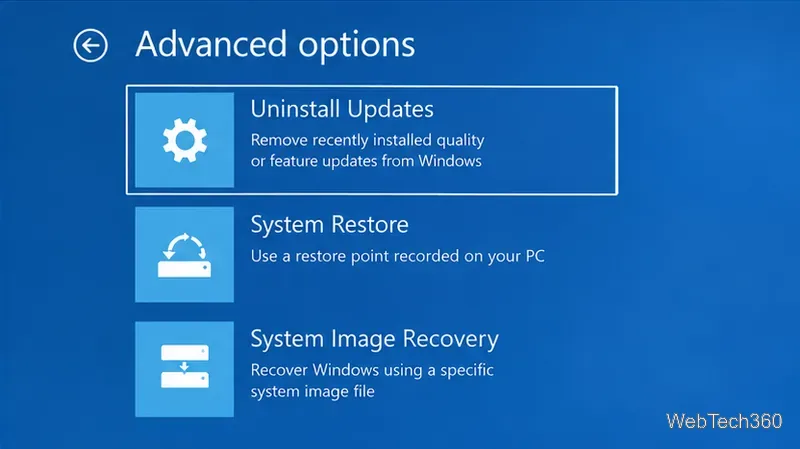
If the Welcome-screen freeze began immediately after Windows Update, select Troubleshoot > Advanced options > Uninstall Updates, then try Uninstall latest quality update. Not every update can be removed, and uninstalling a security update can temporarily reduce protection, so use this mainly when the timing strongly points to a recent update. Microsoft’s current instructions are in How to uninstall a Windows Update.
From WinRE, go to Troubleshoot > Advanced options > Startup Settings > Restart. After the PC restarts, press 4 or F4 for Safe Mode. Safe Mode loads only essential drivers and services, so reaching the desktop there is a useful sign that a third-party driver, service, or startup program may be involved. See Microsoft’s Startup Settings guide.
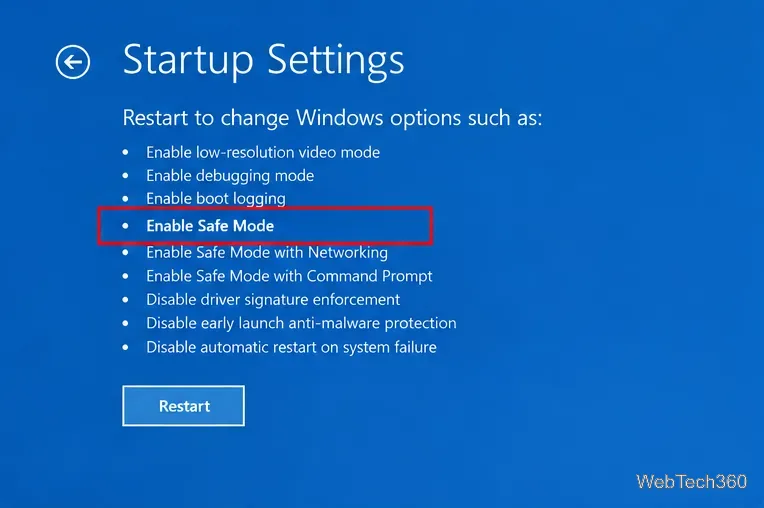
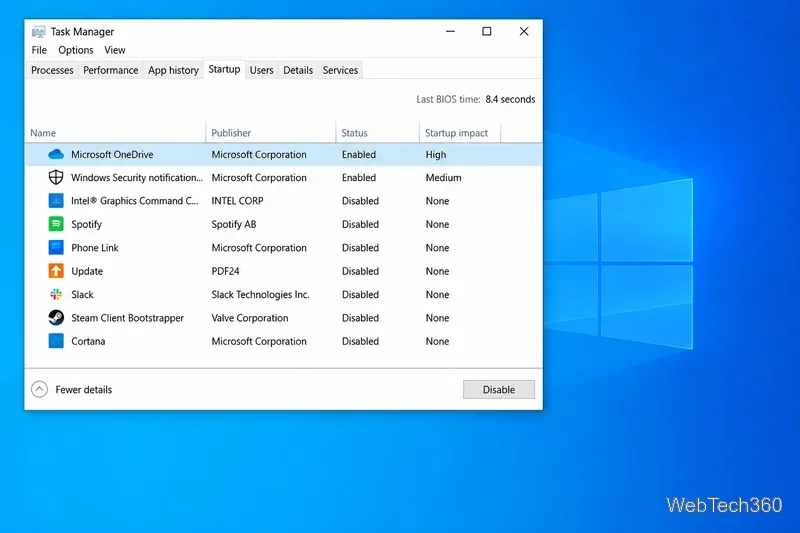
If Safe Mode works, open Task Manager > Startup and disable recently added or suspicious nonessential startup apps, then restart normally. For a more systematic test, Microsoft recommends a clean boot: hide Microsoft services before disabling third-party services, and keep track of everything you turn off so you can restore it later.
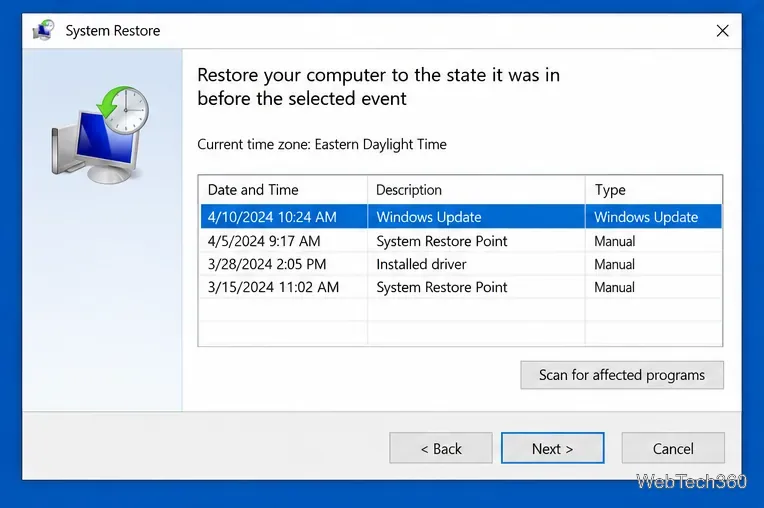
Return to Advanced options > System Restore, choose your Windows account if prompted, and select a restore point from before the Welcome-screen issue began. System Restore rolls system files, registry settings, drivers, and installed programs back to that point without deleting personal files. Programs installed after the selected restore point may be removed. Microsoft explains the process in System Restore.
If Startup Repair, update removal, Safe Mode, and System Restore all fail, use Troubleshoot > Reset this PC. Choose Keep my files if you want Windows reinstalled while preserving personal files; apps and settings are still removed. Back up anything important first whenever possible, and make sure you have the BitLocker recovery key for an encrypted device.
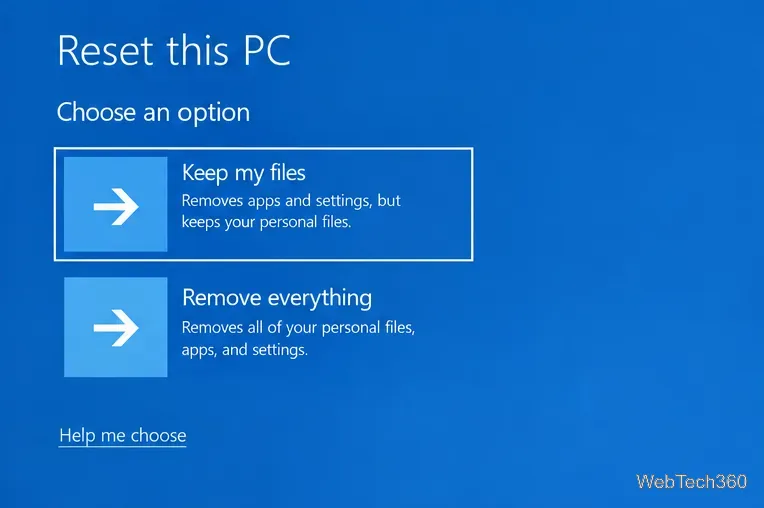
Microsoft’s Reset your PC page explains the difference between Keep my files, Remove everything, Cloud download, and Local reinstall.
Avoid applying random boot-rec commands or disabling core Windows services such as Credential Manager just because an older guide suggests it. Those changes are not the normal first-line fix for a Welcome-screen hang and can create new sign-in or boot problems. Start with Microsoft’s built-in recovery tools, and escalate to Reset this PC only after the safer options fail.
Use Windows 10’s built-in slideshow for interval rotation or schedule an exact daily wallpaper change with Task Scheduler and a short PowerShell script.
Choose a built-in alert tone or WAV file for Windows 10 message notifications, test the change, and troubleshoot apps that keep playing another sound.
Arrange Windows 10 apps in top-and-bottom rows with the taskbar’s Show windows stacked command, or create a reusable two-zone layout with PowerToys FancyZones.
Keep each display at its recommended resolution, arrange Windows 10 monitors accurately, and use MouseUnSnag to cross mismatched edges and sticky corners.
Find whether your connected Wi-Fi uses WPA2, WPA3, or an older security mode in Windows 10 with Settings, Command Prompt, or Control Panel.
Automatically lock Windows 10 after inactivity with a screen saver timer and sign-in prompt, then check how sleep settings affect the result.
Add a persistent colored ring around your Windows 10 mouse pointer with PenAttention, or use built-in pointer tools and PowerToys for temporary highlights.
Keep the Xbox Game Bar Performance widget visible over other windows on Windows 10, with CPU, GPU, and RAM readings you can position and unpin.
Capture two or more Windows 10 displays in one OBS video. Add a Display Capture source for each monitor, fit the canvas, and test the layout.
Create a GUID on Windows 10 with [guid]::NewGuid() or New-Guid, reuse it in a script, and learn when to look up an existing identifier.








