How to Schedule a Wallpaper Change in Windows 10

Use Windows 10’s built-in slideshow for interval rotation or schedule an exact daily wallpaper change with Task Scheduler and a short PowerShell script.
If Windows Update is stuck at 0% in Windows 10, start with a restart, confirm the PC is online, and check that the system drive has enough free space. If the percentage still does not move, use the Windows Update troubleshooter, restart the update service, and then reset the update cache and components. The steps below go from least disruptive to more advanced fixes.
Important: Microsoft ended standard support for Windows 10 on October 14, 2025. Windows 10 PCs still work, but regular free security updates are no longer provided. Eligible devices enrolled in the Windows 10 Extended Security Updates program can continue receiving security updates during the transition period. See Microsoft's Windows 10 end-of-support guidance.
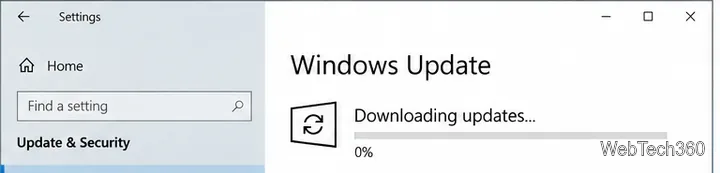
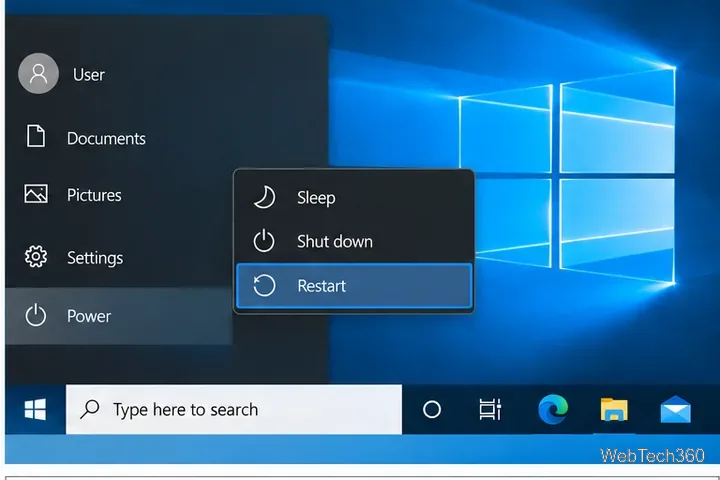
A restart clears temporary locks and finishes any pending servicing work. Save open files, select Start > Power > Restart, then return to Settings > Update & Security > Windows Update and select Check for updates.
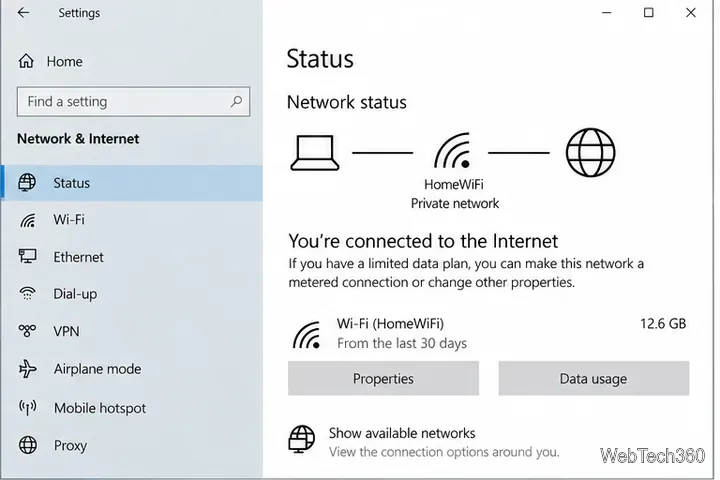
Microsoft lists network connectivity as one of the first checks when Windows Update is stuck at 0% or 100%. Open a browser and load a few sites, or go to Settings > Network & Internet > Status. If Wi-Fi is unstable, reconnect or use Ethernet if available. If you use a VPN, disconnect it temporarily while troubleshooting.
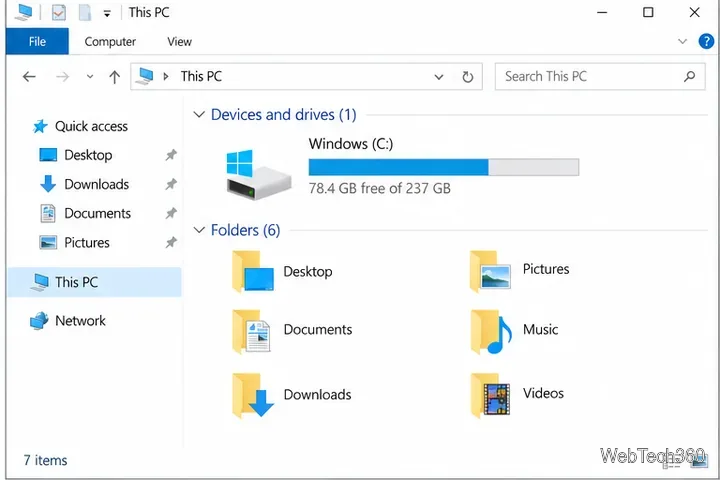
Low storage can prevent update files from downloading or installing. Microsoft says an operating-system upgrade can require at least 16 GB of free space for 32-bit Windows or 20 GB for 64-bit Windows, while the exact space needed varies by update. Check File Explorer > This PC and review the free space on the Windows drive, usually C:.
If space is tight, use Windows storage cleanup tools or move large personal files elsewhere. Microsoft's free up drive space guide covers supported cleanup methods.
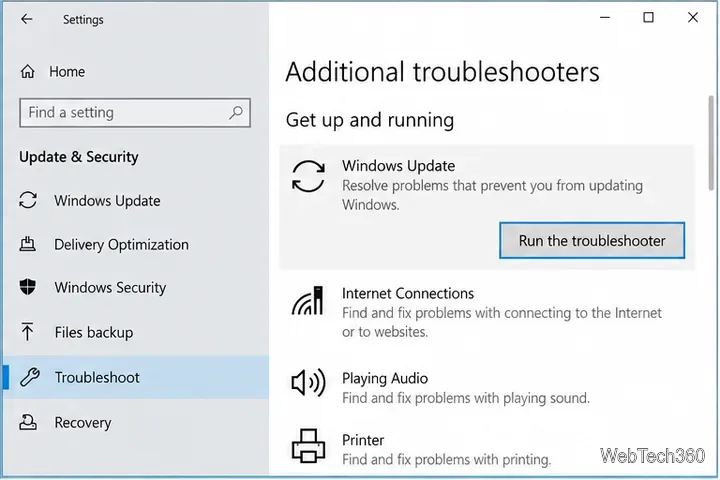
On Windows 10, open Settings > Update & Security > Troubleshoot, choose Additional troubleshooters, select Windows Update, and run the troubleshooter. Restart the PC afterward and check for updates again. Microsoft continues to recommend the update troubleshooter as a first-line repair for download and installation failures.
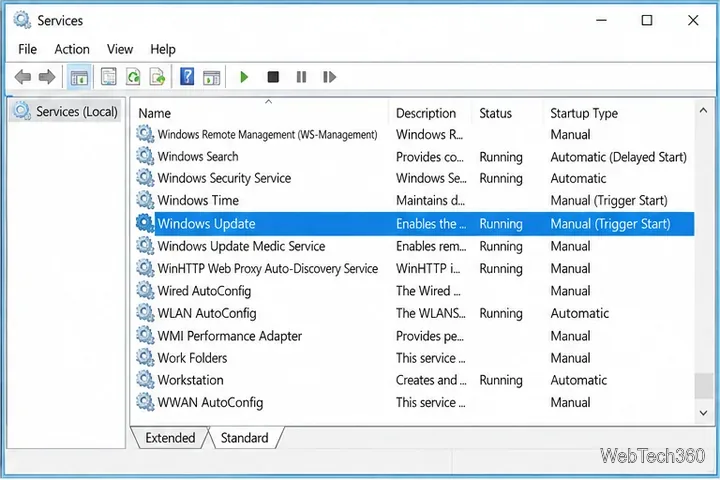
If the download remains at 0%, restart the service that manages Windows Update:
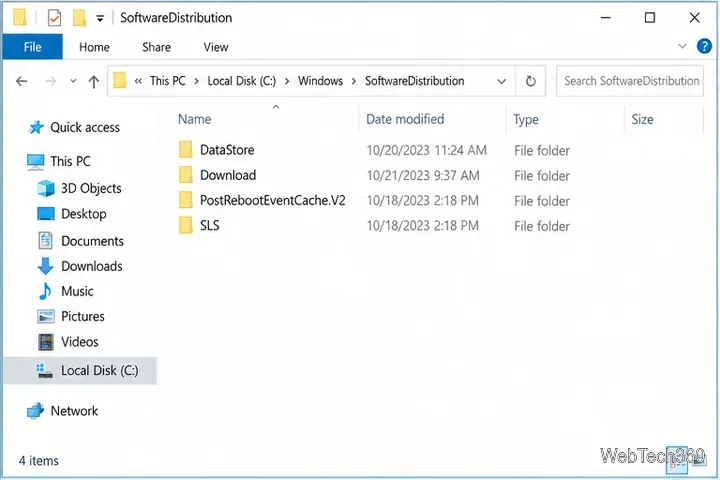
A damaged update cache can leave downloads stuck indefinitely. Instead of deleting random files while services are active, use an elevated Command Prompt to stop the related services, rename the cache folders, and start the services again. This follows Microsoft's documented Windows Update component reset approach.
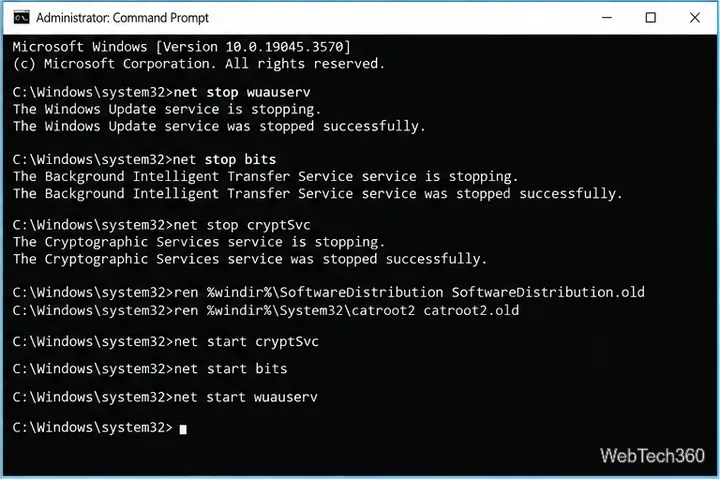
Search for Command Prompt, choose Run as administrator, and run these commands one at a time:
net stop wuauserv
net stop bits
net stop cryptSvc
ren %windir%\SoftwareDistribution SoftwareDistribution.old
ren %windir%\System32\catroot2 catroot2.old
net start cryptSvc
net start bits
net start wuauserv
Restart Windows and check for updates again. Microsoft documents this reset sequence in Windows Update troubleshooting guidance.
If update components reset successfully but downloads or installations still fail, repair the Windows component store and protected system files. Open Command Prompt as administrator and run:
DISM.exe /Online /Cleanup-image /Restorehealth
sfc /scannow
Let each command finish before closing the window, restart the PC, and try Windows Update again. Microsoft recommends running DISM before SFC when Windows components may be damaged. See the official DISM and System File Checker instructions.
If Windows Update identifies a particular KB that repeatedly fails, you can search for that KB in the Microsoft Update Catalog. Download only the package that matches your Windows version and system architecture. For Windows 10 after end of support, the package must also be applicable to your device's support or ESU status.
If none of these steps moves Windows Update past 0%, note any error code shown in Settings and use Microsoft's Windows update troubleshooting page to match the code with the appropriate repair. At that point, the error code is usually more useful than repeating the same download attempt.
Use Windows 10’s built-in slideshow for interval rotation or schedule an exact daily wallpaper change with Task Scheduler and a short PowerShell script.
Choose a built-in alert tone or WAV file for Windows 10 message notifications, test the change, and troubleshoot apps that keep playing another sound.
Arrange Windows 10 apps in top-and-bottom rows with the taskbar’s Show windows stacked command, or create a reusable two-zone layout with PowerToys FancyZones.
Keep each display at its recommended resolution, arrange Windows 10 monitors accurately, and use MouseUnSnag to cross mismatched edges and sticky corners.
Find whether your connected Wi-Fi uses WPA2, WPA3, or an older security mode in Windows 10 with Settings, Command Prompt, or Control Panel.
Automatically lock Windows 10 after inactivity with a screen saver timer and sign-in prompt, then check how sleep settings affect the result.
Add a persistent colored ring around your Windows 10 mouse pointer with PenAttention, or use built-in pointer tools and PowerToys for temporary highlights.
Keep the Xbox Game Bar Performance widget visible over other windows on Windows 10, with CPU, GPU, and RAM readings you can position and unpin.
Capture two or more Windows 10 displays in one OBS video. Add a Display Capture source for each monitor, fit the canvas, and test the layout.
Create a GUID on Windows 10 with [guid]::NewGuid() or New-Guid, reuse it in a script, and learn when to look up an existing identifier.








