How to Play Minecraft Offline on Windows 10: Java and Bedrock

Prepare Java or Bedrock on Windows 10 for offline single-player, enable the right Xbox setting, and back up your local Minecraft worlds.
If a game, editor, browser, or other program keeps running on integrated graphics, Windows lets you set a GPU preference for that app. On most laptops with integrated and discrete graphics, choosing High performance points the app to the dedicated GPU. On current Windows versions, this setting is usually more important than the older NVIDIA or AMD per-app GPU menus.
Quick answer: open Settings > System > Display > Graphics, add or select the app, choose Options, select High performance, and save. Close the app completely and reopen it so the new preference can take effect.
In Windows 11, open Settings, select System, then Display, and open Graphics. Microsoft uses this same Graphics page for per-app GPU preferences and other graphics options.
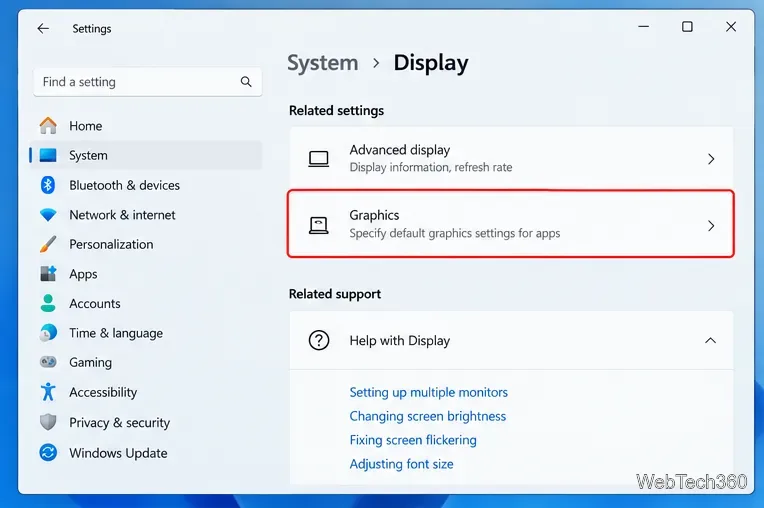
If you are still using Windows 10, the equivalent path is Settings > System > Display > Graphics settings. The labels can differ slightly by Windows 10 version. Microsoft ended normal Windows 10 support on October 14, 2025, although eligible PCs can use Extended Security Updates during the transition to Windows 11. See Microsoft's Windows 10 end-of-support guidance.
Under the app-specific graphics section, choose Desktop app when you need to point Windows to a traditional .exe file, then select Browse. Find the program's real executable rather than only a shortcut. If the app is already listed, select it instead of adding it again.
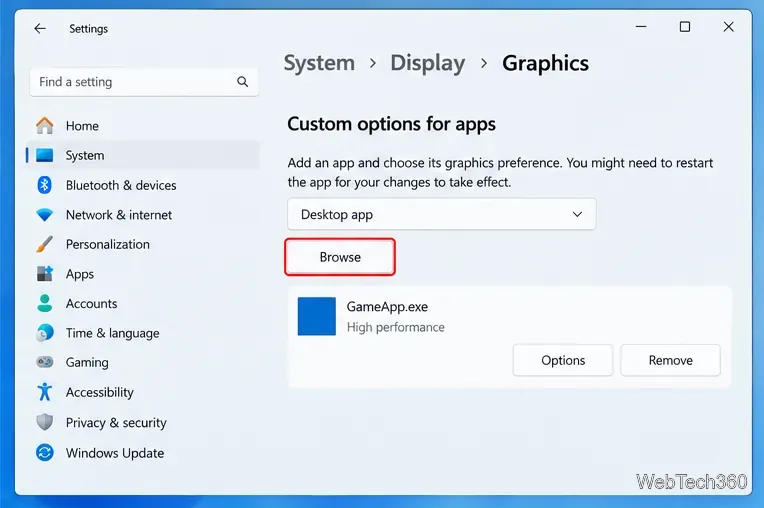
For Microsoft Store apps, Windows may provide a Store-app selector instead of asking you to browse to an executable. The exact wording depends on the Windows build.
Select the app, choose Options, then select High performance and Save. On a typical hybrid laptop, Power saving is the integrated GPU and High performance is the discrete GPU. If Windows shows GPU names, confirm that the High performance entry names the GPU you actually want.
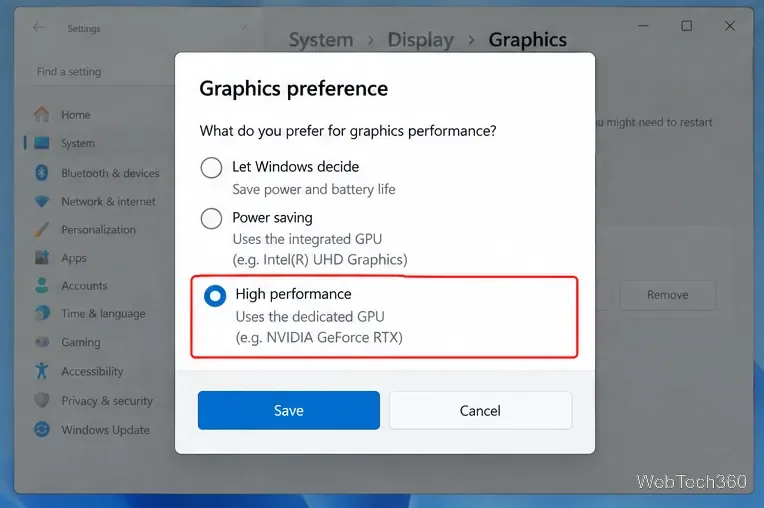
Windows also supports systems with more than one high-performance GPU, so some PCs can offer a more specific GPU choice. Microsoft documents the High performance preference on its Windows 11 Graphics settings support page.
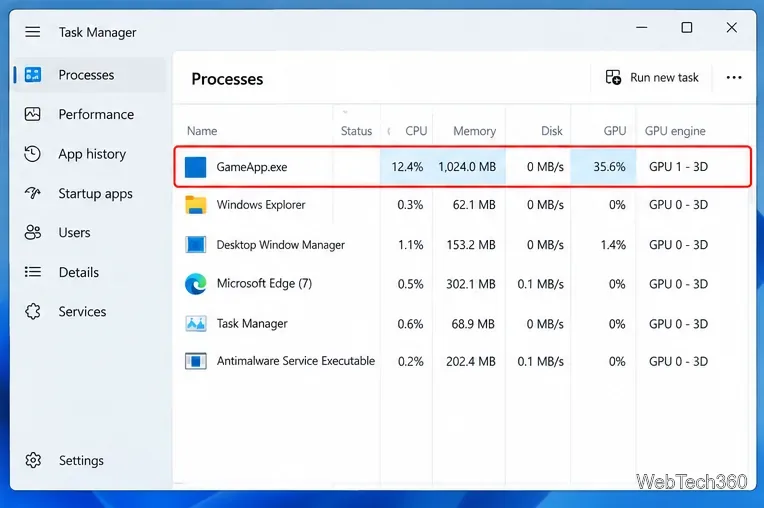
Fully exit the app or game, including launchers or background processes when relevant, and start it again. To verify the result, open Task Manager with Ctrl+Shift+Esc. In the Processes or Details view, enable the GPU and GPU engine columns if they are not already visible. A value such as GPU 1 - 3D identifies the GPU engine currently doing the work; compare GPU 0/GPU 1 with the names shown on Task Manager's Performance page.
Older tutorials often tell NVIDIA users to open NVIDIA Control Panel or use a right-click Run with graphics processor command. That advice is now outdated on modern Windows. NVIDIA states that beginning with Windows 10 20H1, Windows assigns the GPU preference and can override the preferred-graphics-processor setting in NVIDIA Control Panel. NVIDIA also notes that the old right-click GPU command is no longer available on those Windows versions. See NVIDIA's preferred graphics processor documentation.
You can still use NVIDIA Control Panel for application-specific 3D options such as rendering features, but set the app's GPU preference in Windows first.
The old AMD Catalyst Control Center workflow is also no longer the right default. AMD says that the Switchable Graphics option was removed from Radeon Software Adrenalin Edition 19.12.1 and later because Windows 10 version 1803 and newer provide per-application graphics preferences. AMD recommends using Windows Graphics settings on supported hybrid-GPU laptops. See AMD's graphics performance preference guide.
.exe files, so add the process that actually renders the workload.For most Windows 11 PCs and supported Windows 10 systems, the built-in Graphics page is the cleanest way to make a specific app prefer the dedicated GPU without changing the GPU behavior of every other program.
Prepare Java or Bedrock on Windows 10 for offline single-player, enable the right Xbox setting, and back up your local Minecraft worlds.
Change a file type icon in Windows 10 while keeping its current default app. Follow the FileTypesMan steps, handle icon picker issues, and restore the original setting.
Set PhysX in NVIDIA Control Panel on Windows 10, understand Auto-select vs. CPU or GPU, and learn when to use Windows Graphics settings instead.
Compare six free office suites for documents, spreadsheets, and presentations, including browser-based collaboration and offline desktop options.
Turn on Notepad’s Status Bar to see the current line and column in Windows 10, troubleshoot a disabled option, and learn when you need a line-number gutter.
Display a custom Windows dialog with a short PowerShell command, Command Prompt, or a reusable .bat or .ps1 file, including a title, icon, and buttons.
Fix Windows 10 update error 0x80071160 with Microsoft’s troubleshooter, a safe update-cache reset, DISM and SFC repairs, and a careful manual-install check.
Create a Windows 10 UEFI installer with Microsoft’s Media Creation Tool or Rufus, then boot and install safely without wiping the wrong drive.
Stop individual Edge tabs from crowding the Windows 10 Alt+Tab switcher. Change one Multitasking setting, limit recent tabs, and check why the option may be missing.
Enable Adobe’s PDF thumbnail handler, correct File Explorer’s icon settings, rebuild the thumbnail cache, and check OneDrive files that are not stored locally.








