How to Play Minecraft Offline on Windows 10: Java and Bedrock

Prepare Java or Bedrock on Windows 10 for offline single-player, enable the right Xbox setting, and back up your local Minecraft worlds.
To format a disk without booting an operating system from it, start the computer from a Windows installation USB made on another PC, open Command Prompt in Windows Recovery, and use DiskPart. This works even if the target disk contains the old operating system.
Warning: DiskPart’s clean removes all partitions and volumes from the selected disk. It is destructive and does not overwrite every sector. Back up first, then verify the disk model and capacity before running it.
On the working PC, open Microsoft’s Windows 11 download page. Under Create Windows 11 Installation Media, select Download Now, run the Media Creation Tool, and follow its prompts to make a USB flash drive. Choose the USB carefully; the tool deletes its contents.
For Windows 10, Microsoft still provides its installation-media page, but support ended October 14, 2025. For ARM-based PCs, follow the manufacturer’s recovery-media guidance; Microsoft’s Windows 11 tool creates x64 media.
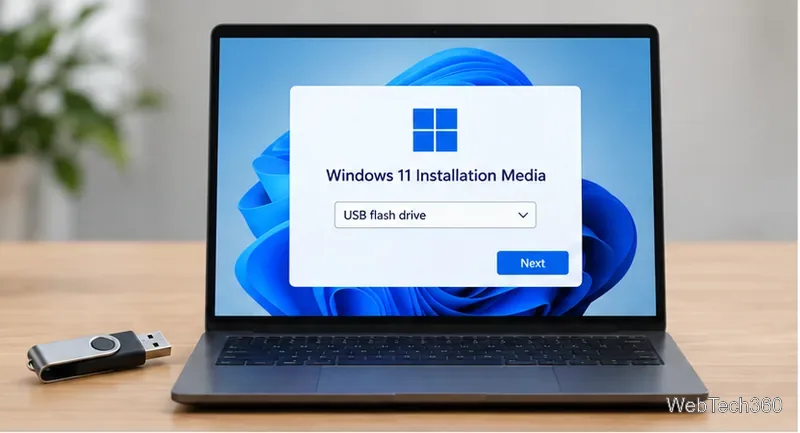
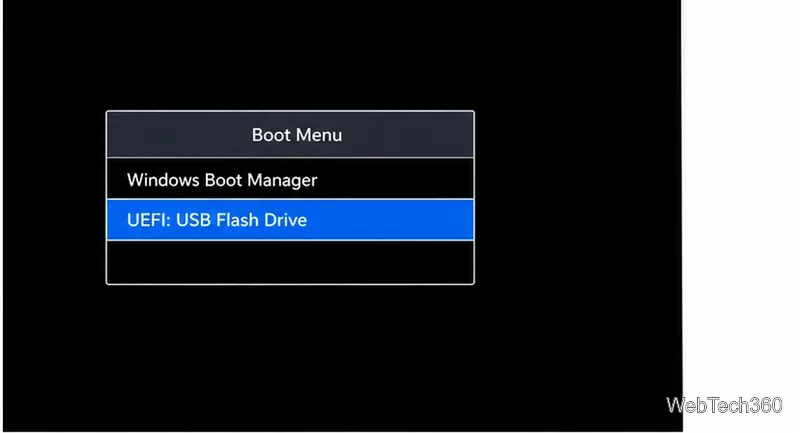
Connect the installer to the target computer and power it on. Open the one-time boot menu; the key varies by manufacturer (often F2, F12, Delete, or Esc). Select the USB entry, preferably one labeled UEFI. This avoids changing the permanent boot order.
If the old OS starts, shut down fully and retry. If the USB is missing, check the computer maker’s boot-menu and Secure Boot instructions; settings vary by model.
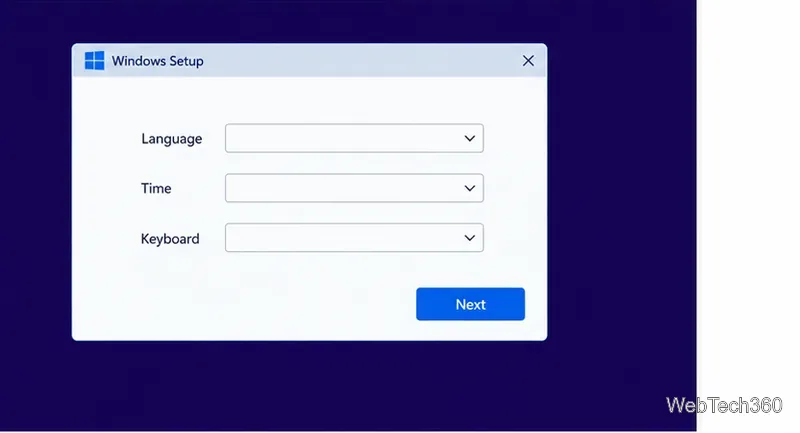
In Windows Setup, choose the language, time, and keyboard options, then select Next. On the next screen, choose Repair your computer.
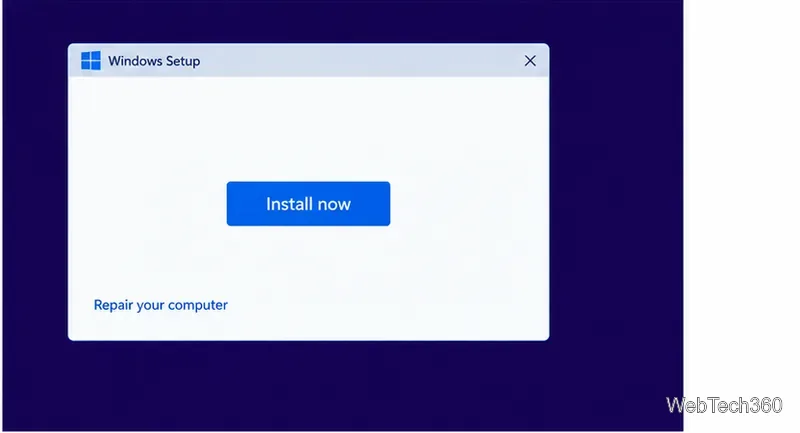
Choose Troubleshoot > Advanced options > Command Prompt. Labels can vary by version. If the menu is unavailable, press Shift+F10 from Windows installation media to open Command Prompt.
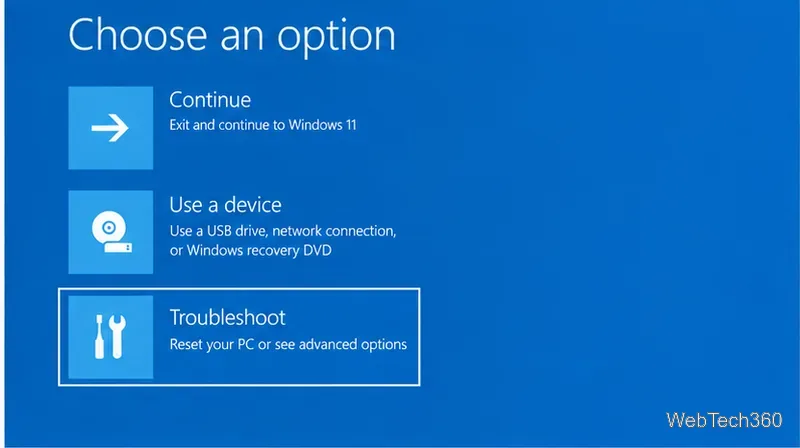
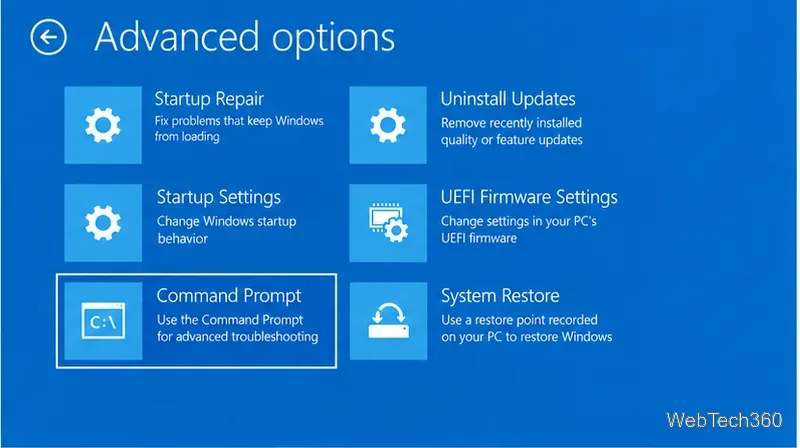
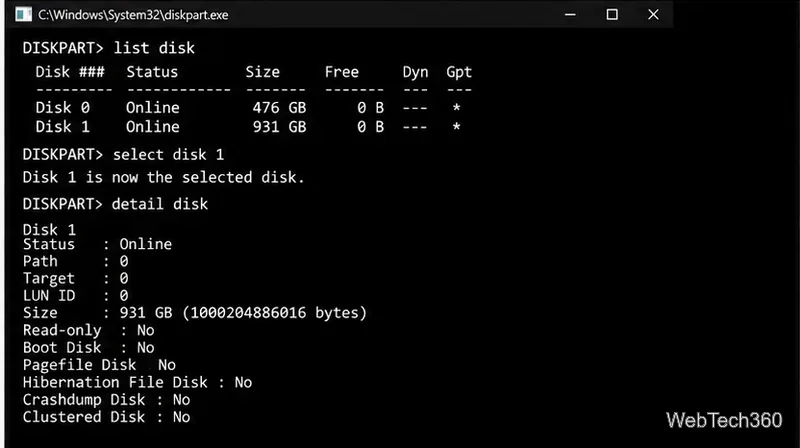
At the command prompt, start DiskPart and list the connected disks:
diskpart
list disk
Match the listed sizes to your target drive. Disk numbers can change, so do not assume it is Disk 0 or choose the largest disk automatically. Replace N with the target’s number:
select disk N
detail disk
Read the model and capacity in the details. If they do not match your target, stop and select the correct disk. If the target is missing from list disk, do not continue; check its cable or firmware detection, and consult the PC or storage-device maker for any required storage driver.
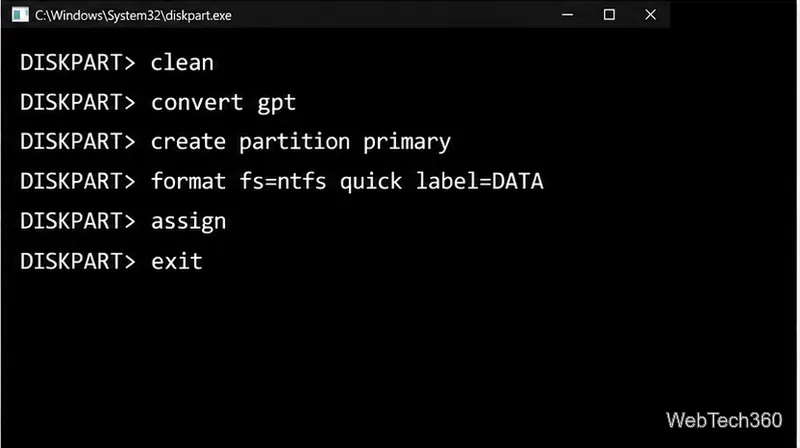
After confirming the selected disk, enter each line separately. This example creates one GPT partition, quick-formats it as NTFS, and assigns an available drive letter:
clean
convert gpt
create partition primary
format fs=ntfs quick label=DATA
assign
exit
Use NTFS for Windows. For a removable drive shared with macOS, use format fs=exfat quick label=DATA instead. GPT suits modern UEFI systems; for older BIOS compatibility, use convert mbr in place of convert gpt.
Do not create a single data partition with the commands above. After confirming the correct disk, run clean, then convert gpt if you booted the installer in UEFI mode. Type exit to leave DiskPart and close Command Prompt. Return to Windows Setup, start the installation, and select the target disk’s unallocated space. Setup can create the system partitions it needs.
When DiskPart finishes a data volume, type exit again to close Command Prompt. The new volume will be available when Windows starts. For another operating system, stop after clean and use its installer or disk utility to create partitions and a file system.
Prepare Java or Bedrock on Windows 10 for offline single-player, enable the right Xbox setting, and back up your local Minecraft worlds.
Change a file type icon in Windows 10 while keeping its current default app. Follow the FileTypesMan steps, handle icon picker issues, and restore the original setting.
Set PhysX in NVIDIA Control Panel on Windows 10, understand Auto-select vs. CPU or GPU, and learn when to use Windows Graphics settings instead.
Compare six free office suites for documents, spreadsheets, and presentations, including browser-based collaboration and offline desktop options.
Turn on Notepad’s Status Bar to see the current line and column in Windows 10, troubleshoot a disabled option, and learn when you need a line-number gutter.
Display a custom Windows dialog with a short PowerShell command, Command Prompt, or a reusable .bat or .ps1 file, including a title, icon, and buttons.
Fix Windows 10 update error 0x80071160 with Microsoft’s troubleshooter, a safe update-cache reset, DISM and SFC repairs, and a careful manual-install check.
Create a Windows 10 UEFI installer with Microsoft’s Media Creation Tool or Rufus, then boot and install safely without wiping the wrong drive.
Stop individual Edge tabs from crowding the Windows 10 Alt+Tab switcher. Change one Multitasking setting, limit recent tabs, and check why the option may be missing.
Enable Adobe’s PDF thumbnail handler, correct File Explorer’s icon settings, rebuild the thumbnail cache, and check OneDrive files that are not stored locally.








