How to Play Minecraft Offline on Windows 10: Java and Bedrock

Prepare Java or Bedrock on Windows 10 for offline single-player, enable the right Xbox setting, and back up your local Minecraft worlds.
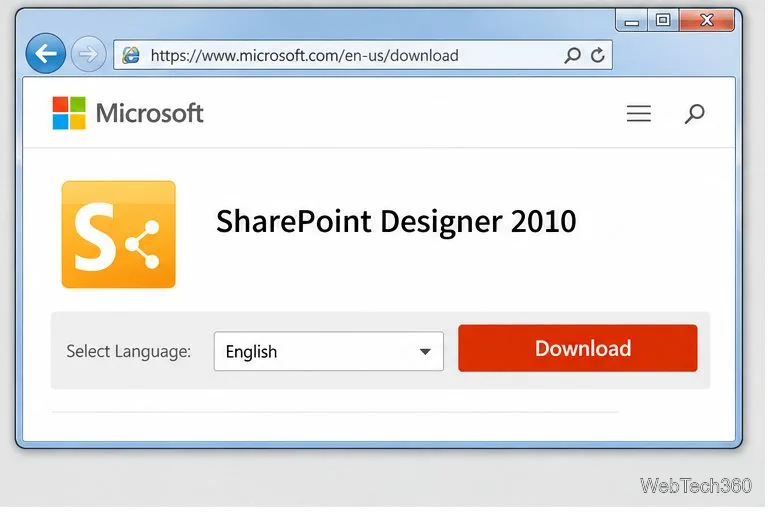
You can still install Microsoft Office Picture Manager on Windows 10 as a standalone app through Microsoft SharePoint Designer 2010. In the installer, choose a custom setup, keep only Picture Manager selected under Office Tools, and finish the installation. Microsoft still documents this method, although SharePoint Designer 2010 is legacy software and Microsoft’s download pages do not list Windows 10 as a supported operating system.
Picture Manager is not included with Office 2013 or later. Microsoft’s documented way to get it is to install the Picture Manager component from SharePoint Designer 2010. You do not need to install every SharePoint Designer feature to use the photo app.
Download the installer only from Microsoft. The official 32-bit download page describes that edition as the recommended configuration for most users; a separate 64-bit download is also available. Check which version is appropriate for your Office setup before proceeding, especially if you already have older Office components installed. Microsoft’s listed system requirements cover older Windows releases, so installation on Windows 10 may work but is not promised as a supported configuration.
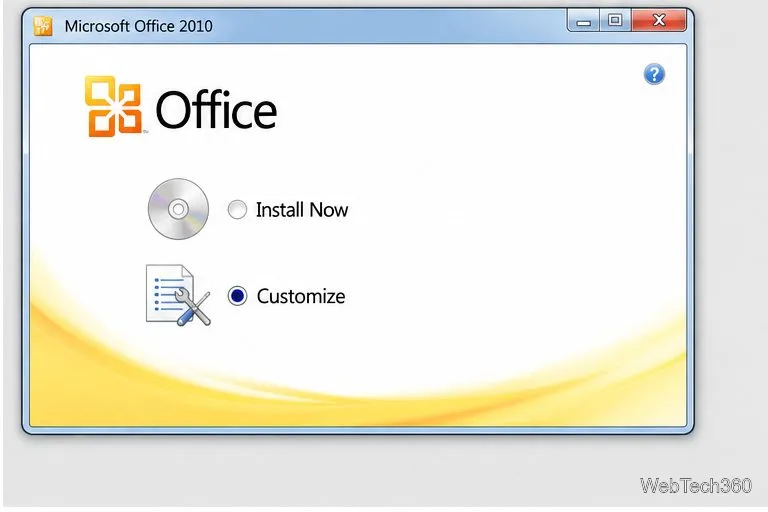
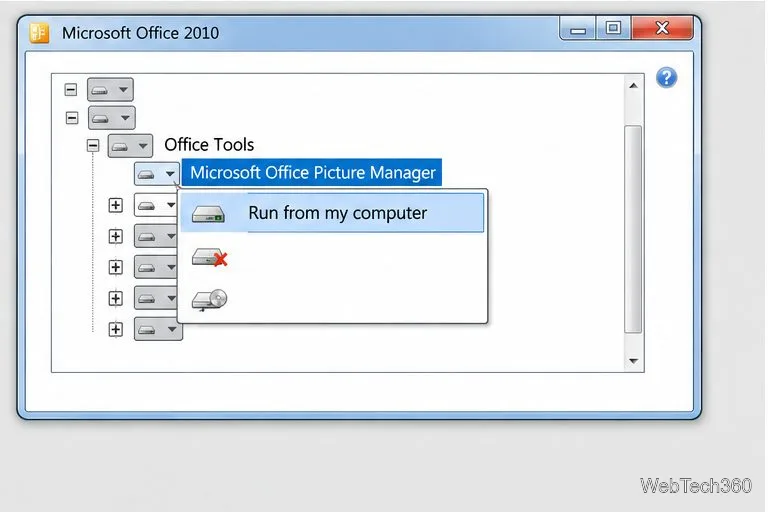
After setup completes, open the Start menu and search for Picture Manager. Depending on the installation, Windows may group it under Microsoft Office 2010; the Start-menu label does not mean you installed the full Office suite. Select the Picture Manager entry to launch it.
To work on an image, open it in Picture Manager, then select Edit Pictures. The editing pane offers tools for common adjustments such as brightness and contrast, color, cropping, resizing, and red-eye removal. You can use Auto Correct for an automatic adjustment, but review the result before keeping it. Save a copy first if you want to preserve the untouched original; saving over the same file replaces its prior contents.
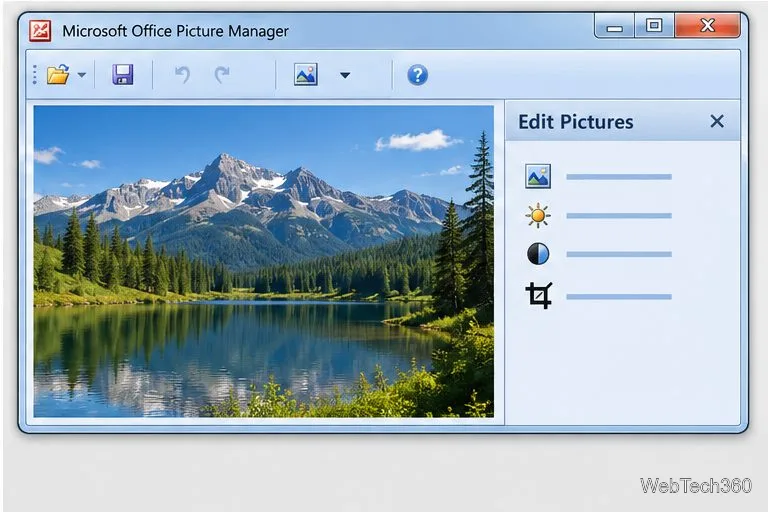
Because this is a 2010 component, it does not receive feature updates. Avoid installers from third-party download sites, which may be modified or bundled with unwanted software.
If you only need basic photo viewing and editing, Windows 10 includes the Photos app. Microsoft lists Photos as the successor to Picture Manager and documents cropping, rotation, and appearance adjustments in its Windows photo-editing guide. To use it, search for Photos from the taskbar, open a picture, and select Edit image. That option avoids installing a legacy Office component.
Microsoft references: Microsoft’s Picture Manager installation instructions and the official SharePoint Designer 2010 download.
Prepare Java or Bedrock on Windows 10 for offline single-player, enable the right Xbox setting, and back up your local Minecraft worlds.
Change a file type icon in Windows 10 while keeping its current default app. Follow the FileTypesMan steps, handle icon picker issues, and restore the original setting.
Set PhysX in NVIDIA Control Panel on Windows 10, understand Auto-select vs. CPU or GPU, and learn when to use Windows Graphics settings instead.
Compare six free office suites for documents, spreadsheets, and presentations, including browser-based collaboration and offline desktop options.
Turn on Notepad’s Status Bar to see the current line and column in Windows 10, troubleshoot a disabled option, and learn when you need a line-number gutter.
Display a custom Windows dialog with a short PowerShell command, Command Prompt, or a reusable .bat or .ps1 file, including a title, icon, and buttons.
Fix Windows 10 update error 0x80071160 with Microsoft’s troubleshooter, a safe update-cache reset, DISM and SFC repairs, and a careful manual-install check.
Create a Windows 10 UEFI installer with Microsoft’s Media Creation Tool or Rufus, then boot and install safely without wiping the wrong drive.
Stop individual Edge tabs from crowding the Windows 10 Alt+Tab switcher. Change one Multitasking setting, limit recent tabs, and check why the option may be missing.
Enable Adobe’s PDF thumbnail handler, correct File Explorer’s icon settings, rebuild the thumbnail cache, and check OneDrive files that are not stored locally.








