How to Play Minecraft Offline on Windows 10: Java and Bedrock

Prepare Java or Bedrock on Windows 10 for offline single-player, enable the right Xbox setting, and back up your local Minecraft worlds.
To hide a Windows 10 computer from the Network list on other PCs, set an untrusted connection to the Public network profile and make sure Network Discovery is turned off. You can change either setting in Windows. This reduces how easily other devices can find your PC for normal network sharing, but it does not disconnect your computer from Wi-Fi or hide it from the router.
For a coffee shop, hotel, airport, or other network you do not control, use a Public profile. At home, you can still turn off discovery if you do not want other computers to browse for yours.
Windows uses network profiles to apply different sharing and firewall defaults. A Private profile is intended for a network whose devices you trust; a Public profile is the safer choice for an unfamiliar network and makes the PC undiscoverable for ordinary file and printer sharing.
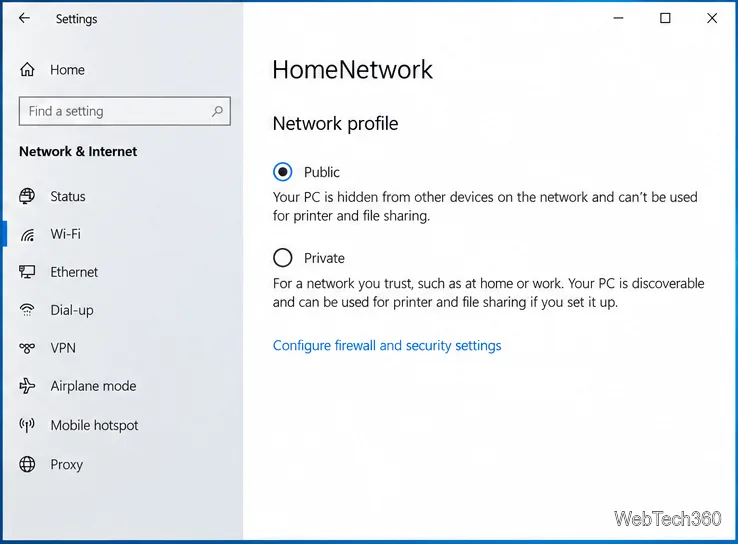
Windows 10 versions may label the properties screen slightly differently. If you cannot find this option, use the Control Panel method below. When you later return to a trusted home network and need file or printer sharing, switch that connection to Private and enable only the sharing features you use.
Use these steps to check the sharing profile directly. The Advanced sharing settings page separates options by profile, so turn discovery off for the profile you are using.
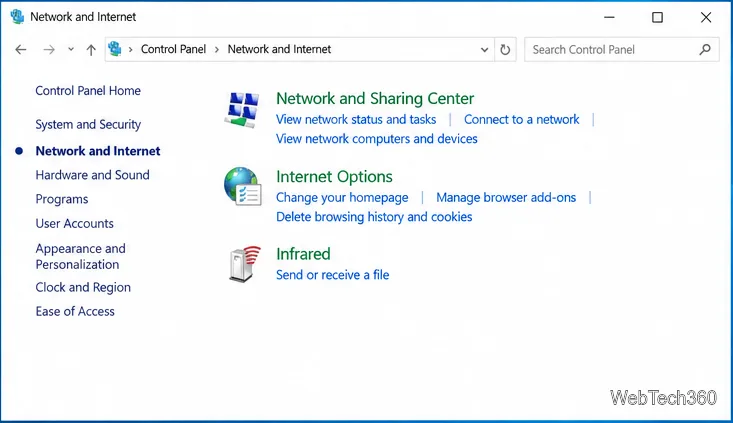
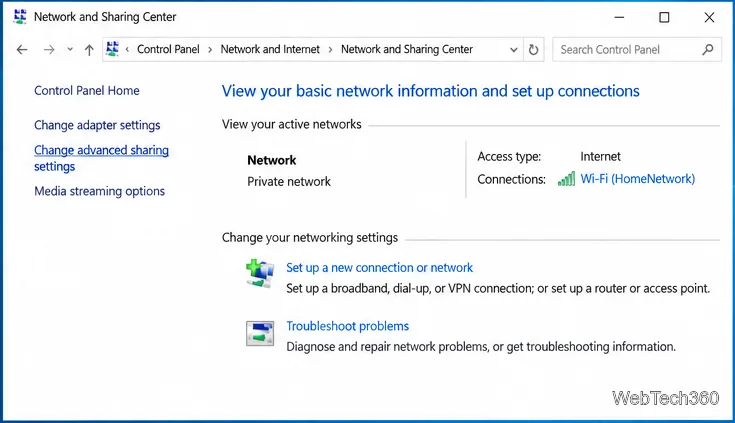
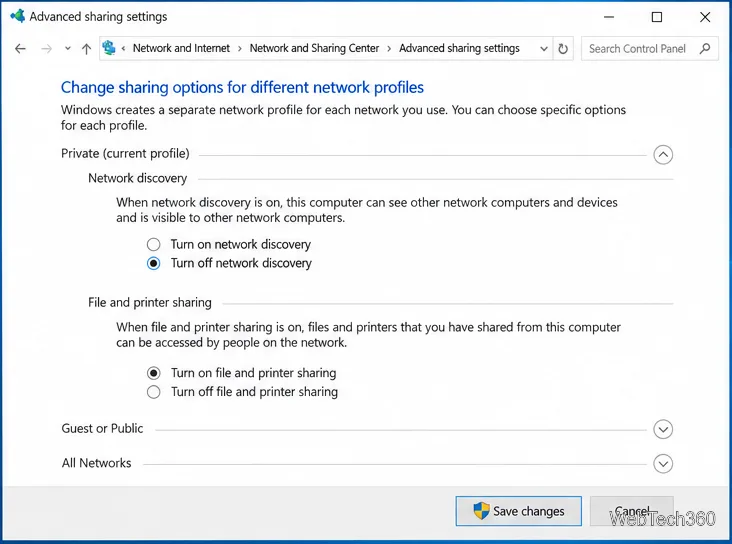
If you want discovery disabled whenever you use this PC on any profile, repeat the setting for each profile you use. A work or school administrator may manage these options, in which case Windows can prevent you from changing them.
Network Discovery helps Windows find other devices and lets your computer be found for network browsing. Turning it off can remove the PC from other computers' File Explorer > Network views after they refresh. The change does not remove the PC from the local network, conceal its IP or MAC address from the router, or guarantee that no one can connect to it. A device that already knows an address may still reach a shared service if sharing is enabled and the firewall allows it.
Network Discovery and File and printer sharing are separate controls. If you do not need to share folders or printers on an untrusted network, keep that sharing feature off too. Leave Microsoft Defender Firewall on; do not turn off the firewall just to change visibility. If your goal is to prevent devices on the same Wi-Fi from communicating at all, use a guest network or client-isolation option on the router, if available. Windows' discovery setting is not network isolation.
Windows 10 standard support ended on October 14, 2025. Hiding a PC from network browsing is only one precaution; check Microsoft's current guidance for your update status and use a supported Windows release when possible.
Prepare Java or Bedrock on Windows 10 for offline single-player, enable the right Xbox setting, and back up your local Minecraft worlds.
Change a file type icon in Windows 10 while keeping its current default app. Follow the FileTypesMan steps, handle icon picker issues, and restore the original setting.
Set PhysX in NVIDIA Control Panel on Windows 10, understand Auto-select vs. CPU or GPU, and learn when to use Windows Graphics settings instead.
Compare six free office suites for documents, spreadsheets, and presentations, including browser-based collaboration and offline desktop options.
Turn on Notepad’s Status Bar to see the current line and column in Windows 10, troubleshoot a disabled option, and learn when you need a line-number gutter.
Display a custom Windows dialog with a short PowerShell command, Command Prompt, or a reusable .bat or .ps1 file, including a title, icon, and buttons.
Fix Windows 10 update error 0x80071160 with Microsoft’s troubleshooter, a safe update-cache reset, DISM and SFC repairs, and a careful manual-install check.
Create a Windows 10 UEFI installer with Microsoft’s Media Creation Tool or Rufus, then boot and install safely without wiping the wrong drive.
Stop individual Edge tabs from crowding the Windows 10 Alt+Tab switcher. Change one Multitasking setting, limit recent tabs, and check why the option may be missing.
Enable Adobe’s PDF thumbnail handler, correct File Explorer’s icon settings, rebuild the thumbnail cache, and check OneDrive files that are not stored locally.








