How to Play Minecraft Offline on Windows 10: Java and Bedrock

Prepare Java or Bedrock on Windows 10 for offline single-player, enable the right Xbox setting, and back up your local Minecraft worlds.
To host a local Among Us game, connect everyone to the same Wi-Fi network, open Local, set up a lobby, and select Create. Once the host is in the lobby, nearby players can open Local on their own devices and choose that match from the list. Local play is meant for people sharing a network; friends joining from elsewhere should use an online lobby instead.
Every player needs the standard Among Us game installed on a supported device. Innersloth lists cross-play among supported mobile, console, and PC versions, but Among Us VR is a separate game and cannot join standard Among Us. The official game page advertises Local Wi-Fi matches for 4–15 players. Check the current cross-play guidance and supported platform list if someone is using an unusual device or edition.
Use one shared local network, such as the same home Wi-Fi router. A guest network, mobile-data connection, or router setting that isolates wireless devices can prevent players from seeing one another. Update the game on each device before the session; Innersloth retires older game versions over time, and mismatched builds can cause connection problems.
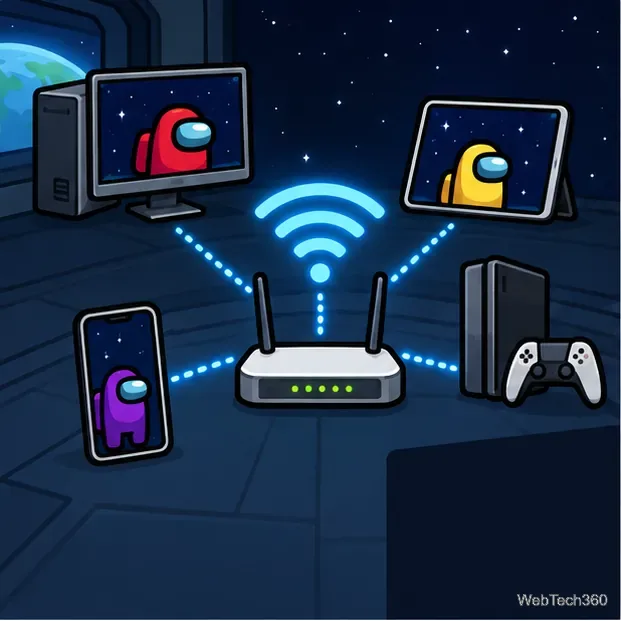
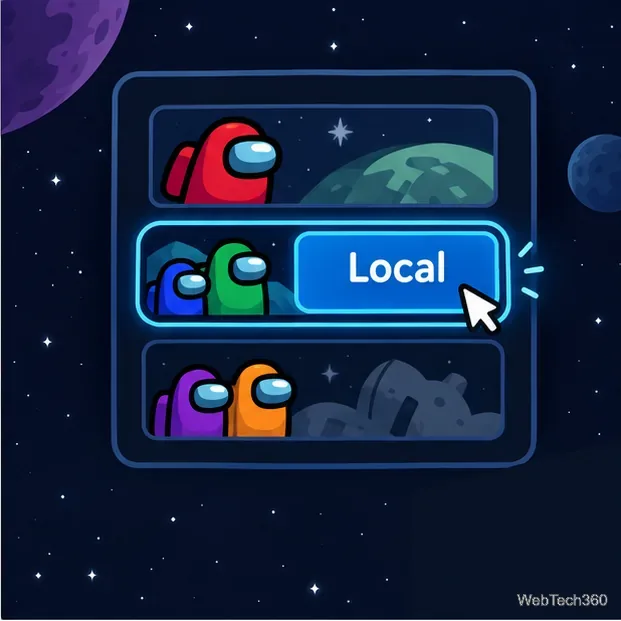
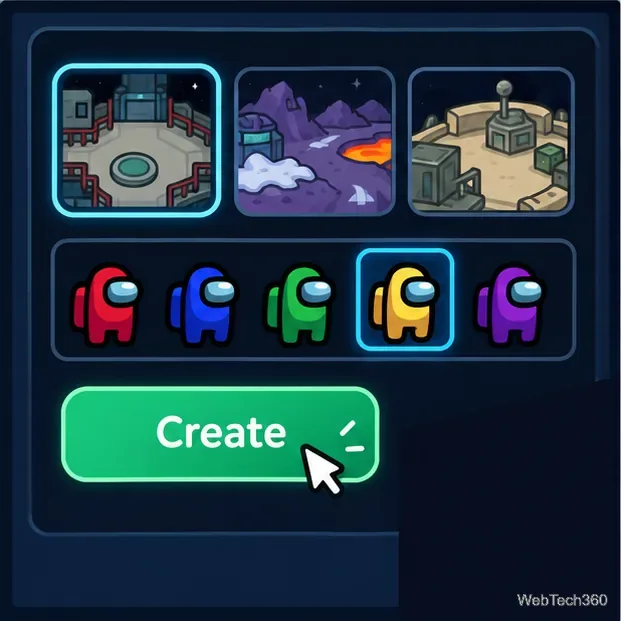
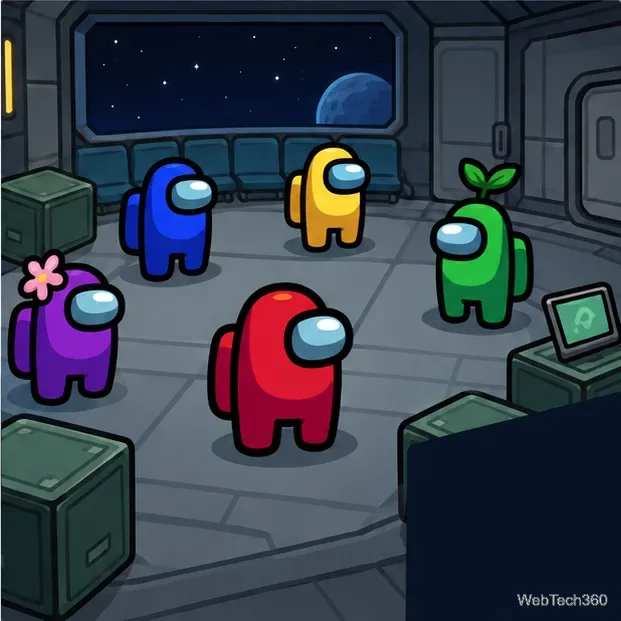
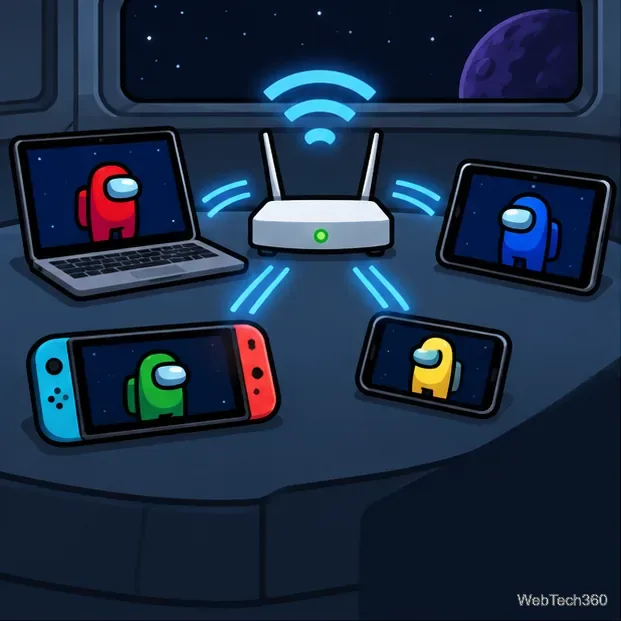
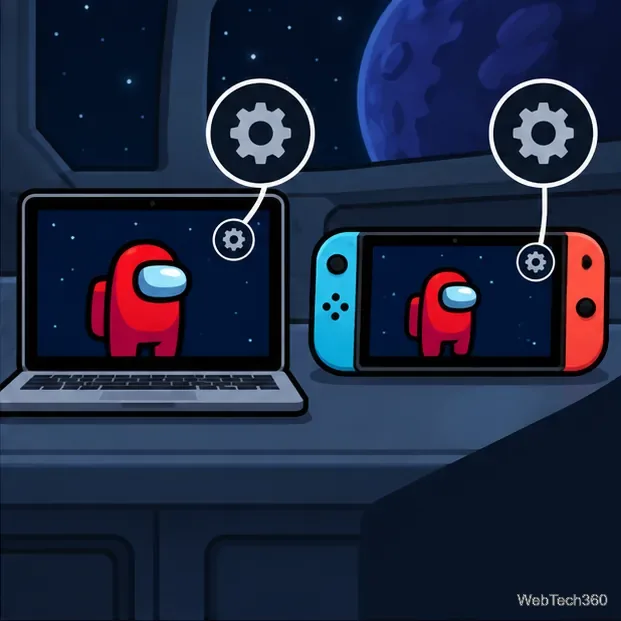
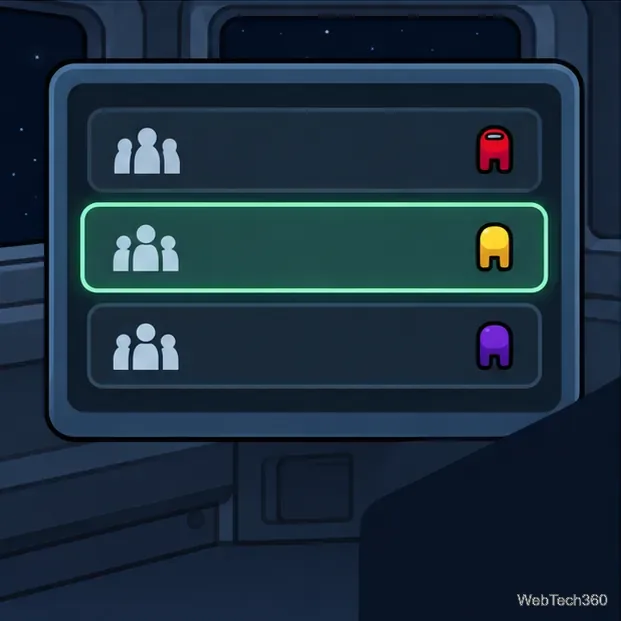
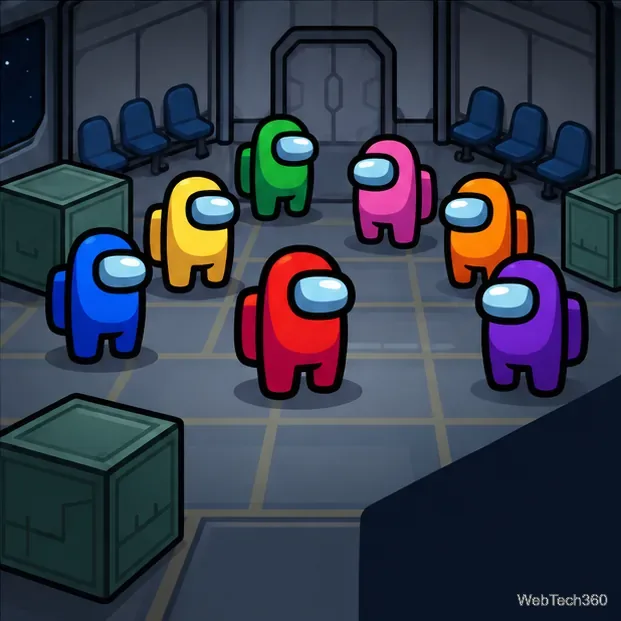
Local mode is convenient for a group in the same room, but it is not a password-protected network. On shared public Wi-Fi, other people on that same network may also be able to see local matches. Use a trusted network for a private gathering. For the supported player count and Local Wi-Fi option, see the official Among Us game page.
Prepare Java or Bedrock on Windows 10 for offline single-player, enable the right Xbox setting, and back up your local Minecraft worlds.
Change a file type icon in Windows 10 while keeping its current default app. Follow the FileTypesMan steps, handle icon picker issues, and restore the original setting.
Set PhysX in NVIDIA Control Panel on Windows 10, understand Auto-select vs. CPU or GPU, and learn when to use Windows Graphics settings instead.
Compare six free office suites for documents, spreadsheets, and presentations, including browser-based collaboration and offline desktop options.
Turn on Notepad’s Status Bar to see the current line and column in Windows 10, troubleshoot a disabled option, and learn when you need a line-number gutter.
Display a custom Windows dialog with a short PowerShell command, Command Prompt, or a reusable .bat or .ps1 file, including a title, icon, and buttons.
Fix Windows 10 update error 0x80071160 with Microsoft’s troubleshooter, a safe update-cache reset, DISM and SFC repairs, and a careful manual-install check.
Create a Windows 10 UEFI installer with Microsoft’s Media Creation Tool or Rufus, then boot and install safely without wiping the wrong drive.
Stop individual Edge tabs from crowding the Windows 10 Alt+Tab switcher. Change one Multitasking setting, limit recent tabs, and check why the option may be missing.
Enable Adobe’s PDF thumbnail handler, correct File Explorer’s icon settings, rebuild the thumbnail cache, and check OneDrive files that are not stored locally.








