How to Play Minecraft Offline on Windows 10: Java and Bedrock

Prepare Java or Bedrock on Windows 10 for offline single-player, enable the right Xbox setting, and back up your local Minecraft worlds.
Windows 10 can install audio drivers automatically. If sound is missing or a generic driver lacks features, check Windows Update first. If it does not offer the right driver, install the package for your exact PC, motherboard, or audio device from its official support page. Many computers use customized audio packages, so do not choose Realtek solely because its name appears in Device Manager.
Windows 10 support ended on October 14, 2025. Existing PCs still work, but free Microsoft software updates have ended; hardware makers may continue to provide compatible drivers.
Save open work and connect to the internet. For a USB headset, DAC, or sound card, follow that device maker’s instructions; this guide focuses on built-in laptop and motherboard audio.
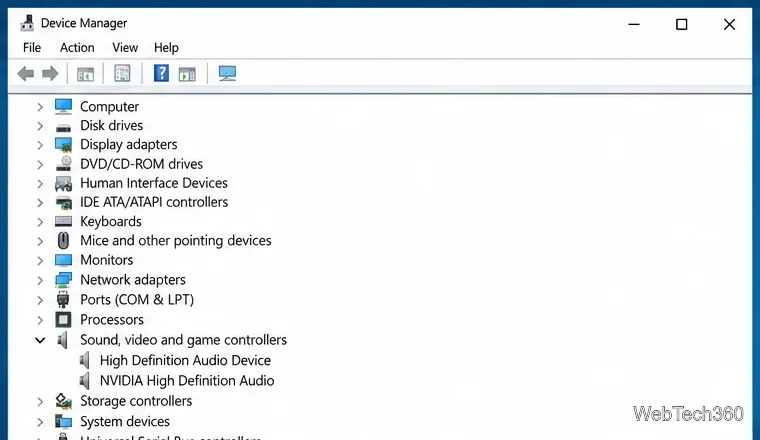
Open Start, search for Device Manager, and expand Sound, video and game controllers. Note the audio device and look for a yellow warning icon. Check Audio inputs and outputs for speaker or microphone endpoints. If no controller appears, check Other devices for an unknown device; do not choose a driver based only on a generic name.
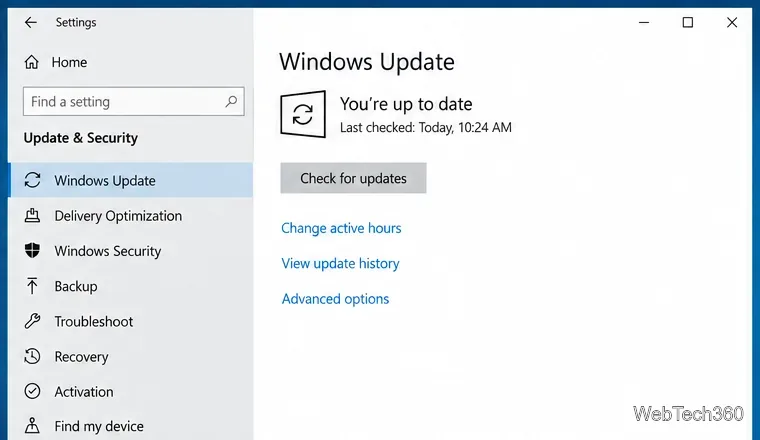
Microsoft recommends Windows Update for audio drivers. Go to Start > Settings > Update & Security > Windows Update, select Check for updates, install any audio driver it offers, and restart if prompted. The catalog varies by device, so an up-to-date message does not guarantee you have the newest driver. Follow Microsoft’s audio driver update instructions if needed.
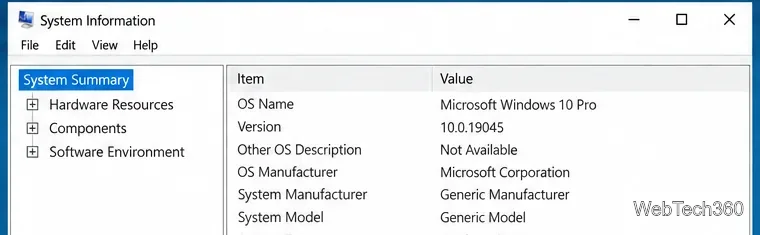
Search Start for System Information. Under System Summary, note System Manufacturer, System Model, and System Type. The model identifies the right support page. To check whether Windows is 32-bit or 64-bit, open Settings > System > About and read System type. For a custom-built desktop, find the motherboard model instead. The PC’s label or original documentation may also show it.
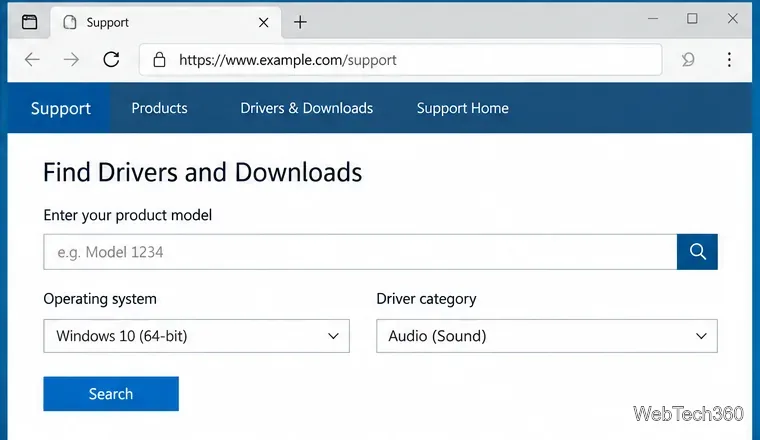
On the computer maker’s support site, search for the exact model, choose Windows 10 and the matching system type, then open the audio or sound category. For a custom PC, use the motherboard maker’s page. For an external headset, sound card, or DAC, use its manufacturer’s site. Confirm that the package supports your Windows version before downloading.
Realtek says its direct audio packages are general drivers and may omit customizations from computer or motherboard makers. Use one only if your manufacturer recommends it or it is specifically right for your hardware. Avoid third-party download sites and driver-updater utilities. Read Realtek’s note about its general audio drivers.
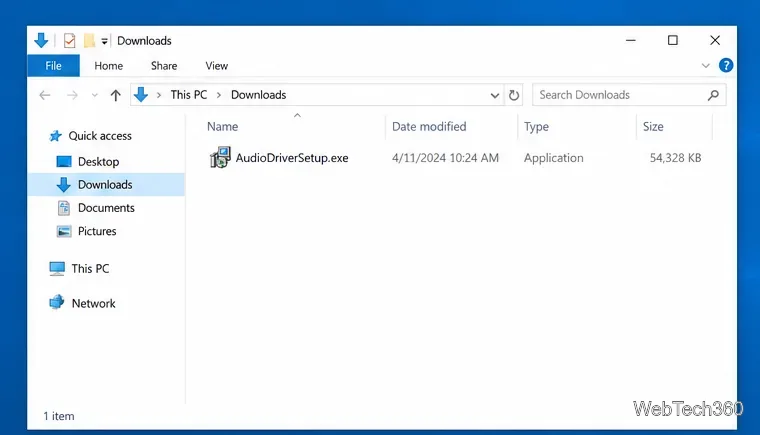
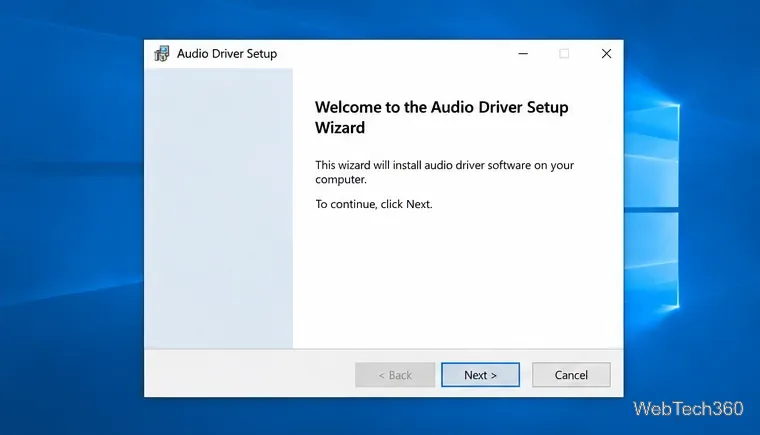
Open the file from Downloads. If it is an installer, such as an .exe file, follow its prompts and restart Windows when asked. If the download is a ZIP archive, extract it to a folder you can find; use the next step to install from that folder.
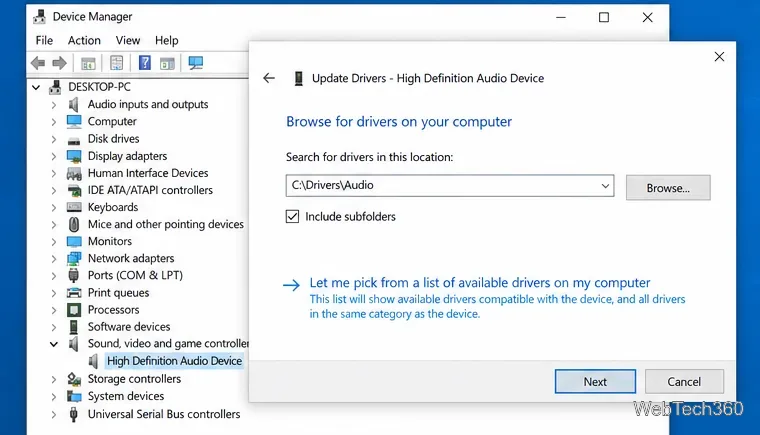
If there is no setup program, return to Device Manager. Right-click the audio controller, select Update driver > Browse my computer for drivers, then browse to the extracted folder. Leave Include subfolders enabled if shown and select Next. Windows installs a compatible driver it finds there. Do not force a driver if Windows cannot match it. See Microsoft’s Device Manager driver guide.
Restart the PC after installation. In Device Manager, check that the audio controller appears without a warning icon. To see the installed version, right-click it, select Properties, and open the Driver tab. If the device still has a warning, recheck the model and Windows version on the support page.
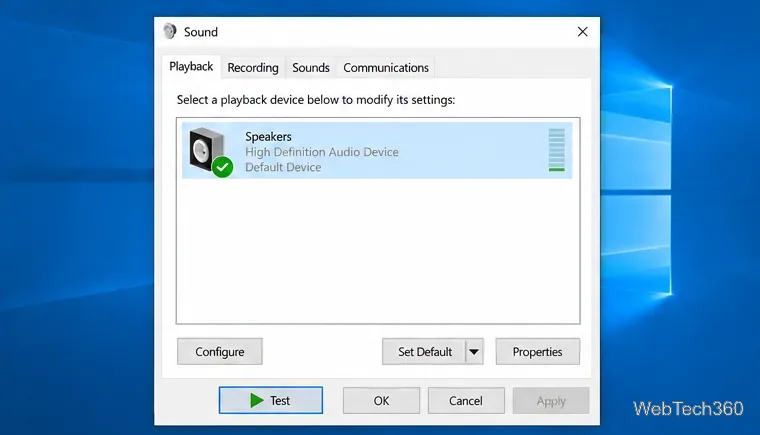
Select the speaker icon on the taskbar and choose the speakers or headphones you want. If there is still no sound, open the classic Sound dialog, select Playback, choose the correct speakers, and select Test. Check that the device is not muted, volume is up, and any cable is connected to the correct output jack.
For more checks, read Microsoft’s Windows audio troubleshooting guide. For the Windows 10 support notice, see Microsoft’s Windows Update page.
Prepare Java or Bedrock on Windows 10 for offline single-player, enable the right Xbox setting, and back up your local Minecraft worlds.
Change a file type icon in Windows 10 while keeping its current default app. Follow the FileTypesMan steps, handle icon picker issues, and restore the original setting.
Set PhysX in NVIDIA Control Panel on Windows 10, understand Auto-select vs. CPU or GPU, and learn when to use Windows Graphics settings instead.
Compare six free office suites for documents, spreadsheets, and presentations, including browser-based collaboration and offline desktop options.
Turn on Notepad’s Status Bar to see the current line and column in Windows 10, troubleshoot a disabled option, and learn when you need a line-number gutter.
Display a custom Windows dialog with a short PowerShell command, Command Prompt, or a reusable .bat or .ps1 file, including a title, icon, and buttons.
Fix Windows 10 update error 0x80071160 with Microsoft’s troubleshooter, a safe update-cache reset, DISM and SFC repairs, and a careful manual-install check.
Create a Windows 10 UEFI installer with Microsoft’s Media Creation Tool or Rufus, then boot and install safely without wiping the wrong drive.
Stop individual Edge tabs from crowding the Windows 10 Alt+Tab switcher. Change one Multitasking setting, limit recent tabs, and check why the option may be missing.
Enable Adobe’s PDF thumbnail handler, correct File Explorer’s icon settings, rebuild the thumbnail cache, and check OneDrive files that are not stored locally.








