How to Play Minecraft Offline on Windows 10: Java and Bedrock

Prepare Java or Bedrock on Windows 10 for offline single-player, enable the right Xbox setting, and back up your local Minecraft worlds.
If your laptop supports an always-on keyboard backlight, you can usually set it with a keyboard shortcut or a timeout option in BIOS/UEFI. Windows has no universal switch for laptop keyboard lighting, so the exact control depends on the computer model. On supported HP notebooks, choose Always from the backlight key or Never in BIOS. On supported Dell laptops, use the BIOS keyboard timeout and set it to Always On or Never, depending on the label.
Look across the function-key row for a keycap marked with a small glowing keyboard or light icon. Its location varies: it may be on F4, F5, F6, F7, F10, or another key. If the icon is on a secondary function, hold Fn while pressing it. You can also check your exact model’s product specifications. A keyboard without backlight hardware cannot be made to light up by installing an app or driver.
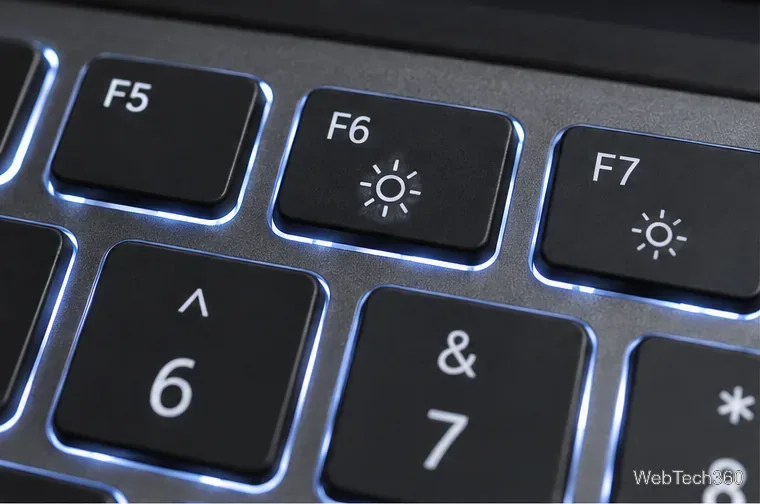
On select HP notebooks, you can change the timeout without entering BIOS:
HP documents the available choices on supported models as 30 seconds, 3 minutes, and Always. The selected duration is retained after you restart. If holding the key only changes brightness, use the BIOS method below or check the manual for your model.
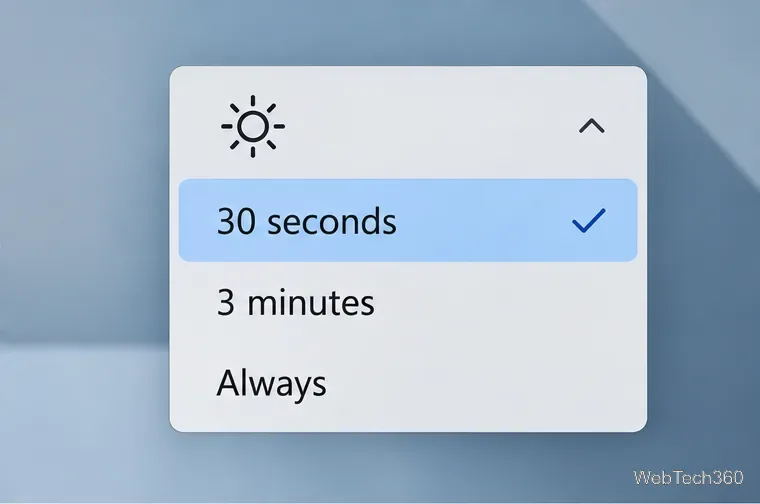
HP notes that the timeout setting appears only on supported products. If you do not see it, check the support page for your exact model; changing unrelated BIOS options will not add the feature.
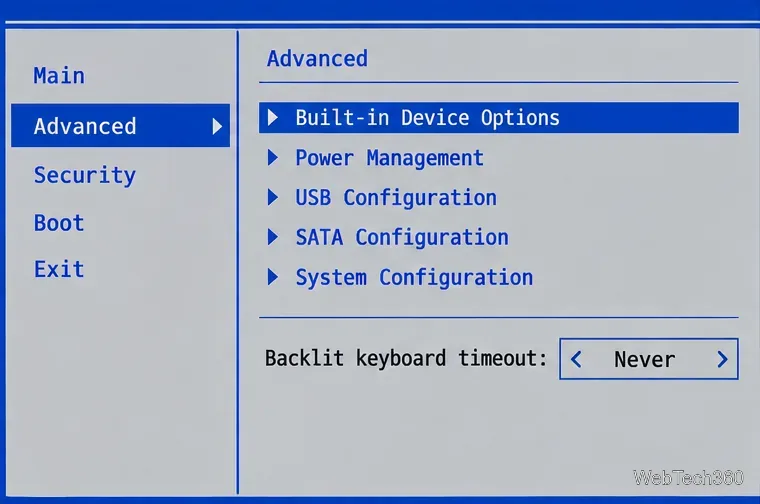
Dell’s current support guidance places the timeout in BIOS on models that offer it. Save your work before entering setup:
Some models show a single timeout, use different wording, or do not provide an always-on choice. Dell’s model manuals show that AC and battery timeouts can be separate, so set both if you want the same behavior on either power source.
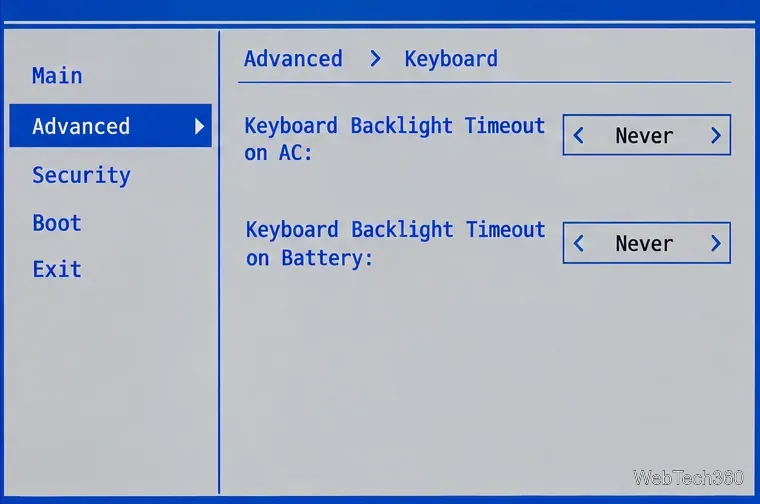
That usually means the feature is not exposed for your model, rather than a Windows setting being hidden. Check the product’s current manual or support page using its full model number or service tag. Dell’s official steps also show how to confirm the backlit keyboard is present and how to reach the Keyboard section in BIOS. Older web guides may point to Dell Feature Enhancement Pack; do not install an old package unless Dell lists it for your specific computer and operating system. It is not the general method for current Dell laptops.
If your laptop is from another manufacturer, look for a keyboard-light timeout in its BIOS/UEFI or its official control utility. Use only a utility listed for your model. If the setting is absent from the manufacturer’s documentation, the keyboard may only support on/off or brightness control.
Always or Never disables the inactivity timer while the laptop is running; it does not keep the keys lit after shutdown, and it will not prevent the computer from sleeping. A timeout setting is separate from the Windows display sleep timer. If the keyboard goes dark when the laptop sleeps, that is expected power behavior.
Keeping the light on can use more battery. A practical setup is Never while plugged in and a shorter timeout while on battery, if your BIOS offers separate values. After saving, test the backlight once on AC power and once on battery, then leave the keyboard idle long enough to confirm the timeout has changed.
See HP’s backlit keyboard support guide and Dell’s backlit keyboard and BIOS instructions. Always confirm the menu names and available choices against the manual for your own model.
Prepare Java or Bedrock on Windows 10 for offline single-player, enable the right Xbox setting, and back up your local Minecraft worlds.
Change a file type icon in Windows 10 while keeping its current default app. Follow the FileTypesMan steps, handle icon picker issues, and restore the original setting.
Set PhysX in NVIDIA Control Panel on Windows 10, understand Auto-select vs. CPU or GPU, and learn when to use Windows Graphics settings instead.
Compare six free office suites for documents, spreadsheets, and presentations, including browser-based collaboration and offline desktop options.
Turn on Notepad’s Status Bar to see the current line and column in Windows 10, troubleshoot a disabled option, and learn when you need a line-number gutter.
Display a custom Windows dialog with a short PowerShell command, Command Prompt, or a reusable .bat or .ps1 file, including a title, icon, and buttons.
Fix Windows 10 update error 0x80071160 with Microsoft’s troubleshooter, a safe update-cache reset, DISM and SFC repairs, and a careful manual-install check.
Create a Windows 10 UEFI installer with Microsoft’s Media Creation Tool or Rufus, then boot and install safely without wiping the wrong drive.
Stop individual Edge tabs from crowding the Windows 10 Alt+Tab switcher. Change one Multitasking setting, limit recent tabs, and check why the option may be missing.
Enable Adobe’s PDF thumbnail handler, correct File Explorer’s icon settings, rebuild the thumbnail cache, and check OneDrive files that are not stored locally.








