How to Play Minecraft Offline on Windows 10: Java and Bedrock

Prepare Java or Bedrock on Windows 10 for offline single-player, enable the right Xbox setting, and back up your local Minecraft worlds.
To make a photo black and white on Windows 10, remove its color with the Microsoft Photos app or use IrfanView’s Convert to Grayscale command. Both methods create a grayscale version with light and dark tones. Save the result as a copy if you want to keep the original photo in color.
The Photos app has changed over time, so you may see different buttons. The screen illustrations below show the controls discussed here; their arrangement may differ from the version installed on your PC.
Most photo editors use “black and white” to mean grayscale: color is removed, but the image keeps many shades between white and black. This preserves detail in faces, skies, and shadows. It is different from a two-tone image that contains only pure black and pure white, which can erase subtle detail.
Photos is the simplest choice if it is already installed. Microsoft’s current editing guidance covers the app’s Edit image, adjustment, and filter tools. Windows 10 PCs may also have the older Photos Legacy interface.
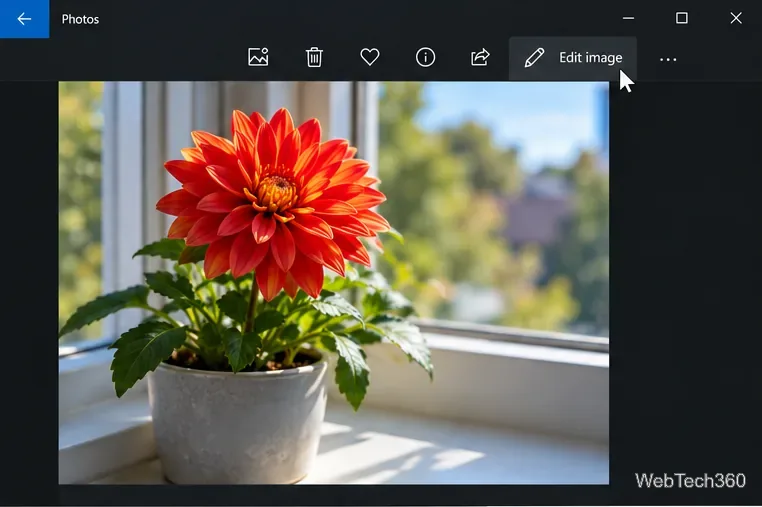
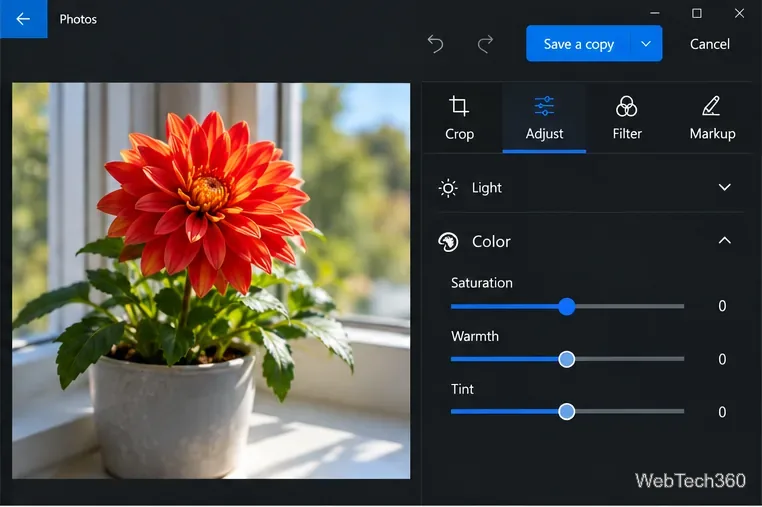
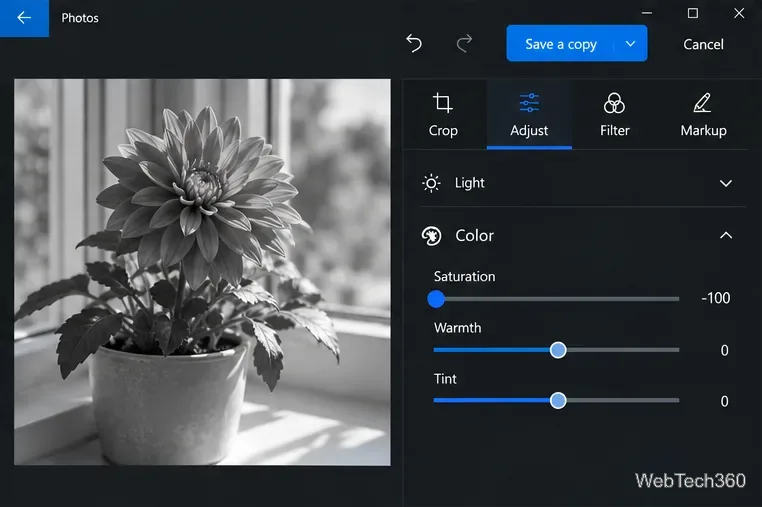
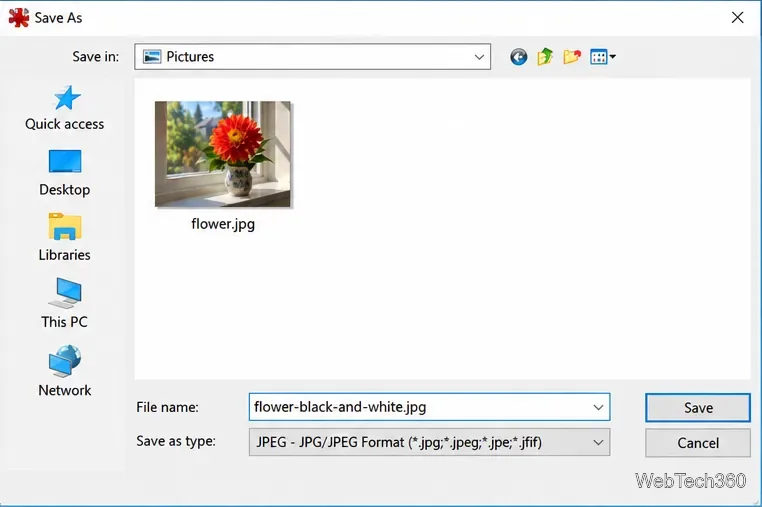
flower-black-and-white.jpg. Check that the new file opens correctly before deleting or replacing anything; saving a copy keeps the color original available.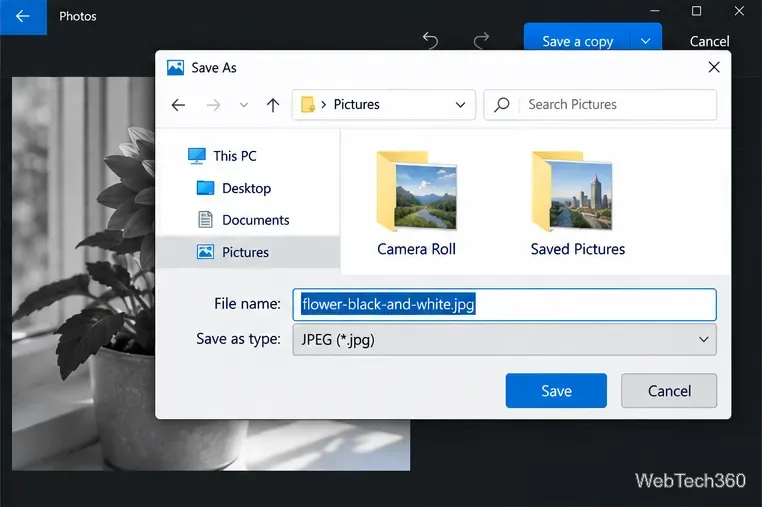
For Microsoft’s instructions on current Photos editing controls, see Edit photos and videos in Windows. The Photos Legacy guide explains how to open the older app when it is available.
IrfanView is a lightweight alternative when you want a direct grayscale command or your Photos controls are missing. Download it from the official IrfanView site. Avoid third-party download bundles.
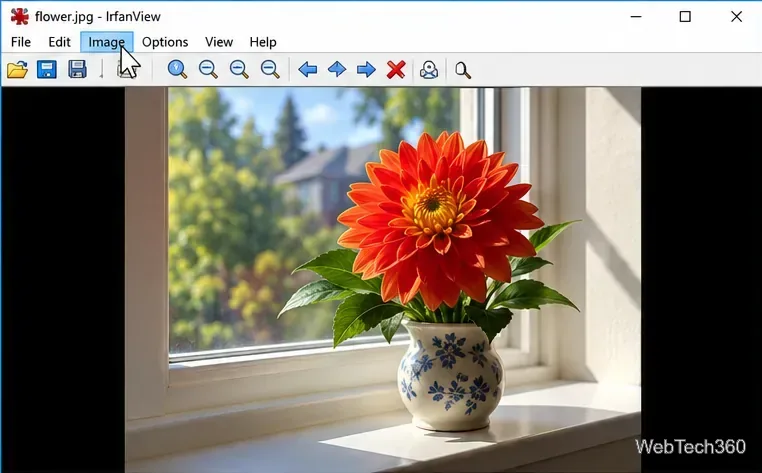
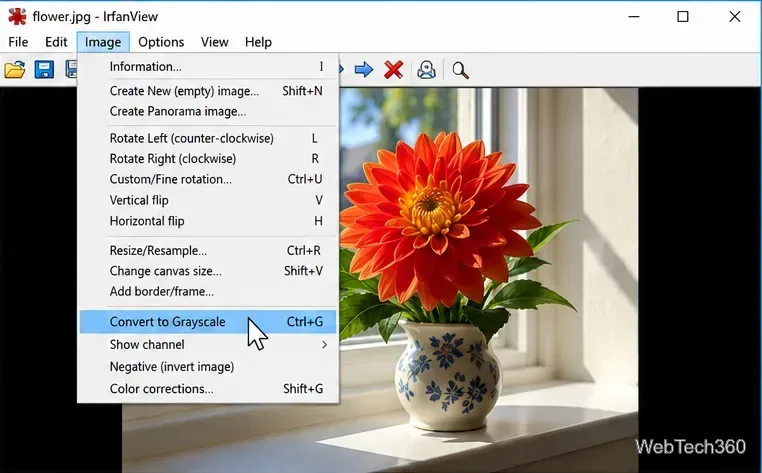
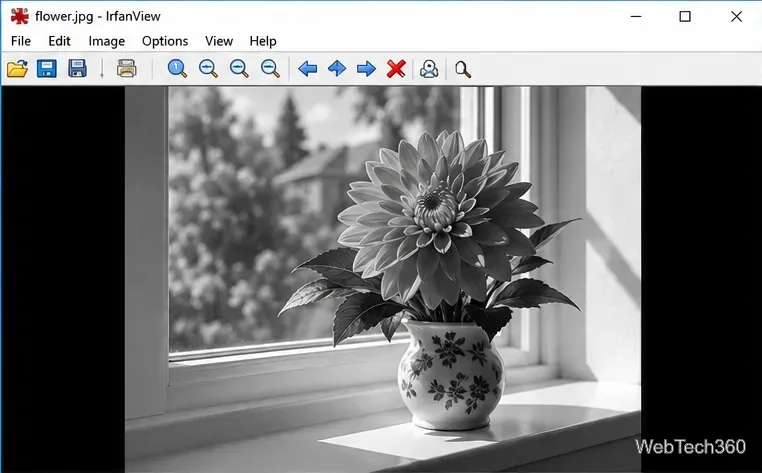
IrfanView’s official change history documents the grayscale command and its Ctrl + G shortcut. Menu names can vary slightly between releases, so use the Image menu if the shortcut does not work.
If every app and photo appears grayscale, Windows may have an accessibility color filter turned on. That changes how colors appear on the display; it does not edit the image file. In Windows 10, open Settings > Ease of Access > Color filters and turn the filter off. If the keyboard shortcut was enabled, press Windows key + Ctrl + C. See Microsoft’s Windows color filters guide.
Use Photos when you want an adjustable saturation slider and a quick preview. Choose IrfanView when a one-command grayscale conversion is more convenient. In either app, saving to a new filename is the safest way to compare versions or return to the original later.
Windows 10 support note: Microsoft ended standard support on October 14, 2025. Windows 10 PCs still run, but standard feature and security updates have ended; Microsoft lists current options in its Windows 10 support notice.
Prepare Java or Bedrock on Windows 10 for offline single-player, enable the right Xbox setting, and back up your local Minecraft worlds.
Change a file type icon in Windows 10 while keeping its current default app. Follow the FileTypesMan steps, handle icon picker issues, and restore the original setting.
Set PhysX in NVIDIA Control Panel on Windows 10, understand Auto-select vs. CPU or GPU, and learn when to use Windows Graphics settings instead.
Compare six free office suites for documents, spreadsheets, and presentations, including browser-based collaboration and offline desktop options.
Turn on Notepad’s Status Bar to see the current line and column in Windows 10, troubleshoot a disabled option, and learn when you need a line-number gutter.
Display a custom Windows dialog with a short PowerShell command, Command Prompt, or a reusable .bat or .ps1 file, including a title, icon, and buttons.
Fix Windows 10 update error 0x80071160 with Microsoft’s troubleshooter, a safe update-cache reset, DISM and SFC repairs, and a careful manual-install check.
Create a Windows 10 UEFI installer with Microsoft’s Media Creation Tool or Rufus, then boot and install safely without wiping the wrong drive.
Stop individual Edge tabs from crowding the Windows 10 Alt+Tab switcher. Change one Multitasking setting, limit recent tabs, and check why the option may be missing.
Enable Adobe’s PDF thumbnail handler, correct File Explorer’s icon settings, rebuild the thumbnail cache, and check OneDrive files that are not stored locally.








