How to Play Minecraft Offline on Windows 10: Java and Bedrock

Prepare Java or Bedrock on Windows 10 for offline single-player, enable the right Xbox setting, and back up your local Minecraft worlds.
To merge two folders on Windows 10, the safest approach is to copy one folder into the location that already contains the other. Windows combines the folder structure instead of deleting the destination folder. Files that exist only in one folder are added, while files with the same name in the same subfolder are handled as conflicts so you can choose what to keep.
This is different from replacing a folder. A merge keeps destination-only files unless you deliberately delete or overwrite them.
Microsoft documents copying, cutting, and pasting folders as standard File Explorer operations. When two folder trees overlap, File Explorer can combine their contents. What happens next depends on the files inside them:
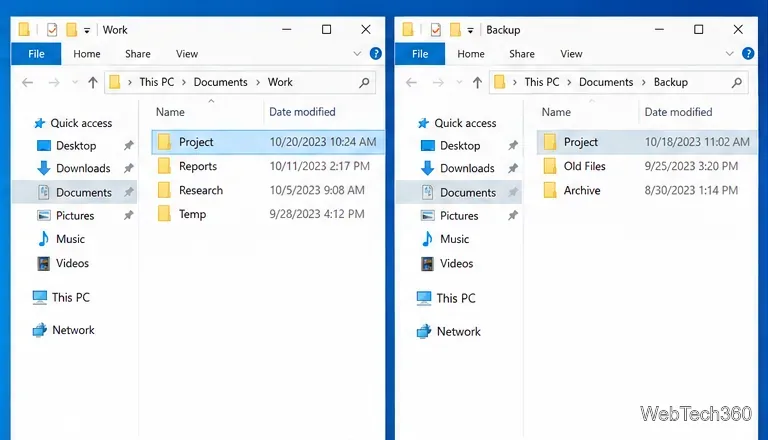
Use copying rather than cutting for the first pass. That leaves the original source folder intact until you confirm that the merged destination contains everything you need.
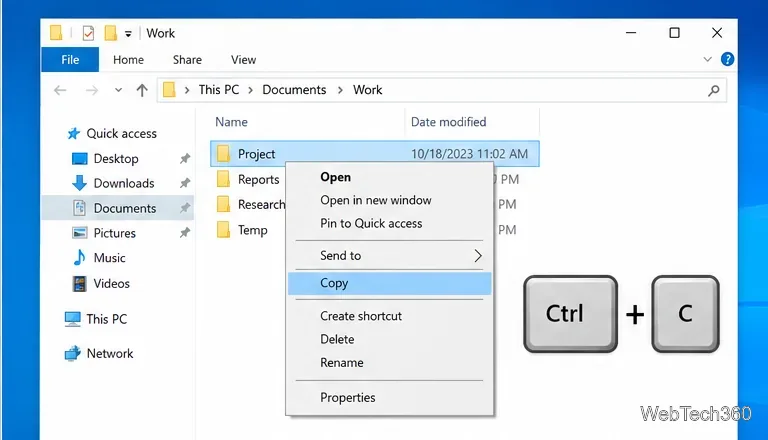
D:\Backup\Project, open D:\Backup.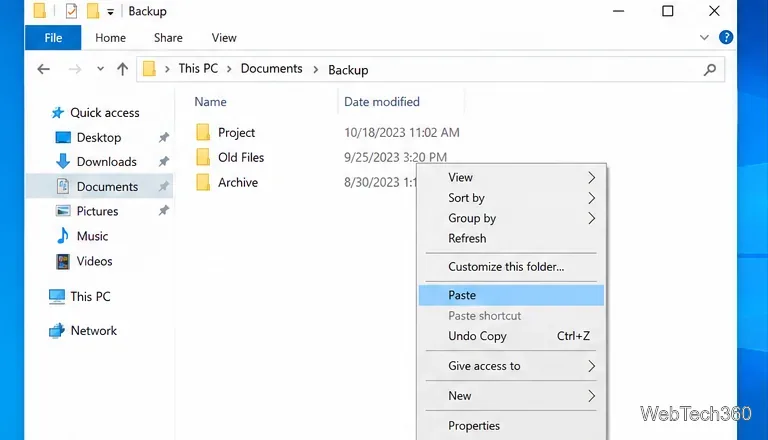
The conflict dialog is the step where data can actually be overwritten. Choose carefully:
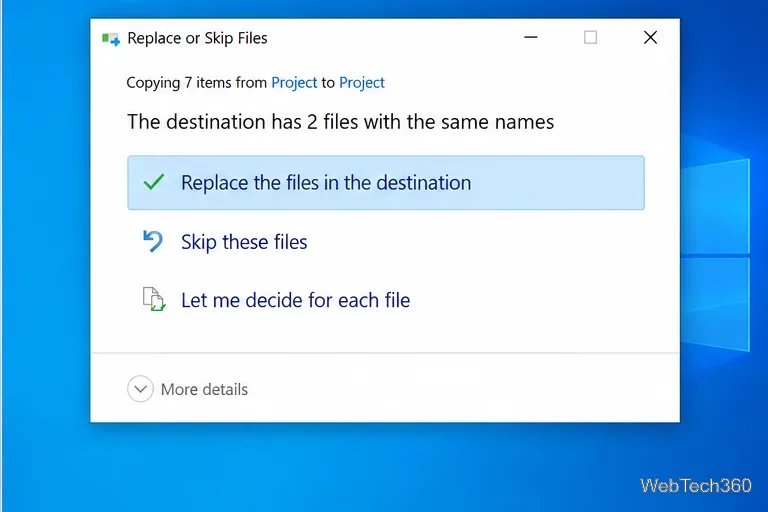
After the copy finishes, open a few important subfolders and confirm that the expected files are present. Only then should you delete the old source folder if you no longer need it.
For a large collection of nested folders, Windows 10 also includes Robocopy. Microsoft's Robocopy documentation confirms that the command applies to Windows 10 and that the /E option copies all subdirectories, including empty ones.
For example:
robocopy "C:\Work\Project" "D:\Backup\Project" /EThis copies the source tree into the destination tree while leaving destination-only files in place. If you want to preview what Robocopy would do first, add /L; Microsoft documents that option as listing planned actions without copying, deleting, or timestamping files.
Avoid /MIR for a normal merge. Microsoft defines /MIR as /E plus /PURGE, which can delete files and directories that exist only in the destination. That behavior is useful for an exact mirror but is the opposite of a non-destructive merge.
Replacing a folder means making the destination contain only the source version. File Explorer's normal same-name copy behavior is not designed to remove destination-only files. If that is truly your goal, back up anything important, delete or rename the old destination folder, and then copy the source folder into its place. For scripted work, Robocopy /MIR can create an exact mirror, but use it only after a preview because it removes destination-only items.
These File Explorer and Robocopy steps still apply to Windows 10, but Microsoft states that standard support for Windows 10 ended on October 14, 2025. See the Windows 10 end-of-support notice if you are deciding whether to keep using the operating system.
Prepare Java or Bedrock on Windows 10 for offline single-player, enable the right Xbox setting, and back up your local Minecraft worlds.
Change a file type icon in Windows 10 while keeping its current default app. Follow the FileTypesMan steps, handle icon picker issues, and restore the original setting.
Set PhysX in NVIDIA Control Panel on Windows 10, understand Auto-select vs. CPU or GPU, and learn when to use Windows Graphics settings instead.
Compare six free office suites for documents, spreadsheets, and presentations, including browser-based collaboration and offline desktop options.
Turn on Notepad’s Status Bar to see the current line and column in Windows 10, troubleshoot a disabled option, and learn when you need a line-number gutter.
Display a custom Windows dialog with a short PowerShell command, Command Prompt, or a reusable .bat or .ps1 file, including a title, icon, and buttons.
Fix Windows 10 update error 0x80071160 with Microsoft’s troubleshooter, a safe update-cache reset, DISM and SFC repairs, and a careful manual-install check.
Create a Windows 10 UEFI installer with Microsoft’s Media Creation Tool or Rufus, then boot and install safely without wiping the wrong drive.
Stop individual Edge tabs from crowding the Windows 10 Alt+Tab switcher. Change one Multitasking setting, limit recent tabs, and check why the option may be missing.
Enable Adobe’s PDF thumbnail handler, correct File Explorer’s icon settings, rebuild the thumbnail cache, and check OneDrive files that are not stored locally.








