How to Play Minecraft Offline on Windows 10: Java and Bedrock

Prepare Java or Bedrock on Windows 10 for offline single-player, enable the right Xbox setting, and back up your local Minecraft worlds.
Windows 10 does not have a documented built-in keyboard shortcut that globally mutes every microphone. If the app you are using has its own mute shortcut, that is the simplest option. For example, Microsoft Teams uses Ctrl+Shift+M to toggle the microphone during a meeting. If you want one shortcut that mutes a Windows 10 recording device for any app using that device, you can create one with AutoHotkey v2.
Do not rely on Windows+Alt+K as a Windows 10-wide solution. Microsoft lists that combination for muting the microphone in supported apps in its current Windows shortcut documentation, but the Windows 10-specific shortcut list does not include it. Microsoft originally introduced the taskbar mic-mute experience for Windows 11. See Microsoft's Windows keyboard shortcut reference and the Windows 11 mic-mute announcement.
| Method | Shortcut | Scope |
|---|---|---|
| Microsoft Teams | Ctrl+Shift+M | Current Teams meeting or call |
| Keyboard, headset, or microphone mute key | Varies by device | Usually hardware- or driver-controlled |
| AutoHotkey v2 | Example: Ctrl+Alt+M | The recording device named in your script |
| Windows+Alt+K | Win+Alt+K | Supported Windows communication apps; do not treat it as a Windows 10 global mute |
If your laptop, headset, dock, or USB microphone has a dedicated hardware mic-mute button, that is often the most dependable choice because it does not depend on a meeting app being in focus. Its behavior is device-specific, so check the manufacturer's documentation if the indicator light and Windows mute state do not agree.
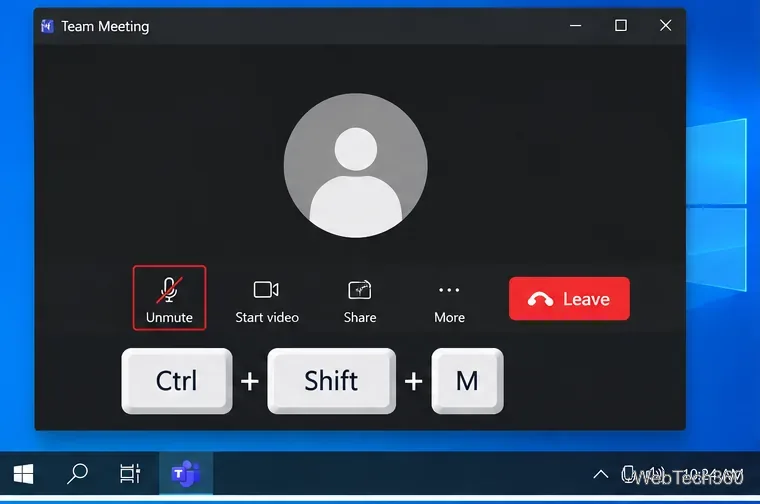
Microsoft documents Ctrl+Shift+M for Teams. You can confirm the current behavior on the Microsoft Teams mute and unmute support page.
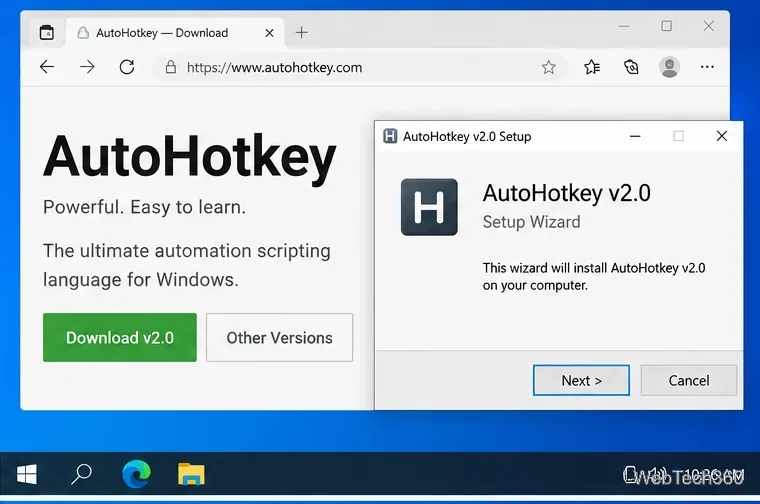
Download AutoHotkey v2 from the official AutoHotkey download directory and install it. Use a current v2 release; old AutoHotkey v1 microphone scripts use different syntax.
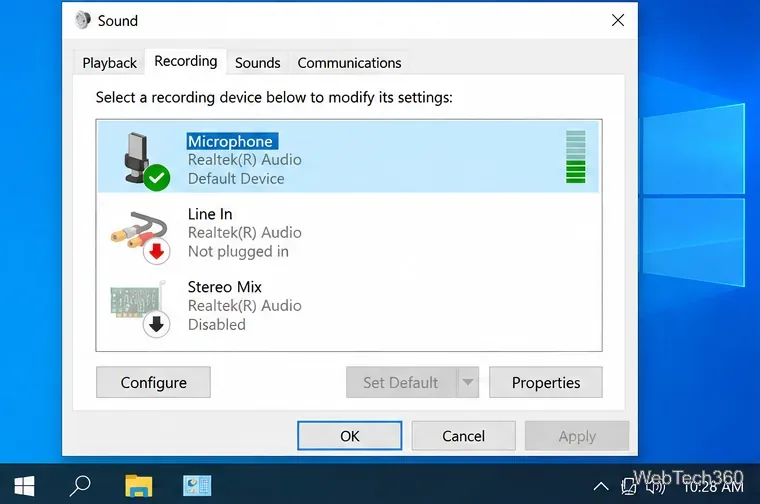
Press Windows+R, type mmsys.cpl, and press Enter. Open the Recording tab and note the name of the microphone you actually use. A built-in input may simply be called Microphone, while a USB headset could have a different name.
Open Notepad and paste the following AutoHotkey v2 script:
#Requires AutoHotkey v2.0
^!m::SoundSetMute(-1, , "Microphone")
Save the file as mic-mute.ahk. In AutoHotkey syntax, ^ means Ctrl and ! means Alt, so ^!m becomes Ctrl+Alt+M. The value -1 tells SoundSetMute to toggle the current mute state.
If your recording device is not named Microphone, replace that text with the device name you found in the Recording tab. AutoHotkey can match a full device name or a unique beginning of the name. Its sound functions target audio endpoints, so the shortcut affects that selected recording device rather than every possible microphone attached to the PC. The behavior of SoundSetMute is documented in the AutoHotkey v2 reference.
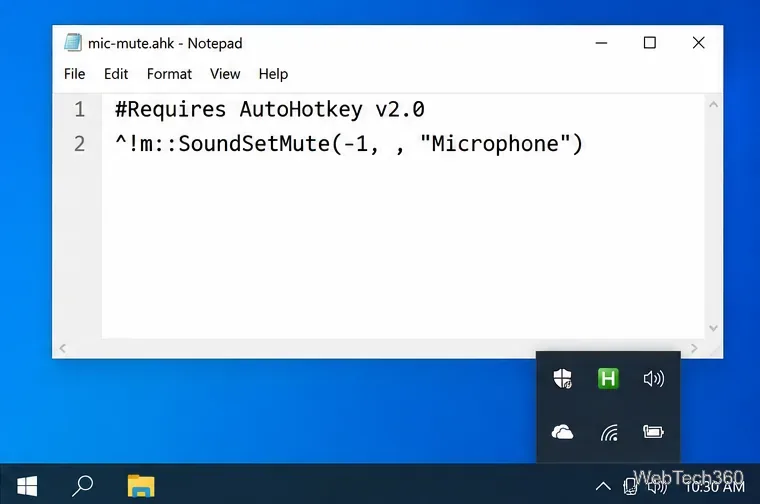
Double-click mic-mute.ahk. AutoHotkey should appear in the notification area. Press Ctrl+Alt+M, then check your meeting or recording app to confirm that the input is muted. Press the same shortcut again to unmute.
If nothing happens, reopen mmsys.cpl and verify that the device name in the script matches the microphone your app is using. If you have several microphones with similar names, use the full display name so AutoHotkey targets the correct endpoint.
Older guides often recommend the standalone MicMute utility or PowerToys Video Conference Mute. The old MicMute instructions in this article were based on software that had not been maintained for years, so they are no longer the best default recommendation. Microsoft also removed Video Conference Mute from PowerToys 0.88 after it had been in maintenance mode; the PowerToys team documented that change in its official GitHub repository.
Standard Windows 10 support ended on October 14, 2025. Windows 10 PCs still work, and eligible devices can receive Extended Security Updates, but Microsoft recommends moving to Windows 11 when possible. See Microsoft's Windows 10 end-of-support guidance.
Prepare Java or Bedrock on Windows 10 for offline single-player, enable the right Xbox setting, and back up your local Minecraft worlds.
Change a file type icon in Windows 10 while keeping its current default app. Follow the FileTypesMan steps, handle icon picker issues, and restore the original setting.
Set PhysX in NVIDIA Control Panel on Windows 10, understand Auto-select vs. CPU or GPU, and learn when to use Windows Graphics settings instead.
Compare six free office suites for documents, spreadsheets, and presentations, including browser-based collaboration and offline desktop options.
Turn on Notepad’s Status Bar to see the current line and column in Windows 10, troubleshoot a disabled option, and learn when you need a line-number gutter.
Display a custom Windows dialog with a short PowerShell command, Command Prompt, or a reusable .bat or .ps1 file, including a title, icon, and buttons.
Fix Windows 10 update error 0x80071160 with Microsoft’s troubleshooter, a safe update-cache reset, DISM and SFC repairs, and a careful manual-install check.
Create a Windows 10 UEFI installer with Microsoft’s Media Creation Tool or Rufus, then boot and install safely without wiping the wrong drive.
Stop individual Edge tabs from crowding the Windows 10 Alt+Tab switcher. Change one Multitasking setting, limit recent tabs, and check why the option may be missing.
Enable Adobe’s PDF thumbnail handler, correct File Explorer’s icon settings, rebuild the thumbnail cache, and check OneDrive files that are not stored locally.








