How to Schedule a Wallpaper Change in Windows 10

Use Windows 10’s built-in slideshow for interval rotation or schedule an exact daily wallpaper change with Task Scheduler and a short PowerShell script.
Yes. Among Us supports controllers on Windows 10, so the old workaround of importing a custom Steam controller layout is no longer necessary for a normal Xbox controller setup. Steam currently lists the PC version with Full Controller Support for Xbox controllers. Innersloth also continues to maintain controller-specific behavior in the game, including controller prompts and role actions.
The steps below use the Steam version of Among Us. Before starting, update the game to the latest build available to you. Innersloth released version 19.0.0 across platforms on September 29, 2026, so instructions based on much older 2020-era controller layouts should be treated as obsolete. You can check the current release notes on the official Innersloth site.
Steam's Among Us store page specifically identifies full controller support for Xbox controllers. Valve's Steam Input documentation supports additional controller families, but that does not mean every non-Xbox model is guaranteed to work identically with Among Us.
For the simplest setup, connect your Xbox controller before opening Among Us. A wired USB connection normally needs no extra configuration. For Bluetooth on Windows 10, open Settings > Devices > Bluetooth & other devices, choose Add Bluetooth or other device, and pair the controller after placing it in pairing mode.
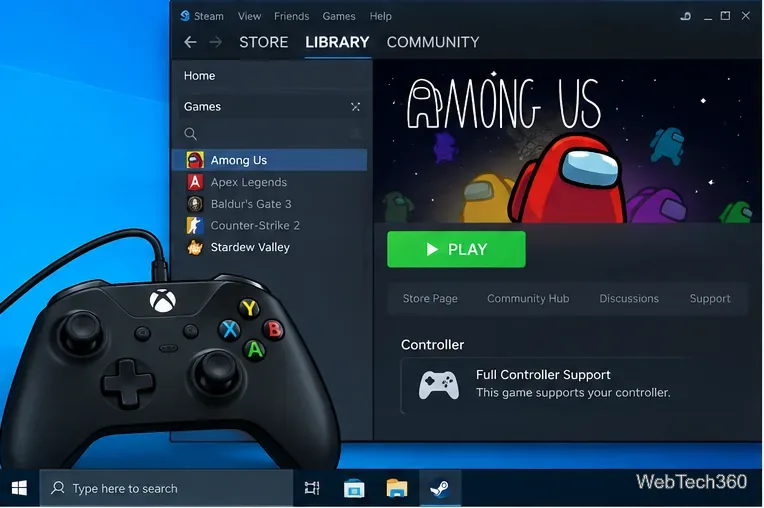
Open Steam, select Library, choose Among Us, and select Play. Do not import the old community configuration used by older guides unless you have a specific compatibility problem. Native controller handling is the better first choice because it allows the game to show gamepad prompts instead of pretending the controller is a keyboard and mouse.
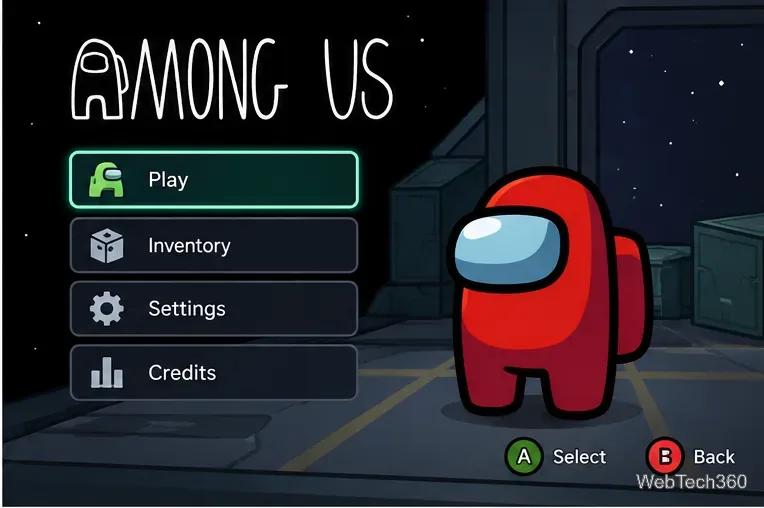
On the main menu, press a direction or face button on the controller. If the menu responds and gamepad button icons appear, the controller is detected. You can then navigate menus, enter lobbies, change supported options, and start a match without building a manual Steam layout.
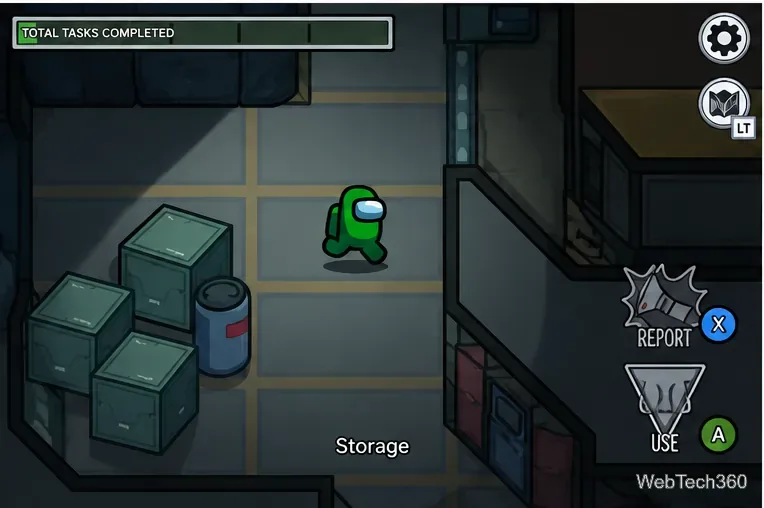
Once a round starts, move with the left stick and follow the button prompts shown for interactions, reports, maps, tasks, and role abilities. Innersloth has used dedicated controller inputs for actions such as venting, opening the sabotage map, and activating special role abilities; the exact prompt shown in your current build is the safest reference because role controls can change as the game evolves.
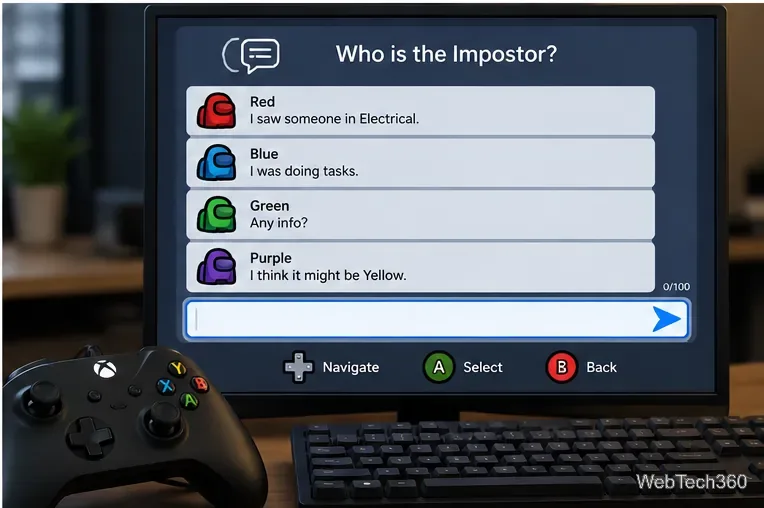
A keyboard is no longer a requirement just to play Among Us with a controller. Steam's “Full Controller Support” label means the Steam version is intended to be launchable and playable with a controller. During meetings, controller navigation can be used for the interface and supported chat choices. If your account can use free-text chat, however, typing a detailed message is usually faster on a physical keyboard, so keeping one nearby can still be convenient.
If an Xbox controller works but another gamepad does not, open Steam > Settings > Controller and check whether Steam detects the device. Valve documents Steam Input support for major controller families, including PlayStation and Nintendo Switch Pro models. See Valve's Steam Input guide for players for the current controller-settings workflow.
Start with the default configuration. Only create or import a remapped layout if native input and the standard Steam Input profile fail. This avoids double inputs, incorrect button icons, and mappings that no longer match the current version of Among Us.
For background on native controller actions, Innersloth's official controller-change notes document dedicated gamepad controls added to Among Us. The practical takeaway is simple: on a current Windows 10 installation, connect the controller, launch the updated game, and let Among Us handle the gamepad natively before trying any legacy Steam remapping workaround.
Use Windows 10’s built-in slideshow for interval rotation or schedule an exact daily wallpaper change with Task Scheduler and a short PowerShell script.
Choose a built-in alert tone or WAV file for Windows 10 message notifications, test the change, and troubleshoot apps that keep playing another sound.
Arrange Windows 10 apps in top-and-bottom rows with the taskbar’s Show windows stacked command, or create a reusable two-zone layout with PowerToys FancyZones.
Keep each display at its recommended resolution, arrange Windows 10 monitors accurately, and use MouseUnSnag to cross mismatched edges and sticky corners.
Find whether your connected Wi-Fi uses WPA2, WPA3, or an older security mode in Windows 10 with Settings, Command Prompt, or Control Panel.
Automatically lock Windows 10 after inactivity with a screen saver timer and sign-in prompt, then check how sleep settings affect the result.
Add a persistent colored ring around your Windows 10 mouse pointer with PenAttention, or use built-in pointer tools and PowerToys for temporary highlights.
Keep the Xbox Game Bar Performance widget visible over other windows on Windows 10, with CPU, GPU, and RAM readings you can position and unpin.
Capture two or more Windows 10 displays in one OBS video. Add a Display Capture source for each monitor, fit the canvas, and test the layout.
Create a GUID on Windows 10 with [guid]::NewGuid() or New-Guid, reuse it in a script, and learn when to look up an existing identifier.








