How to Schedule a Wallpaper Change in Windows 10

Use Windows 10’s built-in slideshow for interval rotation or schedule an exact daily wallpaper change with Task Scheduler and a short PowerShell script.
If you completely formatted the Windows drive, you may still be able to reactivate Windows 10 without recovering a 25-character key. On many PCs, activation is stored as a digital license tied to the hardware, while many OEM systems keep the original product key in UEFI firmware. Reinstalling the same Windows 10 edition on the same PC and connecting it to the internet is often enough.
Microsoft explains that Windows 10 activation can use either a digital license or a product key. If you are reinstalling Windows 10, start with the automatic activation route before trying to recover a key. See Microsoft's Windows activation guide.
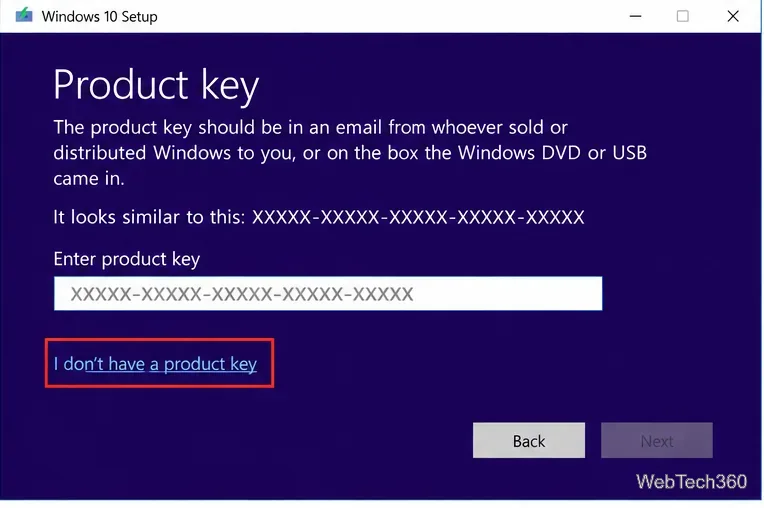
If the page says Windows is activated with a digital license, you are done. You do not need to extract or enter a key.
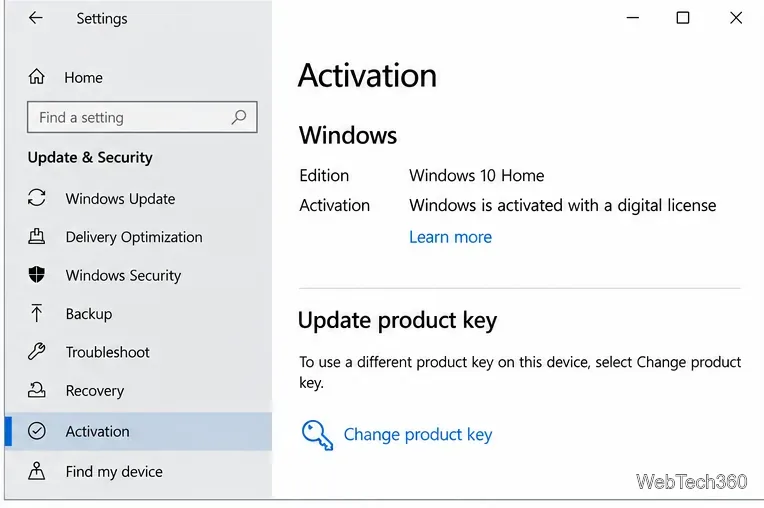
Edition matters. A Windows 10 Home digital license will not activate a Windows 10 Pro installation, and vice versa. If activation fails after a clean install, confirm the installed edition before assuming the license was lost.
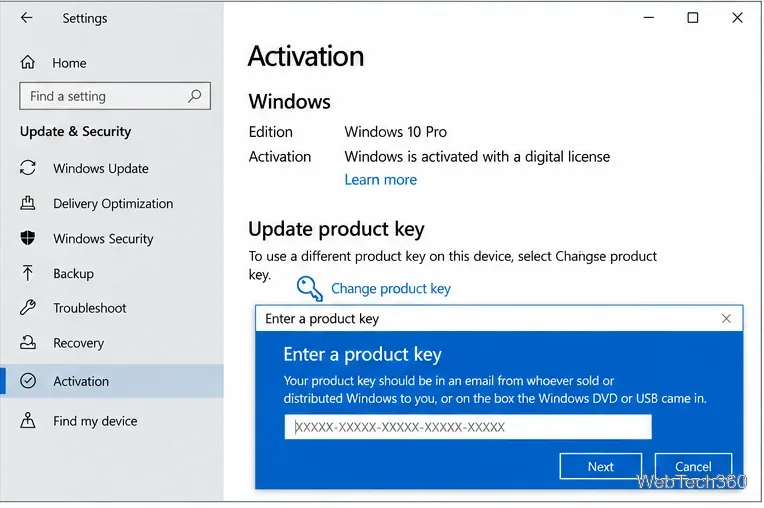
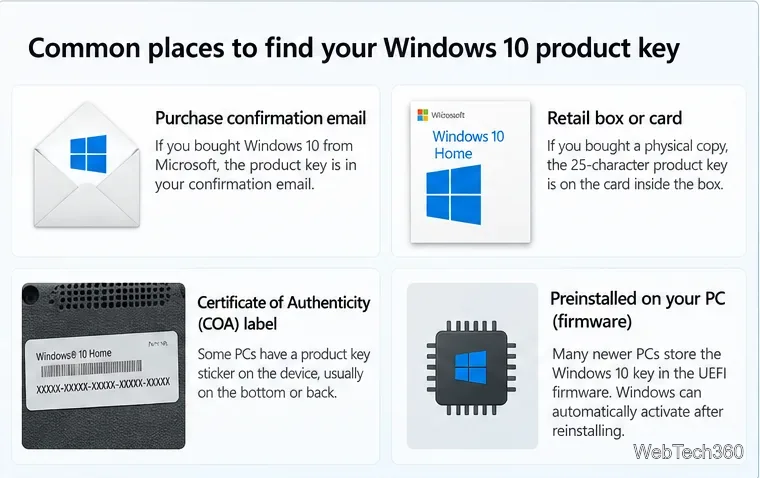
If the PC originally shipped with Windows, the manufacturer may have stored the original OEM key in the system firmware. A complete disk format does not erase UEFI firmware.
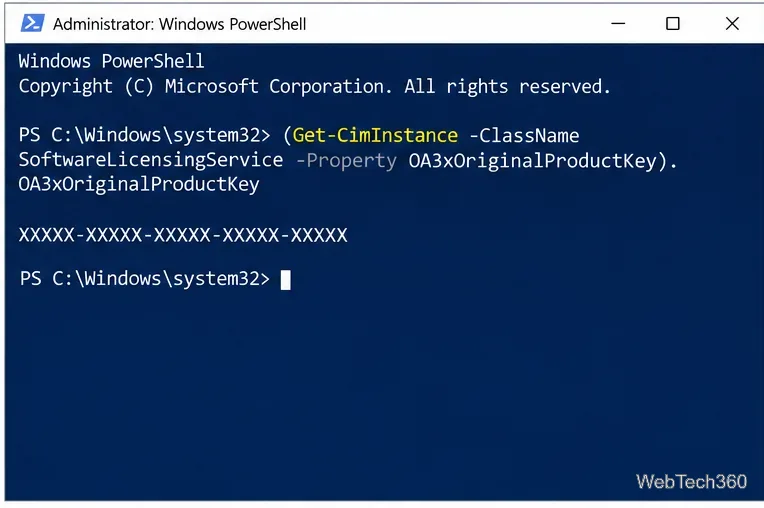
After Windows is installed, right-click Start, open Windows PowerShell (Admin), and run:
(Get-CimInstance -ClassName SoftwareLicensingService -Property OA3xOriginalProductKey).OA3xOriginalProductKeyIf a firmware key exists, PowerShell should return a 25-character key. Keep it private. If the command returns nothing, that does not prove the PC is unlicensed; the machine may use only a digital license.
If automatic activation does not work, use the purchase source to locate the correct key or license record. Microsoft's product-key guidance lists the supported locations.
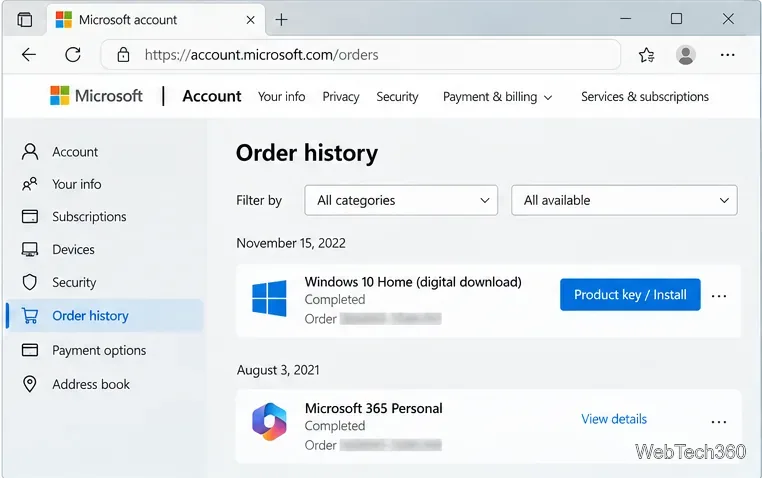
For a Microsoft purchase, sign in to Microsoft Store order history with the same account used to buy Windows. Look for the completed Windows order and any available product-key or install details.
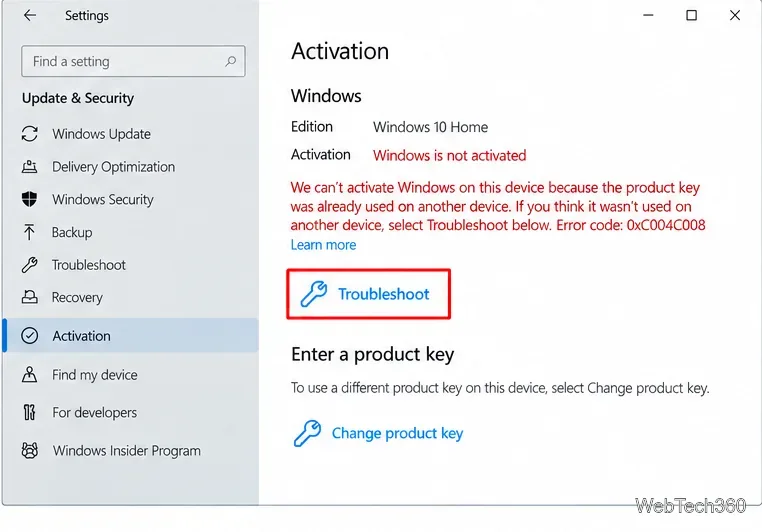
If the same PC was activated before formatting but Windows now reports an activation error, open Settings > Update & Security > Activation and select Troubleshoot. The option appears when Windows 10 is not activated.
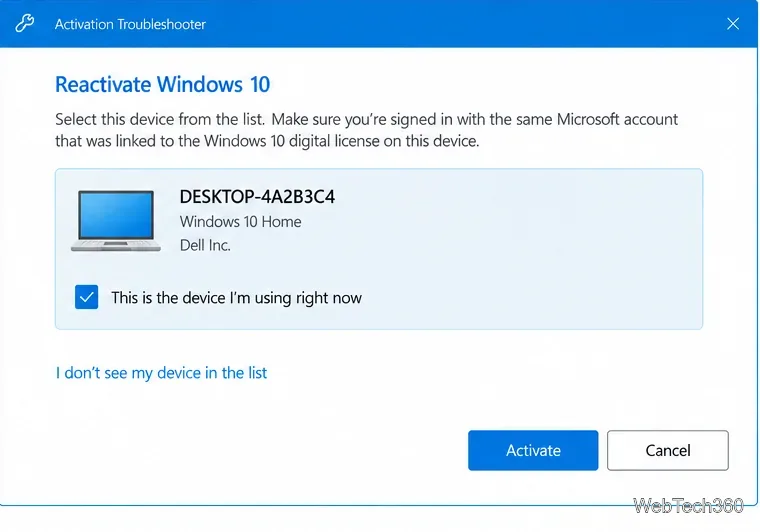
If you also replaced major hardware, especially the motherboard, the license may no longer match the device. Microsoft documents a reactivation path for eligible digital licenses linked to a Microsoft account:
See Microsoft's hardware-change reactivation instructions for the full process.
Check for an edition mismatch first. Then contact the PC manufacturer for an OEM license issue, the retailer for a lost retail key, or Microsoft Support for a Microsoft purchase or activation error. Avoid random key-finder websites and never post a product key publicly.
Support note: Microsoft ended standard Windows 10 support on October 14, 2025. Windows 10 can still run, but regular security support has ended unless the device is covered by an eligible Extended Security Updates option. Microsoft recommends moving to Windows 11 on compatible hardware. See the Windows 10 end-of-support notice.
Use Windows 10’s built-in slideshow for interval rotation or schedule an exact daily wallpaper change with Task Scheduler and a short PowerShell script.
Choose a built-in alert tone or WAV file for Windows 10 message notifications, test the change, and troubleshoot apps that keep playing another sound.
Arrange Windows 10 apps in top-and-bottom rows with the taskbar’s Show windows stacked command, or create a reusable two-zone layout with PowerToys FancyZones.
Keep each display at its recommended resolution, arrange Windows 10 monitors accurately, and use MouseUnSnag to cross mismatched edges and sticky corners.
Find whether your connected Wi-Fi uses WPA2, WPA3, or an older security mode in Windows 10 with Settings, Command Prompt, or Control Panel.
Automatically lock Windows 10 after inactivity with a screen saver timer and sign-in prompt, then check how sleep settings affect the result.
Add a persistent colored ring around your Windows 10 mouse pointer with PenAttention, or use built-in pointer tools and PowerToys for temporary highlights.
Keep the Xbox Game Bar Performance widget visible over other windows on Windows 10, with CPU, GPU, and RAM readings you can position and unpin.
Capture two or more Windows 10 displays in one OBS video. Add a Display Capture source for each monitor, fit the canvas, and test the layout.
Create a GUID on Windows 10 with [guid]::NewGuid() or New-Guid, reuse it in a script, and learn when to look up an existing identifier.








