How to Play Minecraft Offline on Windows 10: Java and Bedrock

Prepare Java or Bedrock on Windows 10 for offline single-player, enable the right Xbox setting, and back up your local Minecraft worlds.
If you want to remove a game from NVIDIA GeForce Experience on Windows 10, the safest current method is to use the NVIDIA app instead of editing GeForce Experience database files. NVIDIA says GeForce Experience is no longer supported and is directing remaining users to the NVIDIA app. The newer app supports Windows 10 and gives you supported controls for hiding detected titles, removing manually added programs, and changing the folders it scans.
In most cases, you do not need to uninstall the game or delete NVIDIA cache files. Use the method below that matches what you are trying to accomplish.
For a game that NVIDIA detected automatically, Hide is the normal way to remove it from your visible Graphics list without changing the game installation.
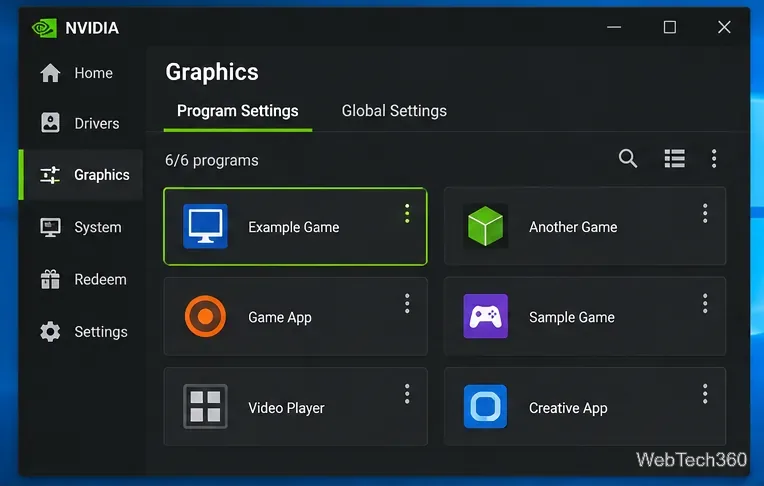
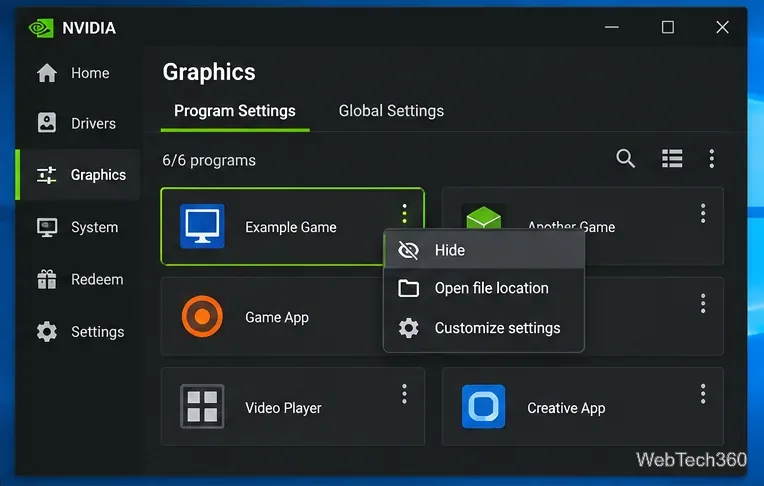
NVIDIA documents this behavior in its overview of the Graphics tab: the per-program menu can hide a program, while the sort and filter controls can later show hidden entries again. This is preferable to the old workaround of stopping NVIDIA services and deleting files from AppData\Local\NVIDIA\NvBackend.
The NVIDIA app treats manually added programs differently. NVIDIA added a supported Remove option for programs that were manually added to the Graphics tab. If the entry came from the app's manual add function, open its three-dot menu and choose Remove when that command is available.
This distinction matters: automatically detected games are normally hidden, while manually added programs can be removed. NVIDIA's release highlights specifically note support for removing manually added programs.
Hiding a game is reversible. To find a title you hid earlier:
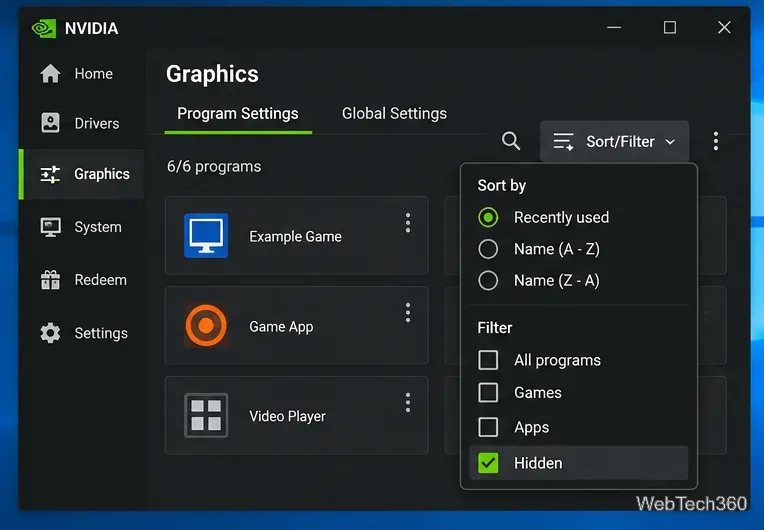
If the same games keep appearing because NVIDIA scans a folder that you do not want included, review the app's scan locations instead of deleting its internal data. NVIDIA Support says scan folders can be managed under Settings > Scan Locations.
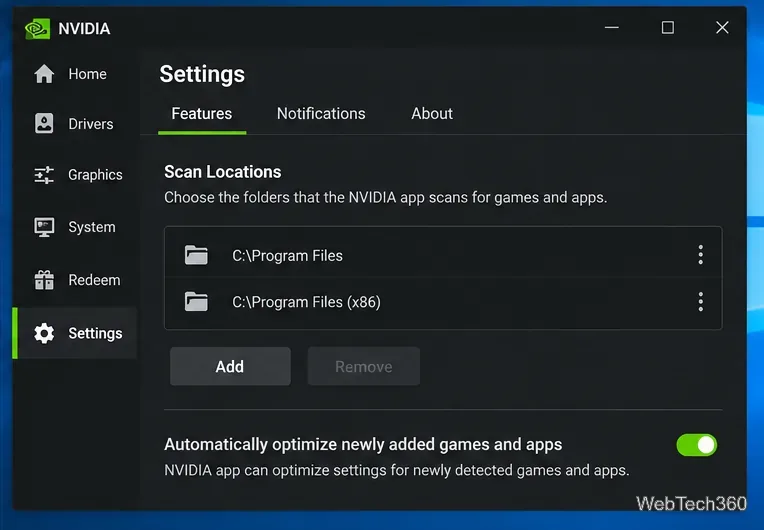
Be careful with broad folders such as C:\Program Files or a Steam library folder. Removing one of those locations can affect multiple games, not just the title you are trying to hide. If you only want one game out of sight, use Hide instead.
GeForce Experience is now a legacy product. NVIDIA's current NVIDIA App FAQ states that GeForce Experience is no longer supported, and NVIDIA has also warned remaining users that critical GeForce Experience web servers will be switched off in the future.
For that reason, the old technique of stopping every NVIDIA service and deleting journalBS files from the NvBackend folder should no longer be the recommended fix. It removes the app's stored game list in an unsupported way, can wipe more entries than intended, and does not provide a clean per-game control.
If GeForce Experience still works on your Windows 10 PC, the practical long-term fix is to migrate to the NVIDIA app and use its built-in Graphics controls. You can confirm current requirements and migration details in NVIDIA's upgrade notice.
| Goal | Best option |
|---|---|
| Remove one automatically detected game from view | Hide it from Graphics > Program Settings |
| Delete a program you added manually | Use Remove from that program's menu |
| Restore a hidden entry | Filter for Hidden programs and unhide it |
| Stop scanning an entire folder | Change Settings > Scan Locations |
The key change from older GeForce Experience advice is that you no longer need to manipulate NVIDIA's backend files just to clean up the game list. On Windows 10, the supported NVIDIA app controls are simpler, reversible, and much less likely to remove more than you intended.
Prepare Java or Bedrock on Windows 10 for offline single-player, enable the right Xbox setting, and back up your local Minecraft worlds.
Change a file type icon in Windows 10 while keeping its current default app. Follow the FileTypesMan steps, handle icon picker issues, and restore the original setting.
Set PhysX in NVIDIA Control Panel on Windows 10, understand Auto-select vs. CPU or GPU, and learn when to use Windows Graphics settings instead.
Compare six free office suites for documents, spreadsheets, and presentations, including browser-based collaboration and offline desktop options.
Turn on Notepad’s Status Bar to see the current line and column in Windows 10, troubleshoot a disabled option, and learn when you need a line-number gutter.
Display a custom Windows dialog with a short PowerShell command, Command Prompt, or a reusable .bat or .ps1 file, including a title, icon, and buttons.
Fix Windows 10 update error 0x80071160 with Microsoft’s troubleshooter, a safe update-cache reset, DISM and SFC repairs, and a careful manual-install check.
Create a Windows 10 UEFI installer with Microsoft’s Media Creation Tool or Rufus, then boot and install safely without wiping the wrong drive.
Stop individual Edge tabs from crowding the Windows 10 Alt+Tab switcher. Change one Multitasking setting, limit recent tabs, and check why the option may be missing.
Enable Adobe’s PDF thumbnail handler, correct File Explorer’s icon settings, rebuild the thumbnail cache, and check OneDrive files that are not stored locally.








