How to Schedule a Wallpaper Change in Windows 10

Use Windows 10’s built-in slideshow for interval rotation or schedule an exact daily wallpaper change with Task Scheduler and a short PowerShell script.
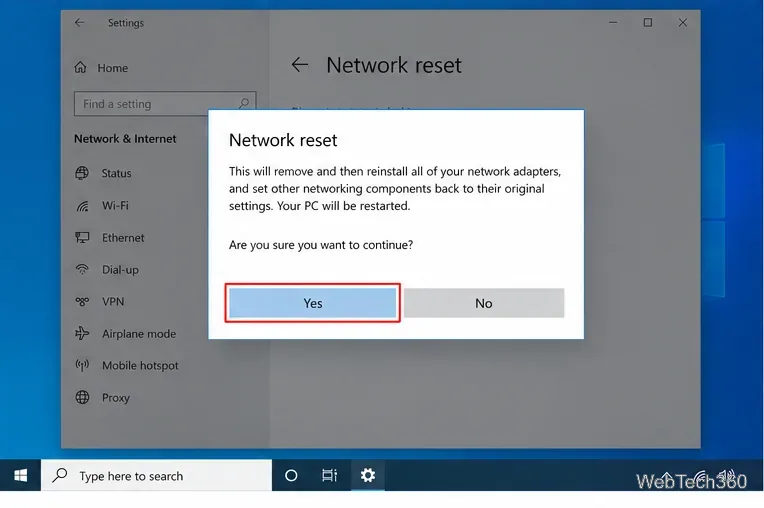
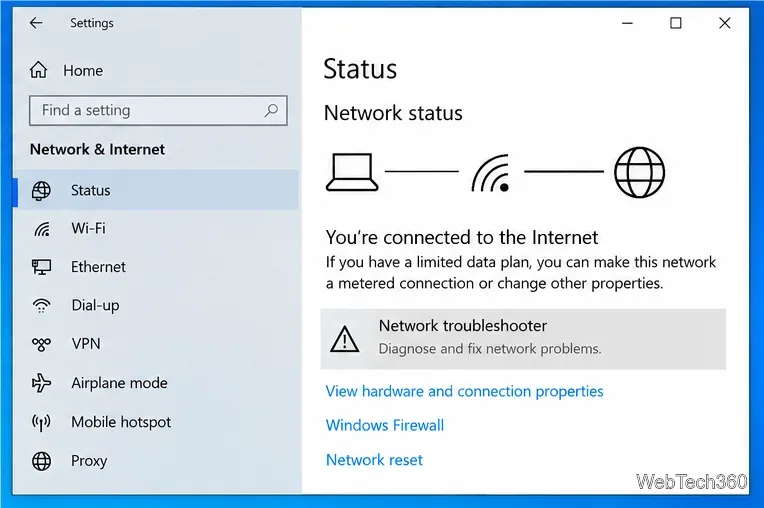
To reset the network adapter on Windows 10, open Settings > Network & Internet > Status > Network reset, select Reset now, confirm, and let the PC restart. Windows removes the installed network adapters and their settings, then reinstalls the adapters with default settings after the restart. This is a useful last-resort fix when Wi-Fi or Ethernet still fails after simpler troubleshooting.
Microsoft recommends trying basic connection checks and the built-in network troubleshooting steps before using a full network reset. A reset can also require you to set up networking software again, including some VPN clients and virtual switches.
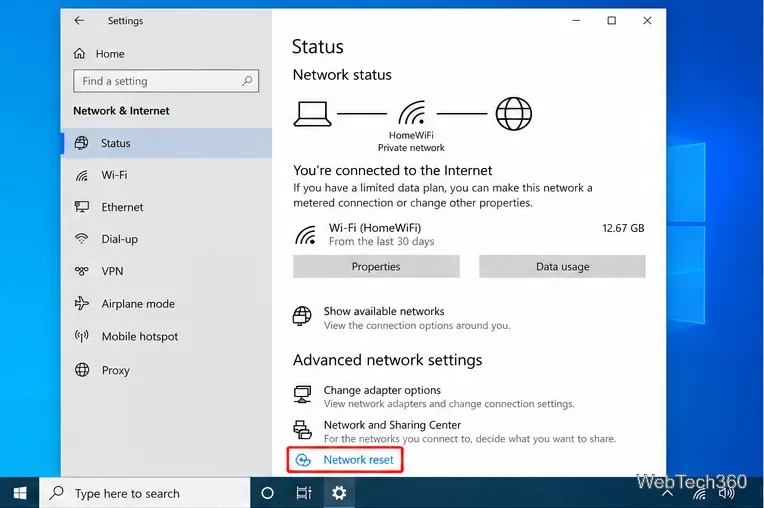
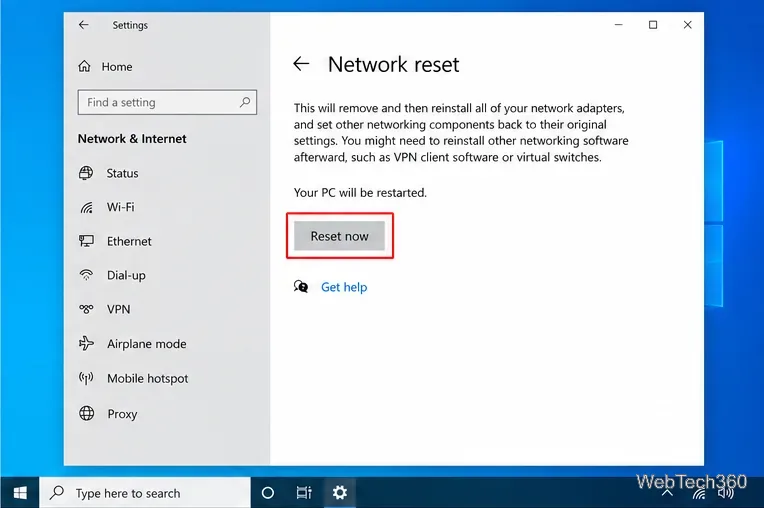
A full reset is broader than merely turning Wi-Fi off and on. According to Microsoft's Windows network troubleshooting guidance, it removes installed network adapters and their settings. Windows then reinstalls the adapters after the PC restarts.
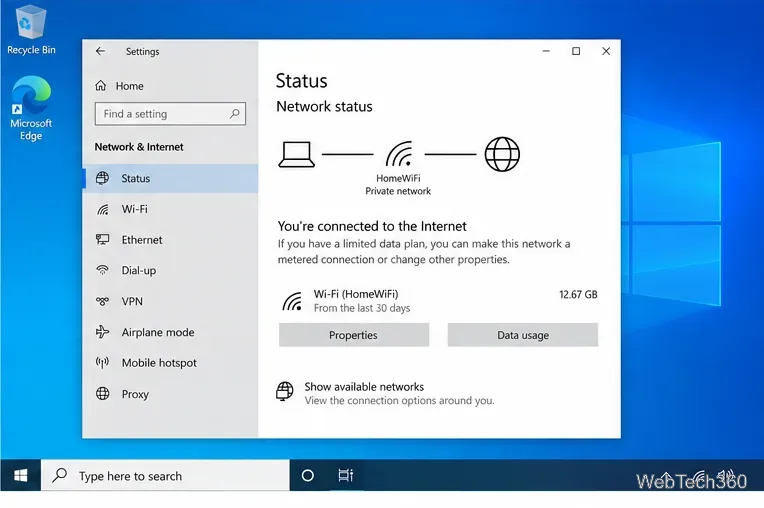
After the restart, check Settings > Network & Internet > Status and reconnect if necessary. Microsoft also notes that known network connections may be set to a public network profile after a reset. If you need file or printer sharing on a trusted home or office network, verify the network profile before enabling sharing.
| Action | What it does | When to use it |
|---|---|---|
| Reconnect to Wi-Fi or restart the router | Refreshes the connection without changing Windows network configuration | Try first for a temporary outage or weak connection |
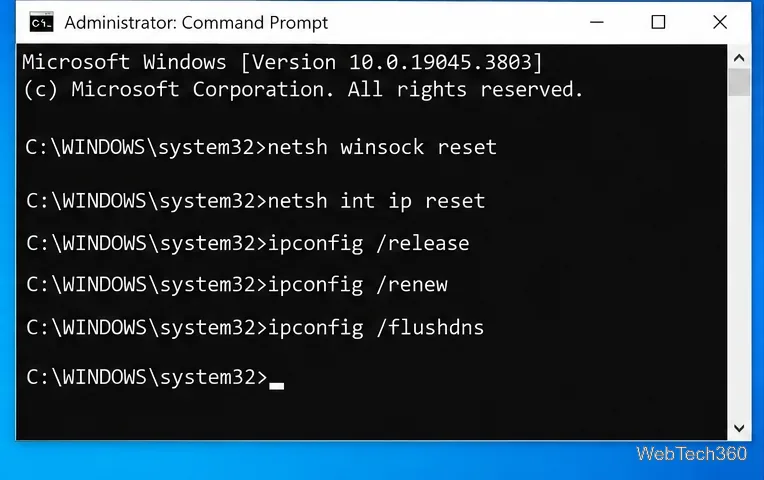
| Run network commands | Resets Winsock and TCP/IP, renews the IP address, and flushes the DNS cache | Use when Windows has an IP, DNS, or socket configuration problem |
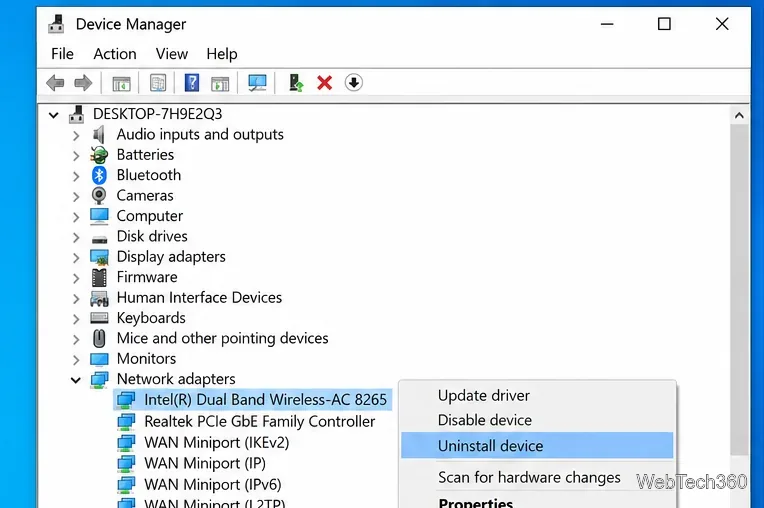
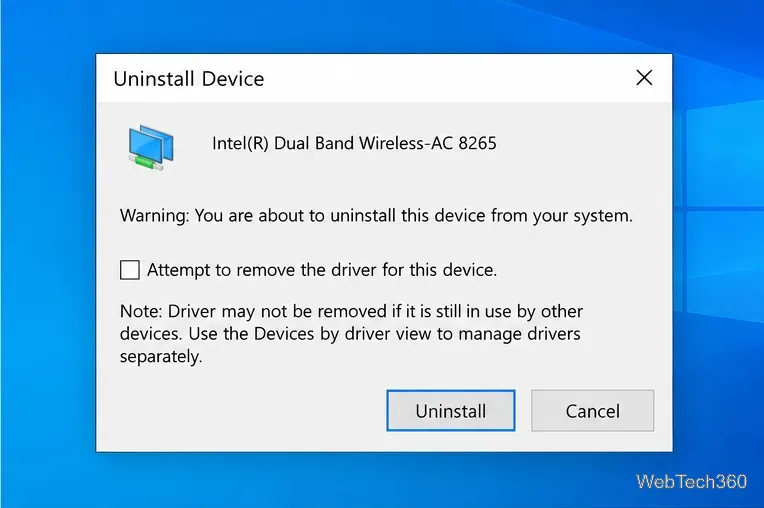
| Uninstall the adapter driver | Removes the selected adapter device so Windows can detect and reinstall it after restart | Useful when the adapter stopped working after an update or driver change |
| Network reset | Removes installed network adapters and resets their settings to defaults | Use as a later troubleshooting step when other fixes have not worked |
If the connection stopped working after a Windows or driver update, Microsoft also recommends uninstalling the affected network adapter in Device Manager and restarting the PC. Before doing this, download the latest network driver from your PC manufacturer's support site if possible, especially if the computer currently has no working internet connection.
If you want to repair the Windows networking stack without performing a full network reset, open Command Prompt as administrator and run these commands in order:
netsh winsock reset
netsh int ip reset
ipconfig /release
ipconfig /renew
ipconfig /flushdns
These are the same core commands Microsoft lists for troubleshooting Wi-Fi and Ethernet problems. netsh winsock reset resets the Winsock catalog, while the other commands reset TCP/IP, request a fresh IP address, and clear the DNS resolver cache. Restart the computer afterward if Windows prompts you or the connection still does not recover.
Before assuming the adapter itself has failed, check whether another phone or computer can use the same router. If every device is offline, restart the modem and router and check for an ISP outage. If only this PC is affected, make sure Airplane mode is off, forget and reconnect to the Wi-Fi network, check the Ethernet cable, and temporarily disable or remove third-party VPN software if it is interfering with the connection.
You can also run the Windows 10 Network troubleshooter from the Network & Internet Status page. For managed work or school PCs, do not remove corporate VPN, security, or network software without approval; domain policies can control networking behavior.
Windows 10 version 22H2 was the final general Windows 10 release, and Microsoft ended standard support on October 14, 2025. The operating system still runs, but devices outside an eligible Extended Security Updates program no longer receive regular security fixes. If your PC supports Windows 11, Microsoft recommends upgrading; otherwise review the official Windows 10 end-of-support options.
Use Windows 10’s built-in slideshow for interval rotation or schedule an exact daily wallpaper change with Task Scheduler and a short PowerShell script.
Choose a built-in alert tone or WAV file for Windows 10 message notifications, test the change, and troubleshoot apps that keep playing another sound.
Arrange Windows 10 apps in top-and-bottom rows with the taskbar’s Show windows stacked command, or create a reusable two-zone layout with PowerToys FancyZones.
Keep each display at its recommended resolution, arrange Windows 10 monitors accurately, and use MouseUnSnag to cross mismatched edges and sticky corners.
Find whether your connected Wi-Fi uses WPA2, WPA3, or an older security mode in Windows 10 with Settings, Command Prompt, or Control Panel.
Automatically lock Windows 10 after inactivity with a screen saver timer and sign-in prompt, then check how sleep settings affect the result.
Add a persistent colored ring around your Windows 10 mouse pointer with PenAttention, or use built-in pointer tools and PowerToys for temporary highlights.
Keep the Xbox Game Bar Performance widget visible over other windows on Windows 10, with CPU, GPU, and RAM readings you can position and unpin.
Capture two or more Windows 10 displays in one OBS video. Add a Display Capture source for each monitor, fit the canvas, and test the layout.
Create a GUID on Windows 10 with [guid]::NewGuid() or New-Guid, reuse it in a script, and learn when to look up an existing identifier.








