How to Play Minecraft Offline on Windows 10: Java and Bedrock

Prepare Java or Bedrock on Windows 10 for offline single-player, enable the right Xbox setting, and back up your local Minecraft worlds.
To run a supported Valve game in safe mode through Steam on Windows 10, open the game’s Properties, enter -safe in Launch Options, close Properties, and start the game. This switch is not a universal safe mode for every Steam title: Steam says its documented video launch options apply only to Valve games and have no effect in other Steam games.
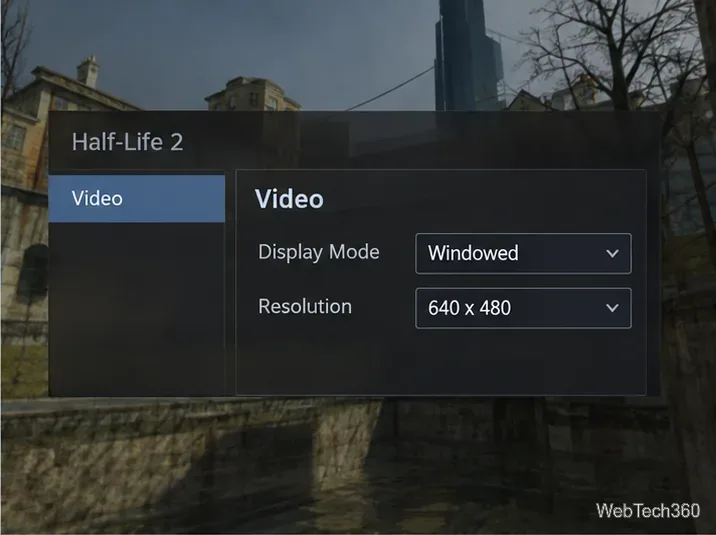
Steam’s video and display troubleshooting guide describes -safe as a way to start a supported Valve game with minimal video settings, in a window at 640 x 480 resolution. It is useful when a display setting prevents the game from opening correctly. It does not start Windows in Windows Safe Mode, and it is not a general fix for connection issues, missing files, or every performance problem.
If you are troubleshooting a game from another publisher, do not assume that typing -safe will do anything. Check that game’s official support instructions for its own recovery or safe-start option.
-safe; this avoids mixing in a switch that may interfere with troubleshooting.Steam’s desktop layout can vary slightly, but the relevant path is the game’s Library page, Properties, General, and Launch Options.
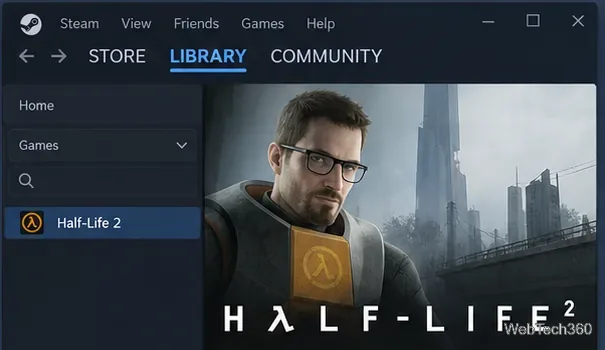
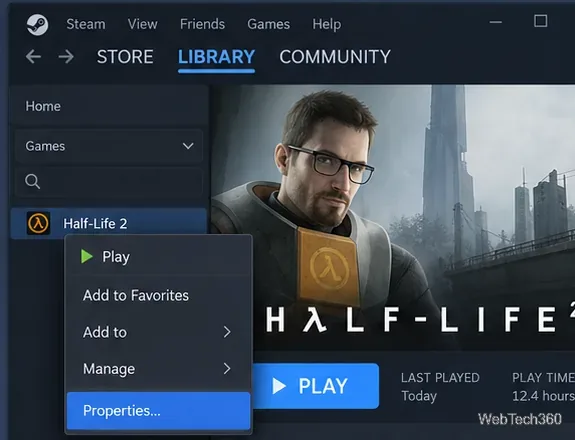
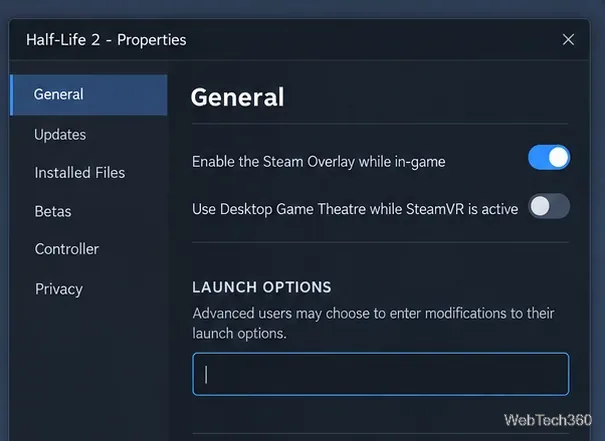
-safe exactly, including the leading hyphen. Close the Properties window to apply the change.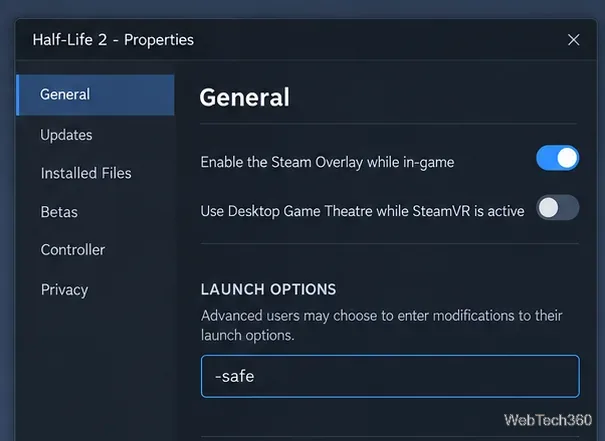
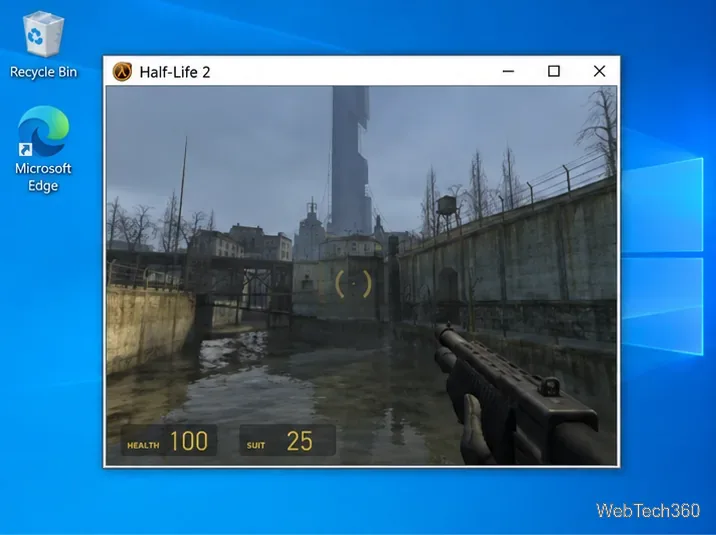
Once the game opens, use its own video or display menu to choose settings that let you reach the main menu reliably. Steam’s documented behavior specifies the initial windowed 640 x 480 mode; individual games can present their video controls differently.
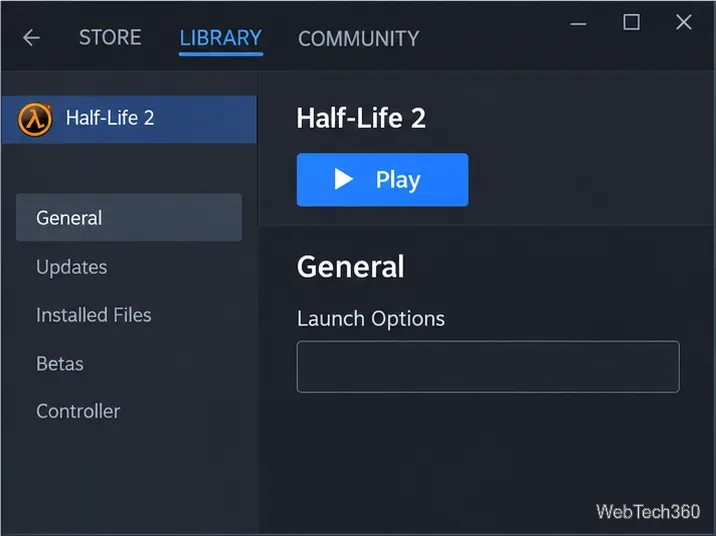
Do not leave the switch in place if you want to test the game’s regular display settings. Close the game, reopen its Properties from the Library, and return to General > Launch Options.
-safe from the field. If you had copied other launch commands before the test and still need them, restore those commands without -safe. If the switch was the only entry, leave the field empty.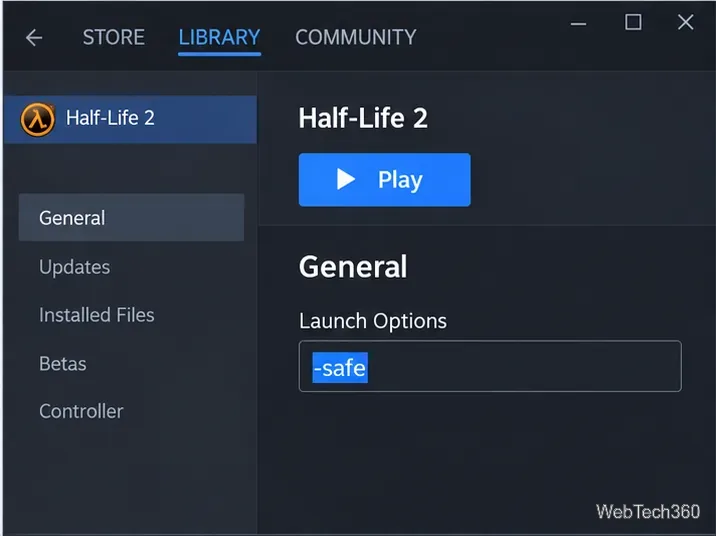
First, make sure the game is a Valve title and that the option is spelled -safe. Steam’s documented launch options will not force a different publisher’s game into safe mode. If the title is supported but still fails, the problem may be unrelated to its video configuration.
For crashes or missing game content, Steam recommends checking the installation: right-click the game in your Library, select Properties, open Installed Files, and choose Verify integrity of game files. Follow Steam’s official file-verification steps and let the check finish. Steam notes that a few local configuration files may fail verification normally, so a warning about one or more files is not automatically a sign that the whole install is broken.
Steam’s separate guide to game launch options explains where the field lives and how options are applied. If verification completes but the game still will not launch, remove -safe after testing and consult the game’s official support page for the next recovery step.
Prepare Java or Bedrock on Windows 10 for offline single-player, enable the right Xbox setting, and back up your local Minecraft worlds.
Change a file type icon in Windows 10 while keeping its current default app. Follow the FileTypesMan steps, handle icon picker issues, and restore the original setting.
Set PhysX in NVIDIA Control Panel on Windows 10, understand Auto-select vs. CPU or GPU, and learn when to use Windows Graphics settings instead.
Compare six free office suites for documents, spreadsheets, and presentations, including browser-based collaboration and offline desktop options.
Turn on Notepad’s Status Bar to see the current line and column in Windows 10, troubleshoot a disabled option, and learn when you need a line-number gutter.
Display a custom Windows dialog with a short PowerShell command, Command Prompt, or a reusable .bat or .ps1 file, including a title, icon, and buttons.
Fix Windows 10 update error 0x80071160 with Microsoft’s troubleshooter, a safe update-cache reset, DISM and SFC repairs, and a careful manual-install check.
Create a Windows 10 UEFI installer with Microsoft’s Media Creation Tool or Rufus, then boot and install safely without wiping the wrong drive.
Stop individual Edge tabs from crowding the Windows 10 Alt+Tab switcher. Change one Multitasking setting, limit recent tabs, and check why the option may be missing.
Enable Adobe’s PDF thumbnail handler, correct File Explorer’s icon settings, rebuild the thumbnail cache, and check OneDrive files that are not stored locally.








