How to Automatically Restart a Crashed App on Windows 10
Set up a PowerShell watcher and Task Scheduler task to relaunch a Windows 10 desktop app after it closes, then learn how to test and stop it.
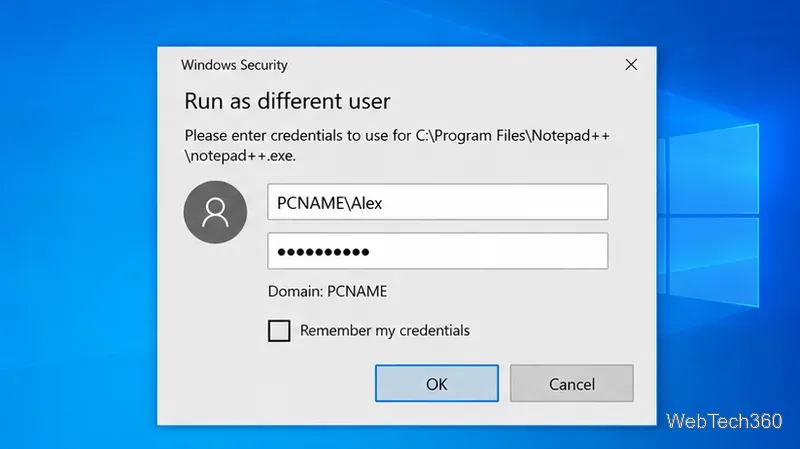
To run an app as a different user on Windows 10, hold Shift, right-click the app's executable file or shortcut, and choose Run as different user. Enter the other account's username and password, then select OK. Windows starts that program with the alternate account's credentials instead of signing you out of your current session.
This is useful for testing user-specific settings, opening an administrative tool with another account, or troubleshooting a program that behaves differently for another user. It is not the same as Run as administrator: using another account changes the security identity for that process, while elevation controls whether a process receives administrative privileges.
Windows 10 support note: Microsoft ended standard Windows 10 support on October 14, 2025. The steps below still apply to Windows 10 systems that remain in use, but Microsoft recommends moving to a supported Windows release or using an eligible Extended Security Updates option. See Microsoft's Windows 10 end-of-support guidance.
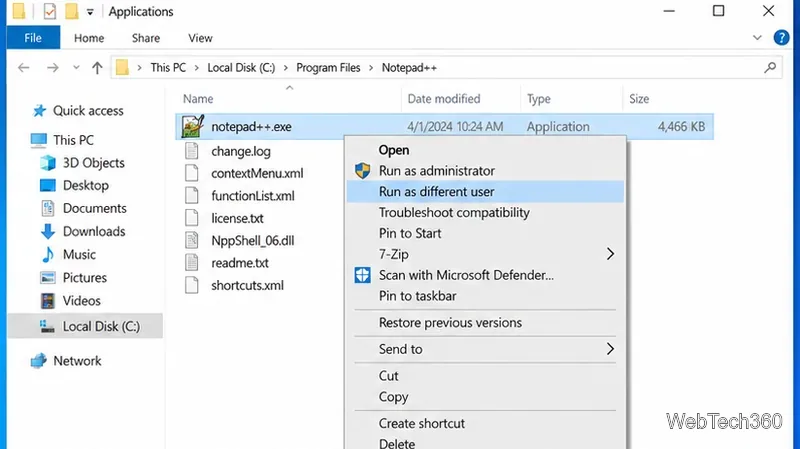
Microsoft documents this same Shift + right-click method for starting an application with another account. The feature can work with a local account or a domain account, as long as you provide valid credentials and the application supports running under another user. See Microsoft's Run as guidance.
For repeatable tasks, scripts, or apps whose shortcut is easier to launch from a command line, Windows includes the runas command. Open Command Prompt and use this pattern:
runas /user:COMPUTERNAME\Username "C:\Path\To\App.exe"
For a domain account, replace the account portion with DOMAIN\Username. After you press Enter, Windows prompts for that account's password. The password is not displayed while you type it.
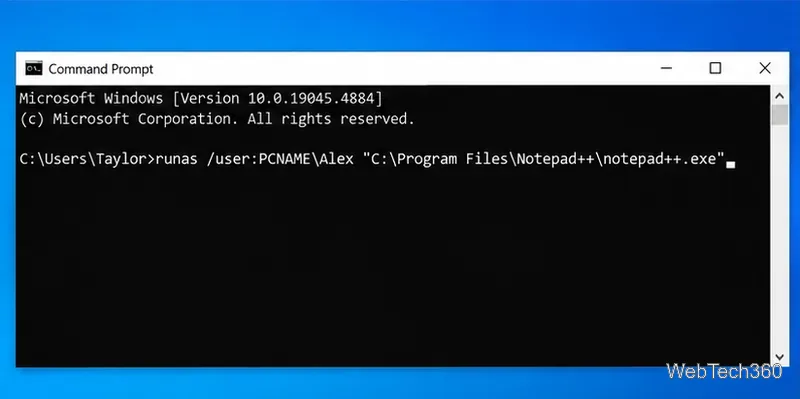
You can also create a desktop shortcut whose target begins with C:\Windows\System32\runas.exe, followed by the same /user: argument and application path. For security, do not add credential-saving options simply to avoid entering a password unless your organization's administrator has specifically approved that workflow. Microsoft's Windows command reference lists runas among the built-in Windows commands supported on Windows 10.
The command does not appear for every application, and managed computers can restrict it. If it is missing, check these points:
runas and the graphical command can fail.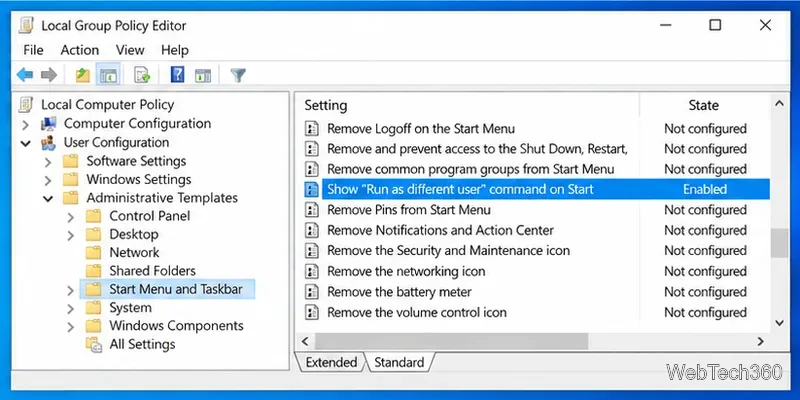
Microsoft notes that the Start menu policy can show or hide the command, but disabling that Start setting does not necessarily block every other Run As method. The Shift + right-click route can still be available unless broader restrictions are in place. See the Microsoft Start policy documentation.
Run as different user launches the program under another account's identity and normally loads that user's profile. Run as administrator is about elevation through User Account Control. Choosing another standard account does not automatically make the app administrative, and choosing an administrator account may still trigger elevation behavior depending on the app and system policy.
One final limitation: applications started with alternate credentials can encounter access problems with network shares if those shares were connected using different credentials. Microsoft also notes that some programs may not support Run As at all. For ordinary desktop applications, however, Shift + right-click is the simplest method, with runas providing a dependable command-line alternative.
Set up a PowerShell watcher and Task Scheduler task to relaunch a Windows 10 desktop app after it closes, then learn how to test and stop it.
Keep app icons out of the hidden overflow in Windows 10. Turn on the all-icons option, then manage system icons separately if one is still missing.
Change the saved username or password Windows uses for a mapped drive or shared folder through Credential Manager, then reconnect to verify access.
Set a lower Defender scan CPU target in PowerShell, handle the idle-scan exception, and verify which Windows 10 scans the setting affects.
Import a Bedrock .mcpack or .mcaddon on Windows 10, activate it for a new or existing world, and avoid confusing add-ons with Java mods.
Restore the Windows 10 hotspot by checking the internet source and wireless adapter, repairing its driver, and saving Network reset for last.
Set daytime and nighttime brightness levels on Windows 10 with ClickMonitorDDC 7.2, and learn about DDC/CI limits and the Night light alternative.
Find Windows 10’s left/right balance controls for Bluetooth headphones, with a cautious registry workaround when volume controls stay linked.
Set up Task Scheduler’s On idle trigger to shut down Windows 10 with a one-minute cancellation window, and learn how Windows defines idle.
Learn how to burn a disc image to an SD card on Windows 10 with balenaEtcher, verify the target drive, and check whether the finished card can boot.