How to Play Minecraft Offline on Windows 10: Java and Bedrock

Prepare Java or Bedrock on Windows 10 for offline single-player, enable the right Xbox setting, and back up your local Minecraft worlds.
To free space on a Windows 10 PC, open Disk Cleanup from Start search, choose the drive to scan, select the file categories you want removed, and confirm with Delete Files. If you also want to review system files, select Clean up system files and check the second list carefully. The space recovered depends on your PC and the categories you select.
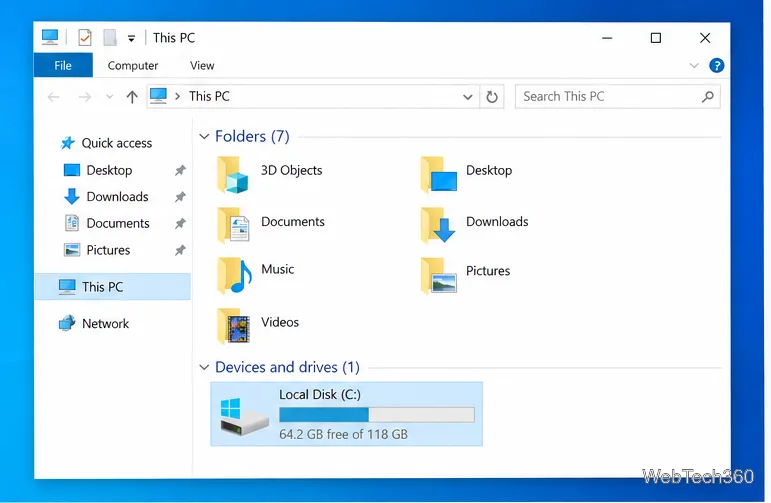
You can also open File Explorer, select This PC, right-click the Windows drive, choose Properties, and select Disk Cleanup on the General tab. This alternate path reaches the same utility.
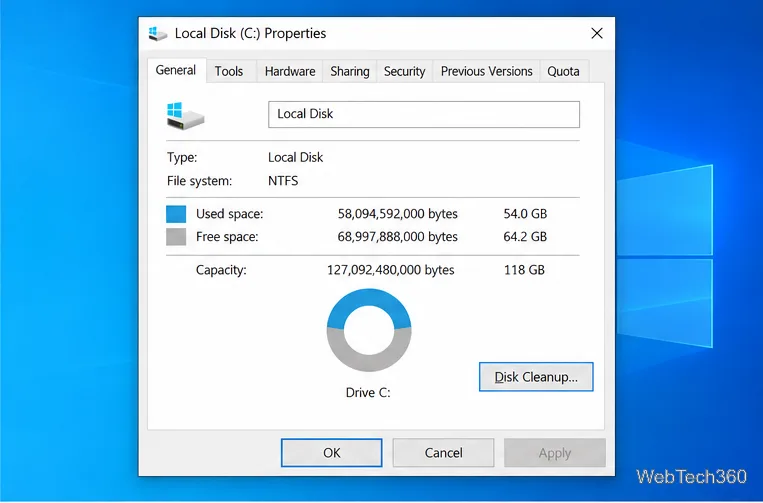
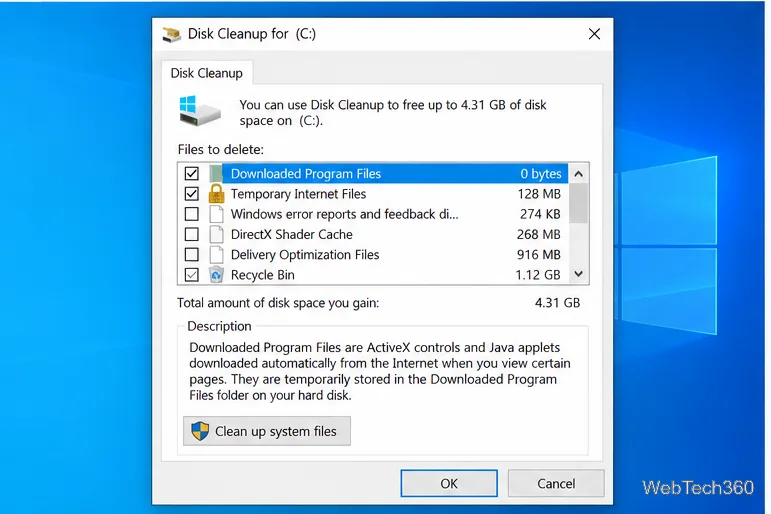
Disk Cleanup calculates the amount of space that each category could free. Select a category to read its description, then check only the items you want removed. Common entries include temporary files, thumbnails, the Recycle Bin, Temporary Internet Files, and Downloaded Program Files. The list and the estimated sizes vary by Windows build, drive, and what is stored on the PC.
Be deliberate with the Recycle Bin option: Disk Cleanup removes the items selected there instead of leaving them available in the Recycle Bin. Also, Downloaded Program Files is not the same as your personal Downloads folder. Review your Downloads folder separately if you want to remove files you saved yourself.
If the ordinary categories are enough, select OK and continue to the confirmation step below. To see additional cleanup choices, select Clean up system files.
After you select Clean up system files, approve the administrator prompt if Windows displays one. Choose the Windows drive again if asked, then select OK. Disk Cleanup rescans the drive; let the calculation finish before changing the list.
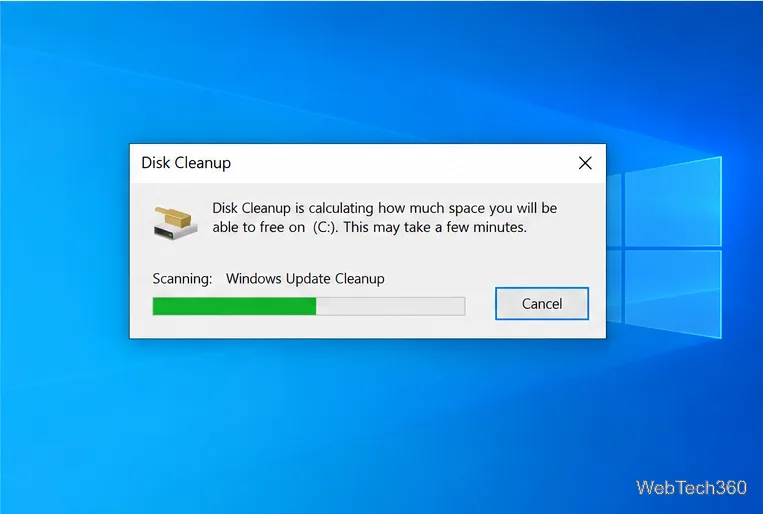
The refreshed list can include items such as Windows Update Cleanup and, after some Windows upgrades, Previous Windows installation(s). Read each description and decide whether you still need the files. Microsoft notes that a previous installation can be listed during the first 10 days after an upgrade; deleting it removes the Windows.old rollback files and means you cannot return to the previous Windows version. Do not select it if you may need that rollback option.
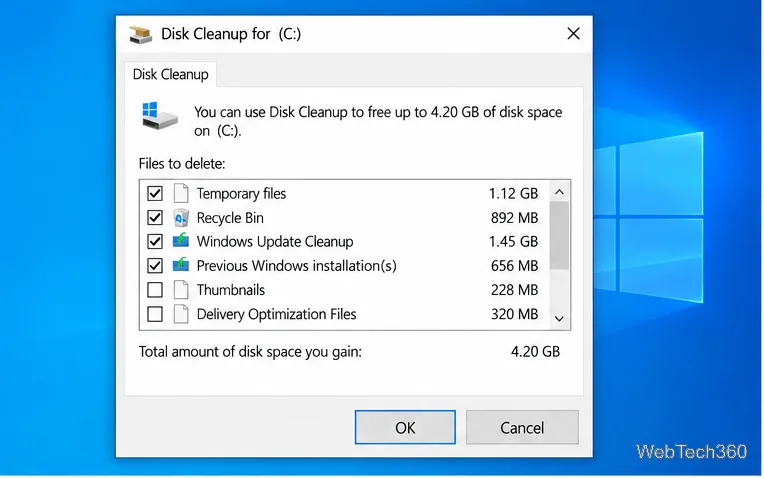
When the selected categories look right, choose OK. In the confirmation dialog, select Delete Files to start. Disk Cleanup may take a few minutes, especially when it removes system files. If the confirmation makes you uncertain, choose Cancel and review the categories again.
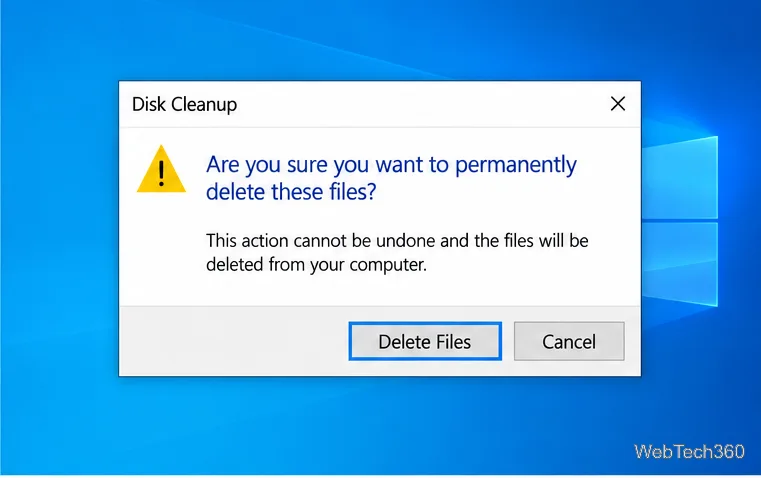
Disk Cleanup removes only the categories you selected; it does not uninstall your applications. You can run it for another drive by reopening the tool and choosing that drive. There is no need to run it on a fixed schedule or after every update—use it when you want to clear eligible files or need more free space.
Storage Sense is a separate Windows 10 feature for automatic or on-demand cleanup. Open Start > Settings > System > Storage, turn Storage Sense on if you want it enabled, then select Configure Storage Sense or run it now. In the settings, choose when it should run and review the age rules for the Recycle Bin and Downloads folder.
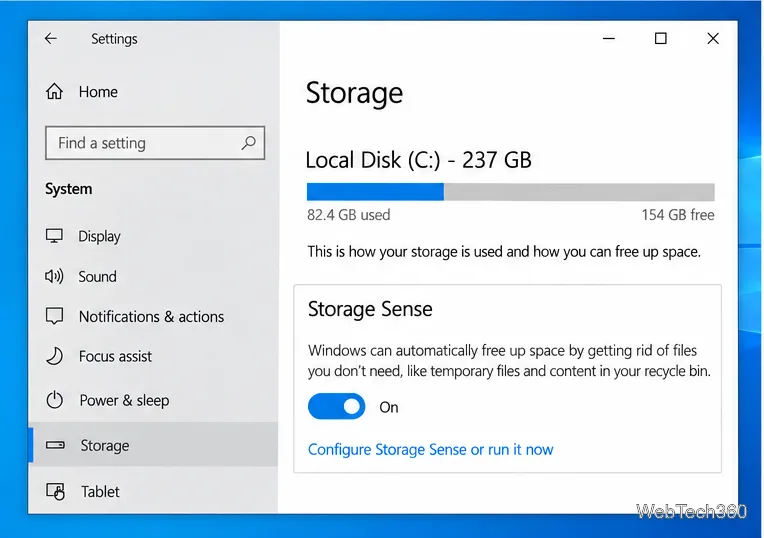
Storage Sense normally leaves Downloads and cloud files alone unless you configure it to manage them. If you enable a Downloads rule, check the time period so you do not lose files you still need. To run an immediate cleanup, use Clean now in the Free up space now section.
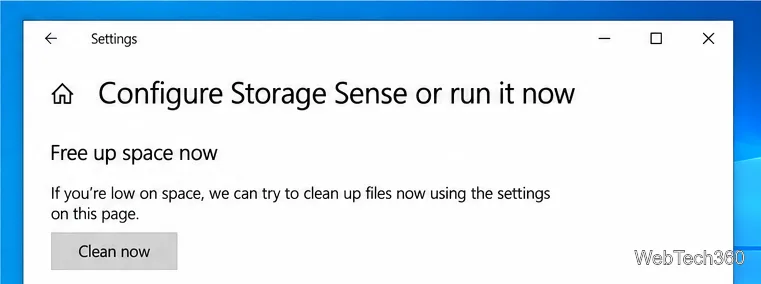
Storage Sense works on the Windows system drive. Use Disk Cleanup or the drive-specific Storage settings if you want to manage another drive. These tools have different controls, so review Storage Sense's rules instead of assuming that it repeats the same cleanup as Disk Cleanup.
Prepare Java or Bedrock on Windows 10 for offline single-player, enable the right Xbox setting, and back up your local Minecraft worlds.
Change a file type icon in Windows 10 while keeping its current default app. Follow the FileTypesMan steps, handle icon picker issues, and restore the original setting.
Set PhysX in NVIDIA Control Panel on Windows 10, understand Auto-select vs. CPU or GPU, and learn when to use Windows Graphics settings instead.
Compare six free office suites for documents, spreadsheets, and presentations, including browser-based collaboration and offline desktop options.
Turn on Notepad’s Status Bar to see the current line and column in Windows 10, troubleshoot a disabled option, and learn when you need a line-number gutter.
Display a custom Windows dialog with a short PowerShell command, Command Prompt, or a reusable .bat or .ps1 file, including a title, icon, and buttons.
Fix Windows 10 update error 0x80071160 with Microsoft’s troubleshooter, a safe update-cache reset, DISM and SFC repairs, and a careful manual-install check.
Create a Windows 10 UEFI installer with Microsoft’s Media Creation Tool or Rufus, then boot and install safely without wiping the wrong drive.
Stop individual Edge tabs from crowding the Windows 10 Alt+Tab switcher. Change one Multitasking setting, limit recent tabs, and check why the option may be missing.
Enable Adobe’s PDF thumbnail handler, correct File Explorer’s icon settings, rebuild the thumbnail cache, and check OneDrive files that are not stored locally.








