How to Automatically Restart a Crashed App on Windows 10
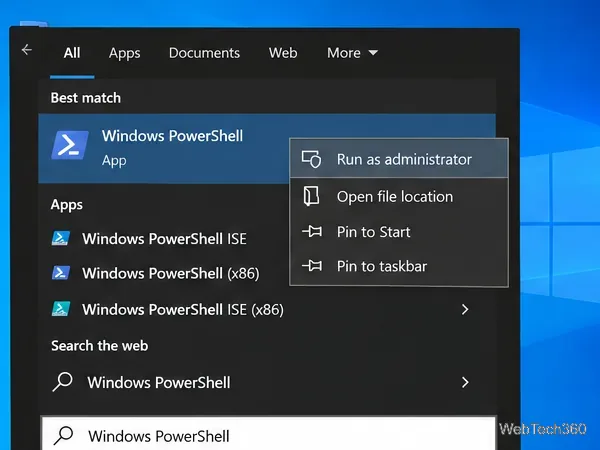
Set up a PowerShell watcher and Task Scheduler task to relaunch a Windows 10 desktop app after it closes, then learn how to test and stop it.
Windows 10 can snap and resize windows, but it does not include a built-in way to save an arbitrary group of apps and exact window positions as a reusable profile. The most practical current solution is Microsoft PowerToys Workspaces. It can capture a desktop arrangement, save it, and later launch or reposition the apps in that layout.
PowerToys currently supports Windows 10 version 2004 (build 19041) or later on 64-bit x64 or ARM64 PCs. Microsoft ended standard support for Windows 10 on October 14, 2025, so keep that broader platform status in mind if you are still using Windows 10. See the official PowerToys installation requirements.
Workspaces is designed for exactly this job: capturing a set of application windows, their sizes, and their screen positions, then restoring that setup later.
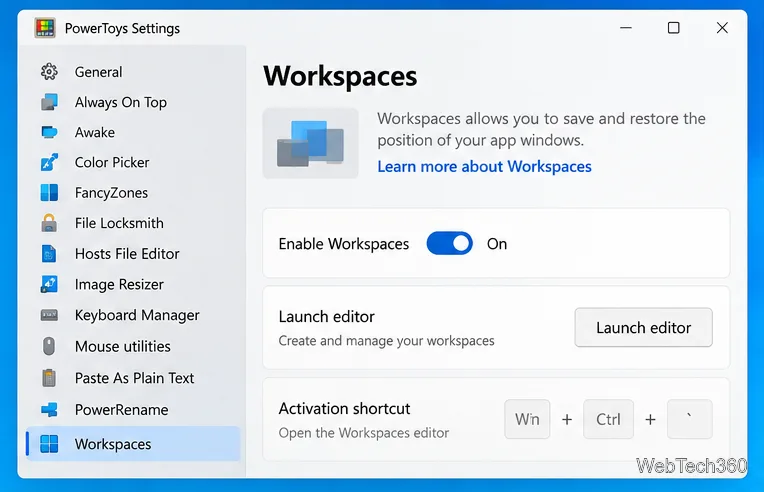
Install PowerToys from the Microsoft Store or the official GitHub release path described in Microsoft’s documentation. Open PowerToys Settings, select Workspaces, and make sure the utility is enabled. You can open its editor from the Workspaces page.
Launch the apps and documents you normally use together. Resize and move each window to the monitor and position you want. If you use more than one display, connect and arrange those displays before capturing the workspace so the saved coordinates match your normal setup.
In the Workspaces editor, select Create workspace. PowerToys lets you keep using the desktop while the capture experience is active. Arrange anything that still needs adjustment, then select Capture.
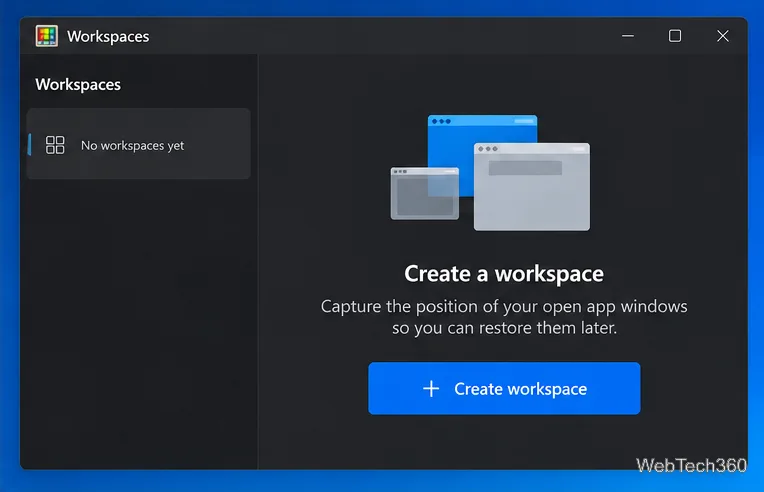
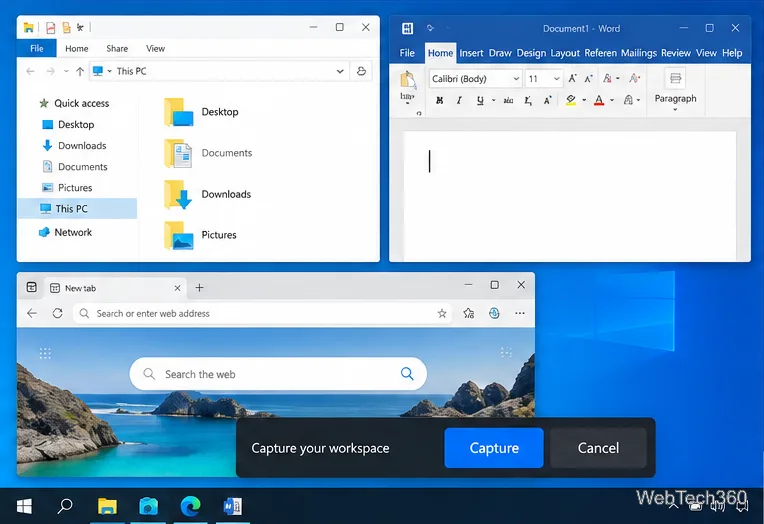
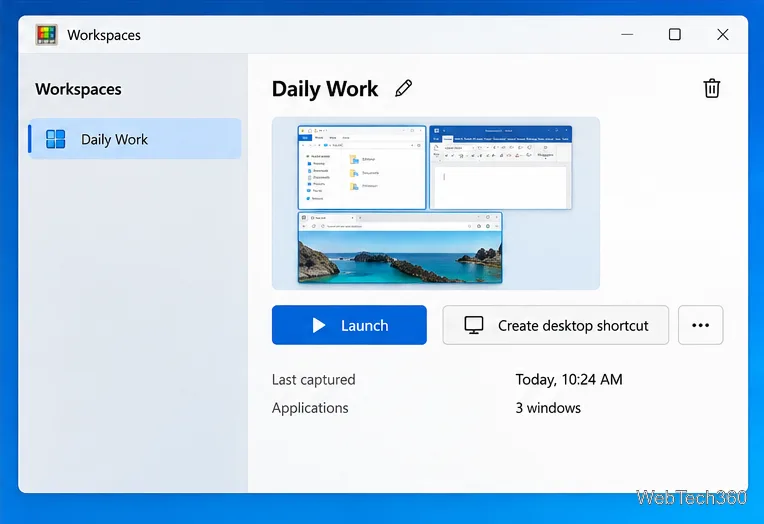
After capture, give the workspace a useful name such as Daily Work, Research, or Accounting. The editor lets you review the apps in the workspace, adjust saved window positions, remove apps you do not want, and optionally create a desktop shortcut.
PowerToys also supports command-line arguments for compatible apps. That can be useful when an application supports opening a particular file, folder, project, browser URL, or profile from its command line.
Open Workspaces and select Launch for the saved layout, or use the desktop shortcut if you created one. PowerToys will launch the required apps and move them into the saved positions. If Move existing windows is enabled for that workspace, already-open app windows can be repositioned instead of always creating another instance.
For the current behavior and known limitations, see Microsoft’s PowerToys Workspaces documentation.
If you do not need PowerToys to launch a complete set of apps, FancyZones is a lighter option. It lets you define custom screen regions and drag windows into them. Its settings include Move newly created windows to their last known zone and Keep windows in their zones when the screen resolution changes. Those options are useful when you repeatedly open the same apps and simply want them to return to familiar areas of the screen. See the official FancyZones documentation.
For quick manual arrangement, Windows 10 still has Snap and Snap Assist. You can drag a window to an edge or corner, or use Windows key + Arrow shortcuts to position it. Snap is convenient for temporary layouts, but it is not a true reusable workspace-profile system. Microsoft’s Snap documentation explains the supported window-arrangement controls.
If your goal is to save a working setup and bring it back later with minimal rearranging, PowerToys Workspaces is the best fit on a supported Windows 10 installation. Use FancyZones when you mainly want consistent regions, and use ordinary Snap when you only need a quick one-time layout.
Set up a PowerShell watcher and Task Scheduler task to relaunch a Windows 10 desktop app after it closes, then learn how to test and stop it.
Keep app icons out of the hidden overflow in Windows 10. Turn on the all-icons option, then manage system icons separately if one is still missing.
Change the saved username or password Windows uses for a mapped drive or shared folder through Credential Manager, then reconnect to verify access.
Set a lower Defender scan CPU target in PowerShell, handle the idle-scan exception, and verify which Windows 10 scans the setting affects.
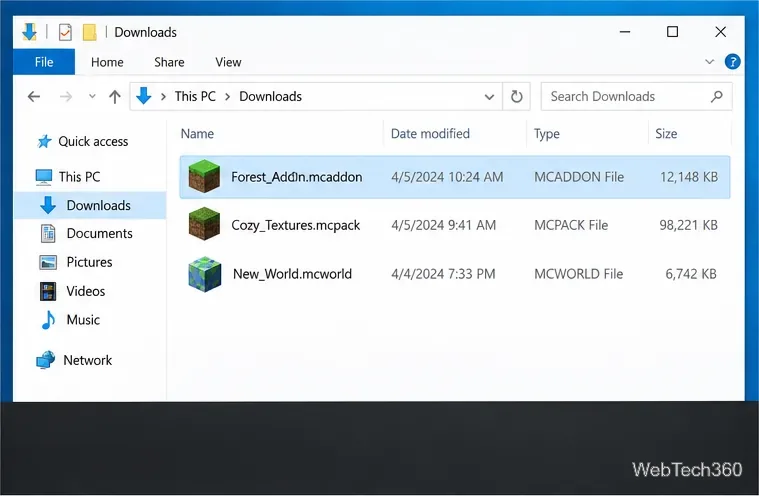
Import a Bedrock .mcpack or .mcaddon on Windows 10, activate it for a new or existing world, and avoid confusing add-ons with Java mods.
Restore the Windows 10 hotspot by checking the internet source and wireless adapter, repairing its driver, and saving Network reset for last.
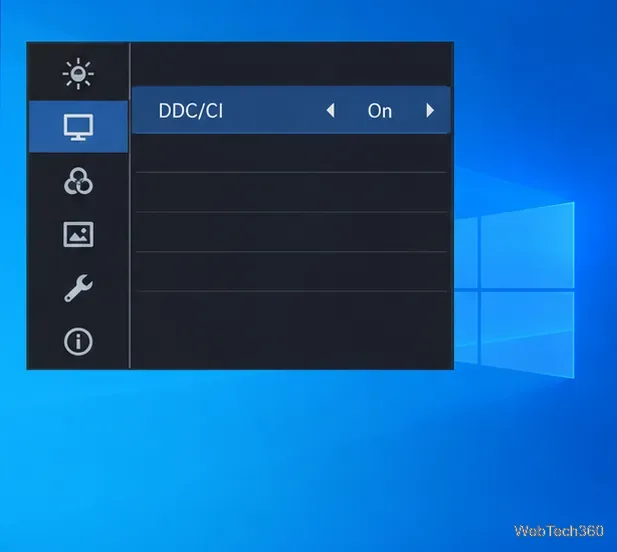
Set daytime and nighttime brightness levels on Windows 10 with ClickMonitorDDC 7.2, and learn about DDC/CI limits and the Night light alternative.
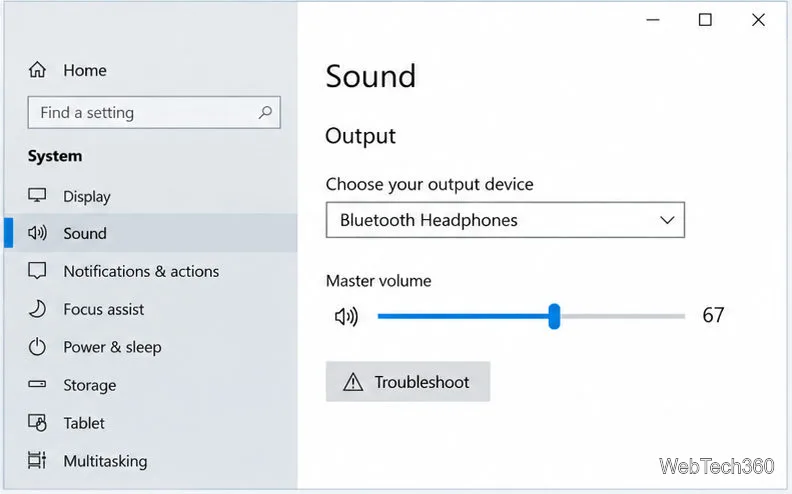
Find Windows 10’s left/right balance controls for Bluetooth headphones, with a cautious registry workaround when volume controls stay linked.
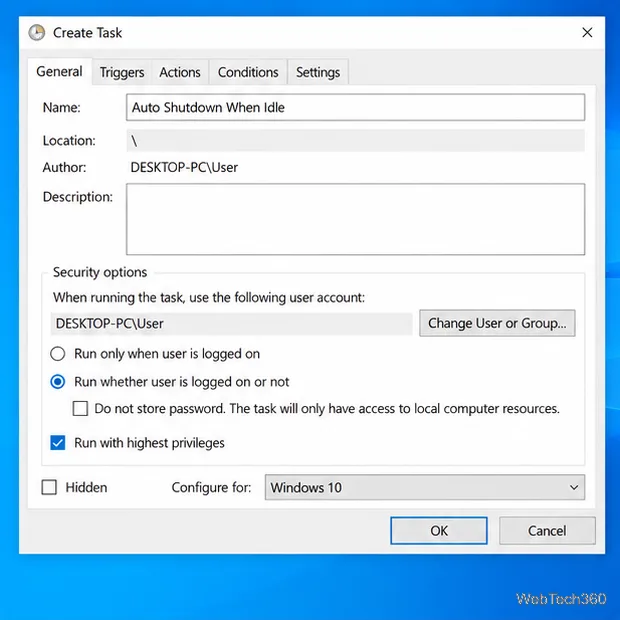
Set up Task Scheduler’s On idle trigger to shut down Windows 10 with a one-minute cancellation window, and learn how Windows defines idle.
Learn how to burn a disc image to an SD card on Windows 10 with balenaEtcher, verify the target drive, and check whether the finished card can boot.