How to Play Minecraft Offline on Windows 10: Java and Bedrock

Prepare Java or Bedrock on Windows 10 for offline single-player, enable the right Xbox setting, and back up your local Minecraft worlds.
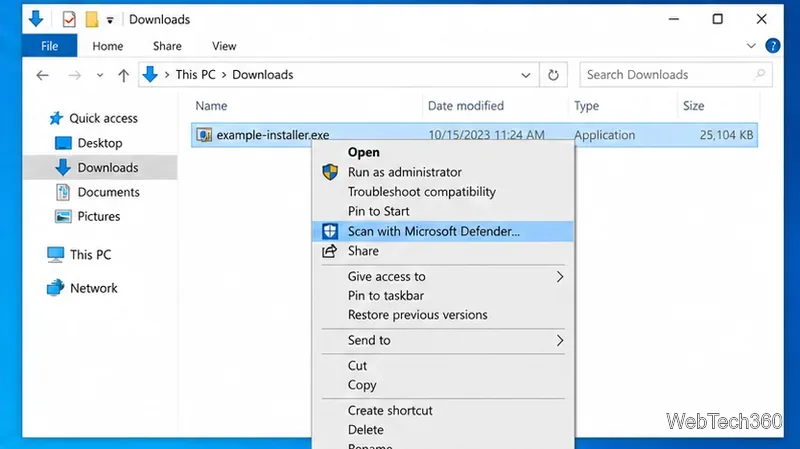
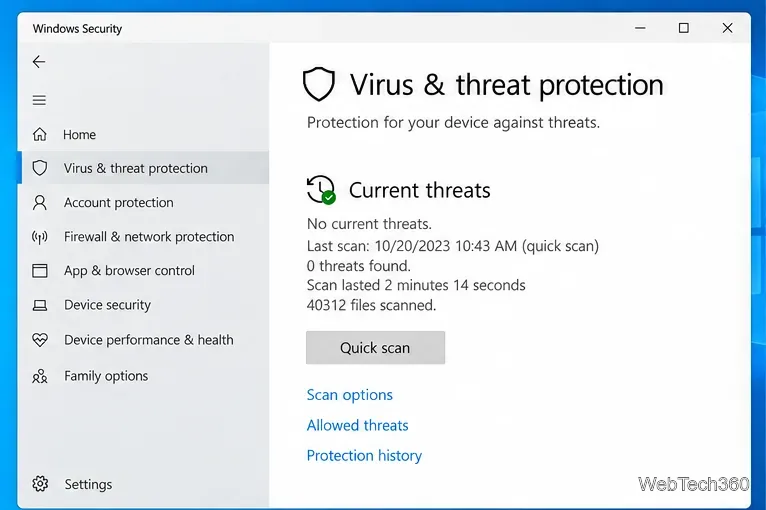
To scan a file or folder on Windows 10, the fastest method is to right-click it in File Explorer and choose Scan with Microsoft Defender. Windows Security will check the selected item and show the result. You can also use a Custom scan from the Windows Security app when you want to scan a whole folder, USB drive, or another location.
Important: Windows 10 reached end of support on October 14, 2025. These scanning tools can still work on a Windows 10 PC, but antivirus protection is not a replacement for operating-system security updates. Microsoft recommends moving to Windows 11 when possible or using an eligible Windows 10 Extended Security Updates option. See Microsoft's Windows 10 end-of-support guidance.
This is the best option when you downloaded one file, received an attachment, copied something from a USB drive, or simply want to check a specific folder before opening its contents.
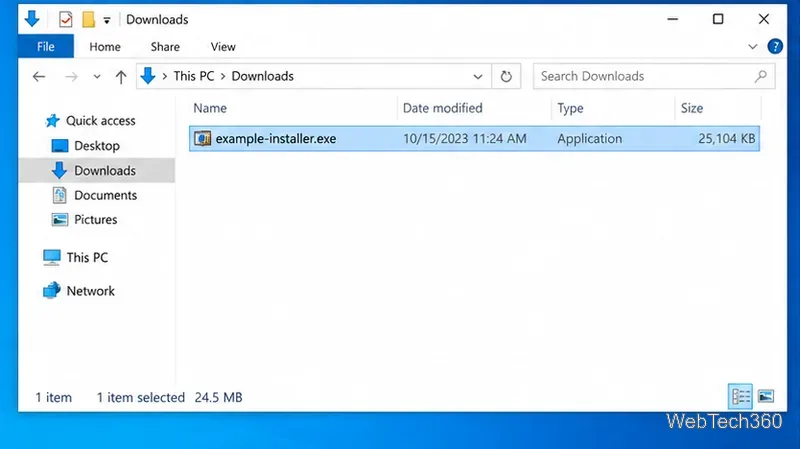
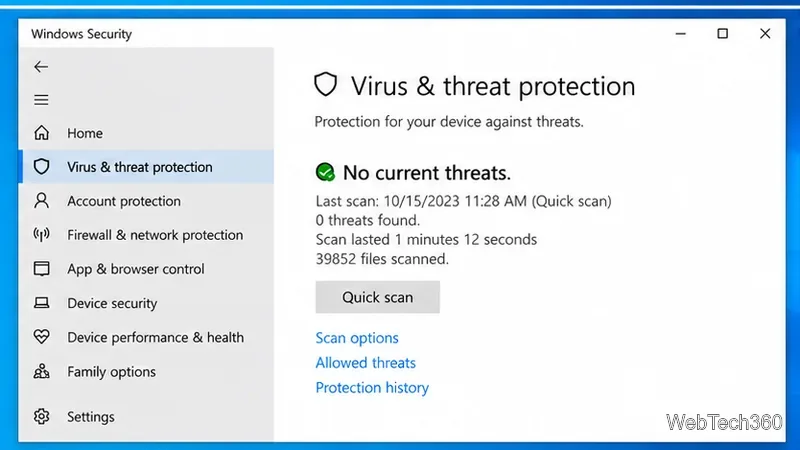
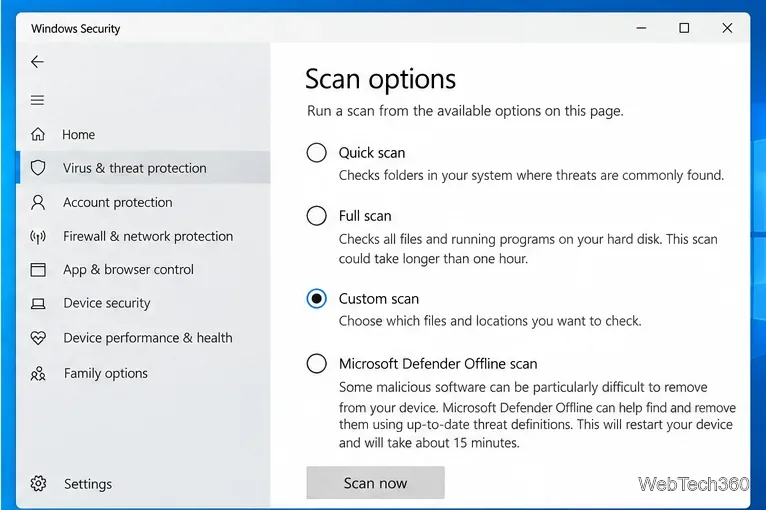
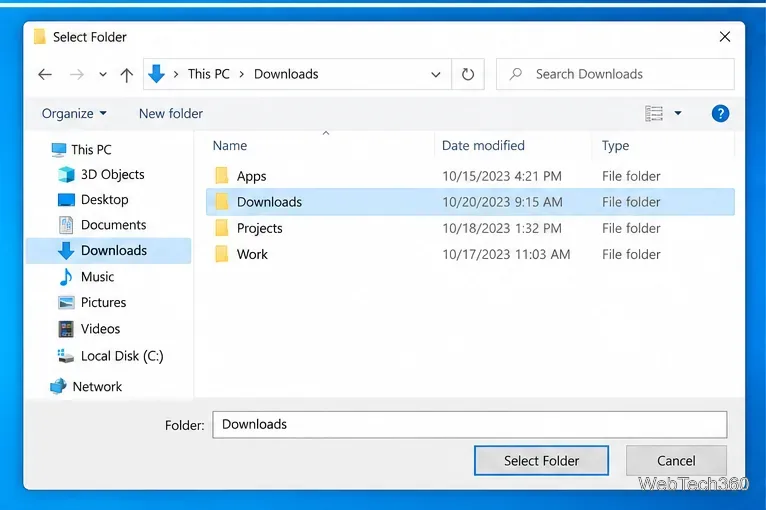
A Custom scan is useful when the context-menu command is inconvenient or when you want to check an entire folder or removable drive. Microsoft describes a Custom scan as an on-demand scan of files and folders you specify.
| Scan method | Best for |
|---|---|
| File Explorer scan | One suspicious file or folder that you can locate quickly |
| Custom scan | A chosen folder, USB drive, or other specific location |
| Quick scan | Common malware locations and startup-related areas |
| Full scan | A deeper check of files and programs across the device; it can take much longer |
| Microsoft Defender Offline scan | Persistent malware that may be harder to detect while Windows is running; this option restarts the PC |
Microsoft's Virus & threat protection documentation explains the available scan types. For routine protection, keep Real-time protection enabled. Defender monitors files and programs as they are accessed or executed, while manual scans are useful when you want an immediate second check.
Open Windows Security > Virus & threat protection and check which antivirus provider is active. If you use a non-Microsoft antivirus product, Microsoft Defender Antivirus can switch to disabled mode automatically, so its File Explorer scan command may not be available. Do not disable your active antivirus just to make the Defender menu item appear.
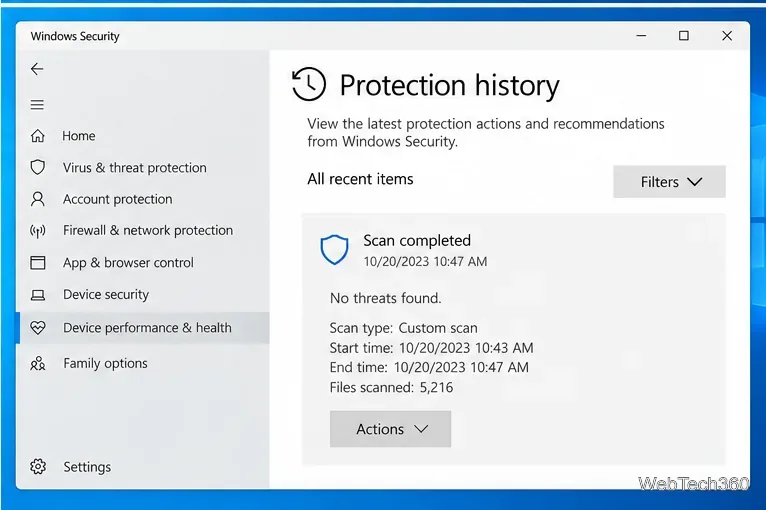
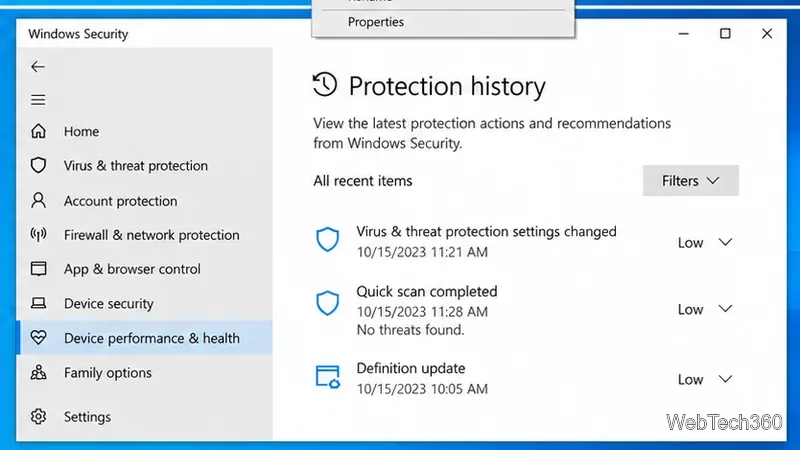
Do not open the file. Open Protection history and review the detection. Defender may quarantine or block the item, or it may ask you to choose an action. Only use Allow on device when you are confident the detection is a false positive; allowing a real threat can put the device and your data at risk. Microsoft notes that Protection history keeps events for two weeks, so review important detections promptly.
The key point is simple: for a single file or folder, use the File Explorer Scan with Microsoft Defender command. Use a Custom scan when you need to target a larger location. There is no need to turn off real-time protection before running either type of scan.
Prepare Java or Bedrock on Windows 10 for offline single-player, enable the right Xbox setting, and back up your local Minecraft worlds.
Change a file type icon in Windows 10 while keeping its current default app. Follow the FileTypesMan steps, handle icon picker issues, and restore the original setting.
Set PhysX in NVIDIA Control Panel on Windows 10, understand Auto-select vs. CPU or GPU, and learn when to use Windows Graphics settings instead.
Compare six free office suites for documents, spreadsheets, and presentations, including browser-based collaboration and offline desktop options.
Turn on Notepad’s Status Bar to see the current line and column in Windows 10, troubleshoot a disabled option, and learn when you need a line-number gutter.
Display a custom Windows dialog with a short PowerShell command, Command Prompt, or a reusable .bat or .ps1 file, including a title, icon, and buttons.
Fix Windows 10 update error 0x80071160 with Microsoft’s troubleshooter, a safe update-cache reset, DISM and SFC repairs, and a careful manual-install check.
Create a Windows 10 UEFI installer with Microsoft’s Media Creation Tool or Rufus, then boot and install safely without wiping the wrong drive.
Stop individual Edge tabs from crowding the Windows 10 Alt+Tab switcher. Change one Multitasking setting, limit recent tabs, and check why the option may be missing.
Enable Adobe’s PDF thumbnail handler, correct File Explorer’s icon settings, rebuild the thumbnail cache, and check OneDrive files that are not stored locally.








