How to Automatically Restart a Crashed App on Windows 10
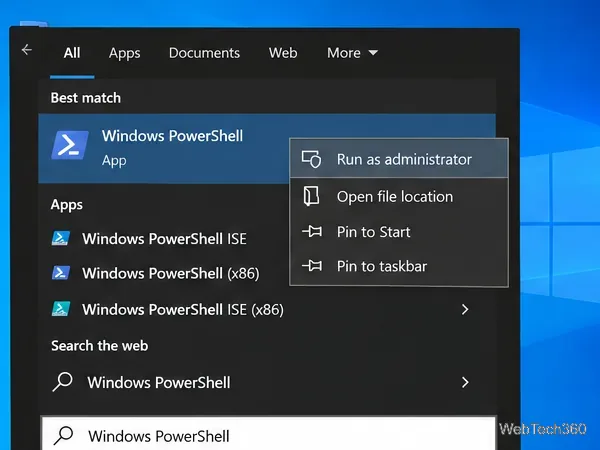
Set up a PowerShell watcher and Task Scheduler task to relaunch a Windows 10 desktop app after it closes, then learn how to test and stop it.
If you need to find a Word document, Excel workbook, or PowerPoint presentation but only remember text inside it, Windows 10 can search the contents of multiple Office files from one File Explorer search. The key is to make sure the folder is indexed and that Windows is indexing the contents of the Office file types you use. For this basic task, you do not need the old third-party Office Search utility.
Windows Search builds an index of file names, properties, and—when enabled—text inside supported files. File Explorer uses that index to return results quickly. Microsoft explains that content indexing lets Windows search words within files, while a file type set to Index Properties Only can still be found by name or metadata but not by its body text. See Microsoft's Search indexing in Windows documentation.
Office formats such as DOCX, XLSX, and PPTX depend on a suitable Windows Search filter for reliable content extraction. Microsoft documents the Windows Search filter architecture and notes that file types without an appropriate filter may be limited to properties rather than useful document content. If Office is installed normally, its filters are usually registered with Windows Search.
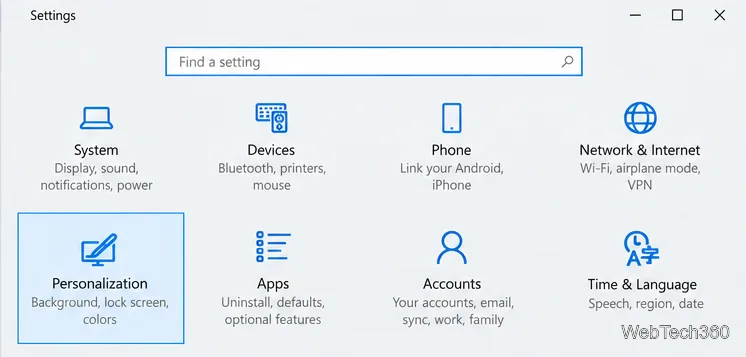
On Windows 10, open Start > Settings > Search > Searching Windows. Microsoft confirms this is the Windows 10 location for the search-indexing controls in its Windows Search and privacy documentation.
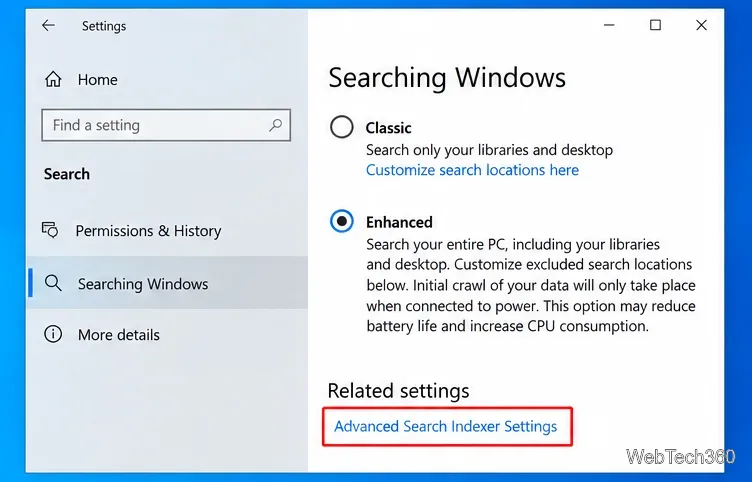
Open Indexing Options from the Start menu, or follow the advanced indexing link from Searching Windows. Select Modify to confirm that the folder containing your Office files is included. You do not have to index the entire drive if you only need a few work folders.
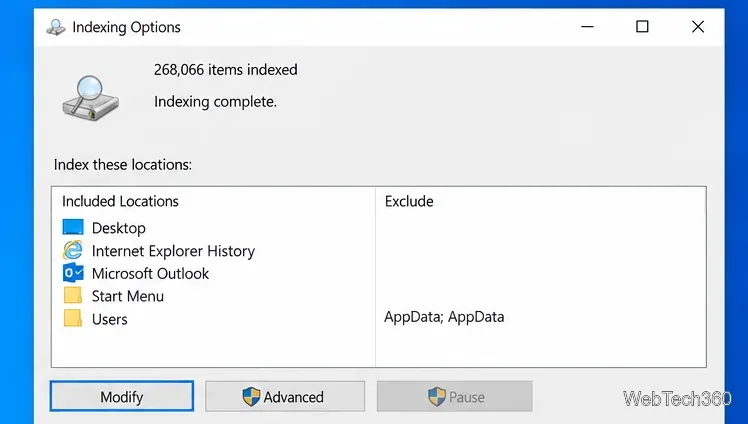
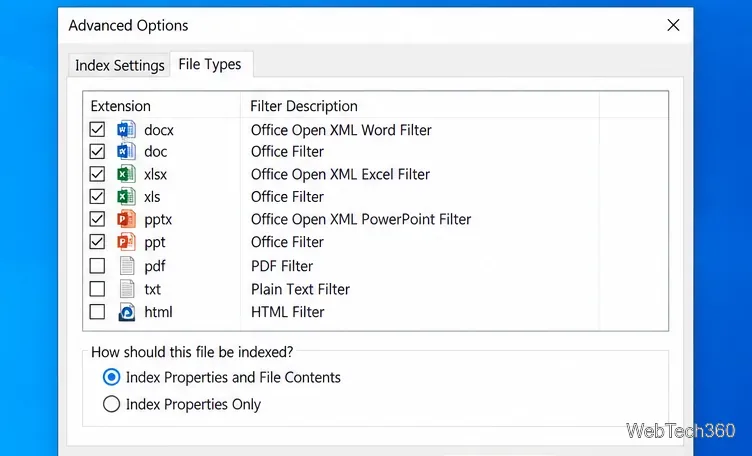
In Indexing Options, select Advanced > File Types. Check the Office extensions you need, then select Index Properties and File Contents. Repeat the setting for each format you expect to search, especially:
If a file extension is set to properties only, Windows may find the filename but miss words stored inside the document. Microsoft also documents the content-search property as System.Search.Contents in Windows Search properties.
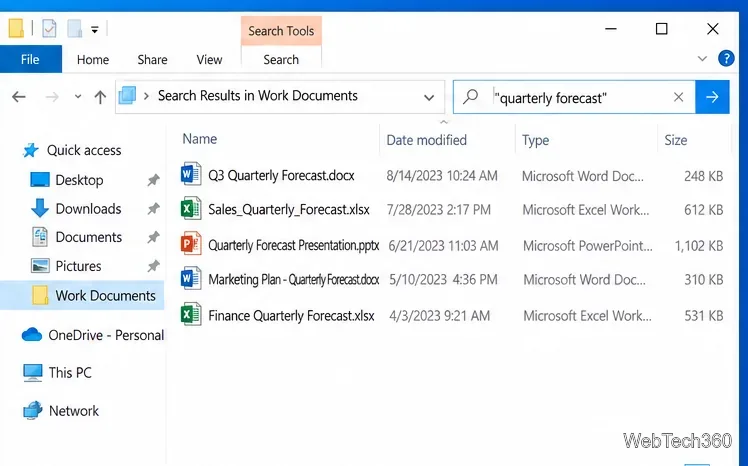
Open File Explorer and browse to the folder that contains the documents. Searching from that folder also covers its subfolders. Click the search box in the upper-right corner and enter a word or phrase that appears inside the files.
For an exact phrase, put it in quotation marks, for example "quarterly forecast". If you want to target the indexed content property explicitly, Windows Search supports Advanced Query Syntax; the canonical form is System.Search.Contents:"quarterly forecast". A normal keyword or quoted phrase is simpler for most searches.
You do not need to search Word, Excel, and PowerPoint separately. If their formats and location are indexed, a single search in the parent folder can return matching DOCX, XLSX, PPTX, and other indexed files together.
For ordinary content searches across Word, Excel, and PowerPoint files stored on the PC, Windows 10's built-in index and File Explorer are usually enough. A specialized search tool is mainly useful when you need features Windows Search does not provide, such as regular expressions, unusual document formats, or custom search workflows.
Windows 10 support note: Microsoft ended free Windows 10 software updates, security fixes, and technical support on October 14, 2025. These search steps still apply to existing Windows 10 installations, but Microsoft recommends moving to a supported Windows version for ongoing security and support. The current Microsoft guidance is available on its Windows file search support page.
Set up a PowerShell watcher and Task Scheduler task to relaunch a Windows 10 desktop app after it closes, then learn how to test and stop it.
Keep app icons out of the hidden overflow in Windows 10. Turn on the all-icons option, then manage system icons separately if one is still missing.
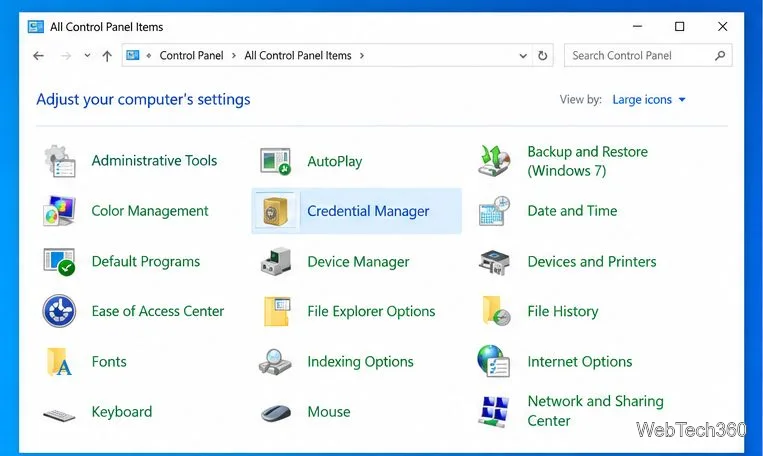
Change the saved username or password Windows uses for a mapped drive or shared folder through Credential Manager, then reconnect to verify access.
Set a lower Defender scan CPU target in PowerShell, handle the idle-scan exception, and verify which Windows 10 scans the setting affects.
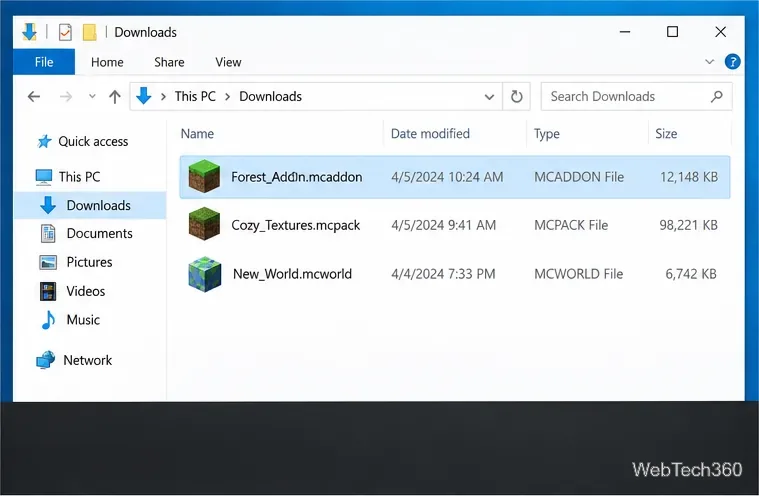
Import a Bedrock .mcpack or .mcaddon on Windows 10, activate it for a new or existing world, and avoid confusing add-ons with Java mods.
Restore the Windows 10 hotspot by checking the internet source and wireless adapter, repairing its driver, and saving Network reset for last.
Set daytime and nighttime brightness levels on Windows 10 with ClickMonitorDDC 7.2, and learn about DDC/CI limits and the Night light alternative.
Find Windows 10’s left/right balance controls for Bluetooth headphones, with a cautious registry workaround when volume controls stay linked.
Set up Task Scheduler’s On idle trigger to shut down Windows 10 with a one-minute cancellation window, and learn how Windows defines idle.
Learn how to burn a disc image to an SD card on Windows 10 with balenaEtcher, verify the target drive, and check whether the finished card can boot.