How to Play Minecraft Offline on Windows 10: Java and Bedrock

Prepare Java or Bedrock on Windows 10 for offline single-player, enable the right Xbox setting, and back up your local Minecraft worlds.
Yes, Windows 10 can use a different resolution on each monitor. The key is to select the monitor you want to change in Settings > System > Display, then choose that screen's own Display resolution. You do not need to open Advanced display settings just to change resolution.
This is useful when, for example, a laptop has a 1920 × 1080 panel while an external monitor runs at 2560 × 1440 or 3840 × 2160. Windows can keep each display at its recommended resolution while still extending one desktop across them.
Note: Microsoft ended standard Windows 10 support on October 14, 2025. Existing Windows 10 PCs still work, but Microsoft recommends moving to Windows 11 for ongoing support. The display controls below remain the documented Windows 10 method.
Connect the second or third monitor and wait for Windows to detect it. Press Windows + P and choose Extend if you want each monitor to act as a separate part of the desktop. Duplicate mode is meant to show the same content on multiple screens and can force Windows to use a display mode that both screens have in common.
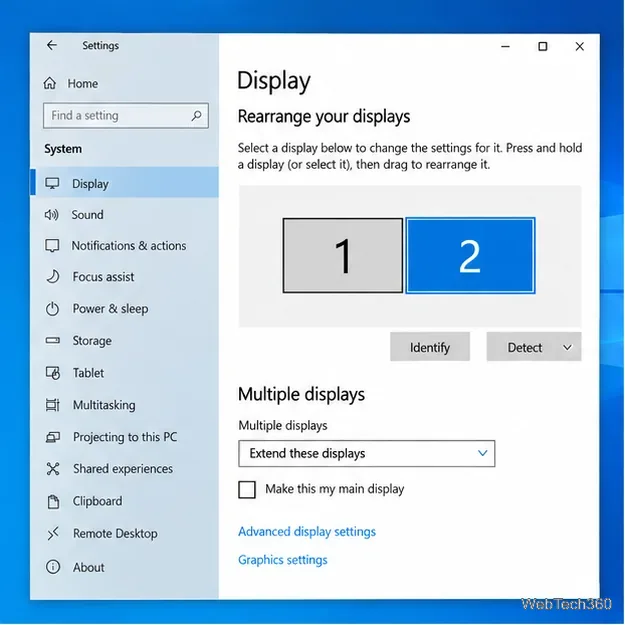
Extend mode lets Windows treat the monitors as separate displays.
Open Start > Settings > System > Display. Under Rearrange your displays, you should see numbered boxes for the connected screens. Select Identify to flash the matching number on each physical monitor.
If a monitor is connected but missing, scroll to Multiple displays and select Detect. Also check the video cable, dock, adapter, and the monitor's selected input.
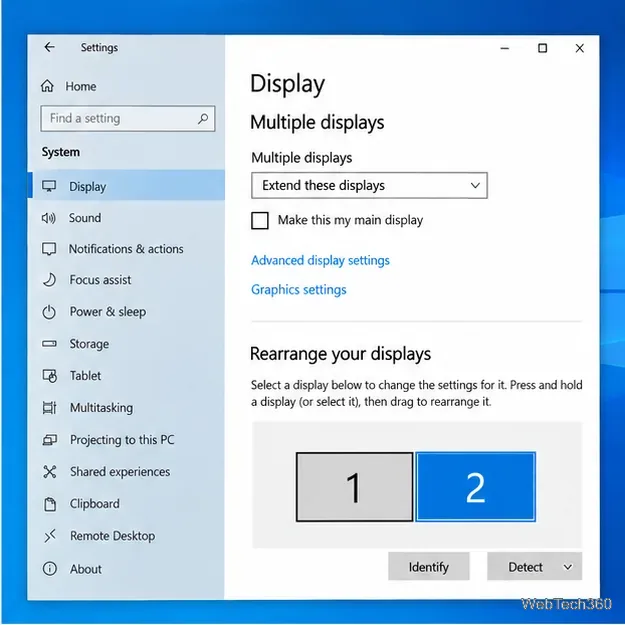
Use Identify so you know which numbered display you are changing.
Click the numbered box for the first monitor. Scroll to Scale and layout, open the Display resolution list, and choose the resolution you want for that screen. In most cases, use the entry marked Recommended, which normally matches the panel's native resolution.
Windows applies the new mode and may ask whether you want to keep the change. Choose Keep changes if the picture looks correct. If the screen becomes unreadable or goes blank temporarily, let Windows revert or choose the previous setting.
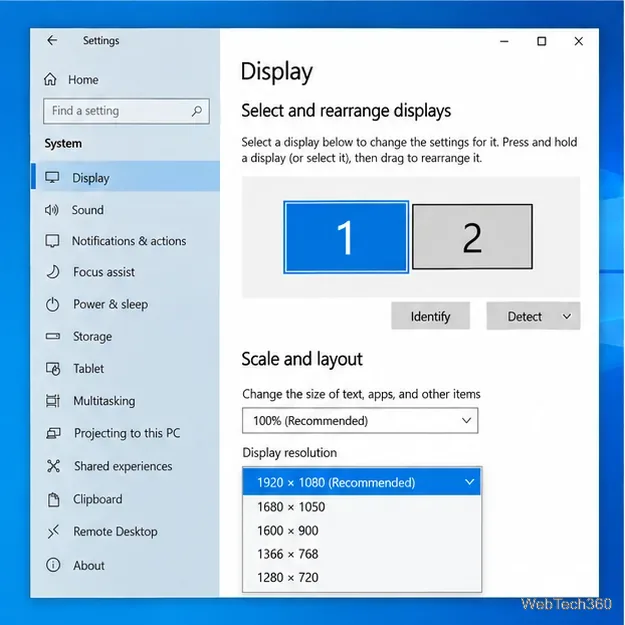
Monitor 1 can keep its own recommended resolution.
Return to the display diagram at the top of the same Settings page and select the other monitor, such as 2. Scroll back to Display resolution and choose the recommended resolution for that screen. Changing monitor 2 does not require changing monitor 1 when the displays are extended.
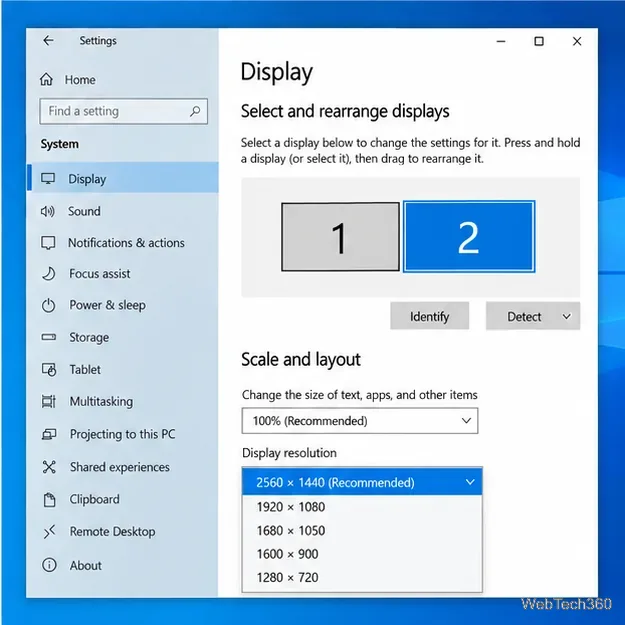
Monitor 2 can use a higher resolution while monitor 1 remains at 1920 × 1080.
Different resolutions can make text and interface elements appear larger on one screen than another. That is what Scale is for. Keep the resolution at the recommended value for sharpness, then adjust scaling separately if text is too small.
You can also drag the numbered monitor boxes under Rearrange your displays so their on-screen positions match the physical setup on your desk. This makes the mouse pointer move naturally from one display to the next.
For an LCD or OLED monitor, the best starting point is usually the resolution marked Recommended. Microsoft notes that lower-than-native resolutions can make text less sharp and may produce a smaller, stretched, or bordered image.
Resolution and scaling are separate settings. If a 4K screen makes text look tiny, keep the 4K resolution and increase Scale instead of lowering the resolution unless you have a specific reason to do so.
For the current Windows 10 instructions, see Microsoft's screen resolution and layout guide and multiple-monitor guide.
Prepare Java or Bedrock on Windows 10 for offline single-player, enable the right Xbox setting, and back up your local Minecraft worlds.
Change a file type icon in Windows 10 while keeping its current default app. Follow the FileTypesMan steps, handle icon picker issues, and restore the original setting.
Set PhysX in NVIDIA Control Panel on Windows 10, understand Auto-select vs. CPU or GPU, and learn when to use Windows Graphics settings instead.
Compare six free office suites for documents, spreadsheets, and presentations, including browser-based collaboration and offline desktop options.
Turn on Notepad’s Status Bar to see the current line and column in Windows 10, troubleshoot a disabled option, and learn when you need a line-number gutter.
Display a custom Windows dialog with a short PowerShell command, Command Prompt, or a reusable .bat or .ps1 file, including a title, icon, and buttons.
Fix Windows 10 update error 0x80071160 with Microsoft’s troubleshooter, a safe update-cache reset, DISM and SFC repairs, and a careful manual-install check.
Create a Windows 10 UEFI installer with Microsoft’s Media Creation Tool or Rufus, then boot and install safely without wiping the wrong drive.
Stop individual Edge tabs from crowding the Windows 10 Alt+Tab switcher. Change one Multitasking setting, limit recent tabs, and check why the option may be missing.
Enable Adobe’s PDF thumbnail handler, correct File Explorer’s icon settings, rebuild the thumbnail cache, and check OneDrive files that are not stored locally.








