How to Automatically Restart a Crashed App on Windows 10
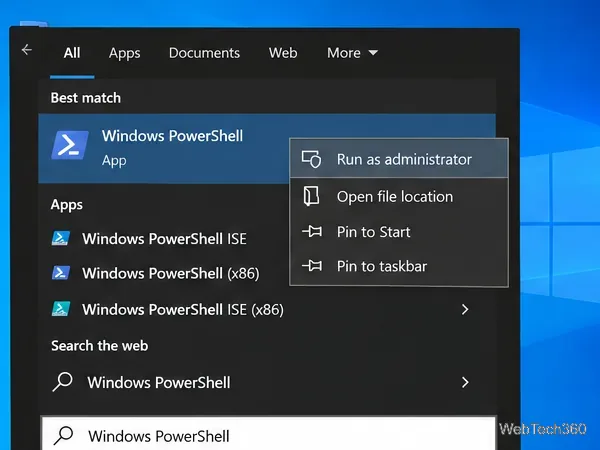
Set up a PowerShell watcher and Task Scheduler task to relaunch a Windows 10 desktop app after it closes, then learn how to test and stop it.
If several people use separate accounts on the same Windows 10 PC, the simplest place for files that everyone should be able to reach is the Public Documents folder. Windows keeps each user profile private by default, but Microsoft defines %PUBLIC%\Documents as the common documents location for the computer.
This guide is for local users on the same PC. You do not need to turn on Network Discovery or network file sharing just to let another account on that computer open the folder. Also note that standard Windows 10 support ended on October 14, 2025, although Windows 10 PCs still run and eligible systems can use Extended Security Updates.
Use Public Documents for shared working files. It is a better choice than putting files on a second drive and assuming every account automatically has permission to use them.
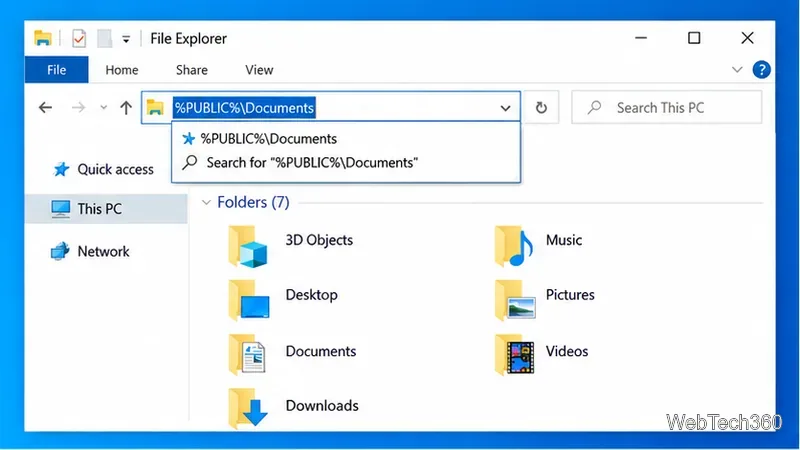
Press Windows + E to open File Explorer. Click the address bar, type %PUBLIC%\Documents, and press Enter. The environment variable is useful because it points to the Public profile even if Windows is installed on a drive other than C:.
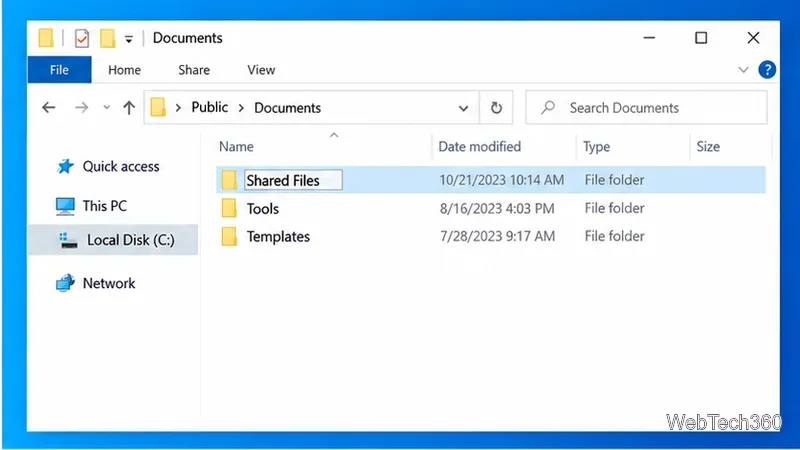
Inside Public Documents, right-click an empty area and choose New > Folder. Give it a clear name such as Shared Files, Family Documents, or a project name. Keeping shared items in one folder makes permissions easier to manage later.
Drag files into the new folder, or use Ctrl + C and Ctrl + V. Files created inside a folder normally inherit permissions from their parent, so placing content in the Public location is usually enough for other signed-in users to reach it.
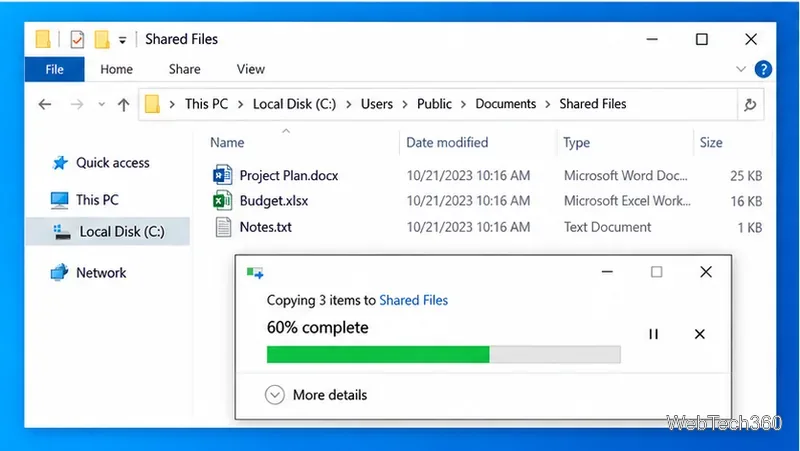
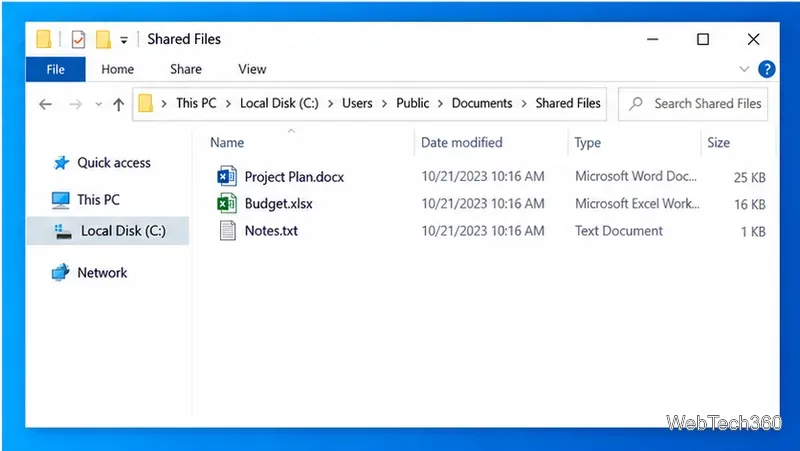
Sign in to another Windows account on the same computer and open %PUBLIC%\Documents\Shared Files. Confirm that the account can open the files. If people also need to edit, rename, or delete them, test those actions too because read access and modify access are not the same permission.
Windows controls file access with access-control lists (ACLs). If another local account can see the folder but cannot open or change its contents, check the folder permissions instead of enabling unrelated network-sharing options.
Avoid granting Full control unless there is a specific reason. If you change permissions on an existing folder, make sure its files and subfolders inherit the intended settings.
Windows also has a common desktop at %PUBLIC%\Desktop. Items stored there can appear on the desktop for all users, which is useful for shared shortcuts. For documents that people will edit, Public Documents is usually cleaner. Adding or changing items on Public Desktop may also require administrator approval, depending on the current permissions.
A separate internal drive can be a good place for shared data, but the drive letter alone does not make its contents available to every account. Access still depends on the folder's permissions. If you want to use another drive, create a dedicated folder there and configure its Security permissions explicitly instead of saving shared files at the drive root.
The steps above share files between accounts that sign in to the same Windows PC. If you want another computer on your home or office network to access the folder, use Windows network-sharing settings instead. Microsoft documents that process separately, including Give access to, the Everyone network share option, Network Discovery, and mapped drives.
Set up a PowerShell watcher and Task Scheduler task to relaunch a Windows 10 desktop app after it closes, then learn how to test and stop it.
Keep app icons out of the hidden overflow in Windows 10. Turn on the all-icons option, then manage system icons separately if one is still missing.
Change the saved username or password Windows uses for a mapped drive or shared folder through Credential Manager, then reconnect to verify access.
Set a lower Defender scan CPU target in PowerShell, handle the idle-scan exception, and verify which Windows 10 scans the setting affects.
Import a Bedrock .mcpack or .mcaddon on Windows 10, activate it for a new or existing world, and avoid confusing add-ons with Java mods.
Restore the Windows 10 hotspot by checking the internet source and wireless adapter, repairing its driver, and saving Network reset for last.
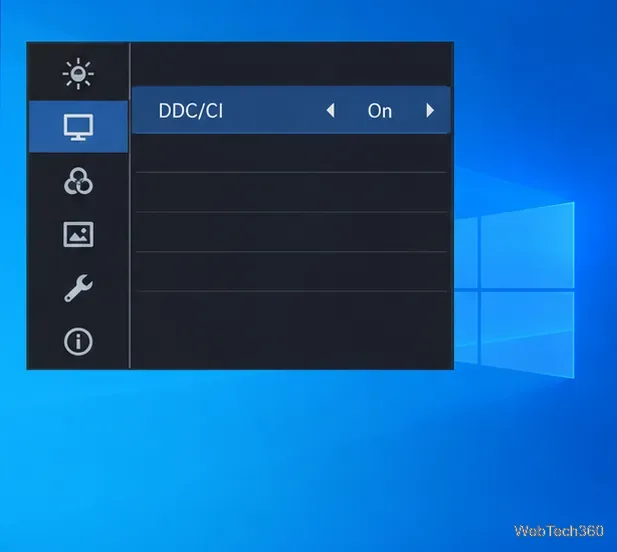
Set daytime and nighttime brightness levels on Windows 10 with ClickMonitorDDC 7.2, and learn about DDC/CI limits and the Night light alternative.
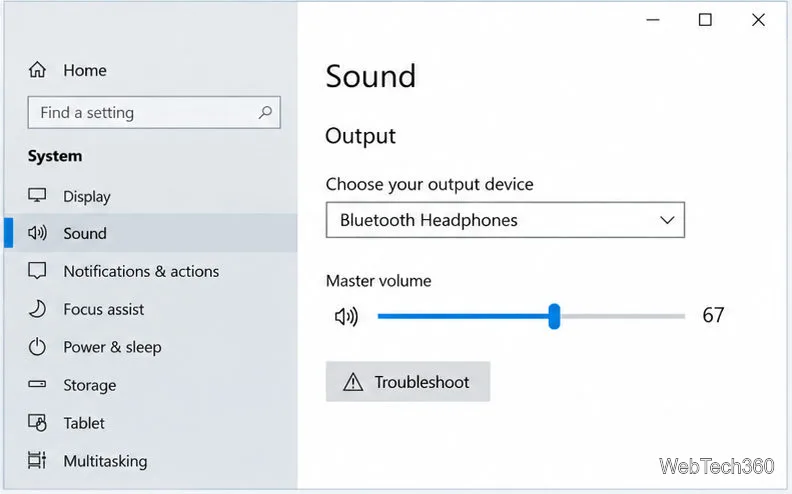
Find Windows 10’s left/right balance controls for Bluetooth headphones, with a cautious registry workaround when volume controls stay linked.
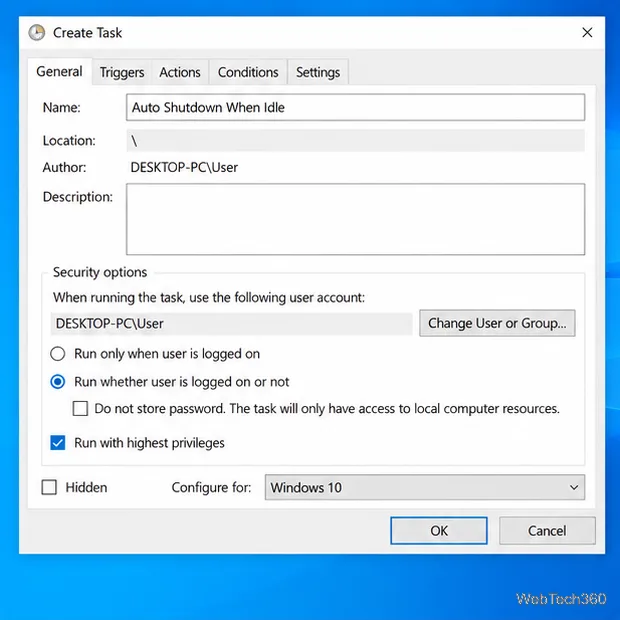
Set up Task Scheduler’s On idle trigger to shut down Windows 10 with a one-minute cancellation window, and learn how Windows defines idle.
Learn how to burn a disc image to an SD card on Windows 10 with balenaEtcher, verify the target drive, and check whether the finished card can boot.