How to Play Minecraft Offline on Windows 10: Java and Bedrock

Prepare Java or Bedrock on Windows 10 for offline single-player, enable the right Xbox setting, and back up your local Minecraft worlds.
To start Steam in Offline Mode on Windows 10, sign in while you are online, make sure Steam can save your credentials, update and open the games you plan to play, then choose Steam > Go Offline... and confirm the restart. Steam’s current support instructions require this preparation because Offline Mode cannot bypass a login request, and some games still need an internet connection.
Do these checks while your PC can reach the Steam Network. If you are preparing for travel or an unreliable connection, switch to Offline Mode before you lose internet access.
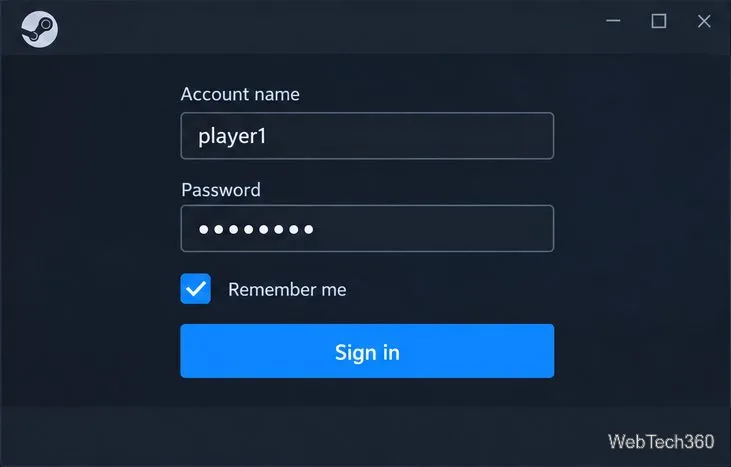
Open the Steam desktop client and sign in normally. On the login window, leave Remember me checked. Steam uses stored sign-in information to start Offline Mode later. If you have never signed into this Windows account on the computer, finish the first sign-in and any Steam Guard verification while you are online.
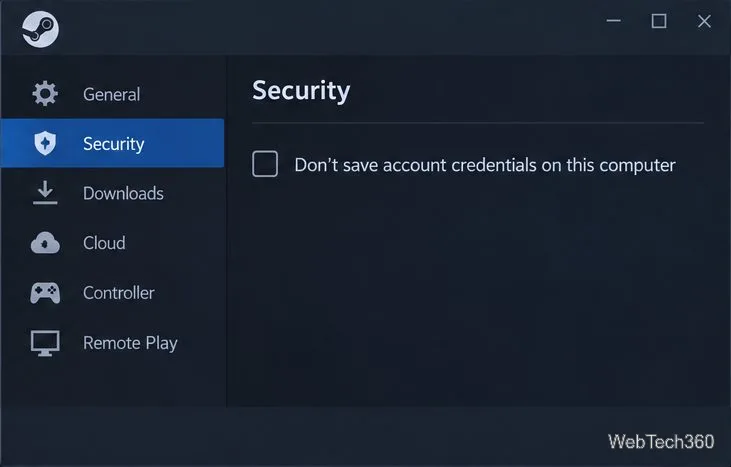
In the client, open Steam > Settings > Security. Confirm that Don’t save account credentials on this computer is not selected. If that option is checked, Steam is being told not to retain the information Offline Mode needs. Leave it unchecked, then close Settings.
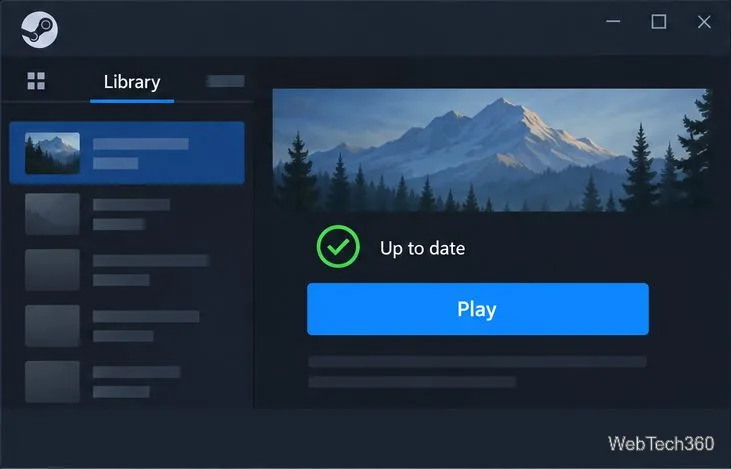
Install all pending Steam client and game updates. Open every game you want to use offline while Steam is connected, and complete any first-run setup, installation, or sign-in it requests. Then close the game and return to Steam. A game that has not completed its first launch may still need downloads or online activation even if it appears installed.
Offline availability depends on the game. Titles that require an active connection or an external launcher that needs the internet will not work offline. Steam also cannot deliver client or game updates while Offline Mode is active.
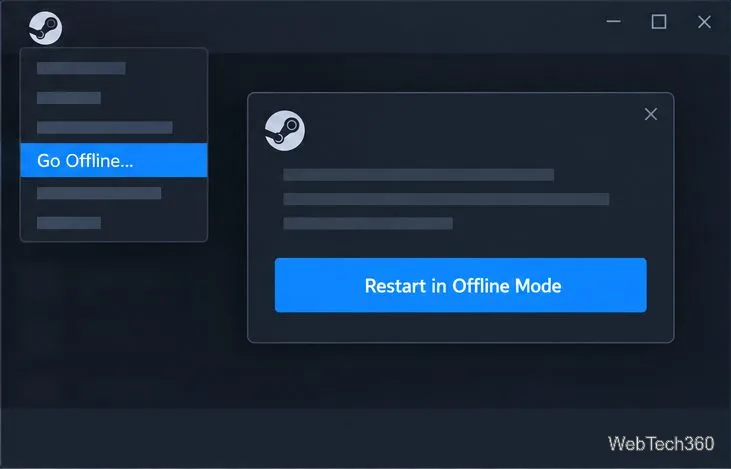
Keep Steam in this state while you play without a connection. Any Steam feature that needs the Steam Network will be unavailable, including online community features. Offline Mode is a client connection setting; it does not make an online-only game playable without a server.
If Steam was prepared on this computer earlier and its sign-in information is still stored, you may be able to start the client in Offline Mode when the network is unavailable. If Steam instead requires you to log in, Steam Support says there is no offline option that bypasses that login. Reconnect, sign in, and complete the preparation steps before trying again. Turning off Wi-Fi cannot replace the first online sign-in, game updates, or first-run setup.
If a game will not launch offline, reconnect and update both Steam and that game, then open the game online once more. Also check whether the title uses an online-only service or an external launcher. Steam’s support guidance notes that a “ready” status by itself does not guarantee that all offline startup requirements are complete.
Restore your internet connection, then open Steam. If the client remains offline, choose its Go Online option from the Steam menu and let it reconnect. Allow pending updates to finish. Games using Steam Cloud do not sync changes made while offline until Steam is online again; before opening the same game on another computer, let synchronization complete so you can review any save conflict safely. See Steam’s Steam Cloud support page for details.
If you are using Offline Mode before powering off your PC, close Steam from the client instead of force-quitting it. Steam says stored information is needed for Offline Mode and recommends manually closing the client before shutting down Windows. When you have a connection again, go online periodically so Steam and your games can receive important updates.
For the official preparation checklist and troubleshooting notes, see Steam Support’s Offline Mode guide.
Prepare Java or Bedrock on Windows 10 for offline single-player, enable the right Xbox setting, and back up your local Minecraft worlds.
Change a file type icon in Windows 10 while keeping its current default app. Follow the FileTypesMan steps, handle icon picker issues, and restore the original setting.
Set PhysX in NVIDIA Control Panel on Windows 10, understand Auto-select vs. CPU or GPU, and learn when to use Windows Graphics settings instead.
Compare six free office suites for documents, spreadsheets, and presentations, including browser-based collaboration and offline desktop options.
Turn on Notepad’s Status Bar to see the current line and column in Windows 10, troubleshoot a disabled option, and learn when you need a line-number gutter.
Display a custom Windows dialog with a short PowerShell command, Command Prompt, or a reusable .bat or .ps1 file, including a title, icon, and buttons.
Fix Windows 10 update error 0x80071160 with Microsoft’s troubleshooter, a safe update-cache reset, DISM and SFC repairs, and a careful manual-install check.
Create a Windows 10 UEFI installer with Microsoft’s Media Creation Tool or Rufus, then boot and install safely without wiping the wrong drive.
Stop individual Edge tabs from crowding the Windows 10 Alt+Tab switcher. Change one Multitasking setting, limit recent tabs, and check why the option may be missing.
Enable Adobe’s PDF thumbnail handler, correct File Explorer’s icon settings, rebuild the thumbnail cache, and check OneDrive files that are not stored locally.








