How to Play Minecraft Offline on Windows 10: Java and Bedrock

Prepare Java or Bedrock on Windows 10 for offline single-player, enable the right Xbox setting, and back up your local Minecraft worlds.
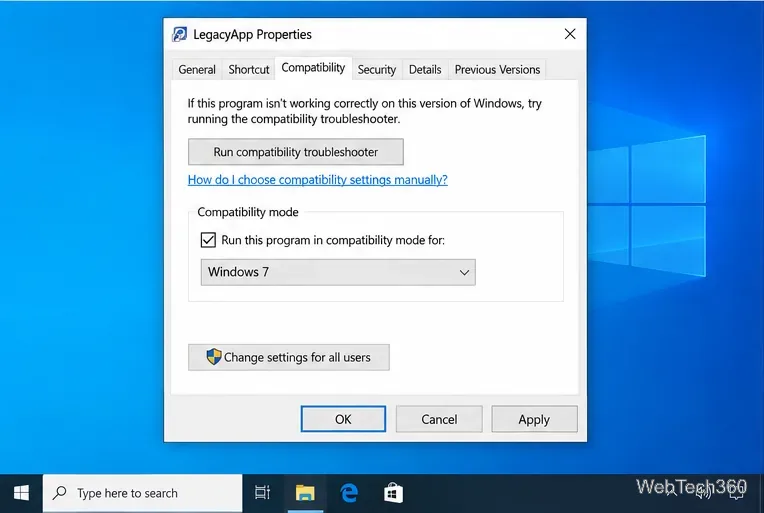
To turn compatibility mode on or off in Windows 10, open the app’s Properties, select the Compatibility tab, and change the “Run this program in compatibility mode for” setting. Check the box and choose a Windows version to enable it; clear the box to disable it. Click Apply and OK, then reopen the app to check the result.
This setting is intended for classic desktop programs with an executable file. It applies compatibility adjustments to that program; it does not start a separate copy of an older Windows release, and it cannot fix every app problem.
First check the app publisher’s website for a Windows 10 update or a version-specific fix. Compatibility mode is most useful when an older desktop app opens incorrectly, displays errors, or behaves differently from how it did on an earlier Windows version. If a recent update caused the problem, check for a newer patch before changing Windows settings.
Use the app’s main .exe file when possible. If you apply a setting to a launcher, installer, or shortcut, it may not affect a different executable that the app uses after installation. Some apps, including certain Microsoft Store apps, do not expose the classic Compatibility tab.
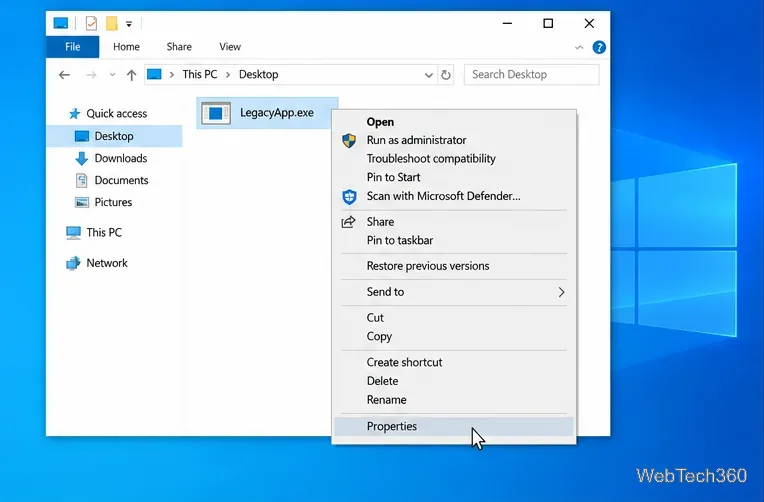
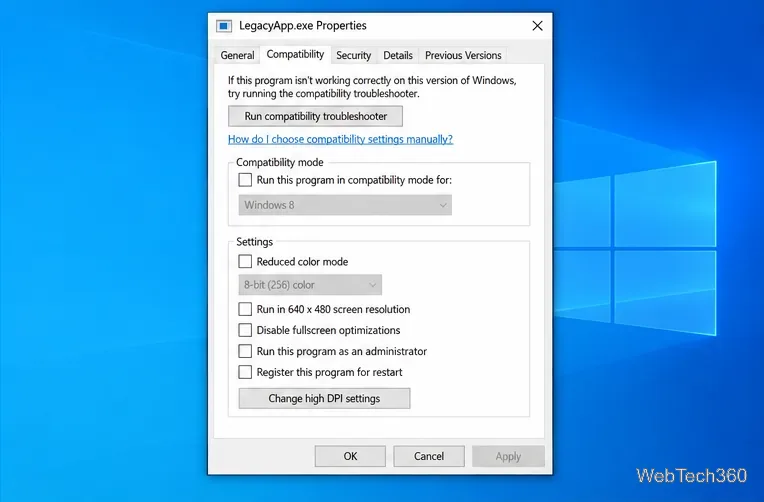
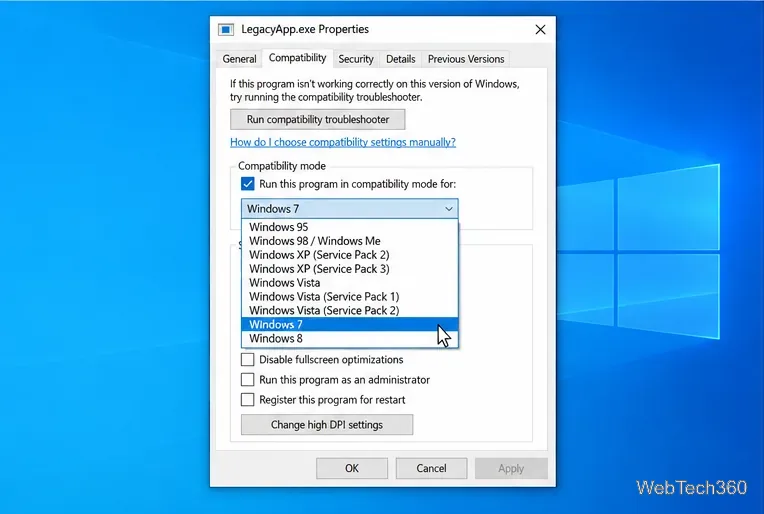
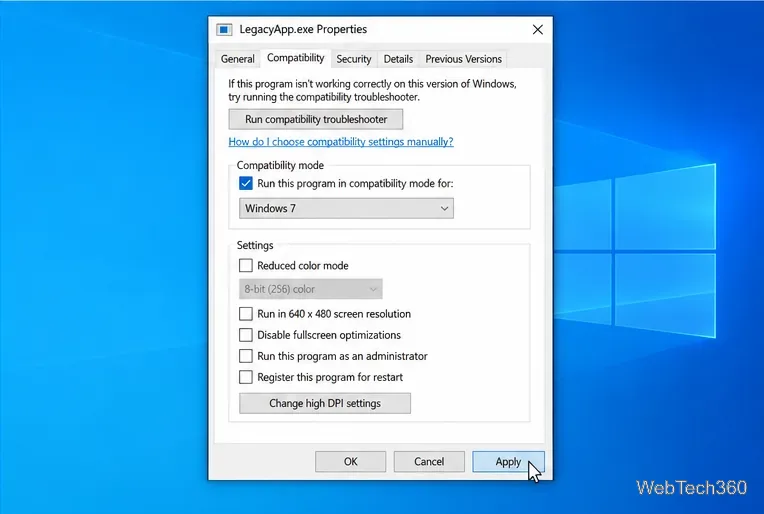
Compatibility settings may be set separately for your account and for all accounts on the PC. In the Compatibility tab, select Change settings for all users if you need the change to apply system-wide. Windows may ask for administrator approval. Set or clear the compatibility checkbox in that window too, then select Apply and OK. If the app still starts in compatibility mode after you turn it off for your account, check this all-users setting.
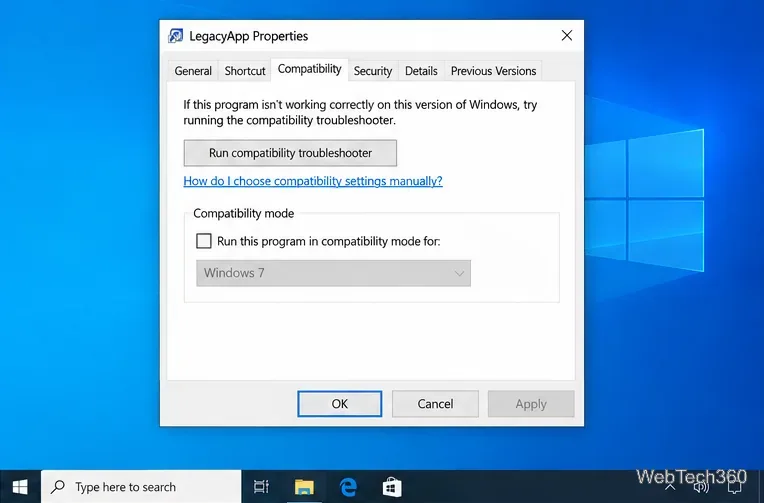
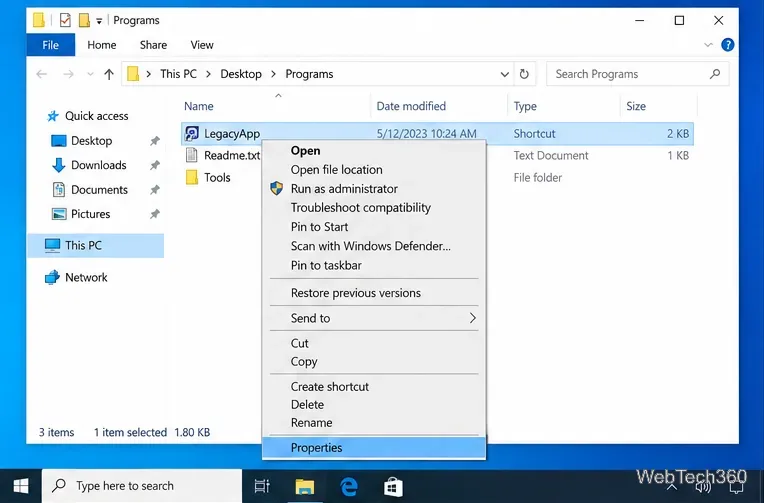
If the Compatibility tab is unavailable, confirm you opened Properties for a classic desktop app’s executable rather than a document, web app, or unrelated launcher. If the tab is present but you are unsure which option to use, run Windows’ Program Compatibility Troubleshooter: select Start > Settings > System > Troubleshoot > Other troubleshooters, find the troubleshooter, and select Run. Follow its prompts, then test the app. Some Windows 10 builds show the troubleshooter under Update & Security > Troubleshoot > Additional troubleshooters.
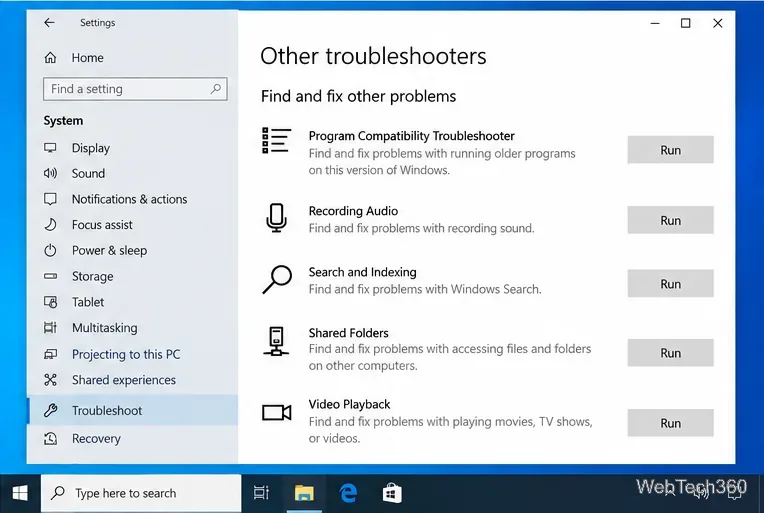
Compatibility mode cannot provide missing drivers, libraries, or hardware support, and switching between older Windows targets is not a substitute for an app update. If a change does not help, undo it, install a publisher-supported version, or contact the publisher. Microsoft’s older-app compatibility guide covers updates and the Program Compatibility Troubleshooter. The Windows 10 Compatibility Cookbook explains Microsoft’s broader app-compatibility approach.
Prepare Java or Bedrock on Windows 10 for offline single-player, enable the right Xbox setting, and back up your local Minecraft worlds.
Change a file type icon in Windows 10 while keeping its current default app. Follow the FileTypesMan steps, handle icon picker issues, and restore the original setting.
Set PhysX in NVIDIA Control Panel on Windows 10, understand Auto-select vs. CPU or GPU, and learn when to use Windows Graphics settings instead.
Compare six free office suites for documents, spreadsheets, and presentations, including browser-based collaboration and offline desktop options.
Turn on Notepad’s Status Bar to see the current line and column in Windows 10, troubleshoot a disabled option, and learn when you need a line-number gutter.
Display a custom Windows dialog with a short PowerShell command, Command Prompt, or a reusable .bat or .ps1 file, including a title, icon, and buttons.
Fix Windows 10 update error 0x80071160 with Microsoft’s troubleshooter, a safe update-cache reset, DISM and SFC repairs, and a careful manual-install check.
Create a Windows 10 UEFI installer with Microsoft’s Media Creation Tool or Rufus, then boot and install safely without wiping the wrong drive.
Stop individual Edge tabs from crowding the Windows 10 Alt+Tab switcher. Change one Multitasking setting, limit recent tabs, and check why the option may be missing.
Enable Adobe’s PDF thumbnail handler, correct File Explorer’s icon settings, rebuild the thumbnail cache, and check OneDrive files that are not stored locally.








