How to Play Minecraft Offline on Windows 10: Java and Bedrock

Prepare Java or Bedrock on Windows 10 for offline single-player, enable the right Xbox setting, and back up your local Minecraft worlds.
To stop a Caps Lock notification in Windows 10, identify its source first. An alert saved in Action Center is usually a Windows notification; a brief floating graphic may be an on-screen display (OSD) from your PC or keyboard maker. There is no single Windows switch for every manufacturer’s overlay.
The examples show where to look; utility names vary by model. Test Caps Lock after each change.
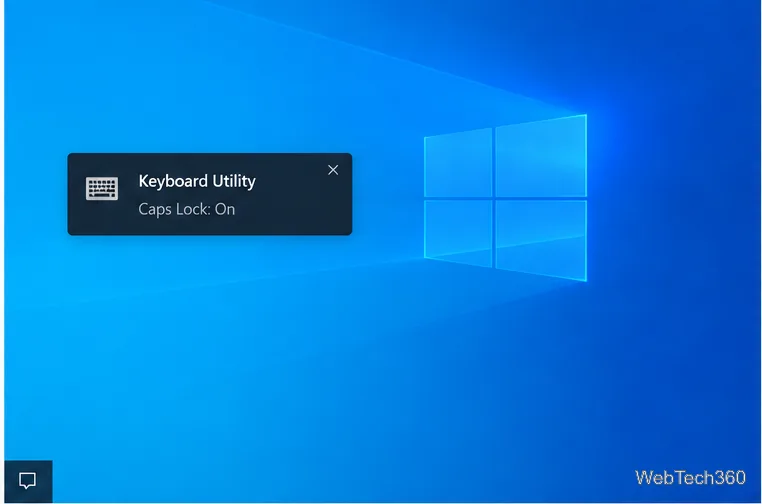
Press Caps Lock, then Windows key + A to open Action Center. If the alert is listed with a sender name, note the app. A brief overlay that is not saved there is more likely an OSD.
Absence from Action Center is a clue, not proof. A physical Caps Lock light is separate from an on-screen alert and may have no Windows control.
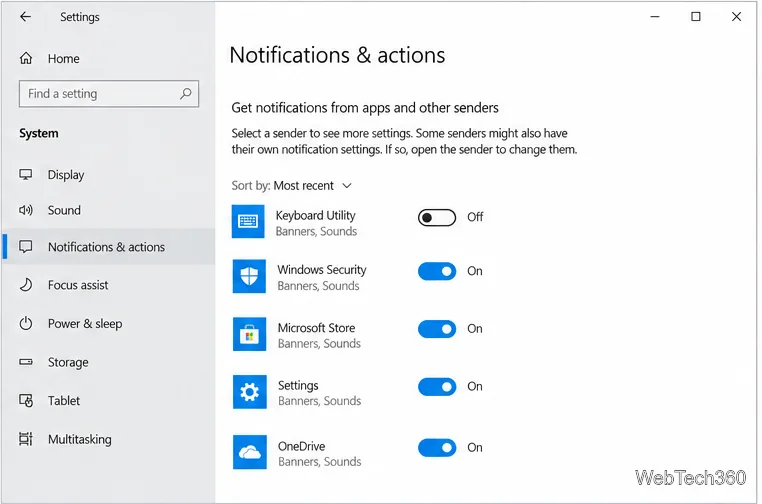
If Action Center shows the alert under an app name, Windows 10 can turn off that app’s notifications or only its banners:
Avoid turning off notifications globally. If the app is not listed, or the pop-up persists, it may be an OSD. See Microsoft’s notification settings guide.
For an OSD, check software supplied with the PC or keyboard. Search Start for a keyboard or hotkey utility, and inspect the notification area beside the clock, including hidden icons. Its app icon or publisher can help identify it.
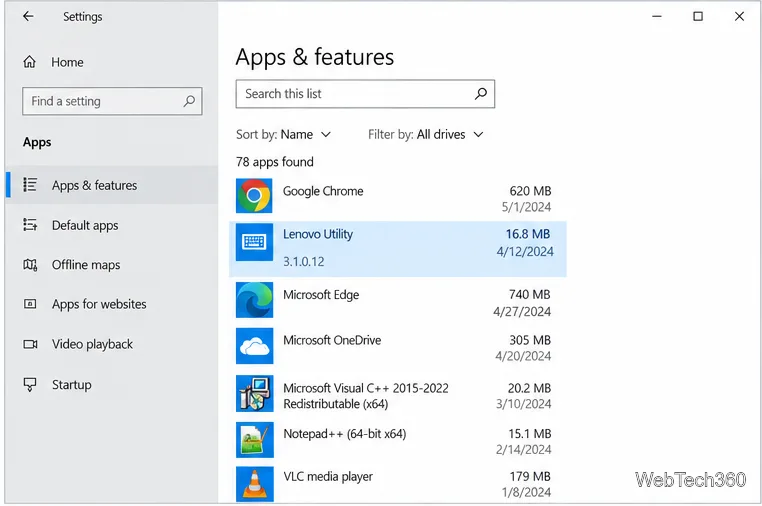
Names vary by model. Lenovo documents Lenovo Utility OSD messages for Caps Lock and Num Lock; newer supported packages may use Lenovo Hotkeys. Check your PC maker’s support page before changing its utility.
Open the utility and look for On-Screen Display, Lock key status, or similar. Turn off only the Caps Lock item if available; some utilities have no such control. See Lenovo’s support page for one example.
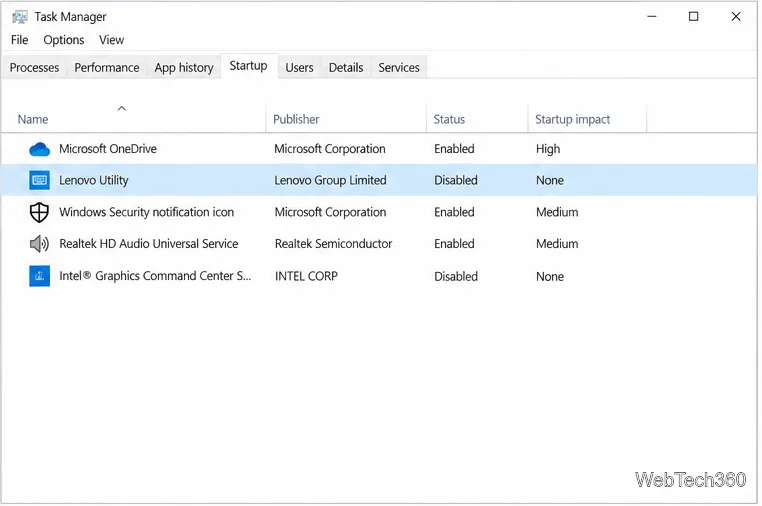
If there is no OSD switch, temporarily prevent the suspected utility from starting with Windows. This reversible test can confirm the cause:
Disable only the identified utility, not an unfamiliar driver or service. Other hotkey shortcuts or status indicators may also stop working.
If the startup test confirms the cause and you do not need the utility, remove it from Settings > Apps > Apps & features. If needed, use Control Panel > Programs > Programs and Features. Microsoft’s uninstall guide covers both routes.
Do not remove a keyboard driver. If unsure whether the utility enables function keys, check the PC maker’s instructions first.
A beep is not an on-screen alert. To silence it, open Settings > Ease of Access > Keyboard and turn off Toggle Keys if enabled. Microsoft’s keyboard accessibility guide describes the sound setting.
The old Advanced display settings > Display adapter properties route is not a universal Caps Lock control. Use it only if documentation for your PC or graphics utility identifies the setting.
Prepare Java or Bedrock on Windows 10 for offline single-player, enable the right Xbox setting, and back up your local Minecraft worlds.
Change a file type icon in Windows 10 while keeping its current default app. Follow the FileTypesMan steps, handle icon picker issues, and restore the original setting.
Set PhysX in NVIDIA Control Panel on Windows 10, understand Auto-select vs. CPU or GPU, and learn when to use Windows Graphics settings instead.
Compare six free office suites for documents, spreadsheets, and presentations, including browser-based collaboration and offline desktop options.
Turn on Notepad’s Status Bar to see the current line and column in Windows 10, troubleshoot a disabled option, and learn when you need a line-number gutter.
Display a custom Windows dialog with a short PowerShell command, Command Prompt, or a reusable .bat or .ps1 file, including a title, icon, and buttons.
Fix Windows 10 update error 0x80071160 with Microsoft’s troubleshooter, a safe update-cache reset, DISM and SFC repairs, and a careful manual-install check.
Create a Windows 10 UEFI installer with Microsoft’s Media Creation Tool or Rufus, then boot and install safely without wiping the wrong drive.
Stop individual Edge tabs from crowding the Windows 10 Alt+Tab switcher. Change one Multitasking setting, limit recent tabs, and check why the option may be missing.
Enable Adobe’s PDF thumbnail handler, correct File Explorer’s icon settings, rebuild the thumbnail cache, and check OneDrive files that are not stored locally.








