How to Play Minecraft Offline on Windows 10: Java and Bedrock

Prepare Java or Bedrock on Windows 10 for offline single-player, enable the right Xbox setting, and back up your local Minecraft worlds.
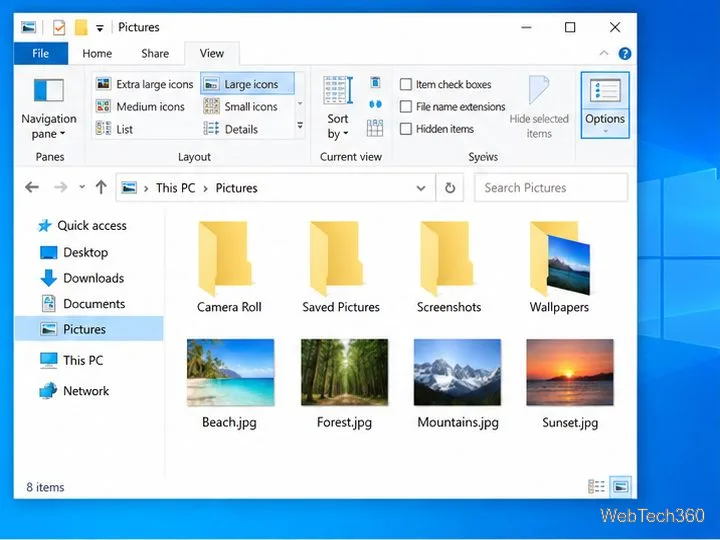
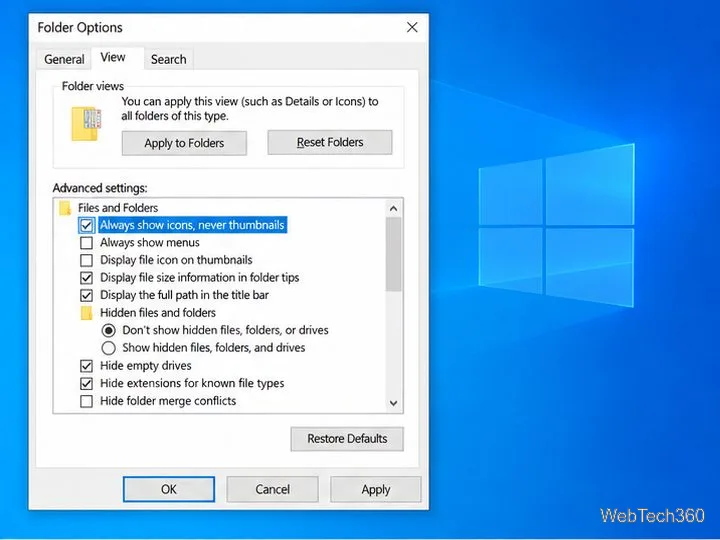
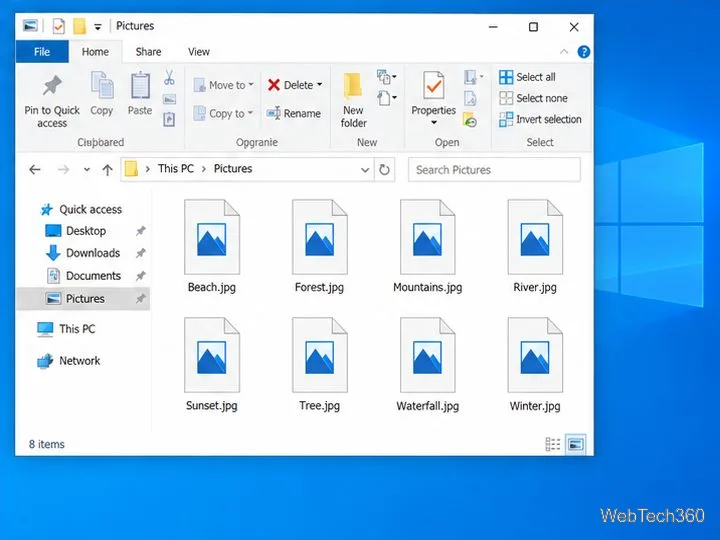
To disable folder thumbnails in Windows 10, open File Explorer, choose View > Options > View, check Always show icons, never thumbnails, and select Apply and OK. This is the quickest option for most people. Windows will show file icons instead of image previews in File Explorer; it will not delete or change your photos and documents.
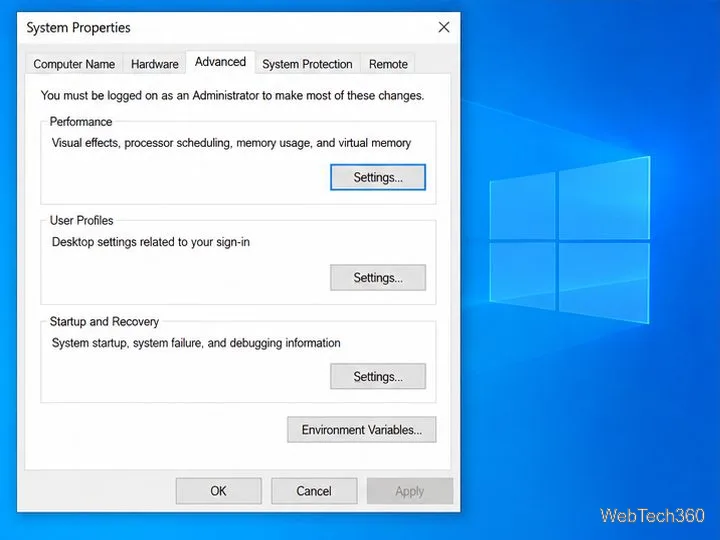
If you need a visual-effects setting or are managing a PC, you can make the change through Performance Options, Local Group Policy, or the corresponding Registry policy value. These settings control what File Explorer displays. They are different from deleting thumbnail-cache files or changing the Preview pane.
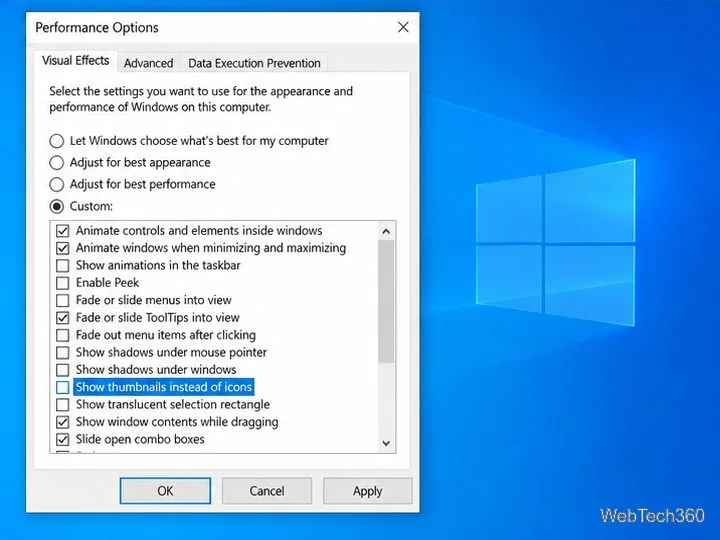
This setting is part of Windows visual effects. Use it if you also manage appearance settings. Clear the thumbnail option and review the other checkboxes before applying so the visual effects match your preferences.
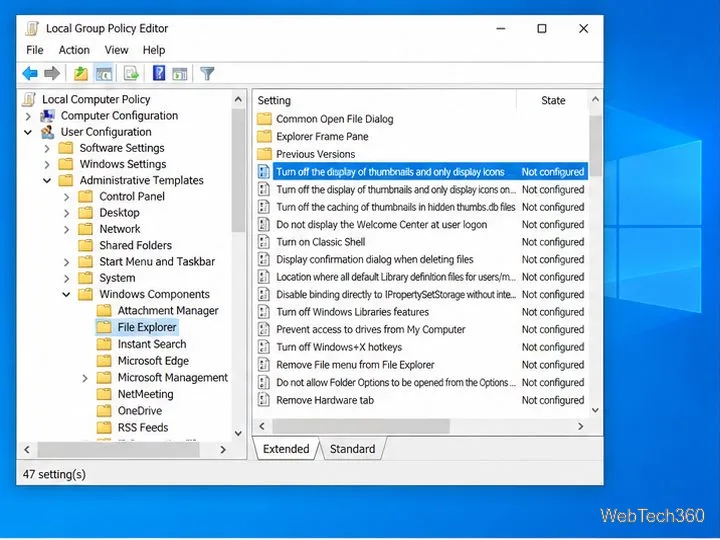
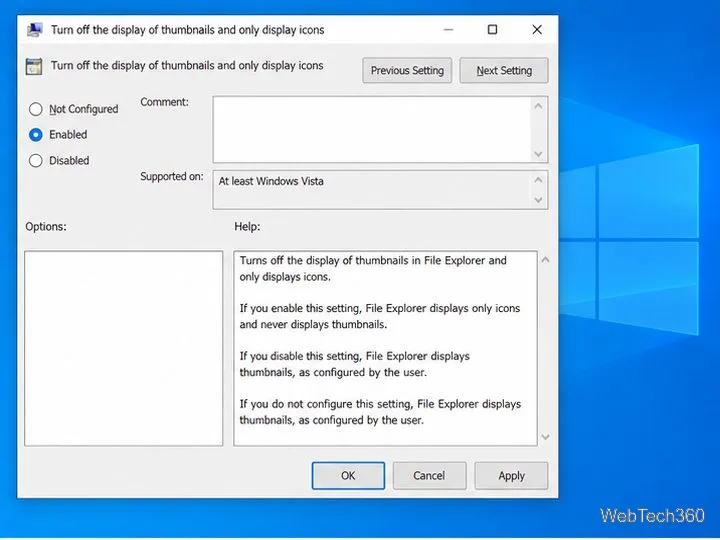
Group Policy is useful for an administrator who wants to enforce the setting for a Windows user. The Local Group Policy Editor is not included with Windows Home. If gpedit.msc does not open, use File Explorer or Performance Options instead. Work or school computers may also receive a policy from an administrator.
gpedit.msc, and press Enter.The wording can be confusing: enabling this policy turns thumbnails off and leaves icons visible. Microsoft documents this as a user policy for File Explorer. A centrally managed policy can override a local preference.
Use Registry Editor only if you are comfortable changing Windows settings directly. Before editing, export the key you plan to change using File > Export. Microsoft’s policy documentation maps the Group Policy setting above to the DisableThumbnails value in the current user’s Explorer policy key.
regedit, and press Enter. Approve the prompt if Windows asks.HKEY_CURRENT_USER\Software\Microsoft\Windows\CurrentVersion\Policies\Explorer. If Policies or Explorer is missing, create each missing key under its preceding key using New > Key.DisableThumbnails and set its value data to 1. If it is missing, create a DWORD (32-bit) Value with that name and set it to 1.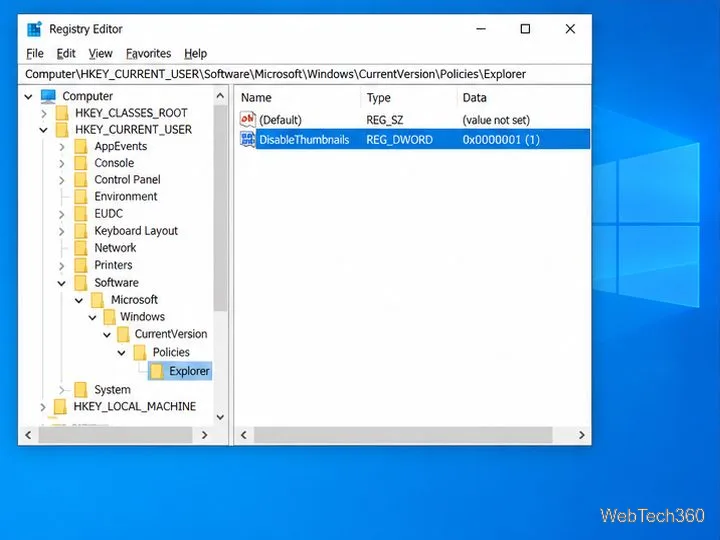
Reverse the method you used: uncheck Always show icons, never thumbnails in Folder Options; check Show thumbnails instead of icons in Performance Options; set the Group Policy item to Not Configured; or delete DisableThumbnails or change it to 0. If more than one setting was changed, reverse each one. A work or school policy may reapply the restriction.
After the change, File Explorer should show previews for supported file types again. A folder’s layout and file type still matter, and some formats may not have a thumbnail handler installed. If the folder shows icons after you reverse the setting, check both Folder Options and Performance Options before changing the Registry.
Prepare Java or Bedrock on Windows 10 for offline single-player, enable the right Xbox setting, and back up your local Minecraft worlds.
Change a file type icon in Windows 10 while keeping its current default app. Follow the FileTypesMan steps, handle icon picker issues, and restore the original setting.
Set PhysX in NVIDIA Control Panel on Windows 10, understand Auto-select vs. CPU or GPU, and learn when to use Windows Graphics settings instead.
Compare six free office suites for documents, spreadsheets, and presentations, including browser-based collaboration and offline desktop options.
Turn on Notepad’s Status Bar to see the current line and column in Windows 10, troubleshoot a disabled option, and learn when you need a line-number gutter.
Display a custom Windows dialog with a short PowerShell command, Command Prompt, or a reusable .bat or .ps1 file, including a title, icon, and buttons.
Fix Windows 10 update error 0x80071160 with Microsoft’s troubleshooter, a safe update-cache reset, DISM and SFC repairs, and a careful manual-install check.
Create a Windows 10 UEFI installer with Microsoft’s Media Creation Tool or Rufus, then boot and install safely without wiping the wrong drive.
Stop individual Edge tabs from crowding the Windows 10 Alt+Tab switcher. Change one Multitasking setting, limit recent tabs, and check why the option may be missing.
Enable Adobe’s PDF thumbnail handler, correct File Explorer’s icon settings, rebuild the thumbnail cache, and check OneDrive files that are not stored locally.








