How to Automatically Restart a Crashed App on Windows 10
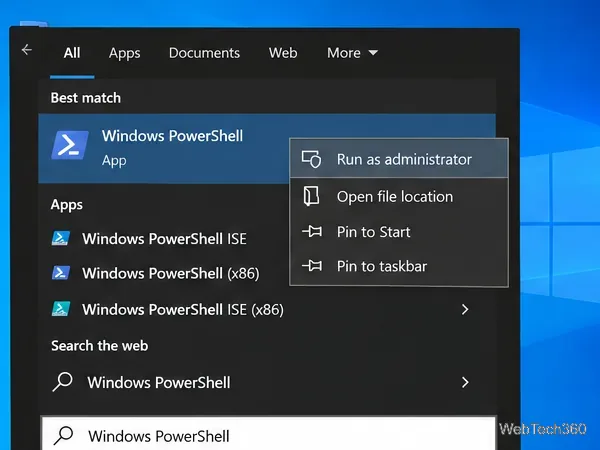
Set up a PowerShell watcher and Task Scheduler task to relaunch a Windows 10 desktop app after it closes, then learn how to test and stop it.
To turn off the desktop background in Windows 10, open Settings > Ease of Access > Display, then switch off Show desktop background image. Windows hides the wallpaper and leaves you with a plain desktop instead. This is useful if you want fewer visual distractions, a cleaner screen for presentations, or simply do not want a wallpaper.
One important correction to older advice: Microsoft documents this control as part of the options that simplify and personalize Windows. It is not presented as a major performance optimization, so you should not expect disabling a static wallpaper by itself to make a slow PC dramatically faster. Microsoft lists the setting alongside animation and transparency controls in its Windows accessibility guidance.
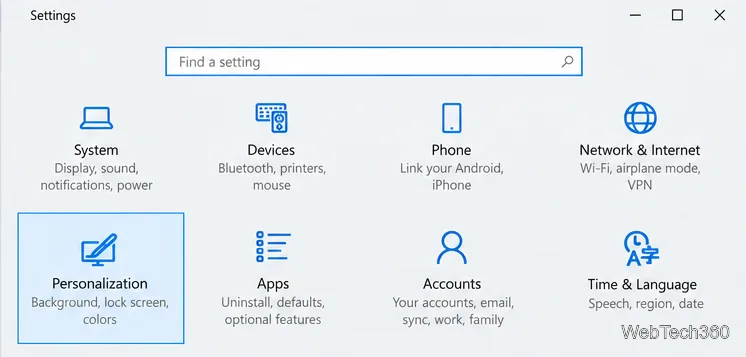
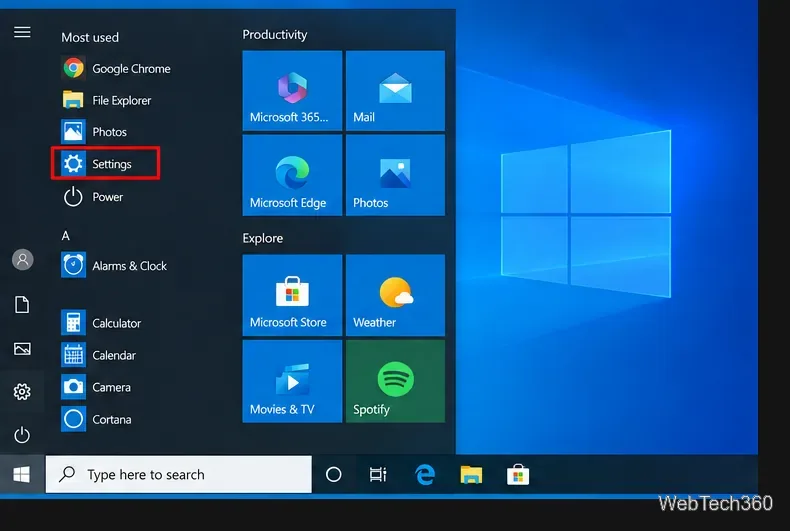
Open Settings. Press Windows + I, or open the Start menu and select the Settings gear.
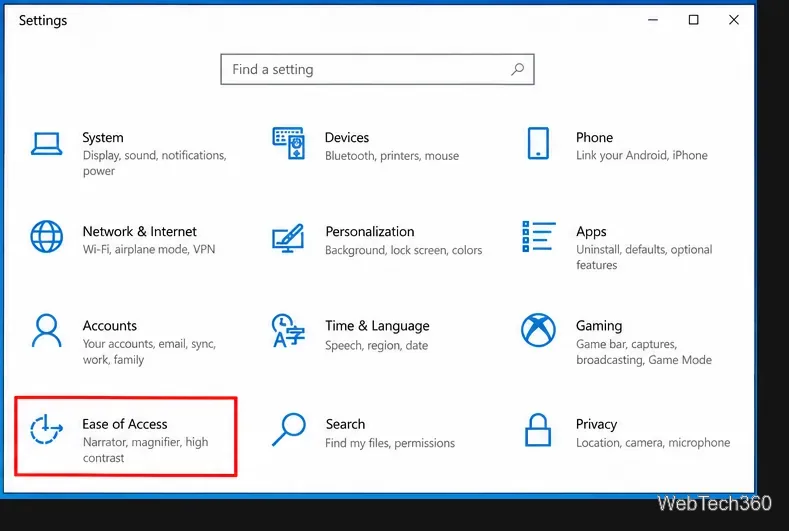
Select Ease of Access. On the Windows 10 Settings home screen, choose Ease of Access.
Open Display. In the left sidebar, select Display. Scroll to the Simplify and personalize Windows section and find Show desktop background image.
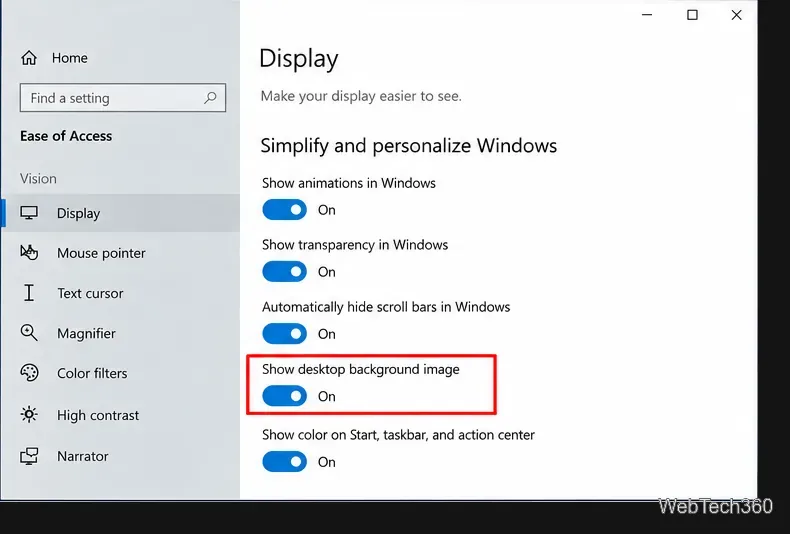
Turn off Show desktop background image. Flip the switch to Off. The change takes effect immediately; you do not need to sign out or restart Windows.
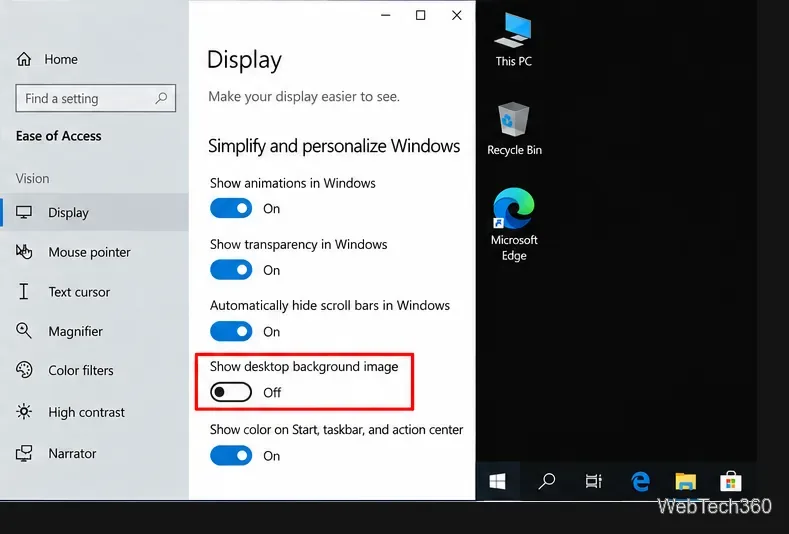
This setting hides the wallpaper; it does not disable the desktop itself. Your desktop icons, taskbar, Start menu, open apps, and files continue to work normally. It also does not delete the wallpaper file from your PC, so you can restore the image later.
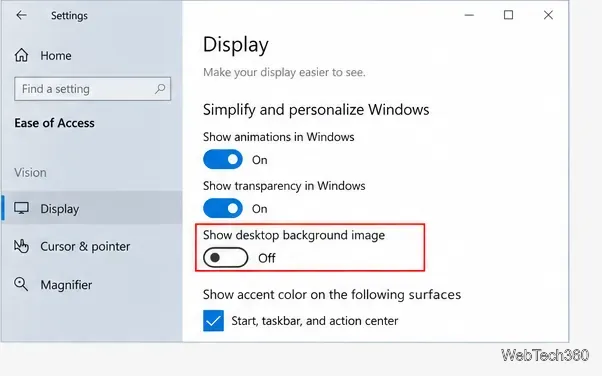
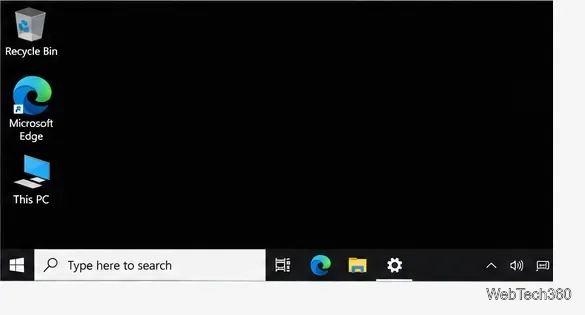
On a standard Windows 10 setup, the desktop appears as a plain dark or black background after the wallpaper is hidden. The exact appearance can be affected by accessibility or theme settings, but your icons and taskbar remain visible.
If your goal is better performance on an older PC, treat this as a small visual simplification rather than a speed fix. Turning off animations or transparency may reduce visual effects as well, but persistent slowness is more likely to require checking startup apps, storage space, memory use, or hardware limits.
If you want a simple desktop but still prefer a color other than the plain background shown when wallpaper images are disabled, use Windows 10 personalization settings instead. Microsoft documents Solid Color as a normal desktop-background choice for Windows 10.
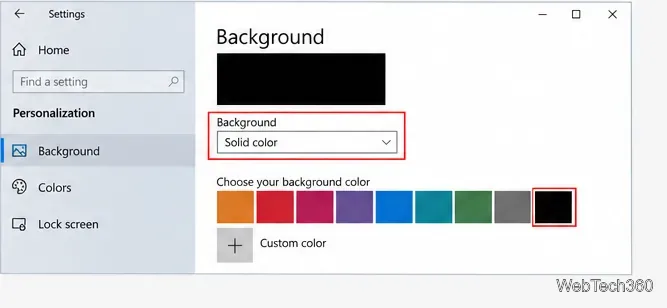
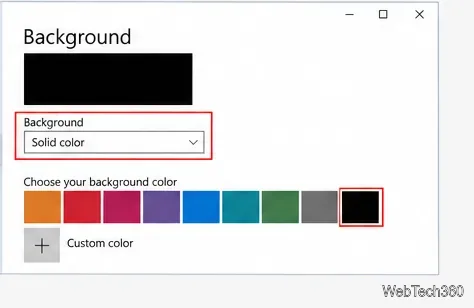
Right-click an empty area of the desktop and select Personalize, then open Background. Set the background type to Solid color and choose one of the available colors. Microsoft also documents Picture and Slideshow as alternatives on its desktop background support page.
To restore wallpaper support, return to Settings > Ease of Access > Display and switch Show desktop background image back to On. If you want a specific image afterward, go to Settings > Personalization > Background and select Picture, then choose your image. You can also select Slideshow if you want Windows to rotate through images from a folder.
Windows 10 reached end of support on October 14, 2025. Microsoft says Windows 10 PCs can continue to function, but regular technical assistance, feature updates, and security updates are no longer provided outside applicable programs such as Extended Security Updates. If you still use Windows 10, review Microsoft's Windows 10 end-of-support information so you understand your support and upgrade options.
Set up a PowerShell watcher and Task Scheduler task to relaunch a Windows 10 desktop app after it closes, then learn how to test and stop it.
Keep app icons out of the hidden overflow in Windows 10. Turn on the all-icons option, then manage system icons separately if one is still missing.
Change the saved username or password Windows uses for a mapped drive or shared folder through Credential Manager, then reconnect to verify access.
Set a lower Defender scan CPU target in PowerShell, handle the idle-scan exception, and verify which Windows 10 scans the setting affects.
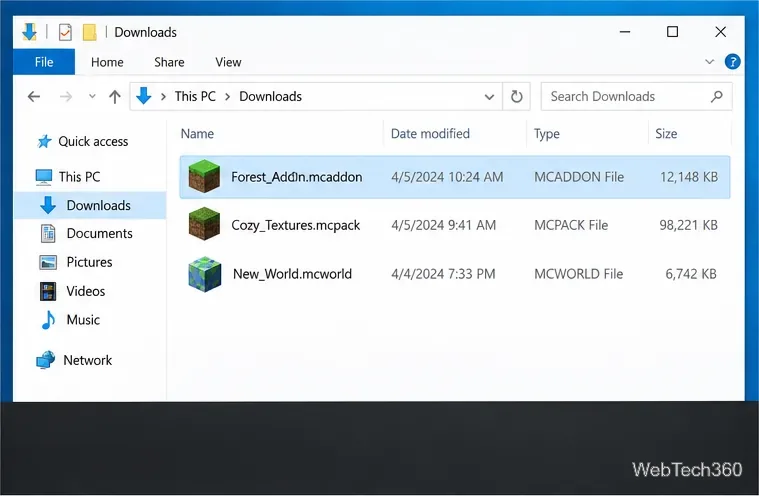
Import a Bedrock .mcpack or .mcaddon on Windows 10, activate it for a new or existing world, and avoid confusing add-ons with Java mods.
Restore the Windows 10 hotspot by checking the internet source and wireless adapter, repairing its driver, and saving Network reset for last.
Set daytime and nighttime brightness levels on Windows 10 with ClickMonitorDDC 7.2, and learn about DDC/CI limits and the Night light alternative.
Find Windows 10’s left/right balance controls for Bluetooth headphones, with a cautious registry workaround when volume controls stay linked.
Set up Task Scheduler’s On idle trigger to shut down Windows 10 with a one-minute cancellation window, and learn how Windows defines idle.
Learn how to burn a disc image to an SD card on Windows 10 with balenaEtcher, verify the target drive, and check whether the finished card can boot.