How to Play Minecraft Offline on Windows 10: Java and Bedrock

Prepare Java or Bedrock on Windows 10 for offline single-player, enable the right Xbox setting, and back up your local Minecraft worlds.
To hide the Windows 10 volume and media flyout, run ModernFlyouts, open its settings, and set General > Default Flyout > None. The volume and media keys on your keyboard can still adjust sound or control playback; the on-screen flyout is what disappears. ModernFlyouts is an optional third-party app, and its project repository has been archived, so consider that before installing it.
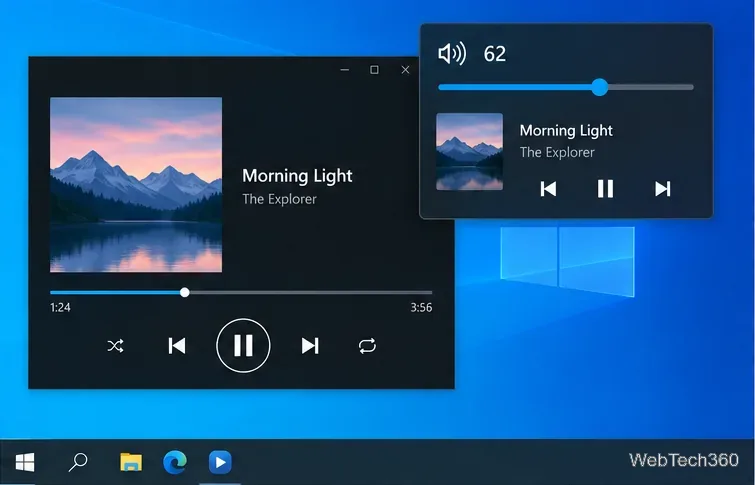
Windows 10 does not provide a dedicated Settings switch for hiding only this hardware-key flyout. The Windows notifications switch in Settings affects app notifications; it is separate from the volume and media overlay. ModernFlyouts provides a choice between Windows’ built-in flyouts, its own replacement, and None. Selecting None hides both flyout styles while ModernFlyouts is running, without turning off audio or remapping your keyboard.
The project documentation says the built-in flyout is hidden temporarily while the app runs, rather than permanently removed from Windows. If ModernFlyouts exits, crashes, or is uninstalled, the Windows flyout can return. The project lists Windows 10 version 1809 and later as supported, but the repository has been read-only since November 15, 2025. Its compatibility and maintenance status may change; use the original project repository or its GitHub releases if you decide to try it, and avoid repackaged downloads from third-party sites.
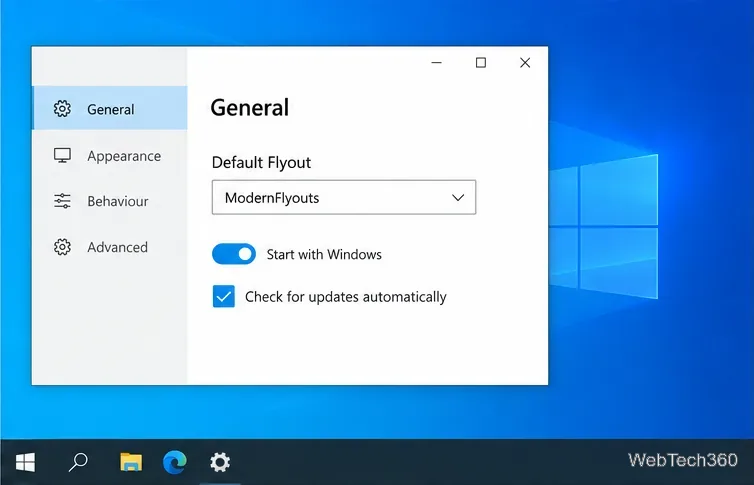
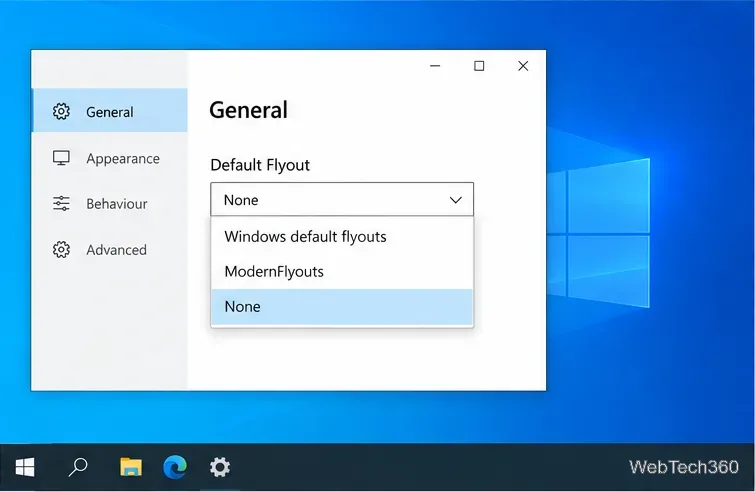
First confirm that ModernFlyouts is open and that None is still selected. A second utility that manages volume, brightness, or media overlays may also be displaying its own control; close that utility briefly to identify the source. If the setting does not take effect, exit and reopen ModernFlyouts, then test again. The app only suppresses its supported flyout behavior while it is running, so closing it can bring back Windows’ built-in control.
If you prefer to keep an on-screen indicator but replace the Windows design, choose ModernFlyouts instead of None. That option leaves a custom flyout visible; it does not turn the controls off. The app’s position and behavior settings apply to ModernFlyouts’ own flyouts and do not change the Windows flyout when the app is not running.
To undo the change, open Start, locate ModernFlyouts, and right-click its entry. If available, choose Restore legacy flyout before exiting or uninstalling the app. The project’s recovery instructions explain this step. The original Windows flyout is normally hidden only while ModernFlyouts is active, so restoring it is useful before uninstalling or if you want the default behavior back immediately.
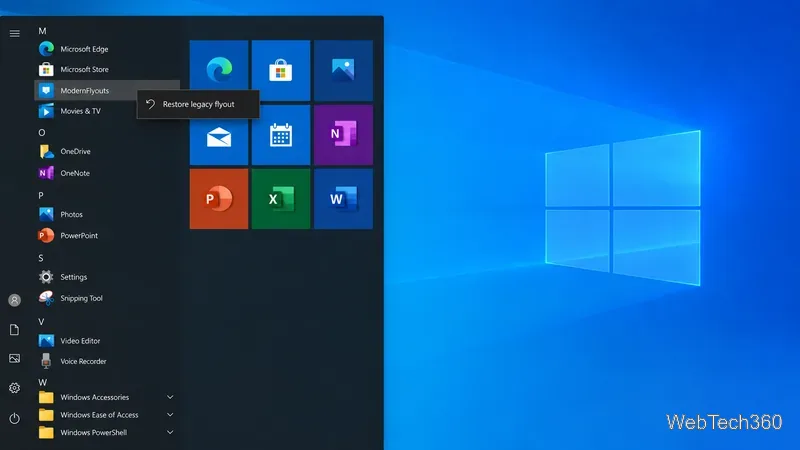
In short, Default Flyout > None hides the visible volume and media overlay, not the keys themselves. Keep the app running for the setting to remain in effect, and use the recovery command to return to Windows’ built-in flyout.
Prepare Java or Bedrock on Windows 10 for offline single-player, enable the right Xbox setting, and back up your local Minecraft worlds.
Change a file type icon in Windows 10 while keeping its current default app. Follow the FileTypesMan steps, handle icon picker issues, and restore the original setting.
Set PhysX in NVIDIA Control Panel on Windows 10, understand Auto-select vs. CPU or GPU, and learn when to use Windows Graphics settings instead.
Compare six free office suites for documents, spreadsheets, and presentations, including browser-based collaboration and offline desktop options.
Turn on Notepad’s Status Bar to see the current line and column in Windows 10, troubleshoot a disabled option, and learn when you need a line-number gutter.
Display a custom Windows dialog with a short PowerShell command, Command Prompt, or a reusable .bat or .ps1 file, including a title, icon, and buttons.
Fix Windows 10 update error 0x80071160 with Microsoft’s troubleshooter, a safe update-cache reset, DISM and SFC repairs, and a careful manual-install check.
Create a Windows 10 UEFI installer with Microsoft’s Media Creation Tool or Rufus, then boot and install safely without wiping the wrong drive.
Stop individual Edge tabs from crowding the Windows 10 Alt+Tab switcher. Change one Multitasking setting, limit recent tabs, and check why the option may be missing.
Enable Adobe’s PDF thumbnail handler, correct File Explorer’s icon settings, rebuild the thumbnail cache, and check OneDrive files that are not stored locally.








