How to Turn On Predictive Text in Windows 10

To turn on predictive text in Windows 10, open Settings > Devices > Typing, then enable Show text suggestions as I type under Hardware keyboard. If you type with a touchscreen keyboard, Windows has a separate software-keyboard switch. Suggestions appear above the cursor as you type; select one with a mouse, touch, or keyboard. These steps follow Microsoft’s Windows text-suggestions instructions.

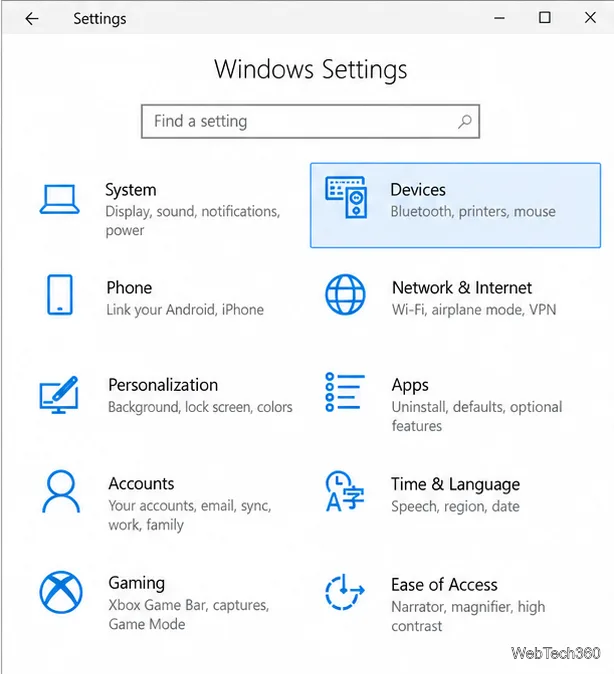
Windows 10 Settings home with the Devices tile highlighted.
Open Devices from the Windows 10 Settings home screen.

Turn on predictive text for a physical keyboard

Use this setting for a laptop’s built-in keyboard or a keyboard connected to a desktop. The Windows 10 switch is separate from the one for the Touch Keyboard.

  1. Press Windows key + I to open Settings. You can also select Start > Settings.
  2. Select Devices, then choose Typing in the left pane.
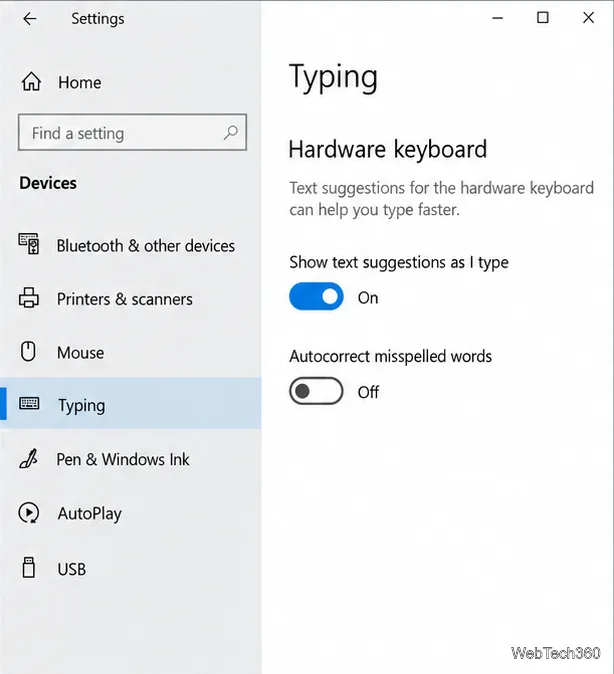
  3. Scroll to Hardware keyboard.
  4. Turn on Show text suggestions as I type.
  5. Open a text field in an app such as Notepad or Word and type a few letters to check for suggestions.
Windows 10 Typing settings with Show text suggestions as I type turned on for the hardware keyboard.
The Hardware keyboard switch controls suggestions while you type with a physical keyboard.

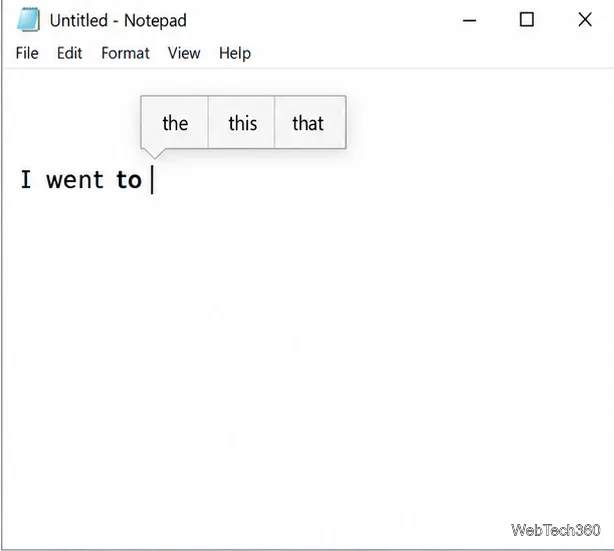
As you type, Windows may show candidate words above the cursor. The number and wording of suggestions can change with the text you enter. Windows describes its predictions as based on spelling; adding more letters can produce more relevant choices.

A Notepad text field with three word suggestions displayed above the typing cursor.
Suggestions appear above the cursor in a compatible text field.

Choose or dismiss a suggested word

You do not have to accept a prediction. Keep typing to ignore the row, or choose a word when it fits:

  • With a mouse or touch: Select the suggestion you want.
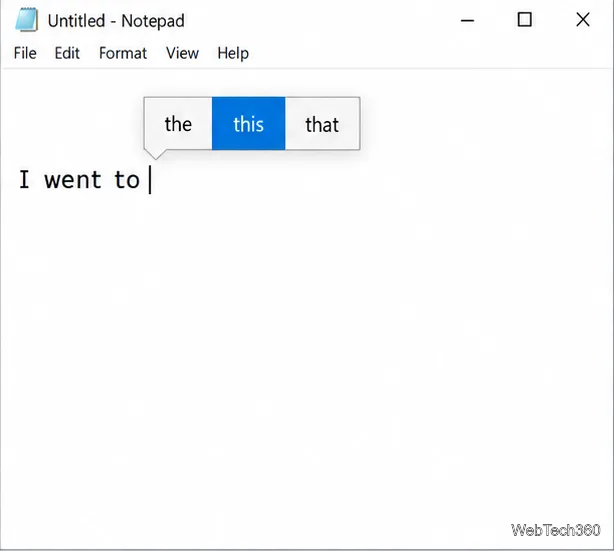
  • With a keyboard: Press Up Arrow to focus the suggestions, use Left Arrow or Right Arrow to move between them, then press Enter to insert the highlighted word.
  • To close the row: Press Esc or click outside the suggestions.
A Notepad suggestion row with the word this highlighted in blue.
The highlighted suggestion is ready to insert with Enter.

This is word prediction, not automatic correction. If you also want Windows to correct misspellings, the Typing page has a separate Autocorrect misspelled words option; it is not needed to display suggestions.

Enable suggestions for the Touch Keyboard

On a touchscreen or 2-in-1, use the Touch Keyboard setting if you want suggestions while tapping the on-screen keys. In Windows 10, its Settings label uses “software keyboard.”

  1. Open Settings > Devices > Typing.
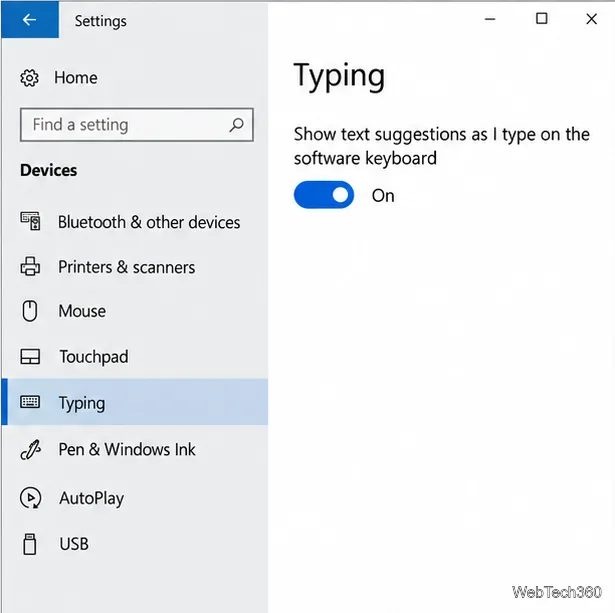
  2. Under Typing, turn on Show text suggestions as I type on the software keyboard.
  3. To open the Touch Keyboard, tap a text field on a touchscreen or select its keyboard icon in the taskbar. If the icon is missing, right-click the taskbar and select Show touch keyboard button. See Microsoft’s Touch Keyboard guide for the available ways to open it.
  4. Type a few characters, then tap a word in the suggestion strip above the keys.
Windows 10 Typing settings with text suggestions on the software keyboard turned on.
Software-keyboard suggestions use their own switch.
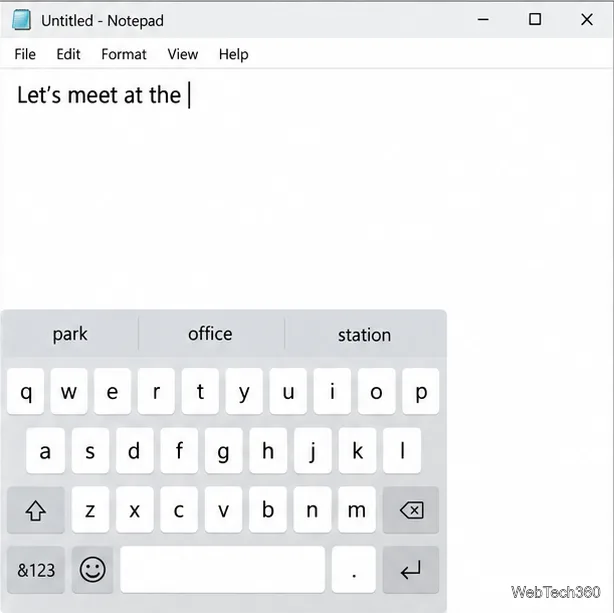
The Windows 10 Touch Keyboard open below a text field with park, office, and station in its suggestion strip.
The Touch Keyboard displays word choices in a strip above the keys.
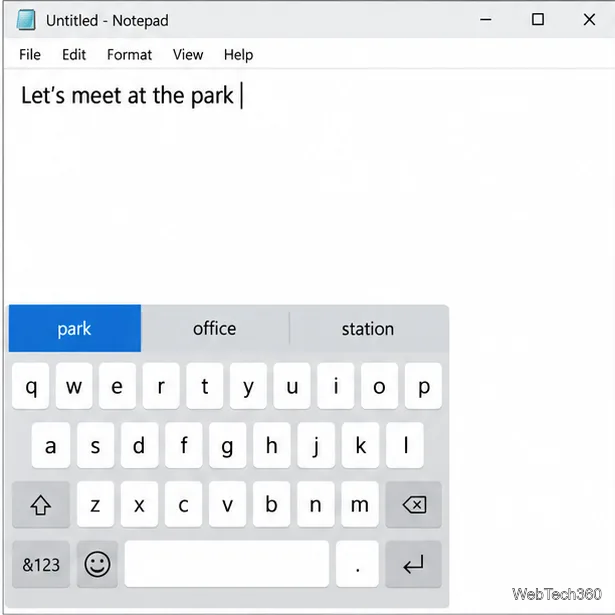
The Touch Keyboard with park selected and inserted into the sentence Let’s meet at the park.
Tap the candidate that completes your sentence.

If the Touch Keyboard icon does not appear, Microsoft also explains how to show it from the taskbar in its instructions for enabling the Touch Keyboard.

Use suggestions in more than one language

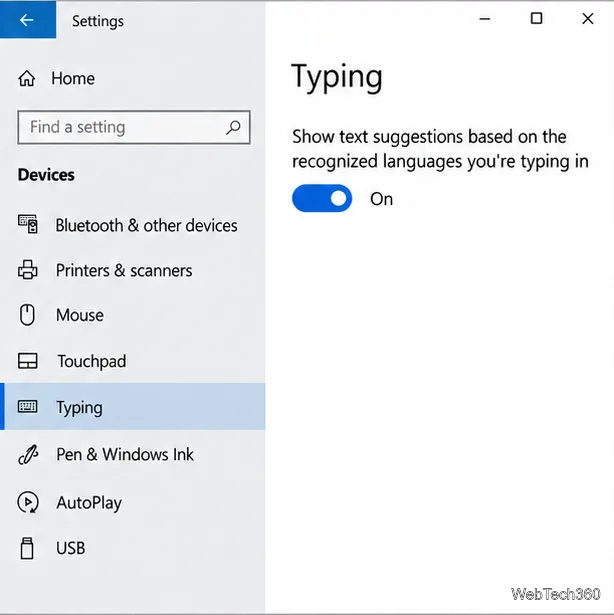
If you switch between languages, return to Settings > Devices > Typing and enable Show text suggestions based on the recognized languages you’re typing in. This is an optional setting for multilingual input. Make sure the relevant language and keyboard layout are installed and selected; Microsoft’s language and keyboard-layout guide explains how to manage them.

Windows 10 Typing settings with recognized-language text suggestions turned on.
Enable recognized-language suggestions if you regularly type in multiple languages.

If predictive text does not appear

  • Confirm you enabled the switch for the keyboard you are actually using: Hardware keyboard for physical keys, or the software-keyboard option for touch input.
  • Try another text field, such as Notepad, a Word document, or a browser comment box. Suggestions can vary by app and text field.
  • Type a few letters before expecting a useful candidate. Microsoft notes that suggestions can become more relevant as you add letters.
  • If you type in multiple languages, check the recognized-language option and the selected keyboard layout.

Microsoft ended Windows 10 support on October 14, 2025. The PC can continue to run, but standard software and security updates are no longer provided; see Microsoft’s Windows 10 end-of-support notice for current options.

Leave a Comment

How to Play Minecraft Offline on Windows 10: Java and Bedrock

How to Play Minecraft Offline on Windows 10: Java and Bedrock

Prepare Java or Bedrock on Windows 10 for offline single-player, enable the right Xbox setting, and back up your local Minecraft worlds.

How to Change a File Type Icon in Windows 10

How to Change a File Type Icon in Windows 10

Change a file type icon in Windows 10 while keeping its current default app. Follow the FileTypesMan steps, handle icon picker issues, and restore the original setting.

How to Set PhysX Configuration in NVIDIA Control Panel on Windows 10

How to Set PhysX Configuration in NVIDIA Control Panel on Windows 10

Set PhysX in NVIDIA Control Panel on Windows 10, understand Auto-select vs. CPU or GPU, and learn when to use Windows Graphics settings instead.

Best Free Office Software: 6 Alternatives to Word, Excel, and PowerPoint

Best Free Office Software: 6 Alternatives to Word, Excel, and PowerPoint

Compare six free office suites for documents, spreadsheets, and presentations, including browser-based collaboration and offline desktop options.

How to Get Line Numbers in Notepad on Windows 10

How to Get Line Numbers in Notepad on Windows 10

Turn on Notepad’s Status Bar to see the current line and column in Windows 10, troubleshoot a disabled option, and learn when you need a line-number gutter.

How to Show a Message Box on Windows 10 (PowerShell and Batch)

How to Show a Message Box on Windows 10 (PowerShell and Batch)

Display a custom Windows dialog with a short PowerShell command, Command Prompt, or a reusable .bat or .ps1 file, including a title, icon, and buttons.

How to Fix Windows 10 Update Error 0x80071160

How to Fix Windows 10 Update Error 0x80071160

Fix Windows 10 update error 0x80071160 with Microsoft’s troubleshooter, a safe update-cache reset, DISM and SFC repairs, and a careful manual-install check.

How to Install Windows 10 From a UEFI Bootable USB

How to Install Windows 10 From a UEFI Bootable USB

Create a Windows 10 UEFI installer with Microsoft’s Media Creation Tool or Rufus, then boot and install safely without wiping the wrong drive.

How to Hide Microsoft Edge Tabs from Alt+Tab in Windows 10

How to Hide Microsoft Edge Tabs from Alt+Tab in Windows 10

Stop individual Edge tabs from crowding the Windows 10 Alt+Tab switcher. Change one Multitasking setting, limit recent tabs, and check why the option may be missing.

How to Fix PDF Thumbnails Not Showing in Windows 10

How to Fix PDF Thumbnails Not Showing in Windows 10

Enable Adobe’s PDF thumbnail handler, correct File Explorer’s icon settings, rebuild the thumbnail cache, and check OneDrive files that are not stored locally.