How to Schedule a Wallpaper Change in Windows 10

Use Windows 10’s built-in slideshow for interval rotation or schedule an exact daily wallpaper change with Task Scheduler and a short PowerShell script.
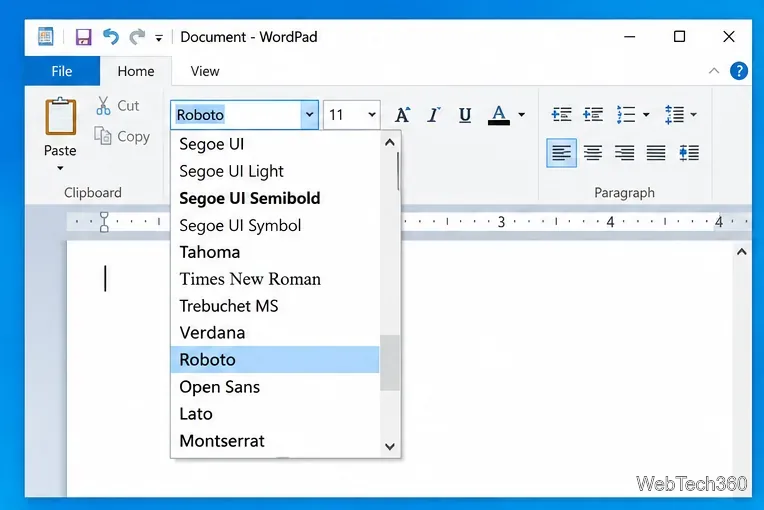
If you installed a font in Windows 10 but it does not appear in WordPad, Office, an editor, or another app, first close and reopen the app. Many programs build their font list when they start, so a newly installed font may not appear until the program is relaunched. If that does not help, use the checks below to find out whether the problem is the app, the installation, or the font file itself.
Windows 10 support note: Microsoft ended general support for Windows 10 on October 14, 2025. The operating system still works, and these font-management steps remain applicable, but Microsoft recommends moving to a supported version of Windows or using an eligible Extended Security Updates option where appropriate. See Microsoft's Windows 10 end-of-support guidance.
Save your work, fully close the program, and open it again. Then check its font menu. If the font appears after the restart, no Windows repair is needed. Some programs also keep helper processes running in the background, so if a simple relaunch fails, sign out of Windows or restart the PC once before moving on.
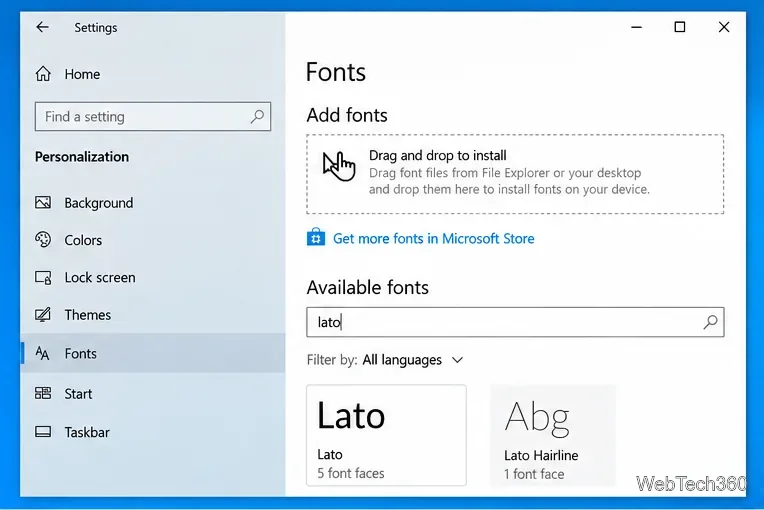
Open Start > Settings > Personalization > Fonts. Under Available fonts, search for the family name. Microsoft notes that this page lists fonts available on the device and can be used to preview or remove them. The displayed family name can differ from the font file name, so search for the name shown inside the font preview rather than relying only on the filename.
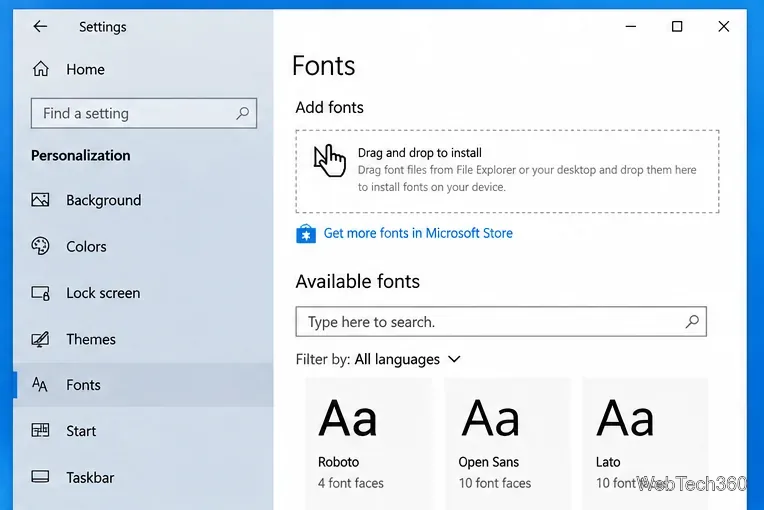
If the font is not listed, Windows probably did not install it correctly. If it is listed here but missing only in one program, the app may not support that font or may filter certain font families. Microsoft specifically warns that not every app supports custom fonts; its current instructions are in Manage Fonts in Windows.
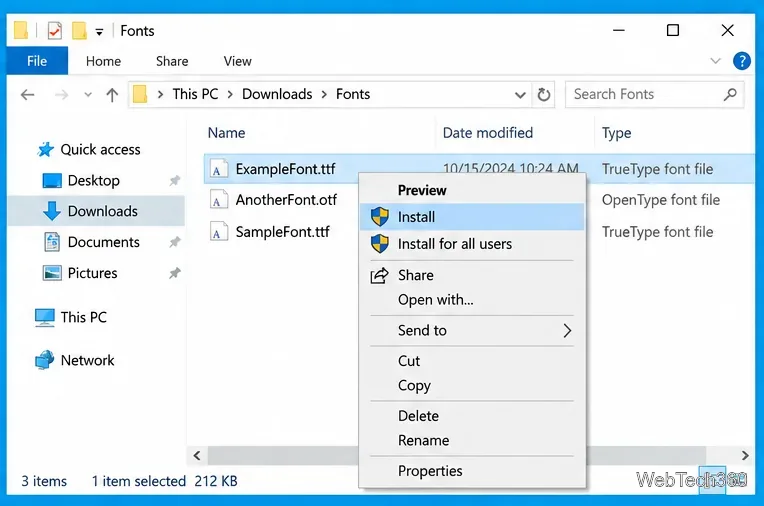
If the font is missing from Settings, reinstall it instead of manually copying files into the Windows Fonts folder. If the download arrived as a ZIP archive, extract it first. Then right-click the .ttf or .otf file and choose Install. If you need the font available to every Windows account, choose Install for all users; that option may require administrator approval.
If a previous copy is already present, go back to Settings > Personalization > Fonts, select the font, uninstall it, and then install a fresh copy from a trusted source. This avoids duplicate or stale registrations.
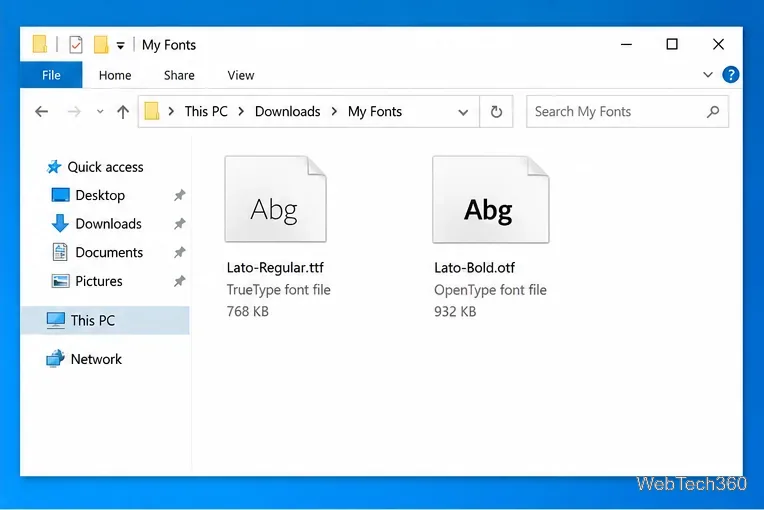
For a normal desktop installation, use a valid TrueType or OpenType font file. Microsoft's current support page tells users to install .ttf or .otf files. The older claim that WOFF is a normal Windows desktop-install format is misleading: WOFF and WOFF2 are primarily web-font formats. Microsoft's typography documentation describes WOFF as a format associated with web fonts, while OpenType font files use extensions such as .ttf and .otf.
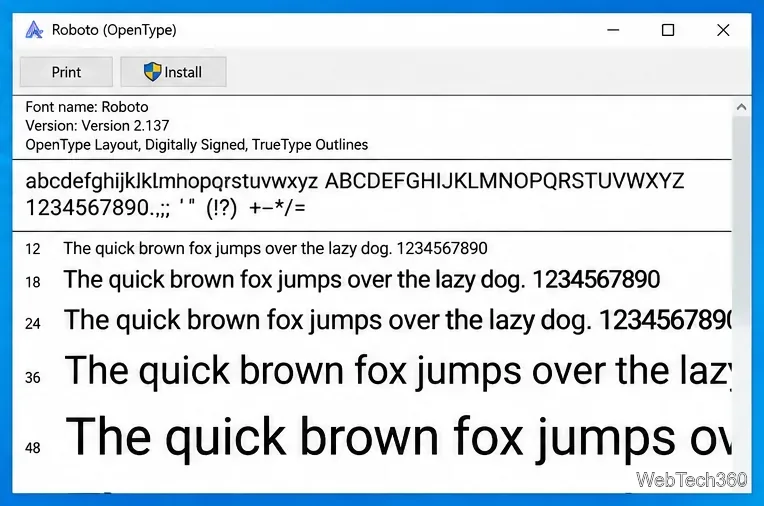
Double-click the font file before installing it. Windows should open a preview that shows the font name and sample characters. If the preview cannot open, looks obviously incomplete, or reports an error, download a clean copy from the original publisher instead of using an online converter. Microsoft documents OpenType file structures and extensions in the OpenType font file specification.
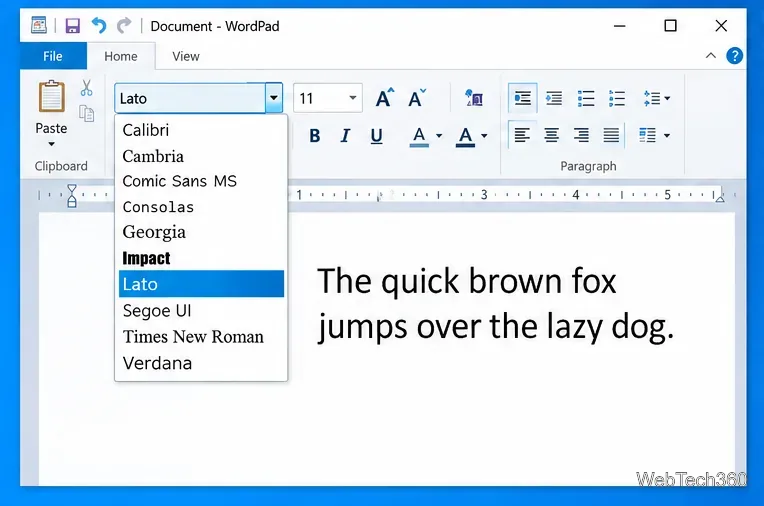
If Settings shows the font but your main program does not, test it in another application that exposes the Windows font list, such as WordPad on Windows 10 or a compatible desktop publishing app. If the font works there, Windows has installed it and the remaining issue is application-specific. Check that program's documentation for supported font technologies, font activation rules, or its own font cache.
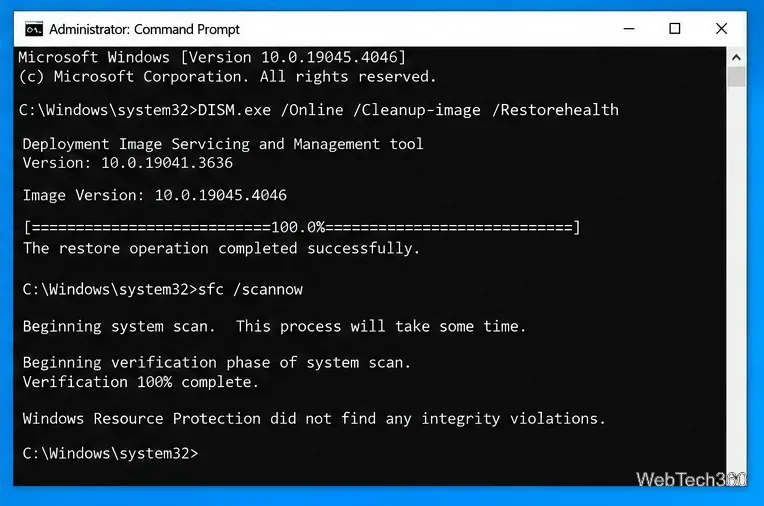
System repair is a last resort, not the first fix for one missing font. Consider it only if multiple built-in fonts disappear, the Fonts settings page behaves incorrectly, or other Windows components are also failing. Open Command Prompt as administrator, run DISM first, and then run System File Checker:
DISM.exe /Online /Cleanup-image /Restorehealth
sfc /scannow
Microsoft recommends this order because DISM can repair the component files that SFC uses. Let both commands finish and restart Windows afterward. Full instructions and result messages are available in Microsoft's System File Checker guidance.
In most cases, the fix is simple: restart the affected app, confirm the font under Settings > Personalization > Fonts, and reinstall a clean .ttf or .otf copy if Windows does not list it. When a font appears in Settings and works in another program, focus on the original application's font support rather than repeatedly reinstalling the font.
Use Windows 10’s built-in slideshow for interval rotation or schedule an exact daily wallpaper change with Task Scheduler and a short PowerShell script.
Choose a built-in alert tone or WAV file for Windows 10 message notifications, test the change, and troubleshoot apps that keep playing another sound.
Arrange Windows 10 apps in top-and-bottom rows with the taskbar’s Show windows stacked command, or create a reusable two-zone layout with PowerToys FancyZones.
Keep each display at its recommended resolution, arrange Windows 10 monitors accurately, and use MouseUnSnag to cross mismatched edges and sticky corners.
Find whether your connected Wi-Fi uses WPA2, WPA3, or an older security mode in Windows 10 with Settings, Command Prompt, or Control Panel.
Automatically lock Windows 10 after inactivity with a screen saver timer and sign-in prompt, then check how sleep settings affect the result.
Add a persistent colored ring around your Windows 10 mouse pointer with PenAttention, or use built-in pointer tools and PowerToys for temporary highlights.
Keep the Xbox Game Bar Performance widget visible over other windows on Windows 10, with CPU, GPU, and RAM readings you can position and unpin.
Capture two or more Windows 10 displays in one OBS video. Add a Display Capture source for each monitor, fit the canvas, and test the layout.
Create a GUID on Windows 10 with [guid]::NewGuid() or New-Guid, reuse it in a script, and learn when to look up an existing identifier.








