How to Schedule a Wallpaper Change in Windows 10

Use Windows 10’s built-in slideshow for interval rotation or schedule an exact daily wallpaper change with Task Scheduler and a short PowerShell script.
If League of Legends sound is not working but other apps still play audio, the cause is usually a muted app channel, the wrong Windows output device, disabled in-game audio, or a driver/service problem. Work through these fixes in order and stop when sound returns.
Riot's current troubleshooting guidance focuses on the playback device, in-game audio settings, drivers, and surround sound. Microsoft also recommends checking per-app volume, output routing, Windows Audio services, and drivers when one application is silent.
League can be muted independently from the rest of Windows. Launch League and enter a game so the game process is active, then:
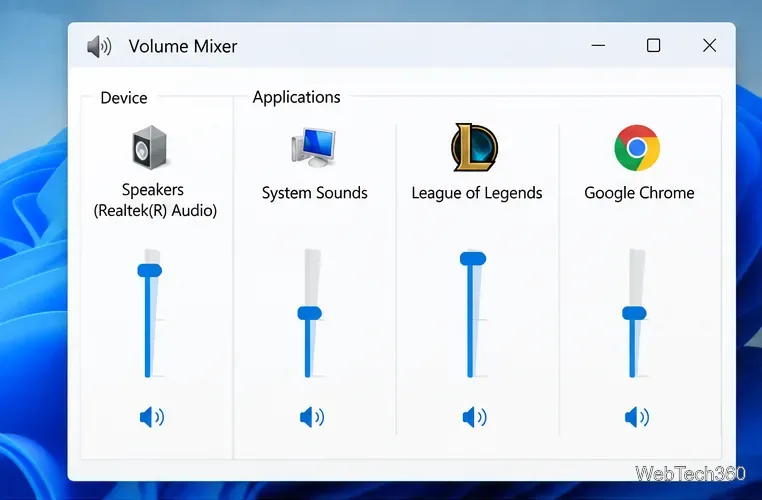
Microsoft lists per-app volume as a first-line fix when system sounds work but one app does not: Fix app audio not working while system sounds work.
If you switch between speakers, a monitor, Bluetooth audio, USB headsets, or a dock, Windows may send League audio somewhere else. Open Settings > System > Sound and choose the device you are actually using. If app-specific routing is available in Volume Mixer, verify League is not assigned to another output.
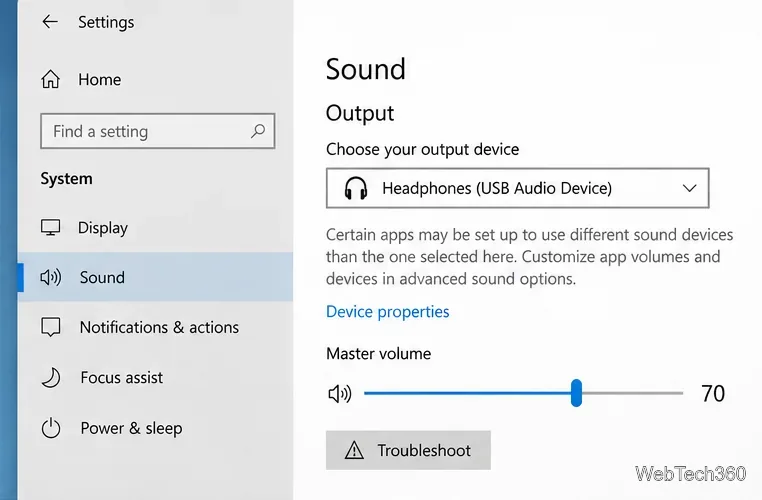
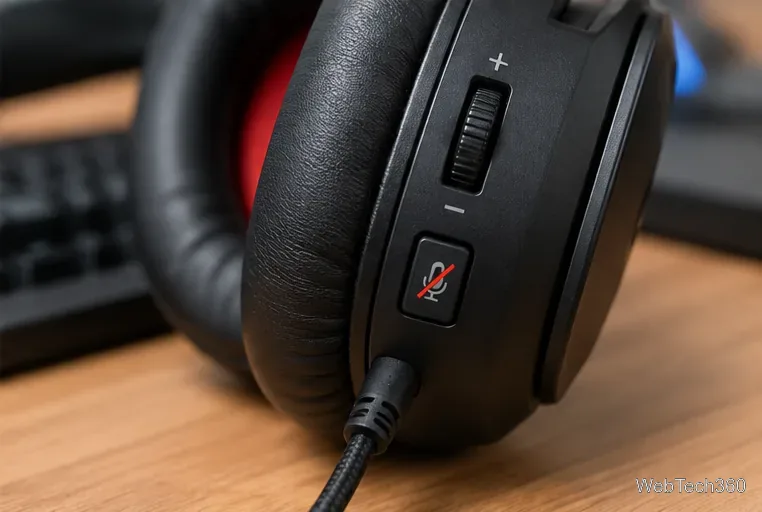
Turn up the headset or speaker volume, reconnect USB or 3.5 mm plugs, and try another port if available. If a headset has separate game/chat balance controls, center them temporarily. For Bluetooth devices, confirm Windows is using the normal playback device you expect.
Open a game, press Esc, and select Sound. Make sure Master Volume and the sound categories you need are above zero, and confirm Disable All Sound is not selected.
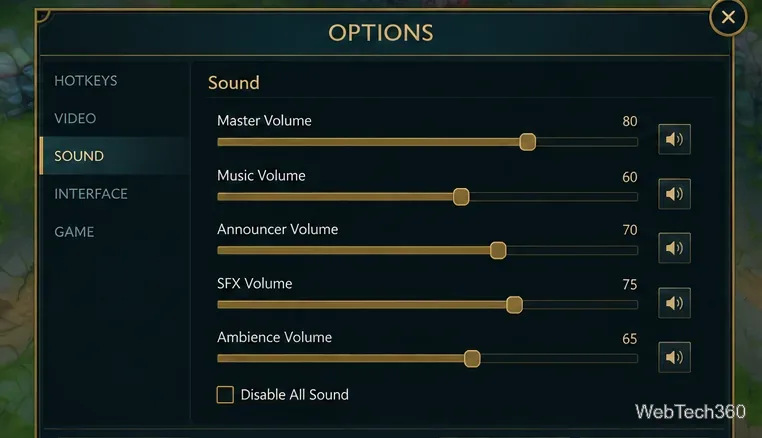
Riot recommends these checks in its official League of Legends Sound Issues guide.
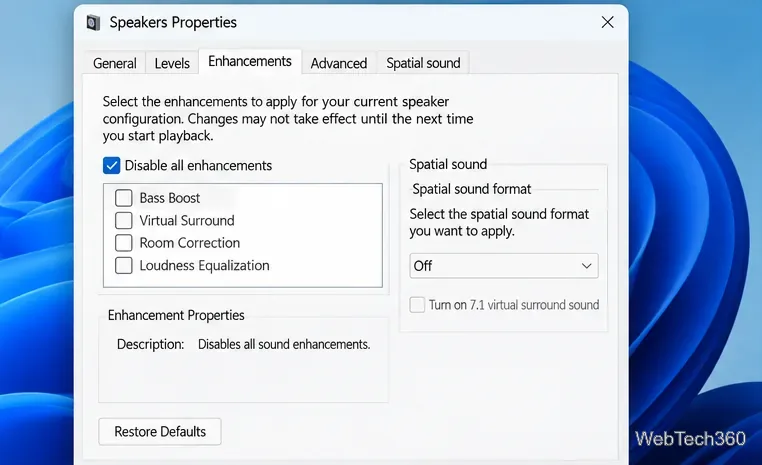
Riot notes that surround sound can route effects to rear speakers that are not actually present, making some sounds seem missing. Windows audio enhancements can also interfere with playback on some devices.
Open the playback device's properties and temporarily disable enhancements, spatial sound, or virtual surround. Restart League and test again. If sound returns, re-enable features one at a time.
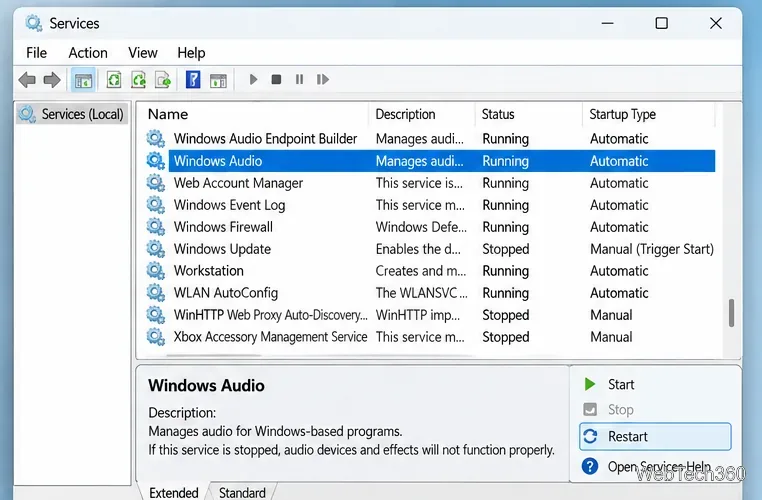
If League is still silent, restart the Windows audio stack:
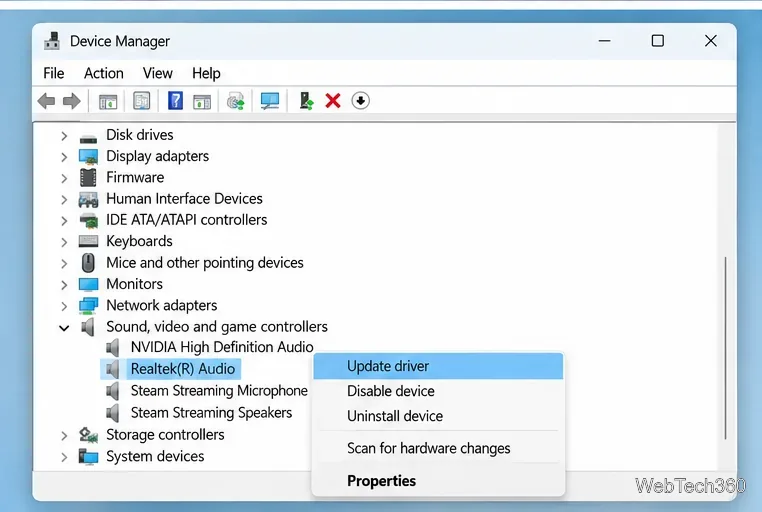
Avoid old instructions that assume every PC uses a Realtek device. In Device Manager, expand Sound, video and game controllers, choose the audio device your PC actually uses, and select Update driver.
Microsoft recommends Windows Update first for current audio drivers. If updating does not help, uninstalling the audio device and restarting Windows can reinstall its driver automatically.
See Microsoft's current Update audio drivers in Windows instructions.
If Windows audio works normally and League alone remains silent, repair the game before reinstalling it:
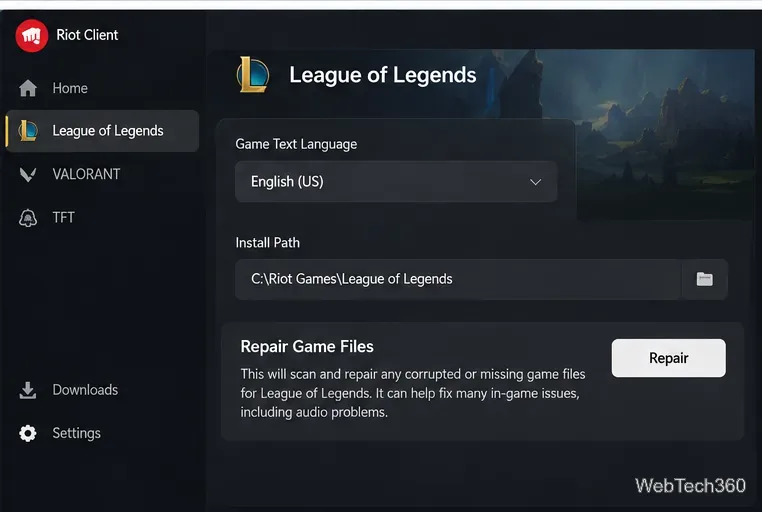
Riot documents this path in the Riot Client Full Repair Tool guide. If repair fails, use Riot's current uninstall and reinstall instructions instead of older Control Panel-only steps.
If game music and effects work but party voice does not, verify the Windows playback device first, then check the League client's Voice settings. Riot notes that the client lets you choose the microphone input, while what you hear follows the system playback device.
For Windows compatibility, Riot currently lists Windows 10 build 19041 or newer and Windows 11, with Windows 11 recommended. The latest requirements are on Riot's League system requirements page.
Use Windows 10’s built-in slideshow for interval rotation or schedule an exact daily wallpaper change with Task Scheduler and a short PowerShell script.
Choose a built-in alert tone or WAV file for Windows 10 message notifications, test the change, and troubleshoot apps that keep playing another sound.
Arrange Windows 10 apps in top-and-bottom rows with the taskbar’s Show windows stacked command, or create a reusable two-zone layout with PowerToys FancyZones.
Keep each display at its recommended resolution, arrange Windows 10 monitors accurately, and use MouseUnSnag to cross mismatched edges and sticky corners.
Find whether your connected Wi-Fi uses WPA2, WPA3, or an older security mode in Windows 10 with Settings, Command Prompt, or Control Panel.
Automatically lock Windows 10 after inactivity with a screen saver timer and sign-in prompt, then check how sleep settings affect the result.
Add a persistent colored ring around your Windows 10 mouse pointer with PenAttention, or use built-in pointer tools and PowerToys for temporary highlights.
Keep the Xbox Game Bar Performance widget visible over other windows on Windows 10, with CPU, GPU, and RAM readings you can position and unpin.
Capture two or more Windows 10 displays in one OBS video. Add a Display Capture source for each monitor, fit the canvas, and test the layout.
Create a GUID on Windows 10 with [guid]::NewGuid() or New-Guid, reuse it in a script, and learn when to look up an existing identifier.








