How to Play Minecraft Offline on Windows 10: Java and Bedrock

Prepare Java or Bedrock on Windows 10 for offline single-player, enable the right Xbox setting, and back up your local Minecraft worlds.
Microsoft Visual C++ error 0x80070666 usually means Windows has already detected another version of the same Visual C++ Redistributable product. Microsoft maps the underlying Windows Installer code 1638 (0x666) to “another version of this product is already installed.” With current Visual C++ v14 runtimes, the error can be completely normal if an app is trying to install an older package over a newer compatible one.
Start by checking what is already installed. Do not remove every Visual C++ package on the PC: older families such as Visual C++ 2013 can be required by specific programs and are designed to exist side by side with newer runtimes.
On Windows 10, open Settings > Apps > Apps & features and search for “Visual C++.” You can also use Control Panel > Programs > Programs and Features. Look for the v14 Redistributable that matches the application architecture.
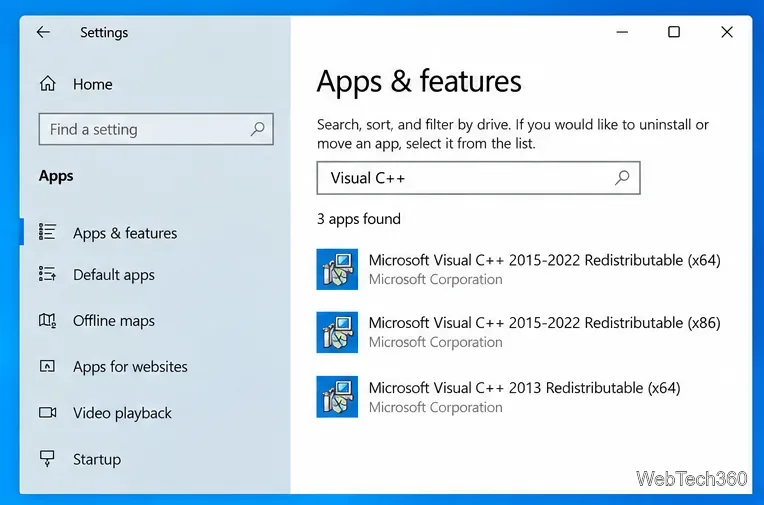
If a newer v14 Redistributable is already present, an older bundled installer may fail with 0x80070666 by design. Microsoft states that apps built with supported MSVC v14 toolsets can use a Redistributable that is the same version or newer. The current Visual C++ Redistributable download page lists the latest supported v14 packages for Visual Studio 2017 through 2026.
On a 64-bit PC, seeing both x86 and x64 packages is normal. A 32-bit application may still require the x86 runtime even when Windows itself is 64-bit.
If the correct runtime is installed but the app still fails to start or its installer keeps reporting 0x80070666, repair the existing package before uninstalling anything.
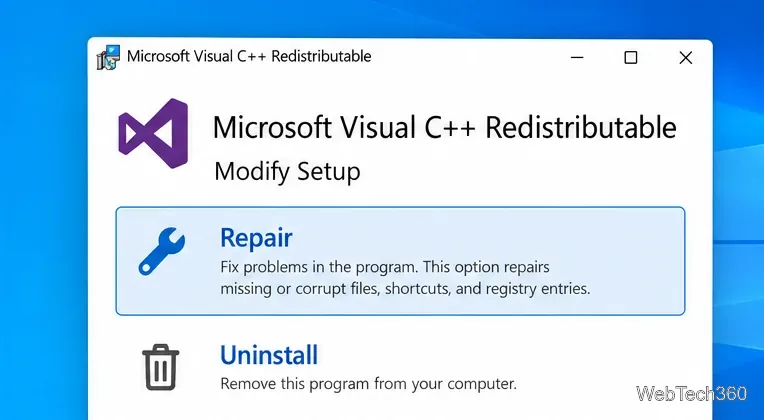
You can also repair a downloaded Redistributable from an elevated Command Prompt. Microsoft documents the /repair option for these packages. For example, from the folder containing the installer, run vc_redist.x64.exe /repair. Use the filename that matches the package you actually downloaded.
Delete any old Redistributable installer you have been reusing and download a fresh copy from Microsoft. This is especially important when a game or application bundle includes an older prerequisite installer.
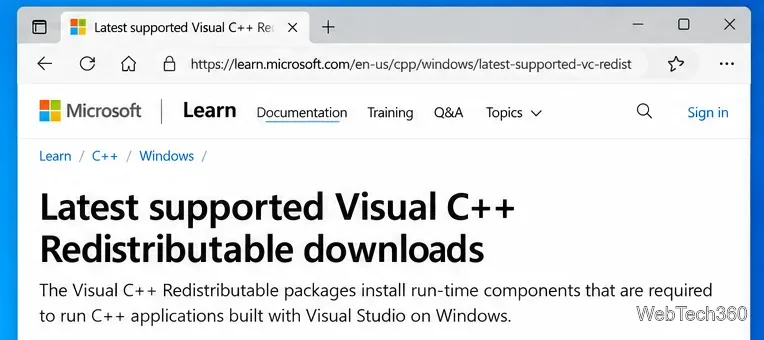
Choose the package for the application architecture: x86 for 32-bit apps, x64 for 64-bit apps, or the applicable ARM64 option. Microsoft notes that the current x64 package also contains ARM64 and x64 binaries for ARM64 devices. After installing the latest supported runtime, run the affected application or its installer again.
Do not assume that “newer” means you can delete every older Visual C++ entry. Microsoft keeps Visual C++ 2013 and earlier runtime families separate, while the v14 line is cumulative and binary-compatible across Visual Studio 2015 and later generations. The compatibility details are explained in Microsoft’s C++ binary compatibility documentation.
If the Redistributable appears in the installed-program list but cannot be repaired or removed, Windows Installer registration or cached setup data may be damaged. Microsoft’s current Visual C++ troubleshooting guide says to identify the problem version, try removing that old VC Redist through Windows Installer, and allow the Windows Installer Troubleshooter to attempt a fix if Windows offers it.
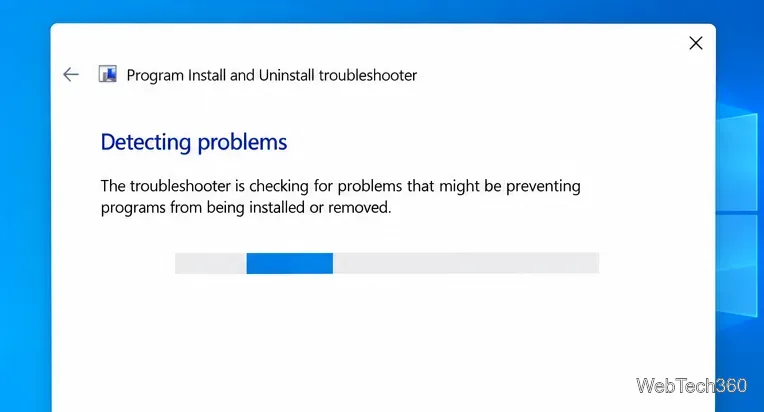
Follow Microsoft’s Visual C++ Redistributable troubleshooting guide. If setup still fails, Microsoft also recommends running the installer as administrator, installing pending Windows updates, restarting the PC, and retrying. For stubborn cases, the same guide explains how to collect VC Redist logs so the exact failing package can be identified.
If the app’s own installer still stops on 0x80070666 after the current runtime is installed and repaired, update the app installer or contact the software vendor. In that situation, the remaining problem may be the vendor’s prerequisite check rather than the Visual C++ runtime itself.
Prepare Java or Bedrock on Windows 10 for offline single-player, enable the right Xbox setting, and back up your local Minecraft worlds.
Change a file type icon in Windows 10 while keeping its current default app. Follow the FileTypesMan steps, handle icon picker issues, and restore the original setting.
Set PhysX in NVIDIA Control Panel on Windows 10, understand Auto-select vs. CPU or GPU, and learn when to use Windows Graphics settings instead.
Compare six free office suites for documents, spreadsheets, and presentations, including browser-based collaboration and offline desktop options.
Turn on Notepad’s Status Bar to see the current line and column in Windows 10, troubleshoot a disabled option, and learn when you need a line-number gutter.
Display a custom Windows dialog with a short PowerShell command, Command Prompt, or a reusable .bat or .ps1 file, including a title, icon, and buttons.
Fix Windows 10 update error 0x80071160 with Microsoft’s troubleshooter, a safe update-cache reset, DISM and SFC repairs, and a careful manual-install check.
Create a Windows 10 UEFI installer with Microsoft’s Media Creation Tool or Rufus, then boot and install safely without wiping the wrong drive.
Stop individual Edge tabs from crowding the Windows 10 Alt+Tab switcher. Change one Multitasking setting, limit recent tabs, and check why the option may be missing.
Enable Adobe’s PDF thumbnail handler, correct File Explorer’s icon settings, rebuild the thumbnail cache, and check OneDrive files that are not stored locally.








