How to Play Minecraft Offline on Windows 10: Java and Bedrock

Prepare Java or Bedrock on Windows 10 for offline single-player, enable the right Xbox setting, and back up your local Minecraft worlds.
If multiple displays are not working on Windows 10, start by checking the monitor's power, cable, and input source, then make sure Windows is set to Extend or Duplicate the desktop. If the second monitor still is not detected, use the Detect button in Display settings, reset the graphics driver, and test the cable, port, dock, and graphics driver in that order.
Important: Microsoft ended standard support for Windows 10 on October 14, 2025. The operating system still works, but Microsoft recommends moving to Windows 11 or using an eligible Extended Security Updates option while you transition. See Microsoft's Windows 10 end-of-support guidance.
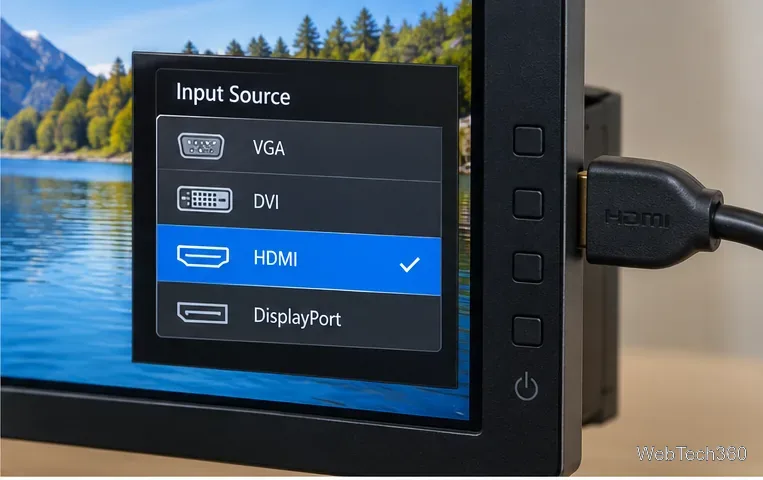
Make sure the monitor is powered on and the video cable is firmly connected at both ends. If the monitor has several inputs, open its on-screen menu and select the source that matches the cable you are using, such as HDMI or DisplayPort.
For a desktop PC with a dedicated graphics card, connect the monitor to the graphics card's video outputs unless the PC manufacturer specifically instructs otherwise. If you use a dock or adapter, reseat its cables too.
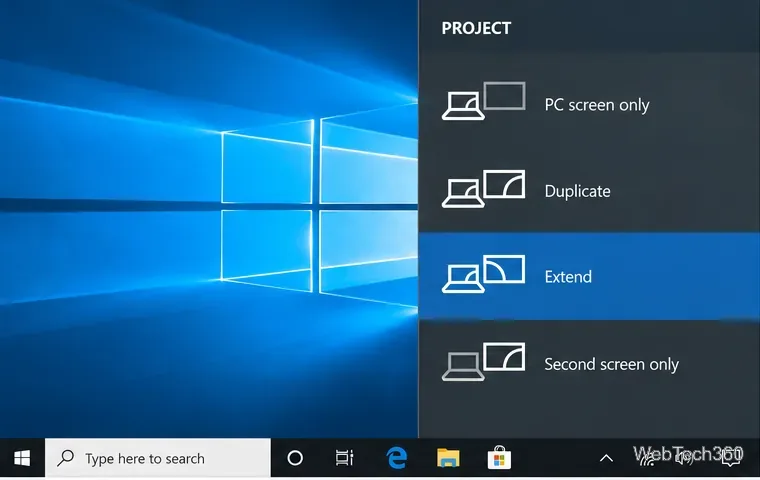
Press Windows + P. Choose Extend if you want one desktop spread across the screens, or Duplicate if both screens should show the same content. Avoid PC screen only or Second screen only when you expect both displays to be active.
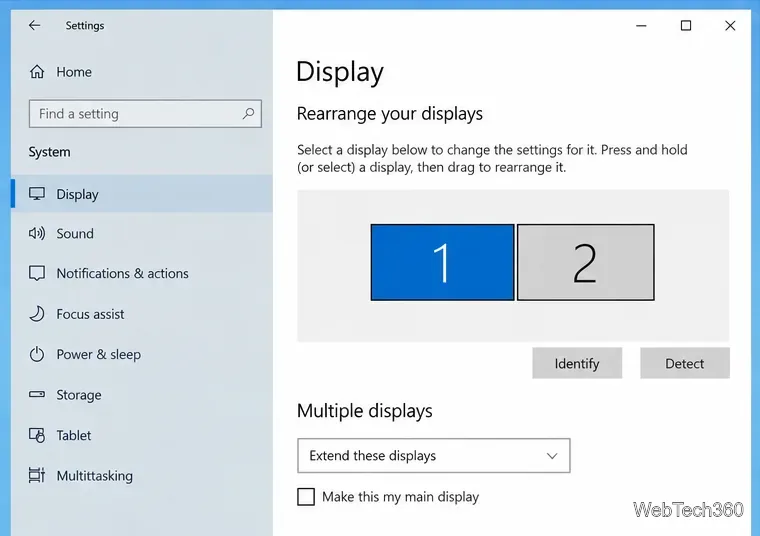
Open Start > Settings > System > Display. Under Multiple displays, select Detect. If Windows finds both monitors, use Identify to match the numbered boxes to the physical screens, then drag the boxes so their arrangement matches your desk.
Microsoft documents the same Detect and Identify controls in its multiple-monitor setup guide.
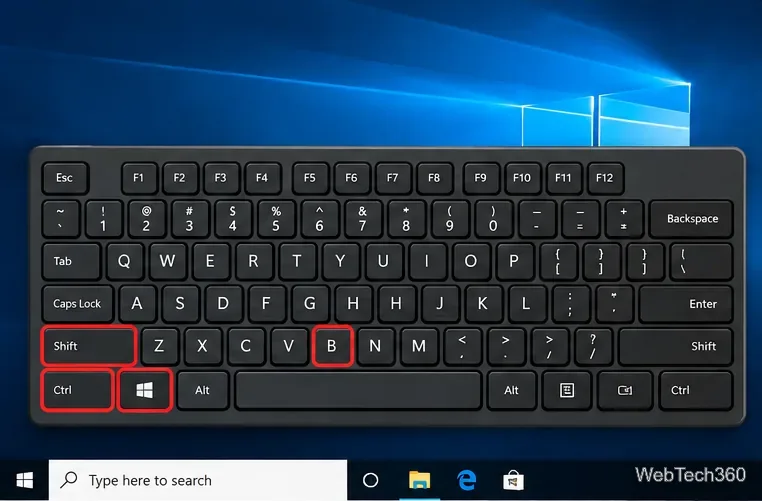
If the setup worked before and suddenly stopped, restart the PC. You can also press Windows + Ctrl + Shift + B to reset the graphics driver. The screen may briefly flicker and Windows may play a sound while the display stack resets.
Disconnect nonessential docks, dongles, and USB display adapters, then test one external monitor directly if possible. Try another known-good video cable and another video output on the PC. Test the monitor on a different computer, or connect a different monitor to this PC. These swaps help identify whether the fault follows the monitor, cable, adapter, or computer.
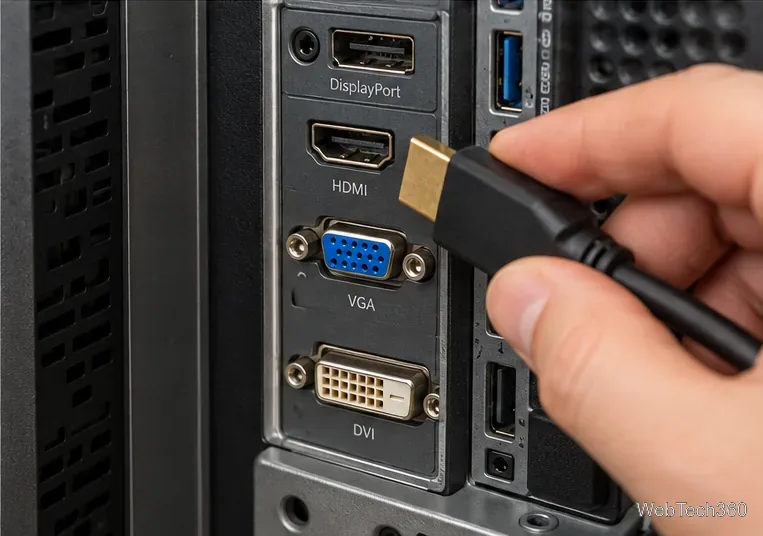
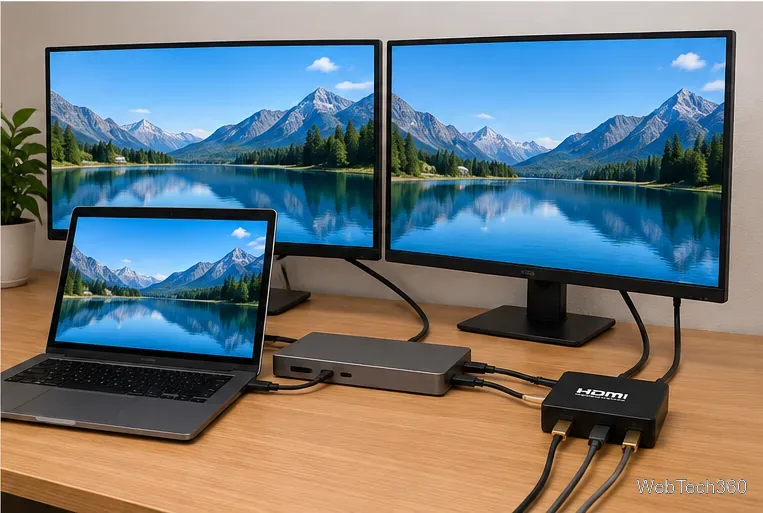
If the issue only occurs through a USB-C dock or adapter, confirm that the computer and dock actually support video output on that connection. A USB-C connector by itself does not guarantee that every dock or display mode is supported.
If one external display works but a second or third does not, check the PC or graphics-card specifications for the maximum number of supported displays, resolutions, and refresh rates. Microsoft notes that a simple display splitter cannot create two independent extended desktops; it duplicates one signal. A compatible docking station or video-capable USB adapter may be required when the PC does not provide enough independent outputs.
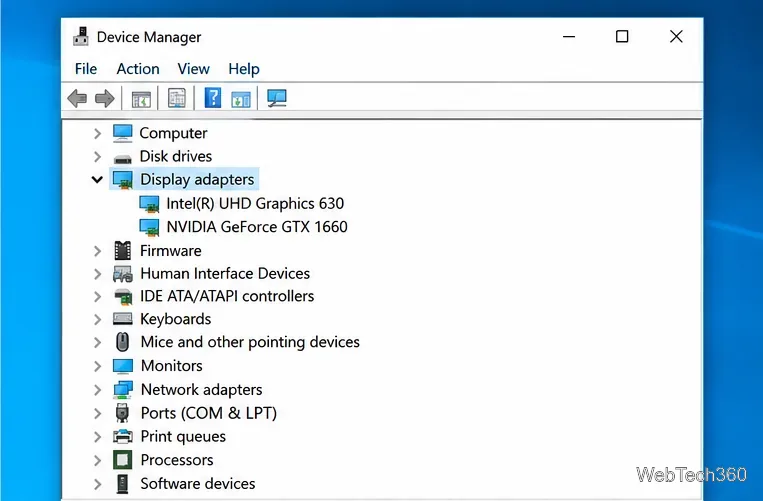
Search for Device Manager, open it, and expand Display adapters. If your PC has integrated and dedicated graphics, you may see more than one adapter.
Right-click the relevant display adapter. You can try Update driver, or obtain the correct graphics driver from the PC or GPU manufacturer's official support site. If detection remains broken, Microsoft's current troubleshooting guidance also recommends uninstalling the display adapter in Device Manager and then reinstalling the driver after restarting.
If your extra monitor stopped working immediately after a graphics-driver update, open Device Manager, right-click the display adapter, choose Properties > Driver, and select Roll Back Driver if the button is available. Restart the PC afterward.
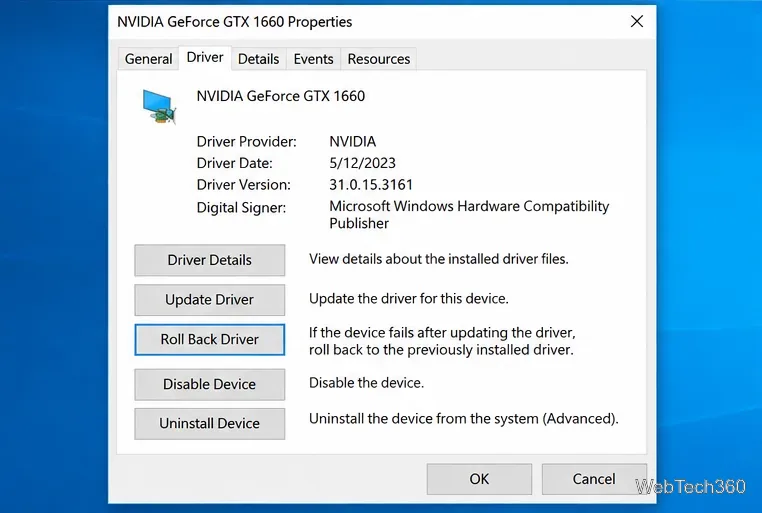
Microsoft's external-monitor troubleshooting page also recommends checking cables and alternate video ports, resetting the graphics driver, restarting, and rolling back or reinstalling the display driver.
If the display appears in Settings but remains blank, select it and temporarily use a lower resolution or refresh rate that the monitor supports. Also verify that the monitor is set to the correct input and that an adapter or dock supports the resolution and refresh rate you selected. Once the picture is stable, raise the settings gradually.
Prepare Java or Bedrock on Windows 10 for offline single-player, enable the right Xbox setting, and back up your local Minecraft worlds.
Change a file type icon in Windows 10 while keeping its current default app. Follow the FileTypesMan steps, handle icon picker issues, and restore the original setting.
Set PhysX in NVIDIA Control Panel on Windows 10, understand Auto-select vs. CPU or GPU, and learn when to use Windows Graphics settings instead.
Compare six free office suites for documents, spreadsheets, and presentations, including browser-based collaboration and offline desktop options.
Turn on Notepad’s Status Bar to see the current line and column in Windows 10, troubleshoot a disabled option, and learn when you need a line-number gutter.
Display a custom Windows dialog with a short PowerShell command, Command Prompt, or a reusable .bat or .ps1 file, including a title, icon, and buttons.
Fix Windows 10 update error 0x80071160 with Microsoft’s troubleshooter, a safe update-cache reset, DISM and SFC repairs, and a careful manual-install check.
Create a Windows 10 UEFI installer with Microsoft’s Media Creation Tool or Rufus, then boot and install safely without wiping the wrong drive.
Stop individual Edge tabs from crowding the Windows 10 Alt+Tab switcher. Change one Multitasking setting, limit recent tabs, and check why the option may be missing.
Enable Adobe’s PDF thumbnail handler, correct File Explorer’s icon settings, rebuild the thumbnail cache, and check OneDrive files that are not stored locally.








