How to Schedule a Wallpaper Change in Windows 10

Use Windows 10’s built-in slideshow for interval rotation or schedule an exact daily wallpaper change with Task Scheduler and a short PowerShell script.
If your headphones are connected but Windows 10 is silent, start by confirming the headphones work, then make sure Windows is sending audio to the right output. The most common causes are a wrong playback device, a muted app, disabled audio hardware, audio enhancements, or a damaged driver.
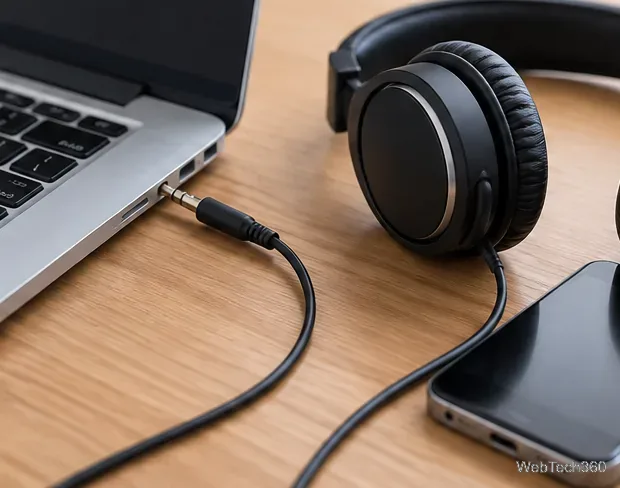
Before changing Windows settings, rule out the simple hardware problems. Unplug the headphones, reconnect them firmly, and try the port again. For USB headphones, try another USB port. If you use a dock or USB audio adapter, connect the headphones directly to the PC when possible.
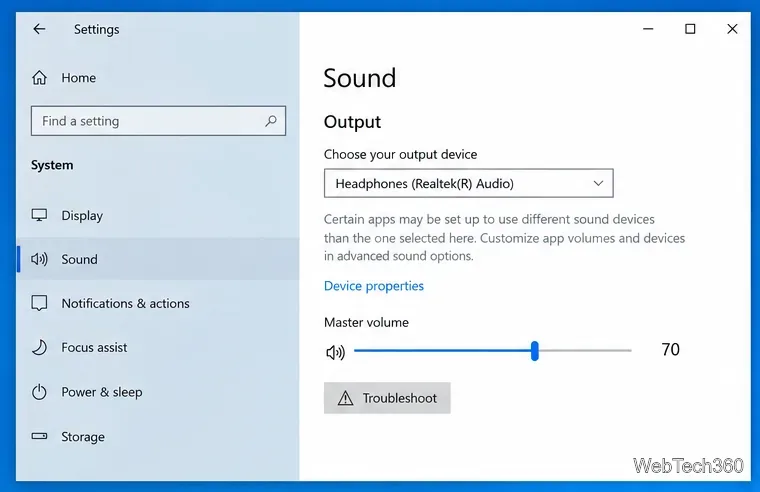
Open Start > Settings > System > Sound. Under Output, choose your headphones or headset and raise the master volume. Microsoft lists the wrong output device or muted output among the main reasons speakers or wired headphones produce no sound in its official no-sound troubleshooting guide.
If the headphones do not appear here, skip to the Device Manager section below.
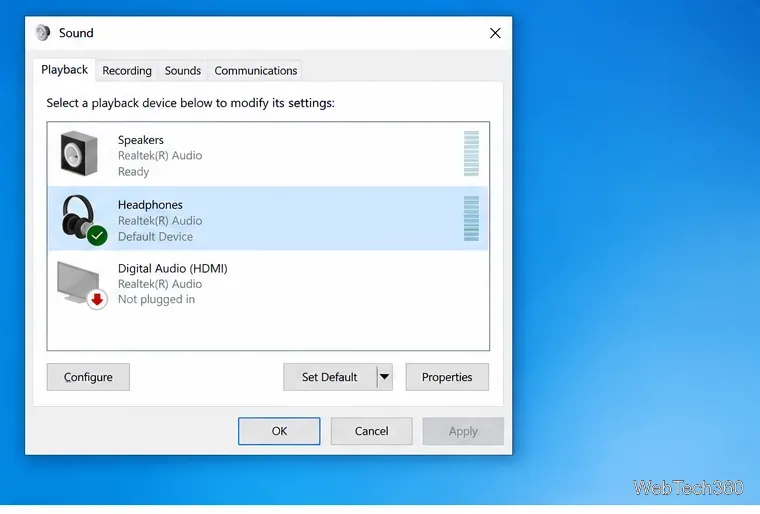
Some programs continue using the Windows default device even after you manually switch outputs. In Settings > System > Sound, open Sound Control Panel under Related settings. On the Playback tab, select the headphones and choose Set Default.
Play a test sound again. If Windows shows several similar entries, such as speakers, digital output, HDMI audio, and headphones, choose the entry that matches the jack, USB headset, or Bluetooth device you are actually using.
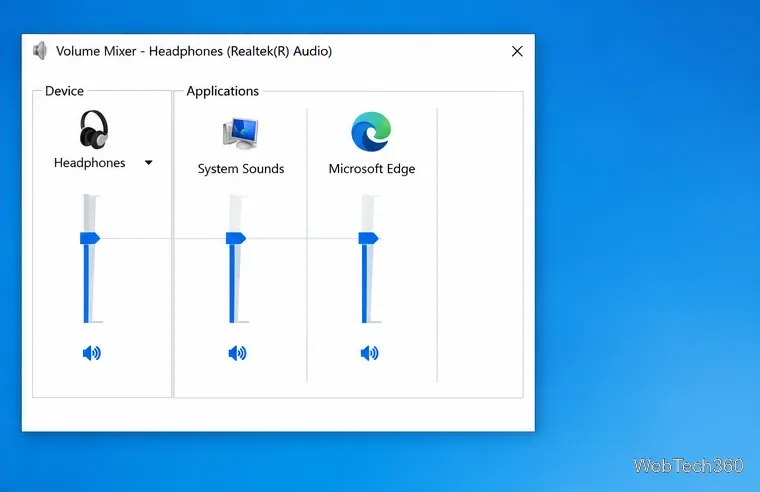
A single app can be muted while Windows system audio remains normal. Right-click the speaker icon on the taskbar and open Volume mixer. Make sure the device and the affected app are not muted and their sliders are above zero.
If only one program is silent, also check that program's audio settings. Browsers, games, meeting apps, and media players may remember a different output device. Windows 10 also provides per-app output controls under Settings > System > Sound > Advanced sound options. Microsoft documents app-specific volume and output checks in its app audio troubleshooting guidance.
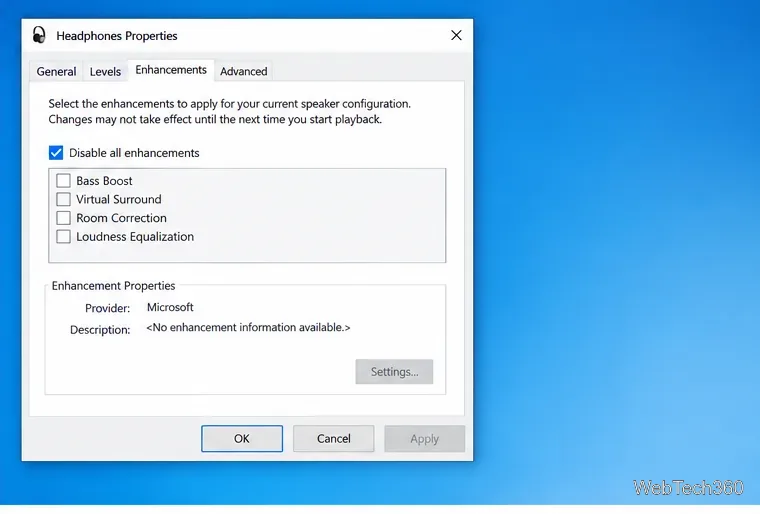
Audio enhancements can interfere with playback on some sound devices. Open Control Panel > Hardware and Sound > Sound, select the headphones on the Playback tab, and open Properties. If an Enhancements tab is present, select Disable all enhancements and test again.
Not every driver exposes the same tabs. If you do not see an Enhancements tab, do not treat that as an error; move to the next fix.
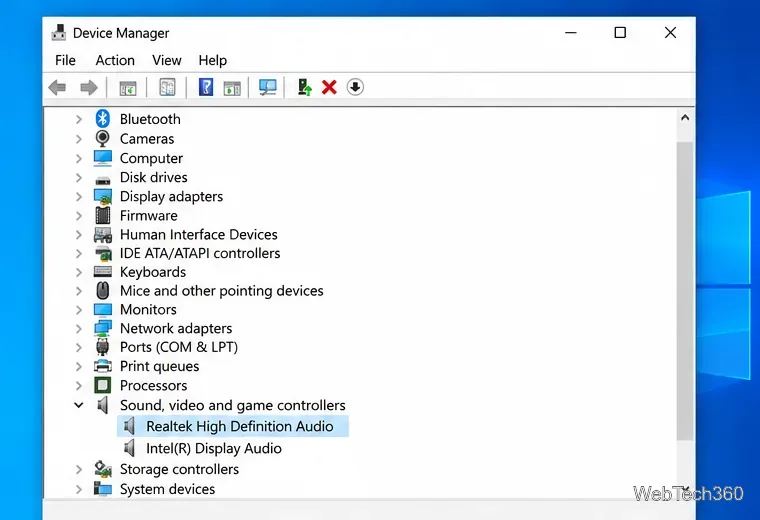
Open Device Manager and expand Sound, video and game controllers. If your audio device is listed but disabled, enable it. If it is missing, use View > Show hidden devices, then Action > Scan for hardware changes. Microsoft recommends these checks when an audio output device is missing or undetected.
For a 3.5 mm headset, the visible entry may be the PC's Realtek or other audio controller rather than a device literally named “Headphones.”
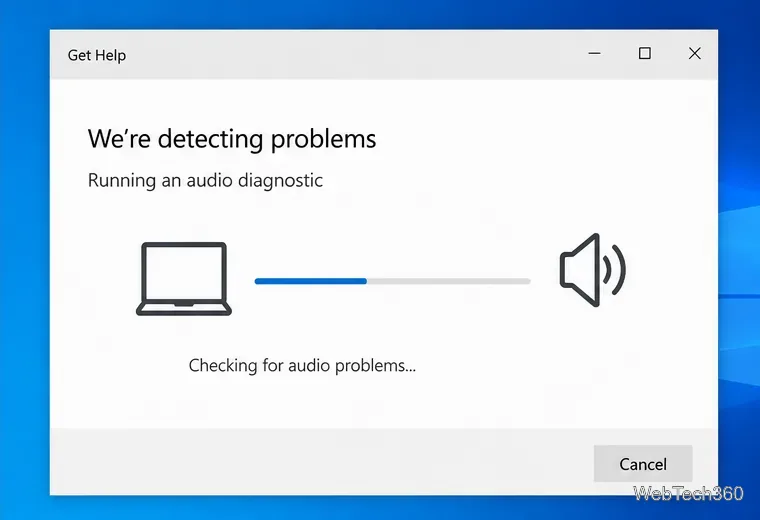
Microsoft's current guidance for Windows 10 is to run the automated audio troubleshooter in the Get Help app. Open Get Help, search for audio troubleshooting, and follow the diagnostic prompts. This can detect common configuration and service problems without requiring you to change every setting manually.
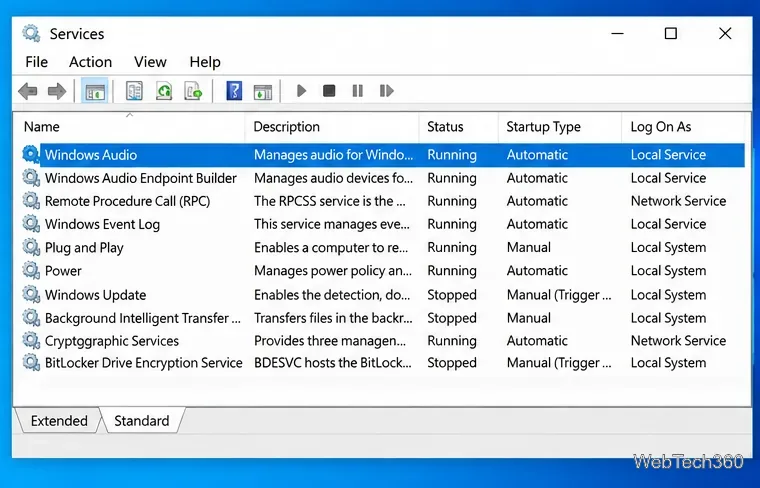
If the headphones are still silent, press Win + R, enter services.msc, and restart Windows Audio and Windows Audio Endpoint Builder. Then test playback again. Microsoft also recommends restarting these services when audio stops working after an update.
If that does not help, open Device Manager, expand Sound, video and game controllers, right-click the audio device, and choose Update driver. If the problem started after a driver or Windows update, open the device's Properties > Driver tab and use Roll Back Driver when that option is available. Microsoft's audio driver guide also recommends reinstalling the driver if updating it does not fix the problem.
If the same headphones fail on several devices, the cable, plug, USB adapter, or headset electronics are the likely cause. If multiple known-good headphones fail only on this PC, the PC's audio jack, USB port, sound hardware, or OEM audio driver is more suspect.
Windows 10 reached end of support on October 14, 2025. The operating system still works, but Microsoft recommends moving to a supported Windows version when your PC is eligible. See Microsoft's Windows 10 end-of-support information for current options.
Use Windows 10’s built-in slideshow for interval rotation or schedule an exact daily wallpaper change with Task Scheduler and a short PowerShell script.
Choose a built-in alert tone or WAV file for Windows 10 message notifications, test the change, and troubleshoot apps that keep playing another sound.
Arrange Windows 10 apps in top-and-bottom rows with the taskbar’s Show windows stacked command, or create a reusable two-zone layout with PowerToys FancyZones.
Keep each display at its recommended resolution, arrange Windows 10 monitors accurately, and use MouseUnSnag to cross mismatched edges and sticky corners.
Find whether your connected Wi-Fi uses WPA2, WPA3, or an older security mode in Windows 10 with Settings, Command Prompt, or Control Panel.
Automatically lock Windows 10 after inactivity with a screen saver timer and sign-in prompt, then check how sleep settings affect the result.
Add a persistent colored ring around your Windows 10 mouse pointer with PenAttention, or use built-in pointer tools and PowerToys for temporary highlights.
Keep the Xbox Game Bar Performance widget visible over other windows on Windows 10, with CPU, GPU, and RAM readings you can position and unpin.
Capture two or more Windows 10 displays in one OBS video. Add a Display Capture source for each monitor, fit the canvas, and test the layout.
Create a GUID on Windows 10 with [guid]::NewGuid() or New-Guid, reuse it in a script, and learn when to look up an existing identifier.








