How to Play Minecraft Offline on Windows 10: Java and Bedrock

Prepare Java or Bedrock on Windows 10 for offline single-player, enable the right Xbox setting, and back up your local Minecraft worlds.
When PowerShell will not scroll vertically, change the scrollback setting in the app hosting the shell. In the classic Windows PowerShell console, increase the screen buffer height. In Windows Terminal, increase the profile’s History size. These settings retain output lines; PowerShell’s command history does not. If older lines have already been discarded, rerun the command or capture a transcript before running it again.
PowerShell sends output to a host, such as the classic Console Host, Windows Terminal, Visual Studio Code’s integrated terminal, or PowerShell ISE. The host controls how many output rows remain available above the visible screen. If a command prints fewer lines than fit in the window, there is nothing to scroll.
Test with a harmless command that prints 100 lines:
1..100 | ForEach-Object { "Line $_" }After it finishes, click in the console, press Esc to clear any text selection, and try the mouse wheel or scroll bar. If you can move through the test output but older lines disappear quickly, enlarge the scrollback setting below. If the wheel does nothing, make sure the correct terminal pane has focus and follow the instructions for the app you are using.
Use these steps for a separate Windows PowerShell window opened by itself, rather than a PowerShell tab inside Windows Terminal:
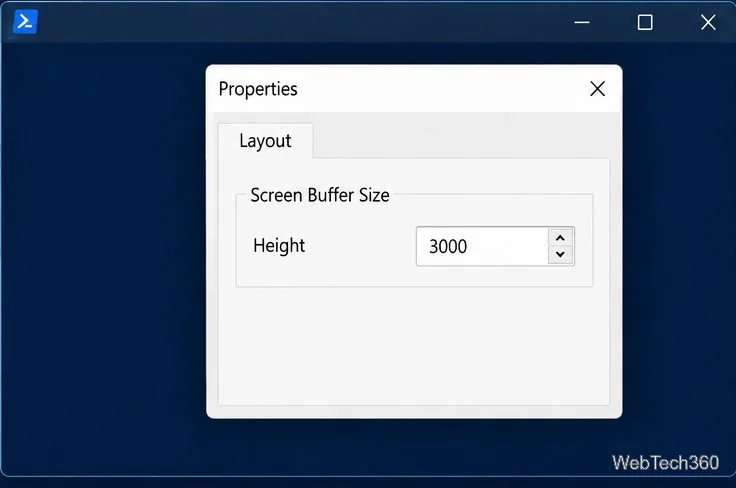
The height is the number of rows kept in the console buffer, not the visible window height. A larger value gives you more output to revisit. Choose a higher value if your commands produce more output and the setting allows it. The console cannot bring back lines that were already pushed out of its buffer. Microsoft describes how a console window displays and scrolls its screen buffer in its Windows Console documentation.
If PowerShell is running in Windows Terminal, the classic console’s Properties dialog is not the setting you need. Terminal keeps its own scrollback for each profile:
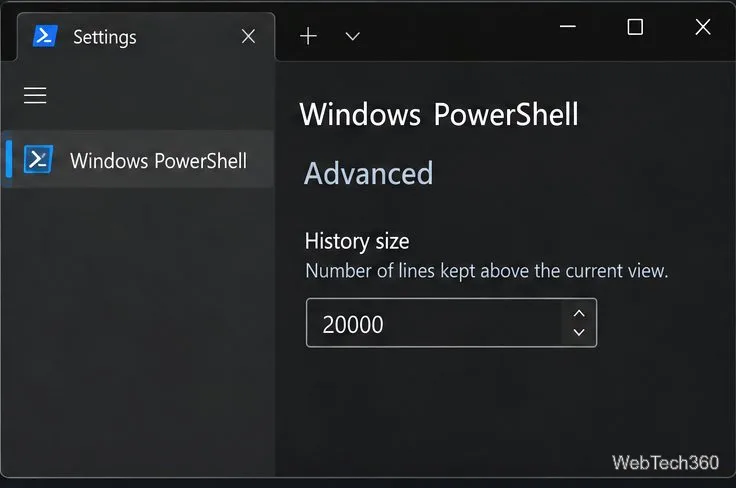
This value controls the number of lines above the current view that Terminal keeps available. It belongs to the selected profile, so change the other profile too if you switch between Windows PowerShell and PowerShell 7. See Microsoft’s Windows Terminal advanced profile settings for the current property details.
Paging is useful when a command returns a lot of results and you want to read them as they appear. It does not change the scrollback limit. Pipe the command to Out-Host -Paging, for example:
Get-Process | Out-Host -Paging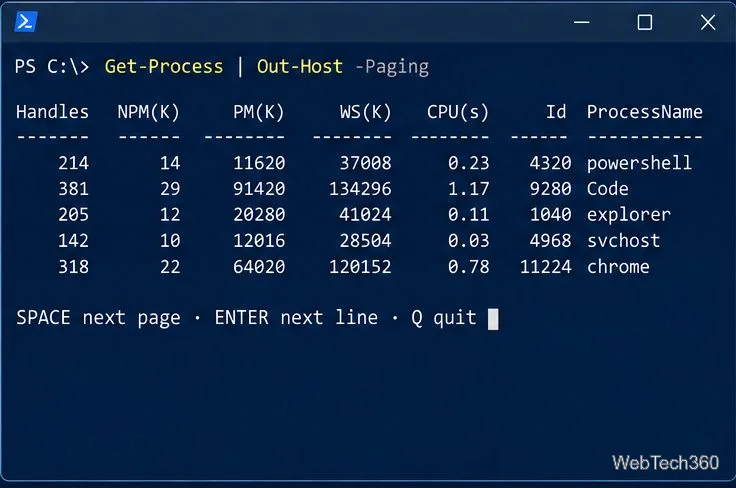
Press Spacebar for the next page, Enter for the next line, or Q to stop paging. The -Paging parameter is not supported by the PowerShell ISE host. Microsoft documents the behavior and keys in the Windows PowerShell 5.1 Out-Host reference.
A transcript gives you a text file to consult after a long command finishes or after the console closes. Start it before running the command:
Start-Transcript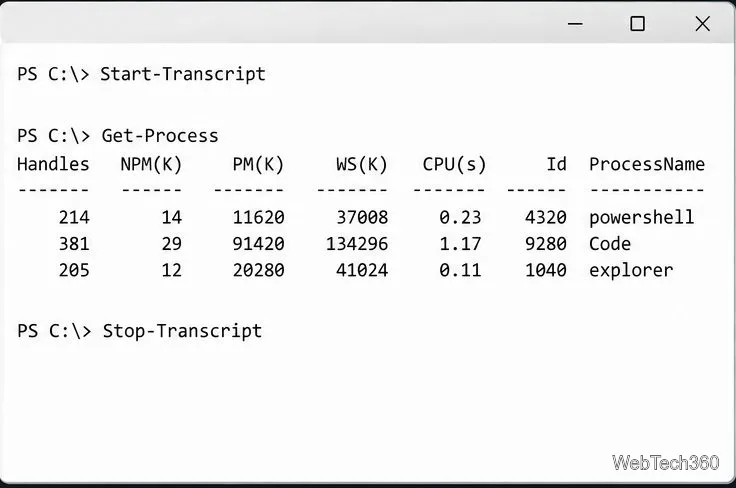
On Windows, PowerShell saves the default transcript in your Documents folder and reports the file path when recording starts. When you are done, run:
Stop-TranscriptThe transcript includes commands typed and output shown in the console, so treat it as a plain-text record that may contain sensitive information. Review the file before sharing it. Microsoft documents the default location and transcript behavior in the Start-Transcript reference and explains how to stop recording with Stop-Transcript.
Changing $MaximumHistoryCount does not make PowerShell’s output scroll farther. That preference variable limits how many commands the built-in session history keeps for recall with history tools; it does not count the output lines displayed in the terminal. PowerShell also has a separate history managed by PSReadLine. Microsoft’s about_History reference explains the difference.
If you still cannot scroll, confirm which app hosts the shell, apply that app’s scrollback setting, then rerun a command that produces enough output to test it. Increase the buffer for future lines; use a transcript when you need a durable record.
Prepare Java or Bedrock on Windows 10 for offline single-player, enable the right Xbox setting, and back up your local Minecraft worlds.
Change a file type icon in Windows 10 while keeping its current default app. Follow the FileTypesMan steps, handle icon picker issues, and restore the original setting.
Set PhysX in NVIDIA Control Panel on Windows 10, understand Auto-select vs. CPU or GPU, and learn when to use Windows Graphics settings instead.
Compare six free office suites for documents, spreadsheets, and presentations, including browser-based collaboration and offline desktop options.
Turn on Notepad’s Status Bar to see the current line and column in Windows 10, troubleshoot a disabled option, and learn when you need a line-number gutter.
Display a custom Windows dialog with a short PowerShell command, Command Prompt, or a reusable .bat or .ps1 file, including a title, icon, and buttons.
Fix Windows 10 update error 0x80071160 with Microsoft’s troubleshooter, a safe update-cache reset, DISM and SFC repairs, and a careful manual-install check.
Create a Windows 10 UEFI installer with Microsoft’s Media Creation Tool or Rufus, then boot and install safely without wiping the wrong drive.
Stop individual Edge tabs from crowding the Windows 10 Alt+Tab switcher. Change one Multitasking setting, limit recent tabs, and check why the option may be missing.
Enable Adobe’s PDF thumbnail handler, correct File Explorer’s icon settings, rebuild the thumbnail cache, and check OneDrive files that are not stored locally.








