How to Schedule a Wallpaper Change in Windows 10

Use Windows 10’s built-in slideshow for interval rotation or schedule an exact daily wallpaper change with Task Scheduler and a short PowerShell script.
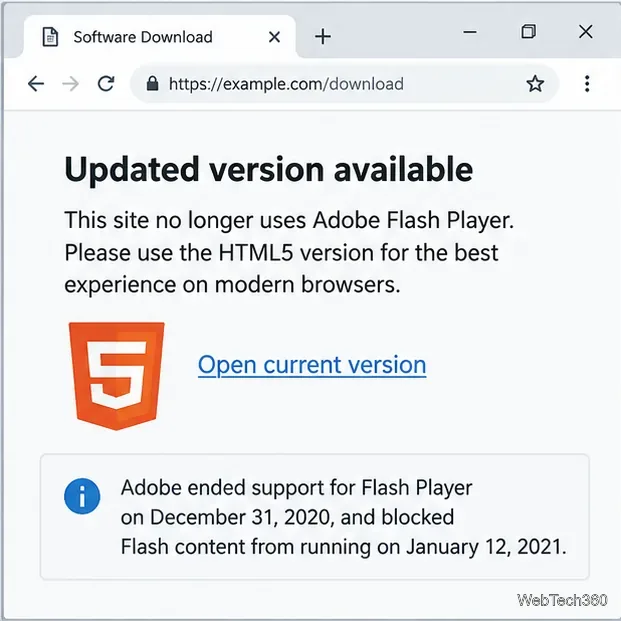
If you see an “Adobe Flash is blocked” message, the fix is different today than it was in older browser guides. You cannot re-enable the original Adobe Flash Player in current versions of Chrome, Microsoft Edge, or Firefox. Adobe ended support on December 31, 2020, then blocked Flash content from running in the player on January 12, 2021. Changing site permissions or installing an old plugin will not restore support.
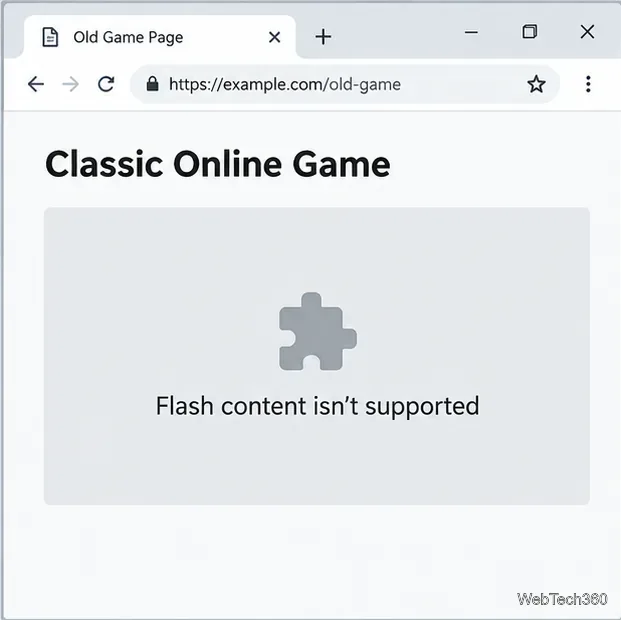
Older tutorials may tell you to click Chrome’s puzzle-piece icon and choose Allow, switch on “Use Adobe Flash” in Edge, or set Firefox’s Shockwave Flash plugin to “Always Activate.” Those instructions applied to older releases; the controls were removed along with Flash support.
For the official timelines, see Adobe’s Flash Player end-of-life notice, Google’s Chrome guidance, Microsoft’s lifecycle FAQ, and Mozilla’s Firefox notice.
Try these options in order. You usually do not need to change browser security settings or install an old version of Flash.
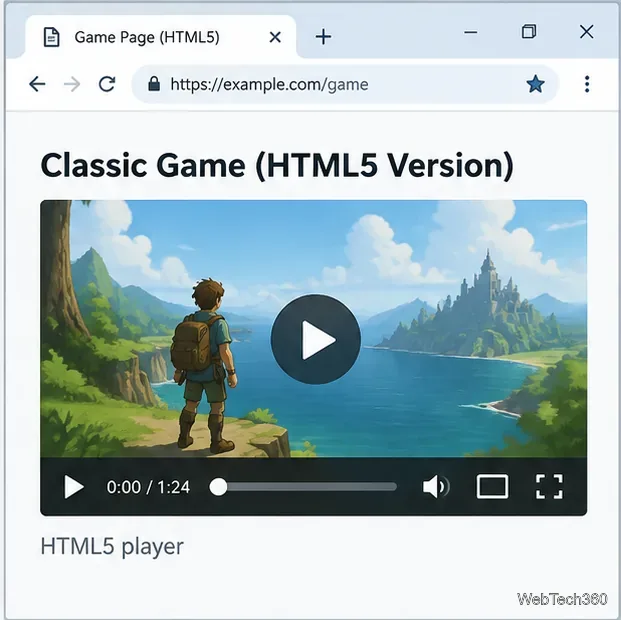
Open the website’s main page and look for a current version of the game, animation, training module, or video. Search the site for terms such as “HTML5,” “web version,” or “updated player.” If a modern version exists, use that instead of trying to run the retired plugin.
Visit the publisher’s support or downloads page for a replacement or migration notice. Use the publisher’s own domain, not pop-ups claiming Flash must be updated. If the page is yours, ask the site owner to replace the Flash component with supported web technologies such as HTML5, JavaScript, WebGL, or WebAssembly.
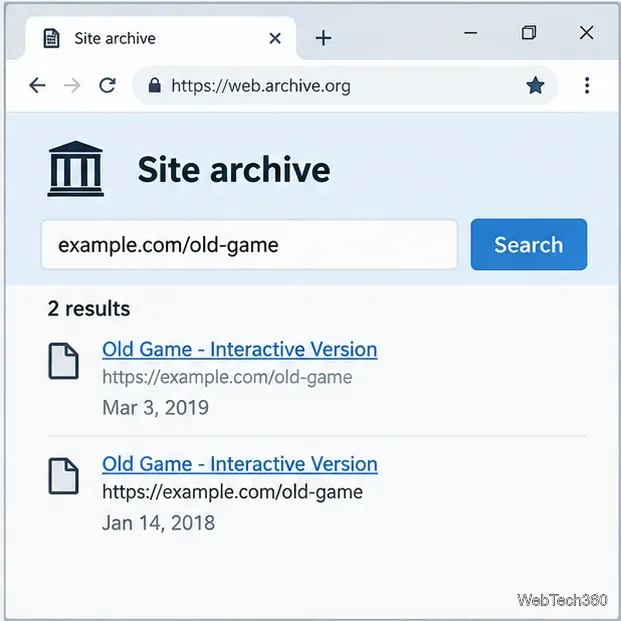
If the original website has disappeared, enter its URL into the Internet Archive’s Wayback Machine and choose an available capture. An archived page may help you recover instructions or static material, but it is not guaranteed to include the original SWF file, supporting assets, or server-side services. An archive cannot make unsupported Flash content run.
Ruffle is an open-source Flash Player emulator with browser extensions and desktop applications. It is not Adobe’s original plugin, and it will not run every legacy project. If you want to try it, start at the official Ruffle downloads page and follow the project’s installation instructions. Check its compatibility notes if a game or application does not work.
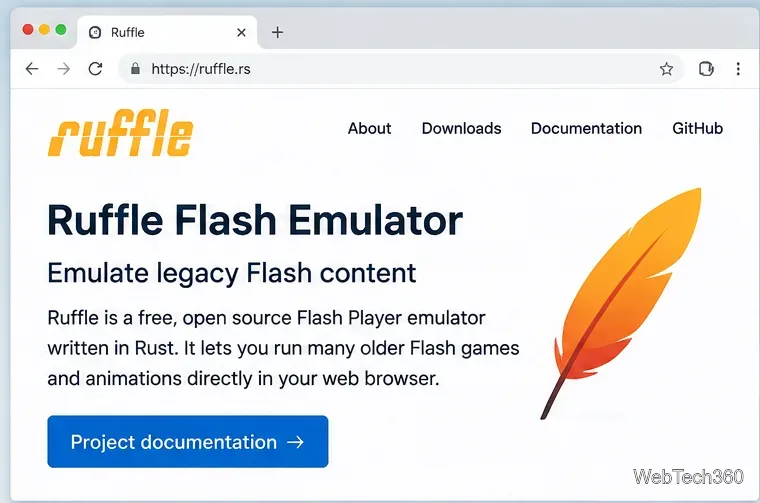
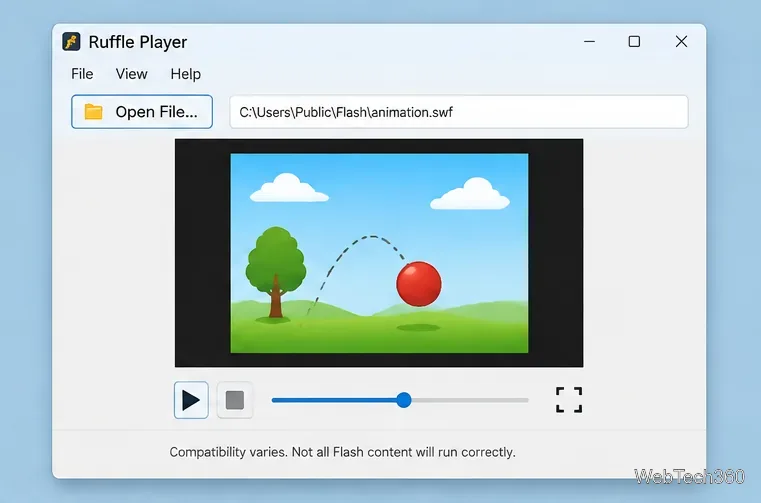
If you already have a legitimate SWF file or can obtain one from the original publisher, you can test it with Ruffle’s desktop app where supported. Do not download random SWF files or executable “Flash fixes” from unfamiliar sites. Some projects rely on retired services, and compatibility varies by file.
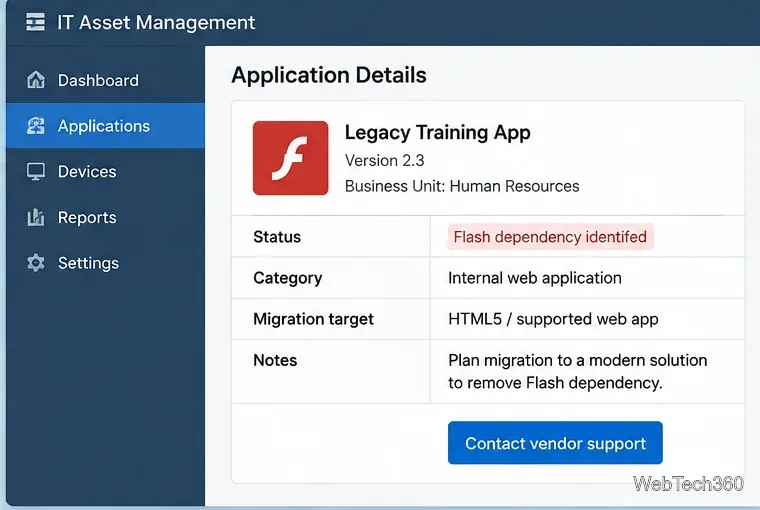
If a company training portal, internal dashboard, or line-of-business application still requires Flash, ask the administrator or software vendor for a supported replacement or migration plan. Avoid exposing an outdated browser to the public internet. Adobe identifies commercial support options for enterprise customers through its official end-of-life information.
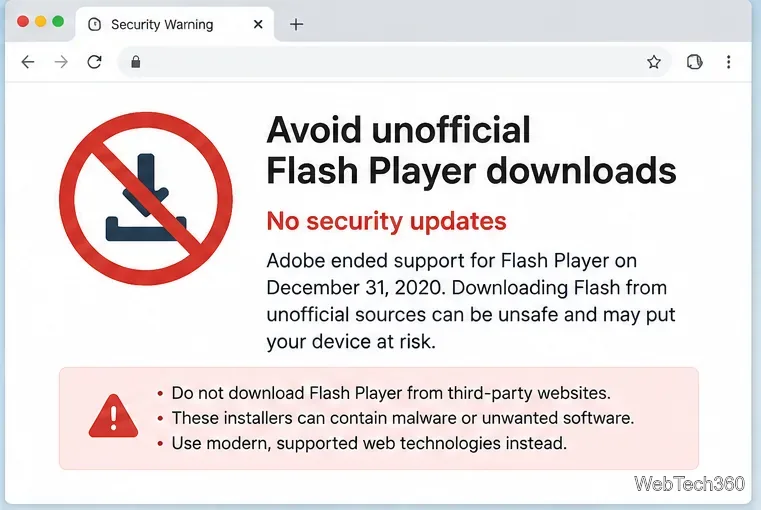
Do not install a third-party package advertised as the “latest Adobe Flash Player.” Adobe no longer distributes Flash Player downloads or provides security patches, and it warns that unauthorized installers can contain malware. Adobe recommends uninstalling the retired player. If you installed the standalone Windows version, follow Adobe’s official Windows uninstall guidance; do not delete system files by guesswork.
Use Windows 10’s built-in slideshow for interval rotation or schedule an exact daily wallpaper change with Task Scheduler and a short PowerShell script.
Choose a built-in alert tone or WAV file for Windows 10 message notifications, test the change, and troubleshoot apps that keep playing another sound.
Arrange Windows 10 apps in top-and-bottom rows with the taskbar’s Show windows stacked command, or create a reusable two-zone layout with PowerToys FancyZones.
Keep each display at its recommended resolution, arrange Windows 10 monitors accurately, and use MouseUnSnag to cross mismatched edges and sticky corners.
Find whether your connected Wi-Fi uses WPA2, WPA3, or an older security mode in Windows 10 with Settings, Command Prompt, or Control Panel.
Automatically lock Windows 10 after inactivity with a screen saver timer and sign-in prompt, then check how sleep settings affect the result.
Add a persistent colored ring around your Windows 10 mouse pointer with PenAttention, or use built-in pointer tools and PowerToys for temporary highlights.
Keep the Xbox Game Bar Performance widget visible over other windows on Windows 10, with CPU, GPU, and RAM readings you can position and unpin.
Capture two or more Windows 10 displays in one OBS video. Add a Display Capture source for each monitor, fit the canvas, and test the layout.
Create a GUID on Windows 10 with [guid]::NewGuid() or New-Guid, reuse it in a script, and learn when to look up an existing identifier.








