How to Schedule a Wallpaper Change in Windows 10

Use Windows 10’s built-in slideshow for interval rotation or schedule an exact daily wallpaper change with Task Scheduler and a short PowerShell script.
If your webcam shows a black screen in Windows 10, start with the simple checks: make sure the lens is not covered, restart the PC, and test the camera in the built-in Camera app. If the preview is still black, the most common causes are camera permissions, another app using the camera, a wrong camera selection, a bad driver, security software, or a hardware/USB problem. Microsoft lists obstruction, driver problems, app permissions, software conflicts, and hardware faults among the main causes of a black or missing camera preview in its camera troubleshooting guidance.
Windows 10 status: Microsoft ended standard Windows 10 support on October 14, 2025. The operating system still runs, but Microsoft recommends moving to a supported Windows version or using an eligible Extended Security Updates option where applicable. See Microsoft’s Windows 10 end-of-support notice.
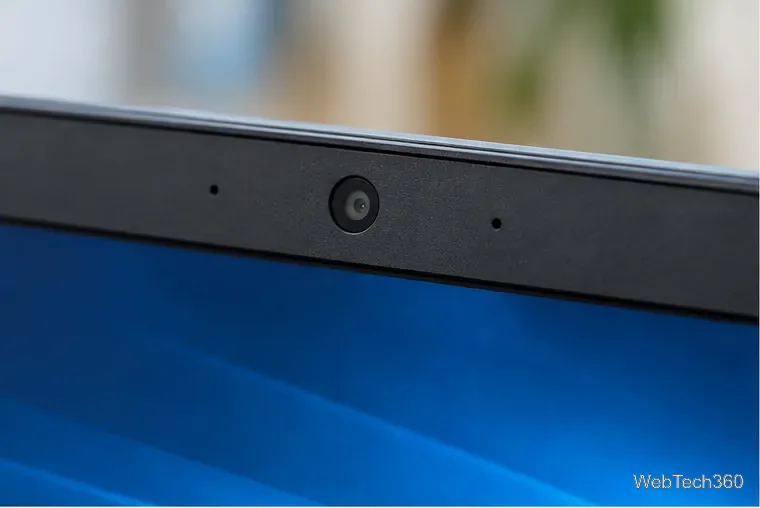
Look closely at the camera first. Remove any protective film, tape, lens cap, or closed privacy shutter. Some laptops also have a physical camera switch or keyboard shortcut, so make sure it is not disabling the webcam.
For a USB webcam, reconnect the cable firmly. Then restart Windows instead of only waking the PC from sleep. A restart can clear a camera process or driver that is stuck.
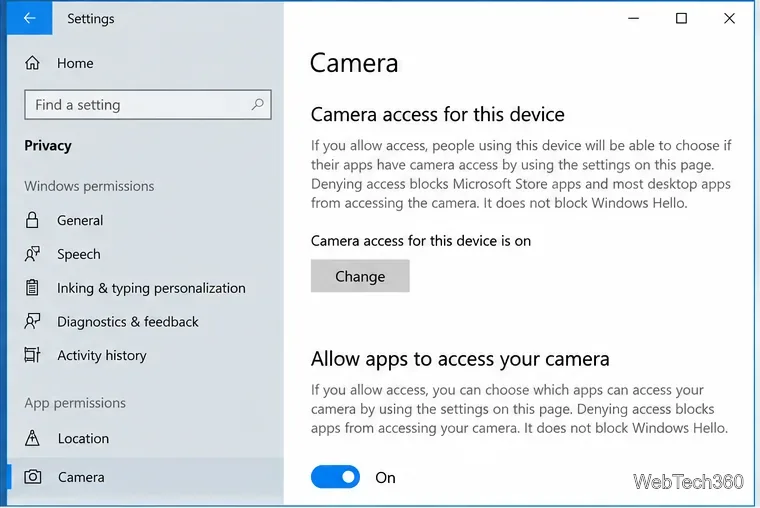
On Windows 10, open Start > Settings > Privacy > Camera. Under Allow access to the camera on this device, select Change if needed and make sure camera access is on. If the setting is unavailable, the PC may be controlled by an administrator or organization policy.
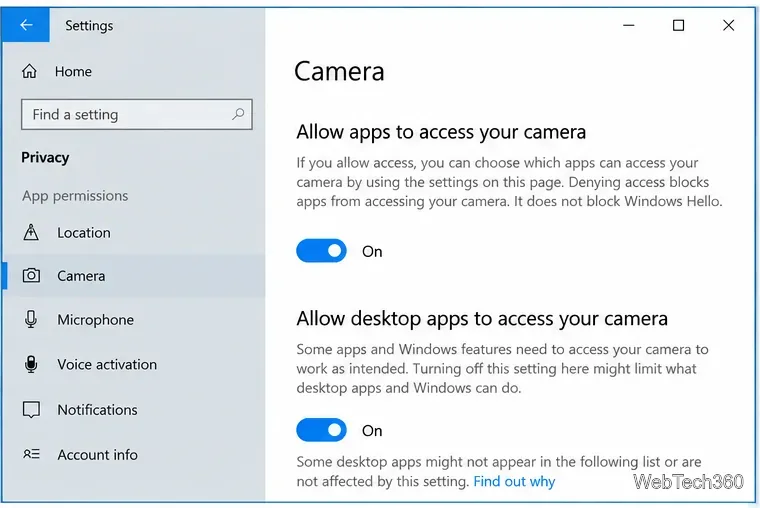
Stay on the same Camera privacy page. Turn on Allow apps to access your camera. For classic desktop programs such as browsers and many video-meeting apps, also make sure Allow desktop apps to access your camera is enabled. Microsoft explains the difference between Store apps and desktop apps in its camera permission documentation.
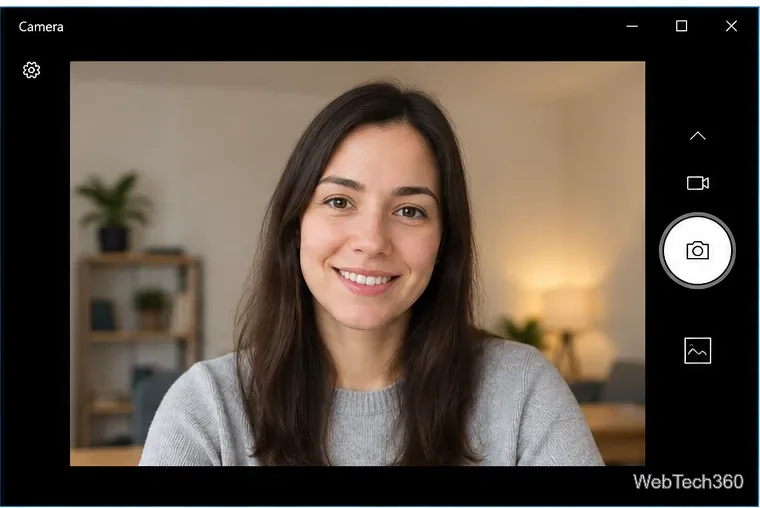
Open Start > Camera. If the Windows Camera app shows a normal preview, the webcam itself is probably working and the problem is specific to another program. Check that program’s camera setting next.
If the Camera app is black or another program says the camera is busy, close video-call, browser, streaming, recording, and virtual-camera software. You can open Task Manager and end an app that is clearly still running after you have closed its window.
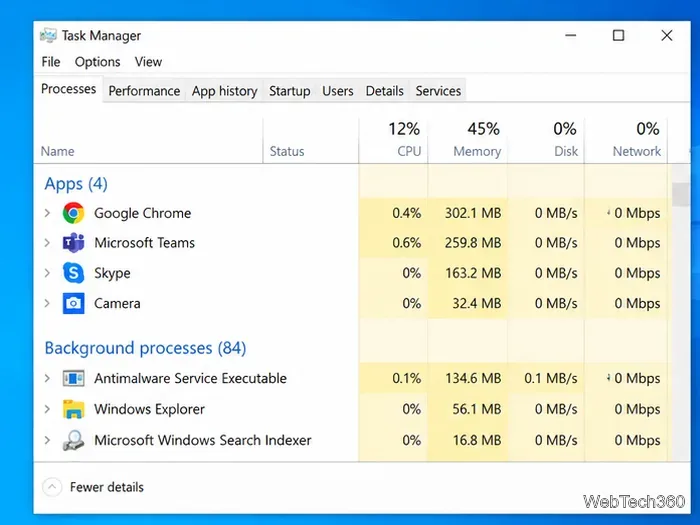
If you have an integrated webcam plus a USB or virtual camera, the app may be using the wrong device. Open the video or camera settings in the affected app and select the physical webcam you actually want. In a browser, also verify the site has camera permission. If one app is black while the Windows Camera app works, focus on that app rather than reinstalling the webcam immediately.
Open Device Manager, expand Cameras, right-click the webcam, and choose Update driver. You can let Windows search automatically. If your PC or webcam maker provides a newer driver, download it only from the manufacturer’s official support site.
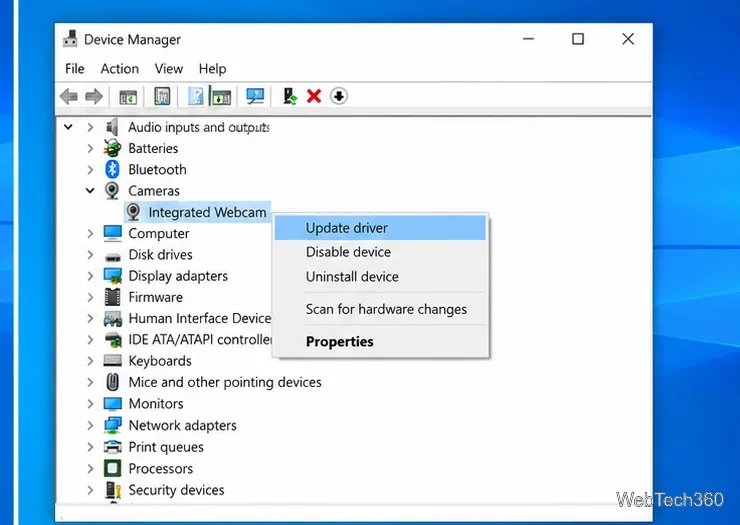
If the black screen started immediately after a driver update, open Properties > Driver and try Roll Back Driver when that button is available. Microsoft specifically recommends rollback when a camera stopped working after an update.
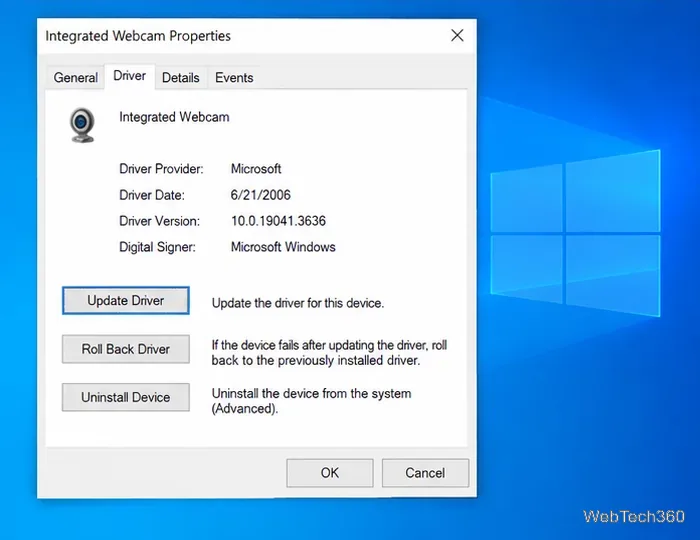
In Device Manager, right-click the camera and choose Uninstall device. If Windows offers an option to remove the driver package, use it only when you intend to reinstall the driver. Restart the PC; Windows will normally detect the camera again. You can also use Action > Scan for hardware changes in Device Manager.
If the camera does not appear under Cameras, check for it under imaging-related device categories, scan for hardware changes, and consult the PC maker’s support documentation for any hardware privacy switch or firmware setting.
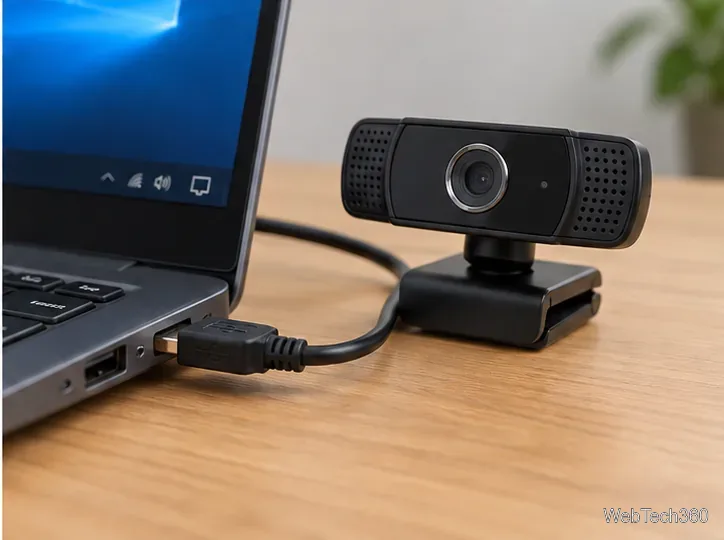
For an external webcam, try another USB port and, when possible, another compatible cable or another computer. Disconnect unnecessary USB devices while testing. Avoid an unpowered hub if the camera is unstable.
If you use antivirus software with webcam protection, check its privacy settings and temporarily test with its camera-blocking feature disabled, then re-enable protection. Also disable or uninstall unused virtual-camera software if it is taking over the camera device.
Hardware is more likely when the camera never appears in Device Manager, an external webcam fails on more than one computer, the camera indicator never reacts in any app, or the problem persists after permissions and driver reinstall steps. At that point, use the laptop or webcam manufacturer’s official diagnostics or repair support rather than repeatedly reinstalling software.
Use Windows 10’s built-in slideshow for interval rotation or schedule an exact daily wallpaper change with Task Scheduler and a short PowerShell script.
Choose a built-in alert tone or WAV file for Windows 10 message notifications, test the change, and troubleshoot apps that keep playing another sound.
Arrange Windows 10 apps in top-and-bottom rows with the taskbar’s Show windows stacked command, or create a reusable two-zone layout with PowerToys FancyZones.
Keep each display at its recommended resolution, arrange Windows 10 monitors accurately, and use MouseUnSnag to cross mismatched edges and sticky corners.
Find whether your connected Wi-Fi uses WPA2, WPA3, or an older security mode in Windows 10 with Settings, Command Prompt, or Control Panel.
Automatically lock Windows 10 after inactivity with a screen saver timer and sign-in prompt, then check how sleep settings affect the result.
Add a persistent colored ring around your Windows 10 mouse pointer with PenAttention, or use built-in pointer tools and PowerToys for temporary highlights.
Keep the Xbox Game Bar Performance widget visible over other windows on Windows 10, with CPU, GPU, and RAM readings you can position and unpin.
Capture two or more Windows 10 displays in one OBS video. Add a Display Capture source for each monitor, fit the canvas, and test the layout.
Create a GUID on Windows 10 with [guid]::NewGuid() or New-Guid, reuse it in a script, and learn when to look up an existing identifier.








