How to Play Minecraft Offline on Windows 10: Java and Bedrock

Prepare Java or Bedrock on Windows 10 for offline single-player, enable the right Xbox setting, and back up your local Minecraft worlds.
If Windows 10 says Elara is preventing shutdown, the message usually points to software installed with a laptop touchpad driver rather than a normal app you deliberately installed. The process is often seen as ApntEX.exe on affected systems. It is not automatically malware, but a touchpad utility that fails to close can make Windows pause shutdown until you cancel, wait, or force the process to end.
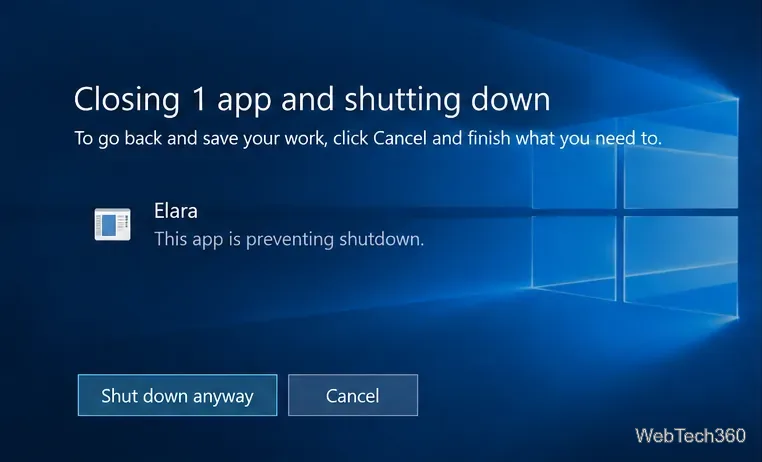
Elara is a name associated with touchpad software on some laptops. A Microsoft Community support answer describes it as part of a laptop touchpad-driver installation. On older systems, it may be linked to ALPS pointing-device software; Dell still documents that some of its older laptops shipped with ALPS touchpads.
The exact driver provider depends on the laptop model, so do not assume every computer showing “Elara” has identical hardware. Check your own Device Manager and the support page for your laptop before replacing or removing anything.
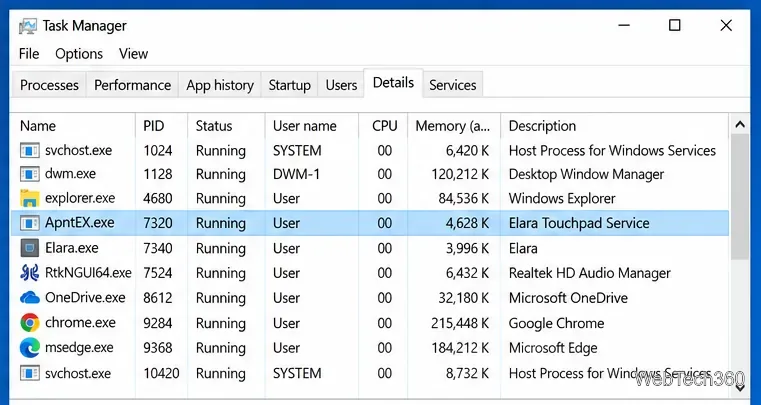
During shutdown, Windows asks running programs and background utilities to close. If a process does not respond quickly enough, Windows can show a screen saying that the app is preventing shutdown. With Elara, that normally means the touchpad utility or its driver component has not exited cleanly. A damaged, outdated, or mismatched touchpad-driver package can make the problem recur.
This message alone is not proof of a virus. It is also not a reason to delete ApntEX.exe manually. Removing a legitimate driver component can disable touchpad gestures or other input features.
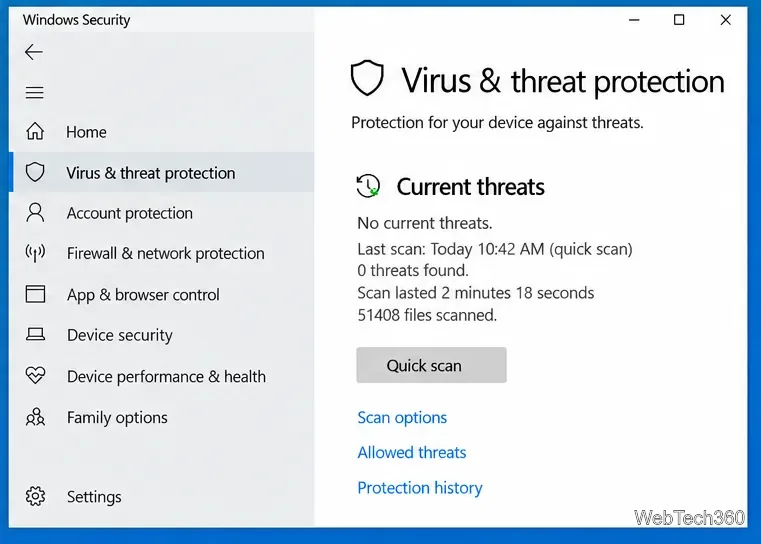
If Elara appeared after a normal laptop setup or driver installation, it is usually legitimate. If you are unsure, verify the specific file on your PC instead of trusting the name alone:
This is temporary. The process may start again the next time Windows boots, and some touchpad functions may stop until you restart.
The best long-term fix is usually to install the correct touchpad driver for your exact laptop model. Go to the manufacturer's support site, identify the model, and download the current touchpad or pointing-device driver offered for that system. Avoid random third-party driver-download sites.
You can also open Device Manager > Mice and other pointing devices, right-click the touchpad, and choose Update driver. Microsoft's Device Manager driver guide covers both updating and reinstalling device drivers.
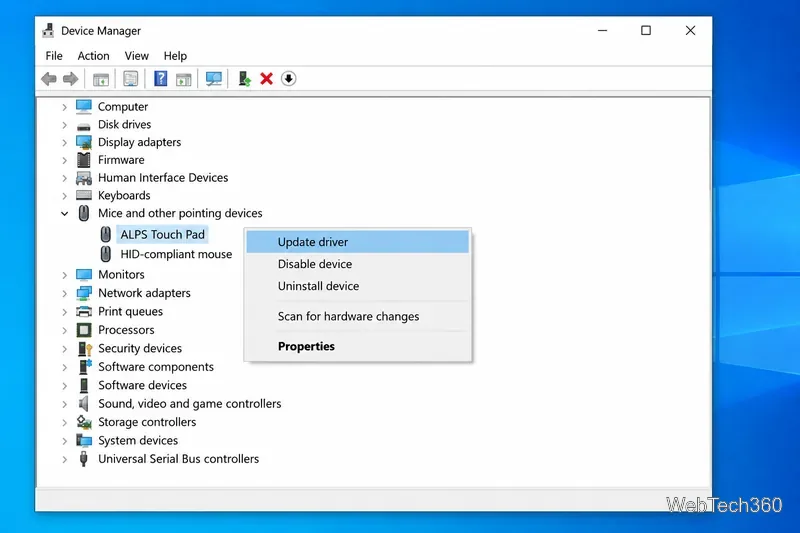
Connect a USB or Bluetooth mouse first so you still have pointer control. In Device Manager, right-click the touchpad and choose Uninstall device, then restart Windows. Microsoft says Windows will attempt to reinstall the device driver after the restart. If it does not, install the touchpad package you downloaded from the laptop manufacturer.
Older troubleshooting advice sometimes recommends creating the AutoEndTasks value under HKEY_CURRENT_USER\Control Panel\Desktop. That setting is broad: it can force other applications to close during sign-out or shutdown and can hide the real driver problem. It is safer to fix or reinstall the touchpad software instead of applying a system-wide auto-close workaround.
Do not uninstall Elara simply because it appeared on the shutdown screen. Windows may provide basic pointer support with a generic driver, but manufacturer drivers can be required for gestures, buttons, palm rejection, or model-specific settings. Remove the package only when you have the correct replacement driver available and understand which touchpad functions may be affected.
Microsoft ended standard Windows 10 support on October 14, 2025. Windows 10 still runs, but systems outside an Extended Security Updates program no longer receive normal security fixes. Microsoft recommends moving to Windows 11 when the hardware supports it; its Windows 10 end-of-support guidance explains the available options.
Elara is usually a touchpad-related component, not a reason to reinstall Windows. If it repeatedly prevents shutdown, end the process only as a short-term workaround, then verify the file and update or reinstall the laptop's official touchpad driver. That addresses the underlying problem without sacrificing touchpad features or forcing unrelated apps to close.
Prepare Java or Bedrock on Windows 10 for offline single-player, enable the right Xbox setting, and back up your local Minecraft worlds.
Change a file type icon in Windows 10 while keeping its current default app. Follow the FileTypesMan steps, handle icon picker issues, and restore the original setting.
Set PhysX in NVIDIA Control Panel on Windows 10, understand Auto-select vs. CPU or GPU, and learn when to use Windows Graphics settings instead.
Compare six free office suites for documents, spreadsheets, and presentations, including browser-based collaboration and offline desktop options.
Turn on Notepad’s Status Bar to see the current line and column in Windows 10, troubleshoot a disabled option, and learn when you need a line-number gutter.
Display a custom Windows dialog with a short PowerShell command, Command Prompt, or a reusable .bat or .ps1 file, including a title, icon, and buttons.
Fix Windows 10 update error 0x80071160 with Microsoft’s troubleshooter, a safe update-cache reset, DISM and SFC repairs, and a careful manual-install check.
Create a Windows 10 UEFI installer with Microsoft’s Media Creation Tool or Rufus, then boot and install safely without wiping the wrong drive.
Stop individual Edge tabs from crowding the Windows 10 Alt+Tab switcher. Change one Multitasking setting, limit recent tabs, and check why the option may be missing.
Enable Adobe’s PDF thumbnail handler, correct File Explorer’s icon settings, rebuild the thumbnail cache, and check OneDrive files that are not stored locally.








