How to Play Minecraft Offline on Windows 10: Java and Bedrock

Prepare Java or Bedrock on Windows 10 for offline single-player, enable the right Xbox setting, and back up your local Minecraft worlds.
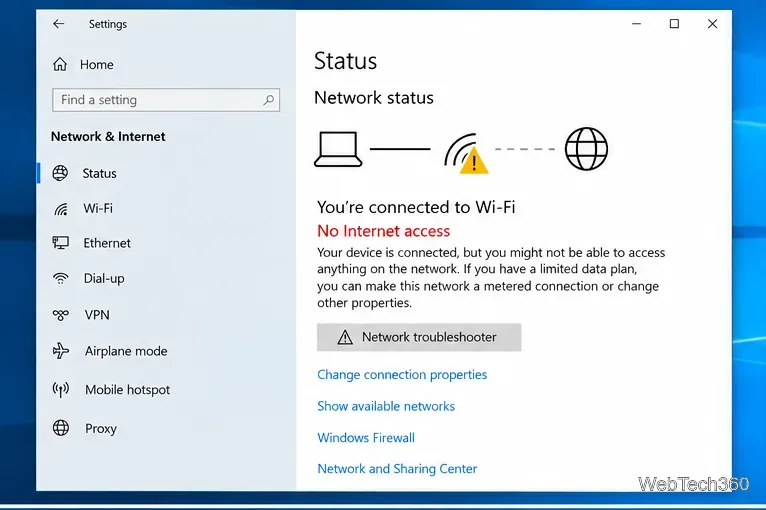
If Windows 10 says “Wi-Fi doesn’t have a valid IP configuration,” your PC usually connected to the wireless network but failed to get usable TCP/IP settings from the router. Start with a restart, then check DHCP and renew the network configuration before trying a full network reset.
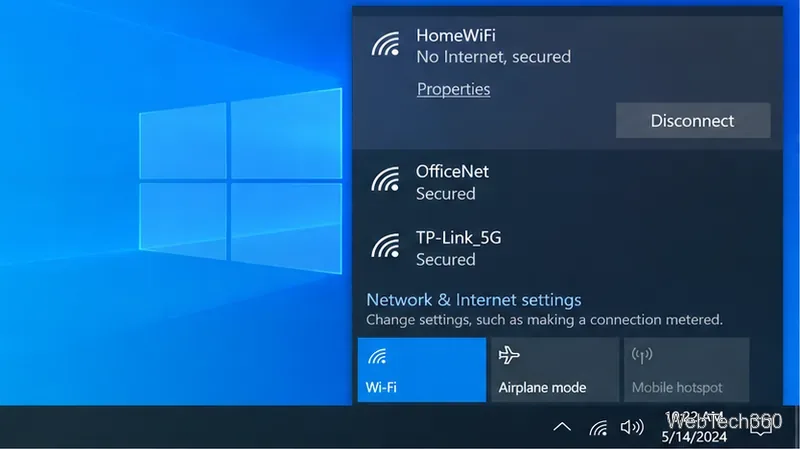
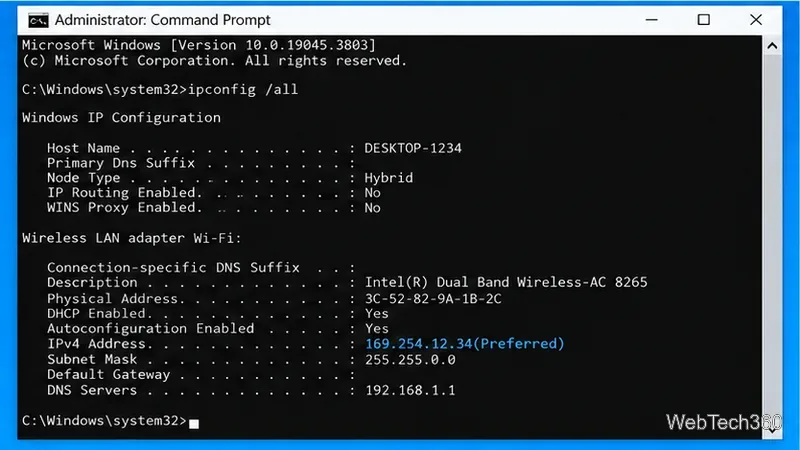
One useful clue is an IPv4 address beginning with 169.254. Microsoft says an address in the 169.254.x.x range can indicate that Windows could not obtain an IP address from the router. If other phones or computers also cannot get online, troubleshoot the router or ISP first. If only this PC is affected, work through the fixes below.
Restart Windows first. Then restart the modem and router using the manufacturer’s normal power procedure. Microsoft’s guidance recommends disconnecting power, waiting about 30 seconds, restoring the modem first, and then powering the router back on. Everyone using that network will temporarily lose connectivity.
When the router is ready, reconnect the PC. If the router exposes separate 2.4 GHz and 5 GHz network names, try the other band as a quick test. Microsoft lists both router restart and switching bands among its official Wi-Fi troubleshooting steps.
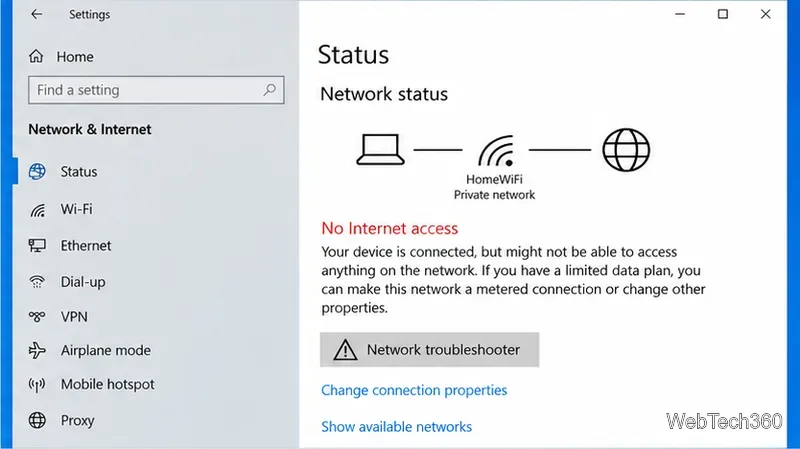
This is worth trying before manual changes because it checks common adapter and configuration problems without requiring you to guess network values.
For most home and office Wi-Fi networks, Windows should receive its IP address, gateway, and DNS information automatically. Microsoft recommends DHCP unless your network administrator has supplied a specific static configuration.
You can verify the current configuration by opening Command Prompt and running ipconfig /all. Microsoft documents DHCP and manual addressing in Essential Network Settings and Tasks in Windows.
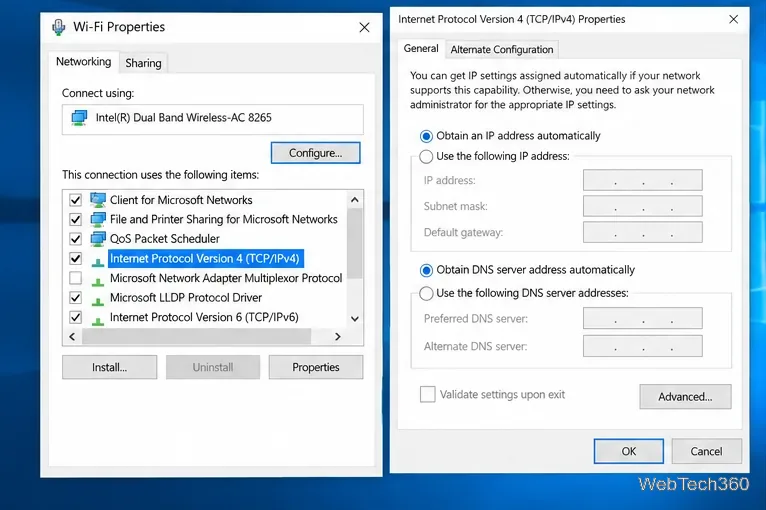
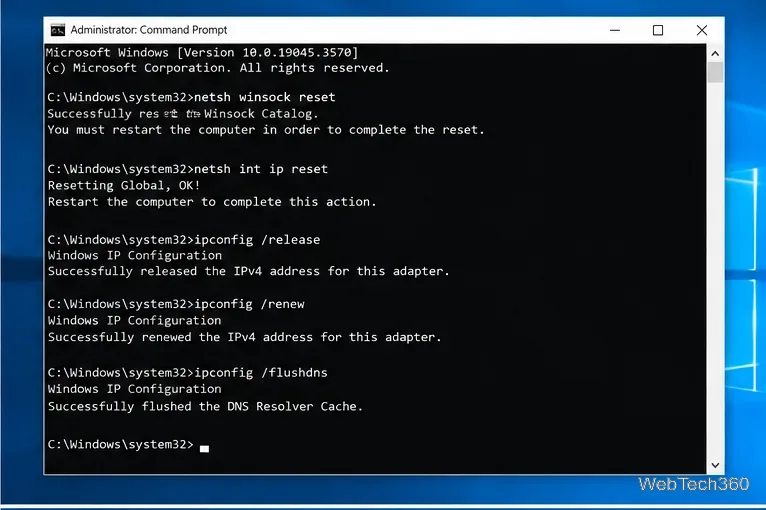
Open Command Prompt as administrator, then run these commands in order:
netsh winsock reset
netsh int ip reset
ipconfig /release
ipconfig /renew
ipconfig /flushdns
Restart the PC afterward. The release and renew commands discard the current DHCP configuration and request a new lease; Microsoft’s ipconfig documentation describes those functions in detail.
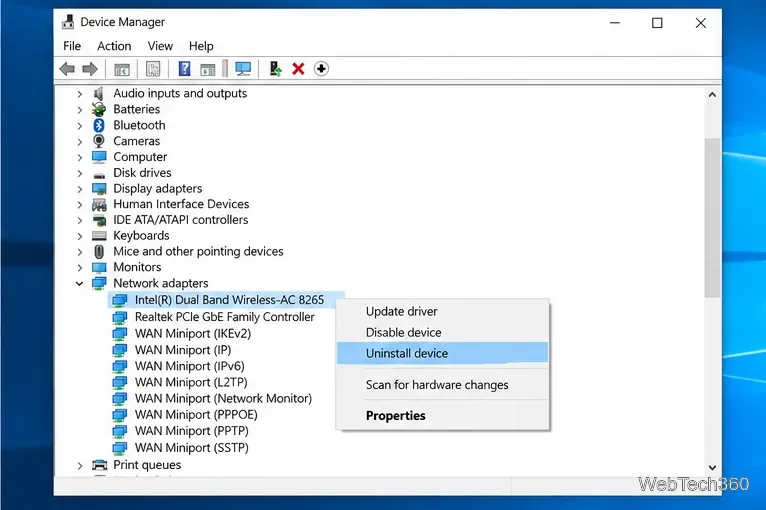
If the problem began after an update or driver change, reinstalling the adapter can help. Before removing it, download the latest Wi-Fi driver from your PC manufacturer if possible, especially if you do not have another way to get online.
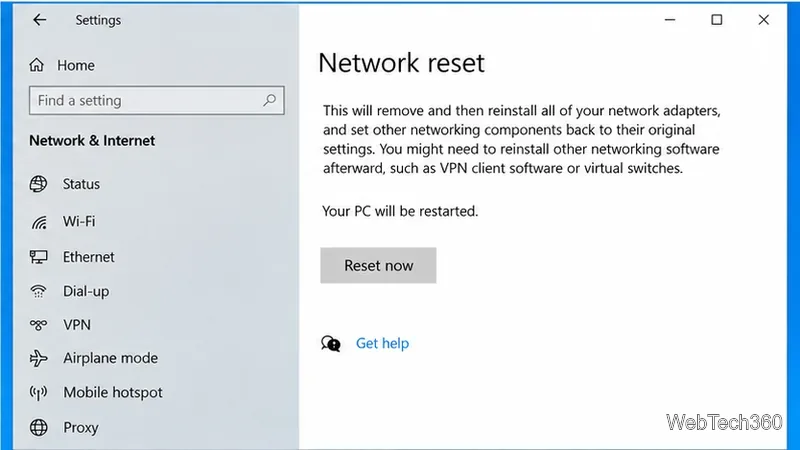
If the earlier fixes do not work, go to Settings > Network & Internet > Status > Network reset, select Reset now, and confirm. Windows removes and reinstalls network adapters and returns networking components to their default settings.
Microsoft recommends Network reset as a last step because you may need to reconfigure VPN software or virtual switches afterward, and known networks may return with a public network profile.
Do not copy an existing address and randomly change its last number. That can create an address conflict or use the wrong gateway or subnet. Only enter a manual IP configuration when your router documentation, ISP, or network administrator provides the correct values.
Windows 10 itself reached end of support on October 14, 2025. The operating system still runs, but Microsoft recommends moving to a supported version of Windows or using an applicable support option; see Microsoft’s Windows 10 end-of-support guidance.
Prepare Java or Bedrock on Windows 10 for offline single-player, enable the right Xbox setting, and back up your local Minecraft worlds.
Change a file type icon in Windows 10 while keeping its current default app. Follow the FileTypesMan steps, handle icon picker issues, and restore the original setting.
Set PhysX in NVIDIA Control Panel on Windows 10, understand Auto-select vs. CPU or GPU, and learn when to use Windows Graphics settings instead.
Compare six free office suites for documents, spreadsheets, and presentations, including browser-based collaboration and offline desktop options.
Turn on Notepad’s Status Bar to see the current line and column in Windows 10, troubleshoot a disabled option, and learn when you need a line-number gutter.
Display a custom Windows dialog with a short PowerShell command, Command Prompt, or a reusable .bat or .ps1 file, including a title, icon, and buttons.
Fix Windows 10 update error 0x80071160 with Microsoft’s troubleshooter, a safe update-cache reset, DISM and SFC repairs, and a careful manual-install check.
Create a Windows 10 UEFI installer with Microsoft’s Media Creation Tool or Rufus, then boot and install safely without wiping the wrong drive.
Stop individual Edge tabs from crowding the Windows 10 Alt+Tab switcher. Change one Multitasking setting, limit recent tabs, and check why the option may be missing.
Enable Adobe’s PDF thumbnail handler, correct File Explorer’s icon settings, rebuild the thumbnail cache, and check OneDrive files that are not stored locally.








